
Business requirement
Sometimes, we need to trace the relation between the items. For example, to trace from an item which kind of other items we can use as alternatives:

Solution Architect
The related product functionality is purely for statistical purposes. The relation should be inserted manually, and there isn’t a function to deduce the relation automatically. In the example upper exposed, we cannot deduct automatically set that E and D as the children of A, also if, logically we can deduce it because there are the children of B, and this one is the children of A. If we want a direct relation between A, B, and E: we need to set it manually.
D365FO solution
Configuration
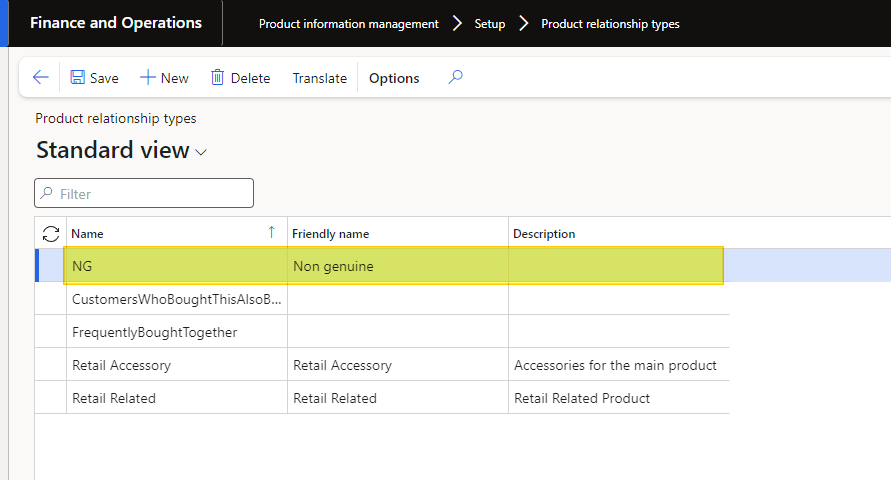
Go to: Product information management> Setup> Product relationship types.
Here, create the relationship name between the product.
Process
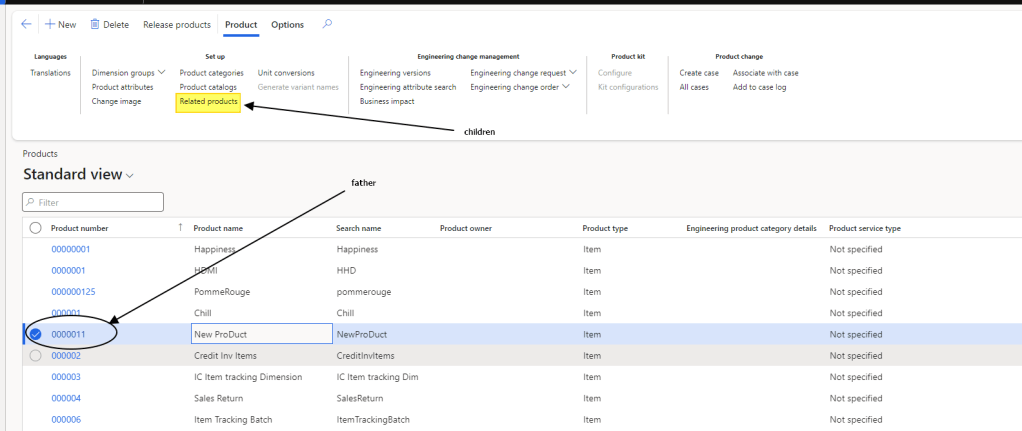
Go to: Product information management> Products> Products.
The relation is set on the product level. Select a product; this one will be the father of your relationship. Then press the button “Releted product” to inset the children’s product:
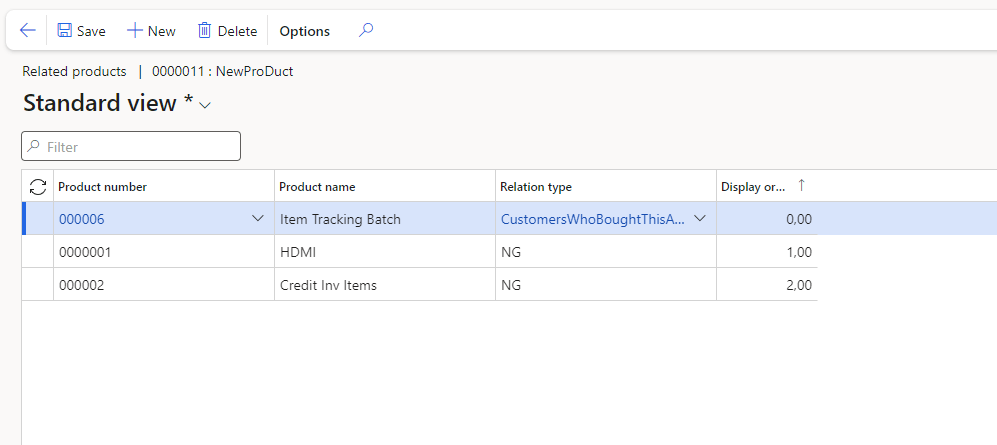
Insert the relation between the two products and insert the children’s relation. If you want, you can also insert the display order value that you want to see the relation. Furthermore, we can set multiple types of relation under the father items:

 Dax365FO
Leave a comment