
Business requirement
The batch task is a sequence of batches we want to launch parallel or sequentially instead of a trigger run separately. That is because a separate trigger doesn’t run when the previous one is finished and exposes us to the risk that the next batch runs too soon.
MD365FO solution
The solution can be set for the standard but also for the customer batch. In this last case, ensure with your developer that the new batch is created in order to get as available the class name (estend sysoperation framework).
Configuration
First, set and launch the first batch of your sequence. In my example, the generating of a PDF.
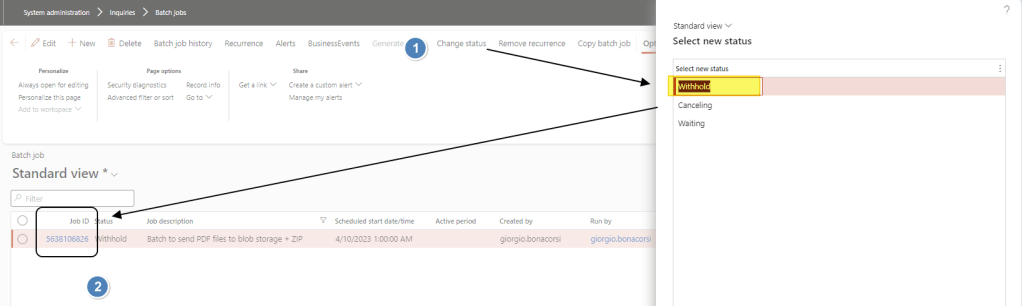
Then go to: System Administration> Inquiries> Batch job. Here, select your batch, change the status to “Withhold” and click on the “”Job Id”.
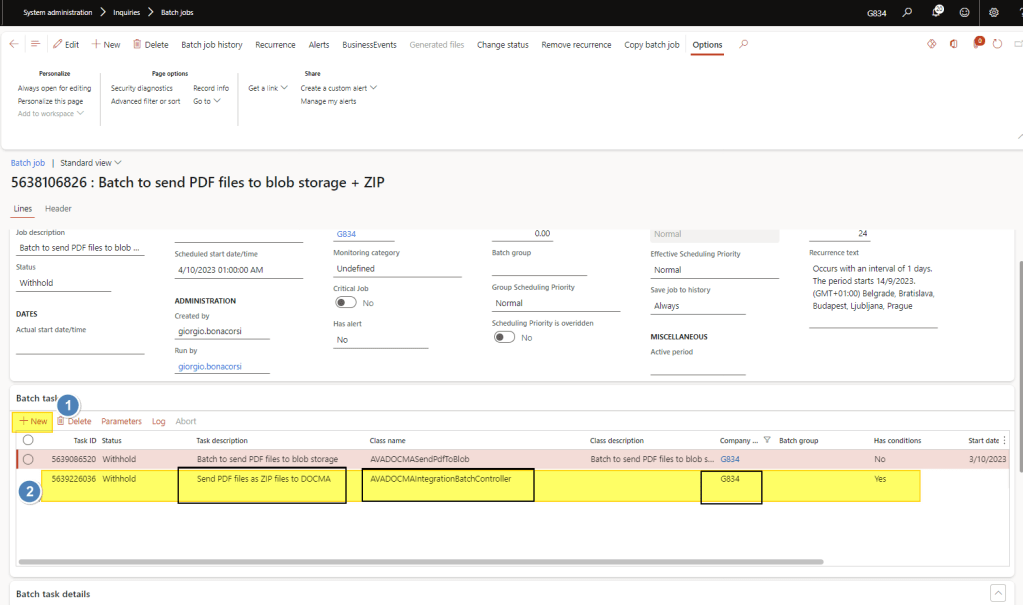
You find under b”batch tasks” all the tasks contained in this batch. Press “new” and insert your next batch information (description, class, and legal entity). In y example is the generation of a ZIP file.
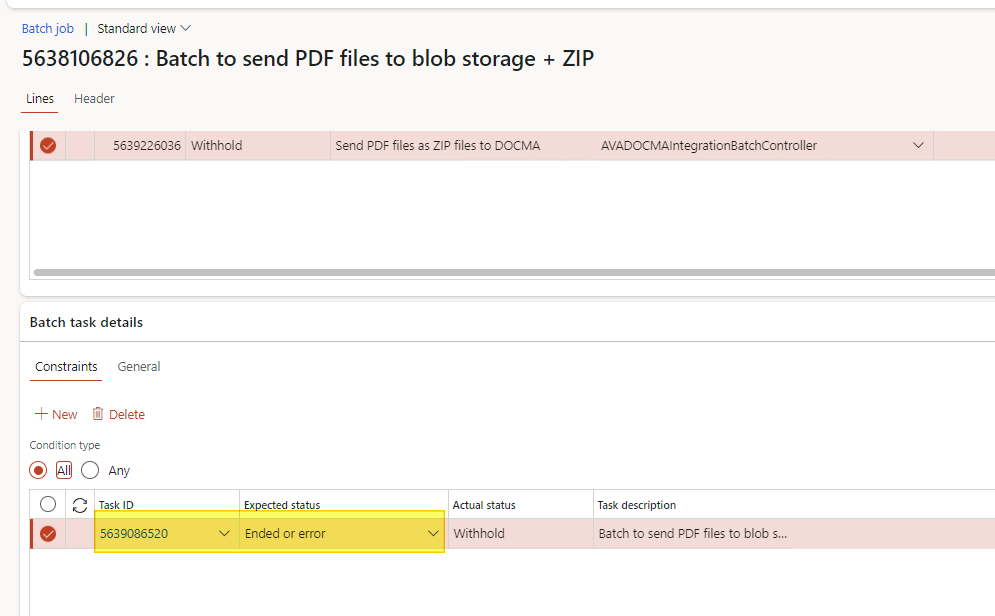
Lastly, on the next tasks, you can decide when to trigger it. Select the new task and go to the “tasks details”. Here, you can add the condition for the triggering:
- Task ID: The task (batch father)
- Expected status: Trigger when the task father is “end”, “error” or “and or error” (i suggest the last one)
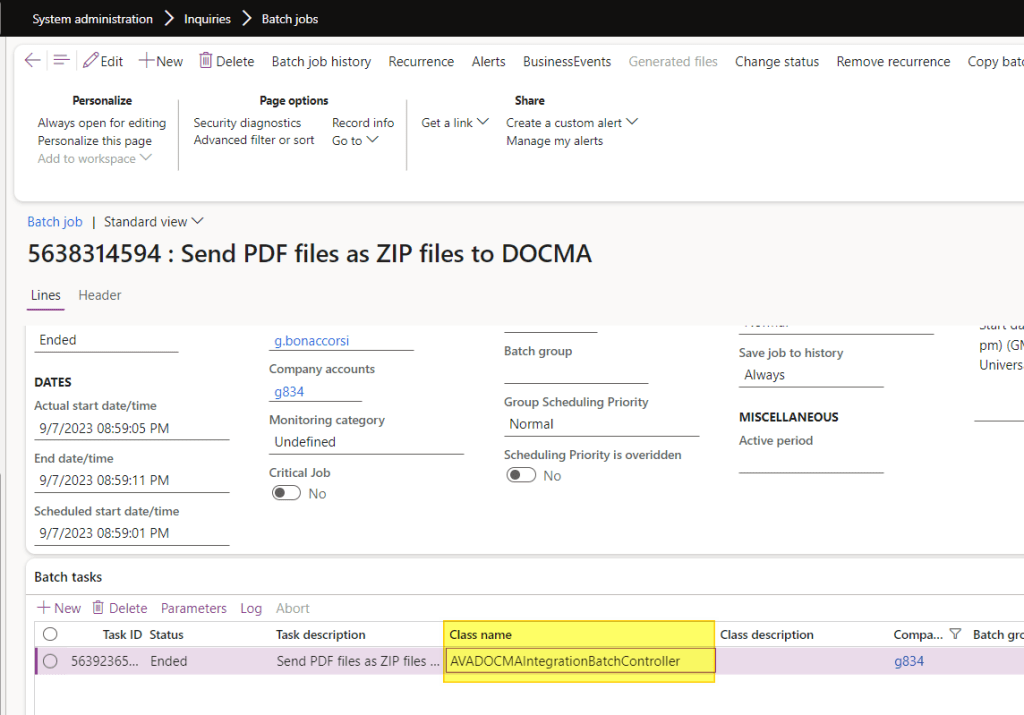
Tips: if you don’t know the name of your class batch, you can launch it and recover from the filed “class name”

 Dax365FO
Leave a comment