
This article is part of the topic of the landing module. For a better overview, you can see the parent article at this link: https://daxmsdynamics365.wordpress.com/2023/12/21/landed-cost-application-overview/
Business requirements
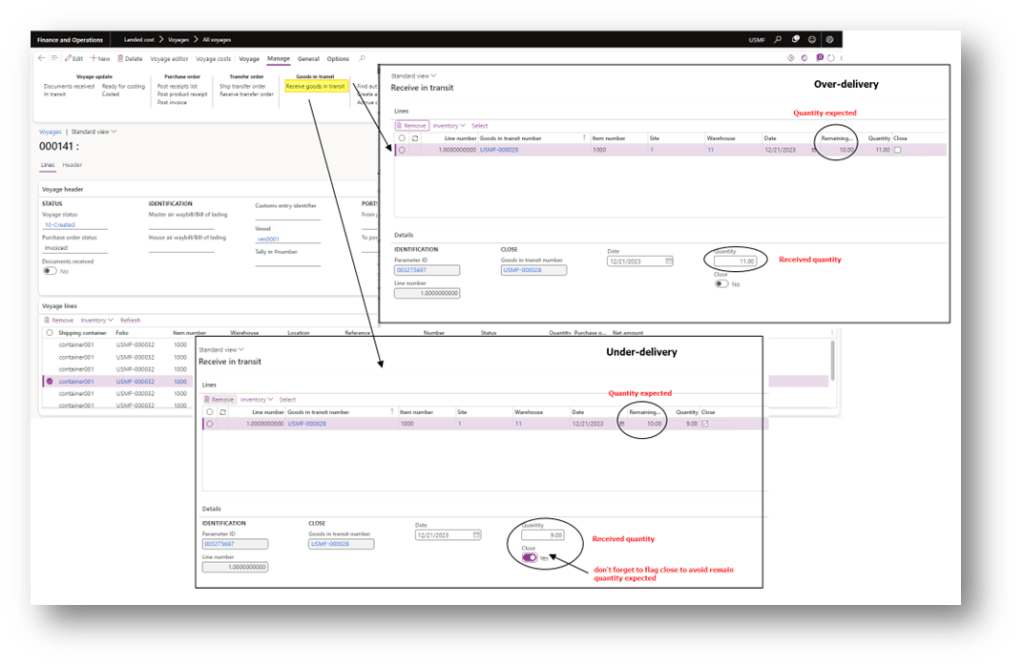
It can happen in practice that we need to record as quantity receipt a different quantity from the good in transit. So, we expect to receive 10, but we can have an over-delivery (11) or an under-delivery (9).
D365FO solution
Brutally, the solution is to insert a record with the delta quantity as inventory movement or a new purchase order. However, we recommend never performing that manually and directly because:
- you lost the tracking information about the link between the original goods in transit and the new delta transactions.
- there is a risk of manual data entry errors.
We can request D365FO to create that transaction for us. Previously, we needed to insert the tolerance rules over/under tolerance quantity criteria. Then, during the process, D365FO will evaluate if the delta quantities are included in the tolerance and return the new transaction as:
- Movement journal: the delta is included in the over/under delivery criteria. So, the delta is considered automatically approved, and the system proposes an inventory movement journal;
- Purchase order: We need to contact the vendor to understand how to handle the delta invoice
In terms of the financial aspect, the cost is applied in the same patch of a regular new inventory moment journal or purchase order. So, the system follows the same costing model.
Configuration
Over/under tolerances criteria
Go to: Landed cost> Over/under setup> Over/under tolerances.
We can set your tolerance policy criteria based on these criteria:
- Vendor: how to define the vendor to whom to apply the tolerance
- Table: specify the vendor
- Group: specify the vendor over/under tolerance groups
- All: All the vendor
- Items: how to define the items there to apply the tolerance:
- Table: specify the item
- Group: specify the item over/under tolerance groups
- All: All the vendor
About the tolerance we should choose:
- Amount tolerance: The total purchase order amount difference to tolerate.
- Percentage tolerance: The purchase line difference amounts to percentages to tolerate.
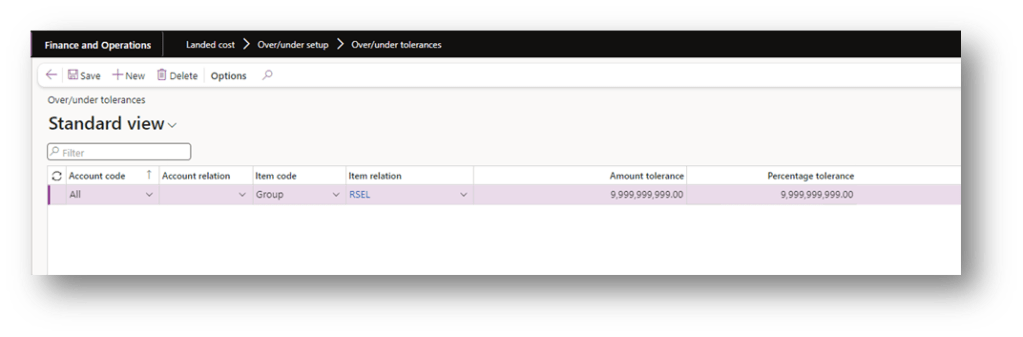
Generally speaking, in D365FO, when there is a conflict between the rules, D365FO will apply the more specific rule. Example: if you have these two rules:
- Apply all vendor amount tolerance for 1000 dollars;
- Apply just the vendor Brembo the tolerance for 1200 dollars;
When we perform a purchase order with Brembo, D365Fo will apply a tolerance criteria of 1200 dollars.
Vendor over/under tolerance groups
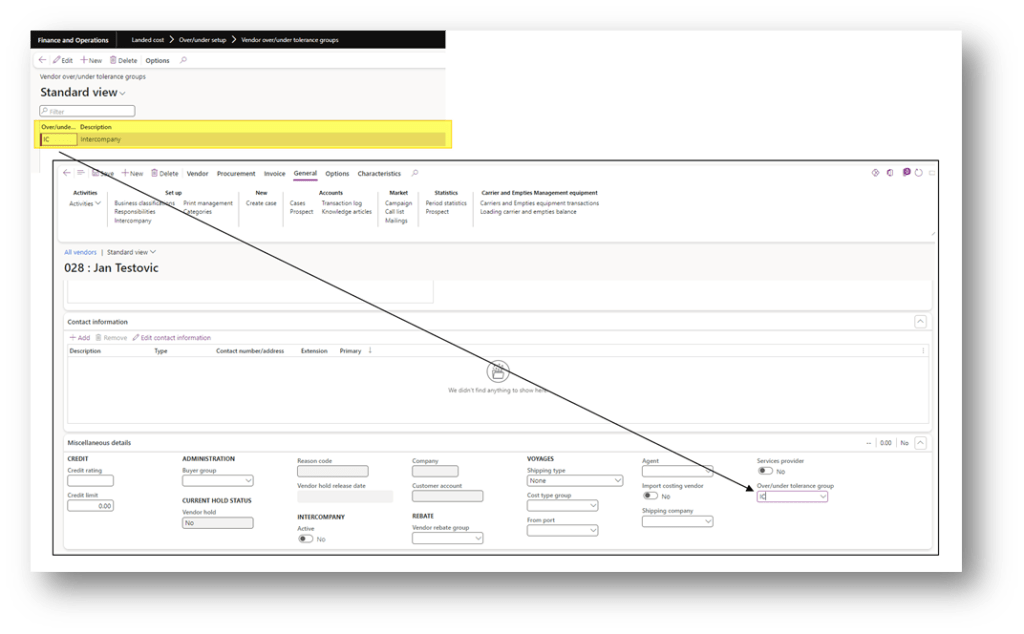
If you decide to base your criteria on the vendor group, you can set it here: Landed cost> Over/under setup> Vendor over/under tolerance groups.
Then go to the vendor master data and allocate the correct value before performing the product receipt:
Item over/under tolerance groups
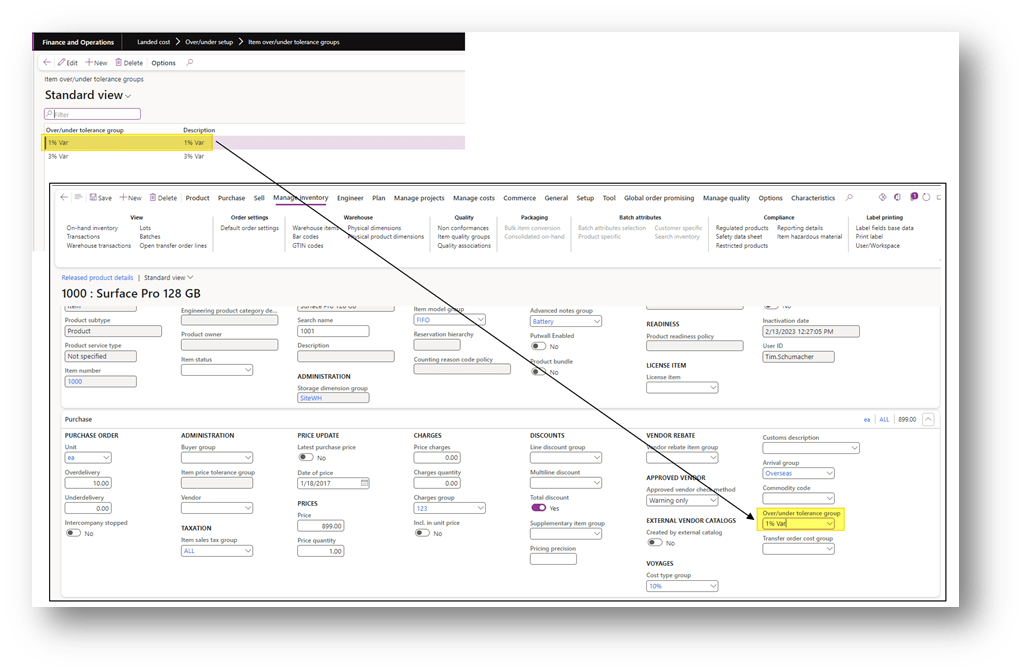
If you decide to base your criteria on the vendor group, you can set it here: Landed cost> Over/under setup> Item over/under tolerance groups.
Then go to the item master data and allocate the correct value before performing the product receipt:
Business process
The process contains two activities:
- Record the product receipt: posting with the correct quantity;
- See the under/over delivery: See the new delta transaction
Record the product receipt
Post, as usual, the product receipt, but insert the correct quantity receipt. Below are some examples of over and under-delivery without the WMS feature (for the advanced warehouse, you will find a specific article):
Record the product receipt
Go to: Landed cost> Inquiries> Over/under transactions
Here you can see the new transaction linked with the original:
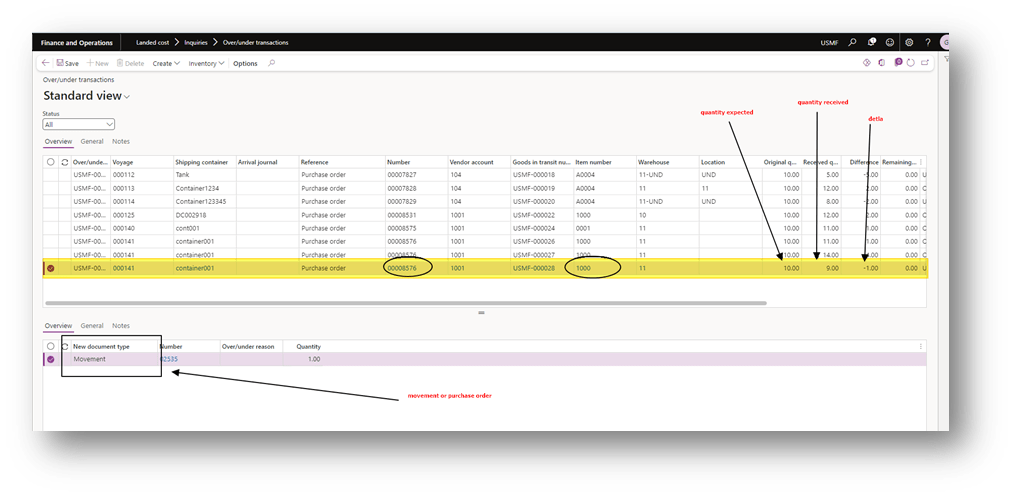
Complete the movement or PO transaction to record the product receipt and, eventually, the posting of the PO invoice or credit note.


 Dax365FO
Leave a comment