
This article explains how to issue frequent free text invoices using the recurring free text invoice functionality. From an architectural standpoint, this approach is an alternative to the Subscription module, designed for simpler business cases where a full subscription setup may be unnecessary.
The recurring free text invoice feature allows users to define an invoice template once and then reuse it on a scheduled basis. Each time the cycle repeats, the system generates the invoice with the predefined structure, ensuring efficiency and consistency in billing without the overhead of subscription management.
Configuration
Free text invoice templates
Go to: Accounts receivable> Invoices> Recurring invoices> Free text invoice templates. From here, you can create the template for our invoice. The data are pull in like a regular invoice on the header and line level:
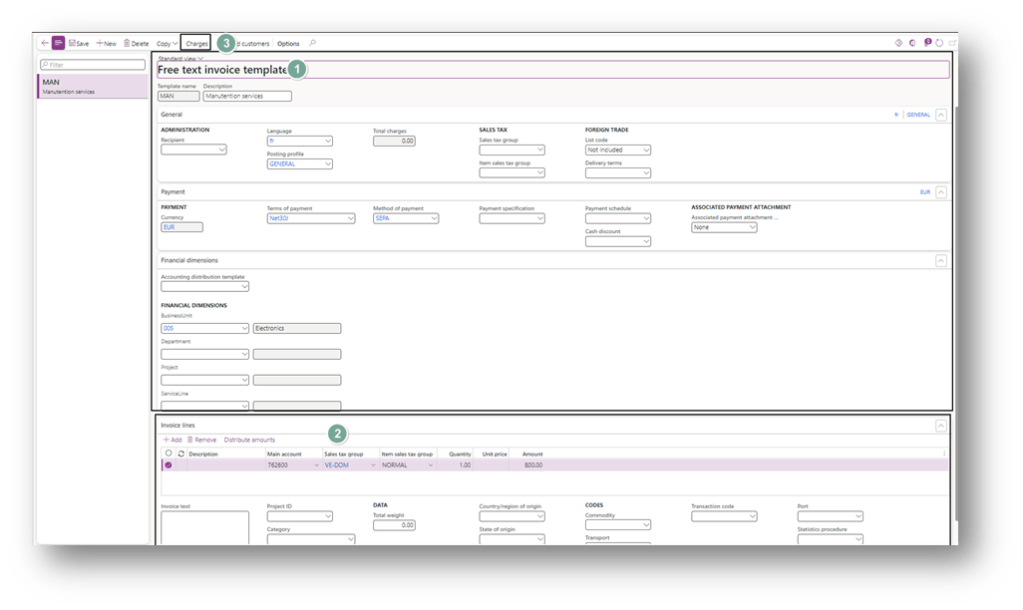
Further on, we will see that during the generation, we can decide if the invoice will inherit the information from the customer master data or the template.
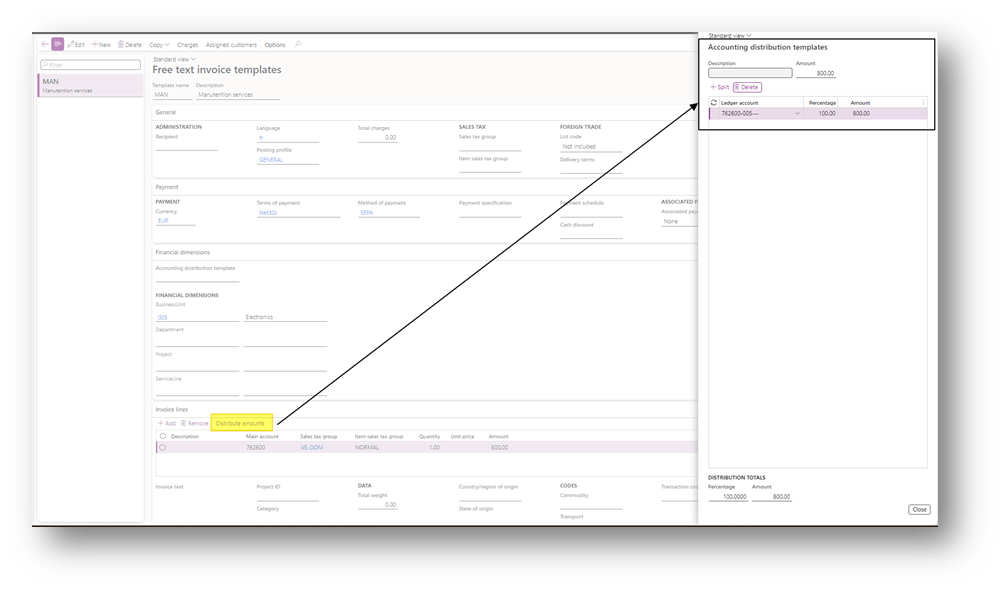
Concerning the template, we can also allocate the financial dimension on the line level using the functionality “Distribute amounts”:
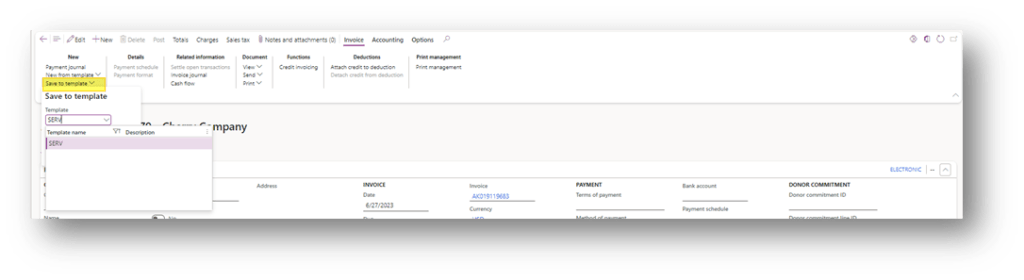
An alternative way to create a template is to go: Accounts receivable> Invoices> All free text invoices. Select the free text invoice, and from here save it as a template:
Customer assignment
Go: Accounts receivable> Customers> All customers.
Navigate to the Invoice tab and select Recurring invoices. Here, you define the recurrence parameters: the frequency of repetition, the maximum invoice amount, and whether the system should inherit data from the invoice template or directly from the customer master record.
Business processes
There are two alternative ways to generate the invoice:
- Manually: we manually selects the template when we are invoicing;
- Automatically: D365FO batch generates invoice based on our template;
Manual invoicing
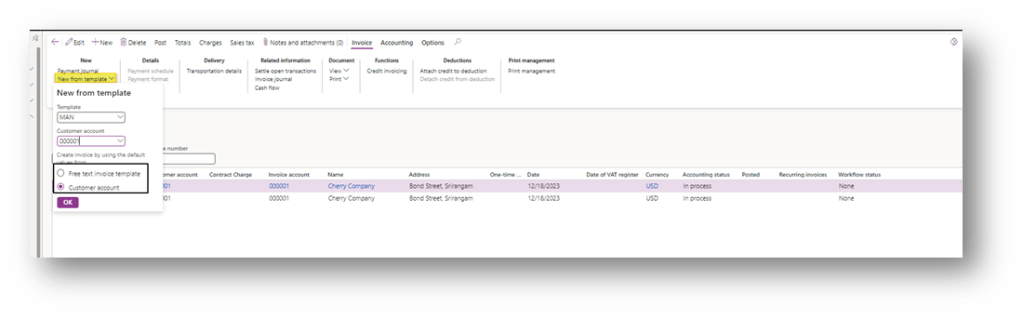
Go: Accounts receivable> Invoices> All free text invoices.
Before creating a free text invoice, select the appropriate invoice template and specify whether the header data should be inherited from the template or from the customer master record.
Automatic invoicing
There are two stages to follow:
- Generate invoice
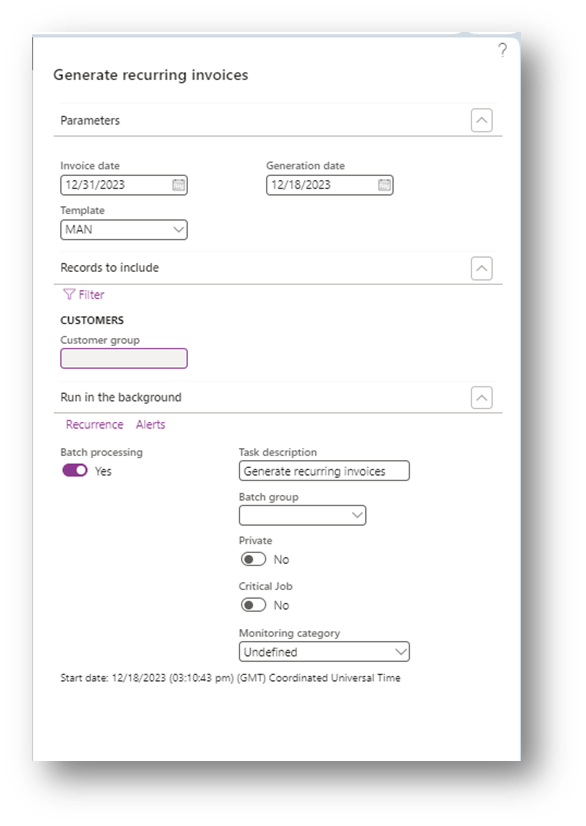
Go to Account receivable> Invoice> Recurring Invoice> Generate recurring invoice. We set from there the recuring invoice batch:
- Invoice date: Document date;
- Generation date: Date of calculation of recurring invoice;
- Template: Select your template;
- Record to include: Set eventually additional criteria;
- Batch processing: You can decide if to perform a spot execution or set an automatic reccurancing
2. Post invoice
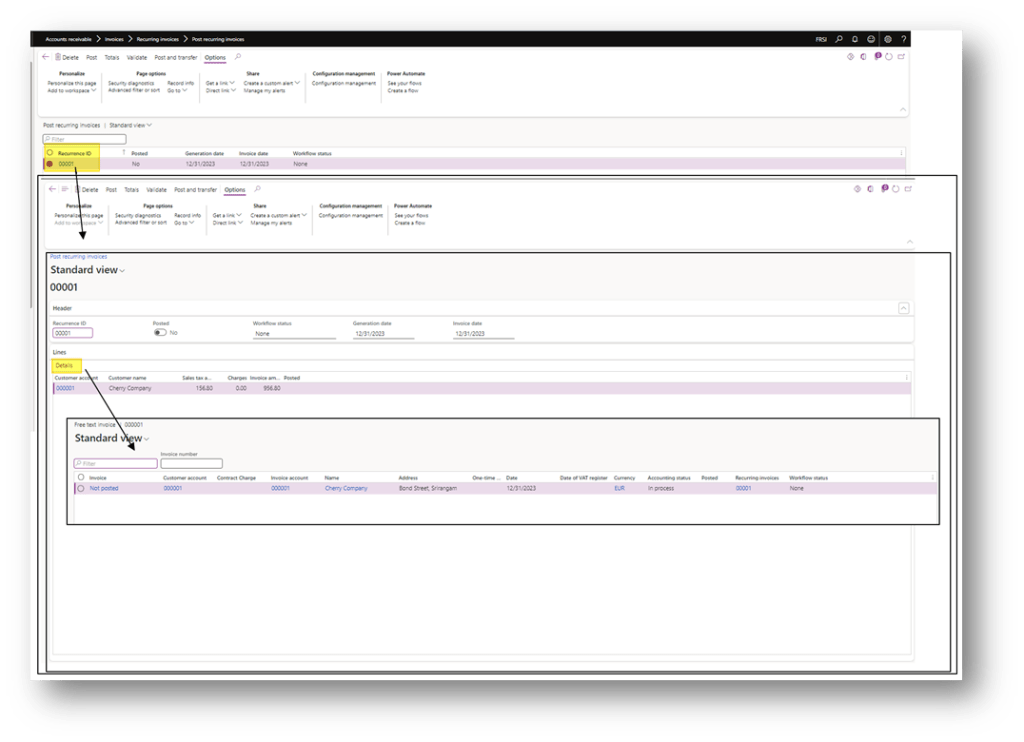
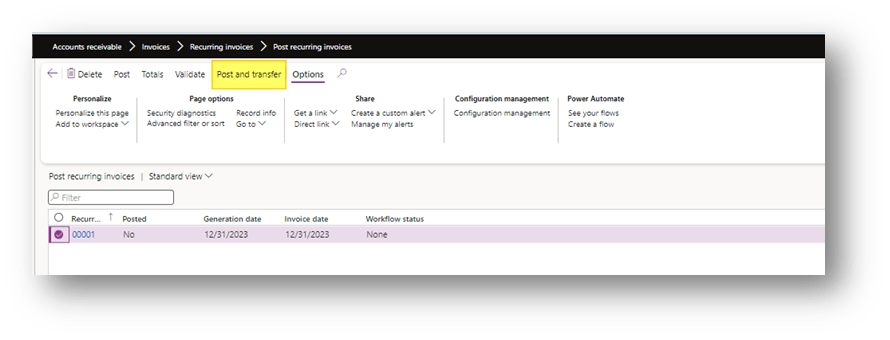
Go to: Accounts receivable> Invoices> Recurring invoices> Post recurring invoices. Select the invoice generated and go through the posting
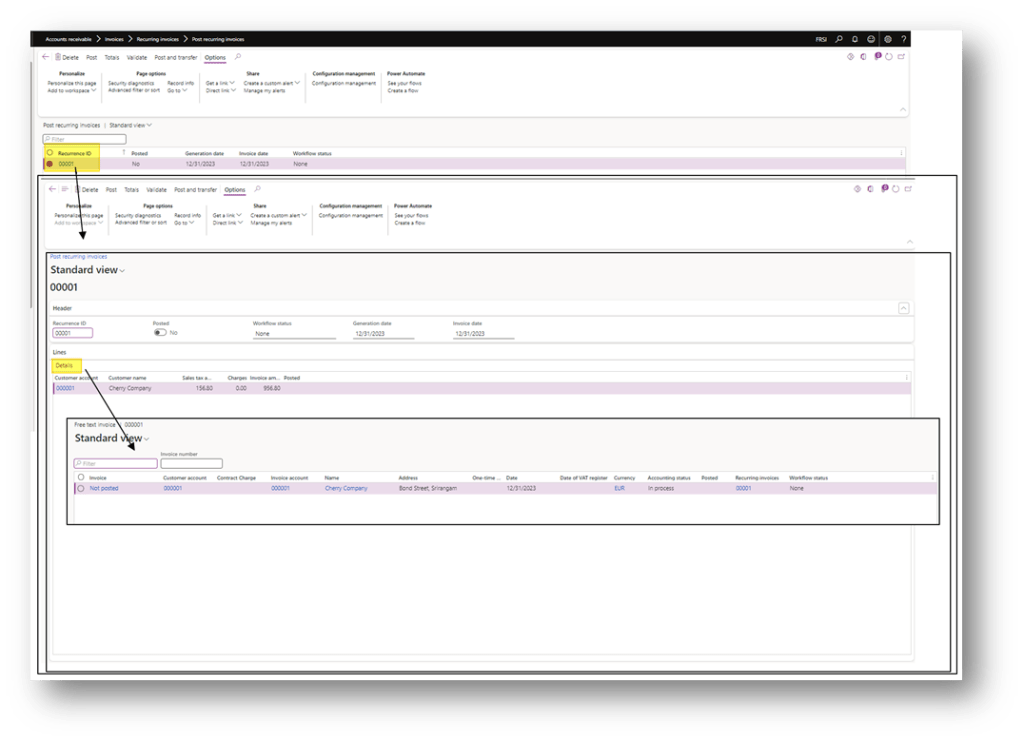
Before posting, you can review the document. By selecting Recurrence ID, the system displays an overview of all recurring free text invoices that have been created. Choose the relevant record and click Details to view additional information:

 Dax365FO
Leave a comment