
This article explains how to use the postdated check-in D365FO. The process to follow is
- Issue check: We closed the vendor invoice and moved the balance to the clearing account. After the posting, the vendor balance statement doesn’t contain the open transaction.
- Vendor payment: We effectively finalize the vendor’s payment at the maturity date. So, we write off the creating account and move the bank.
Below you can see the account matrix:
| Event | Main account | Debit | Credit |
| Issue check | Vendor | 1.200 $ | |
| Issue check | Clearing account | 1.200 $ | |
| Vendor payment | Clearing account | 1.200 $ | |
| Vendor payment | Bank | 1.200 $ |
Business process
1. Issue check
Go to: Accounts payable> Payments> Vendor payment journal.
Create your payment journal with the regular process. However, you need to pay attention to the following:
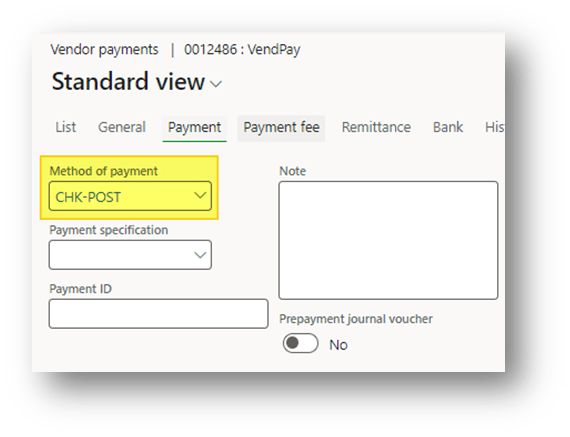
- Payment Method: Select the payment method dedicated to the postdated check
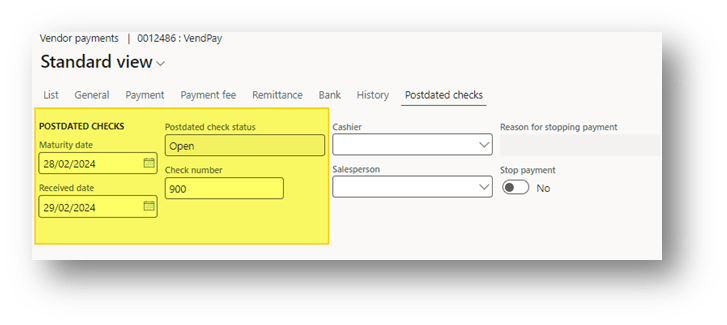
- Postdated checks: Insert at least these check’s information:
- Maturity date: when the check is settled;
- Received date: when we have given the check;
- Check number: the check number (we can also generate it as a regular check);
Finally, post the journal. As you can see, D365FO closed the customer and moved the clearing account:

2. Vendor payment
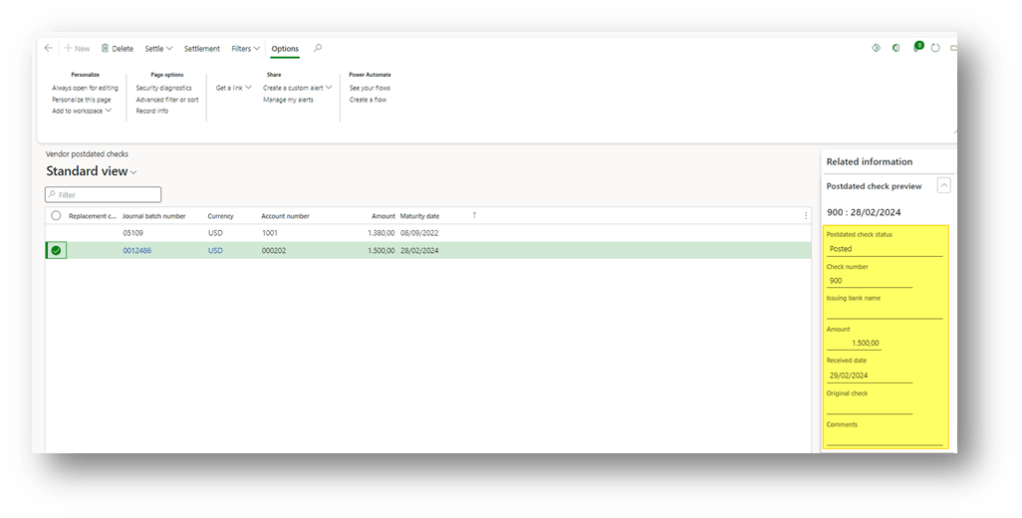
Go to: Accounts payable> Payments> Vendor postdated checks.
Here, you can see a dashboard with the details of the postdated. Pay attention on the status:
- Open: Vendor journal not yet posted;
- Posted: Vendor journal posted, but postdated check not yet maturated (we just record the clearing transaction);
- Paid: The check is matured (we effectively pay the vendor)
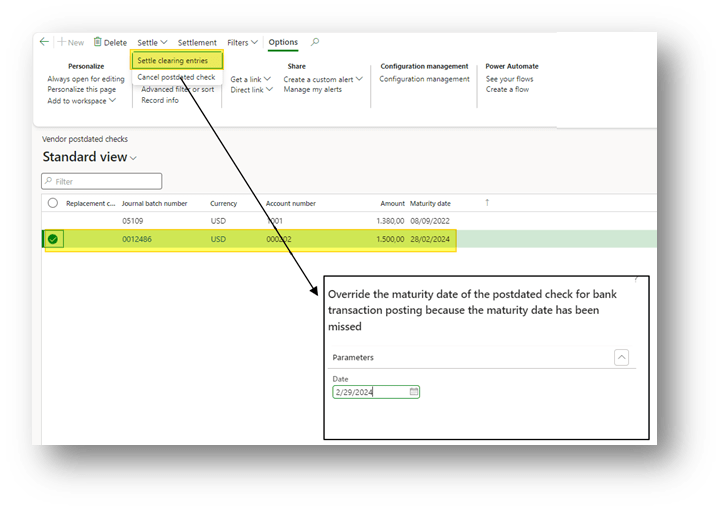
To complete the transaction, you should select the check and press “Settle clearing entries”. If you miss the maturation date, you can change it:
Furthermore, if you have some error with the session date, you can follow these indicatione to trouble shoot it: https://daxmsdynamics365.wordpress.com/2024/02/27/change-session-date-posting-date/
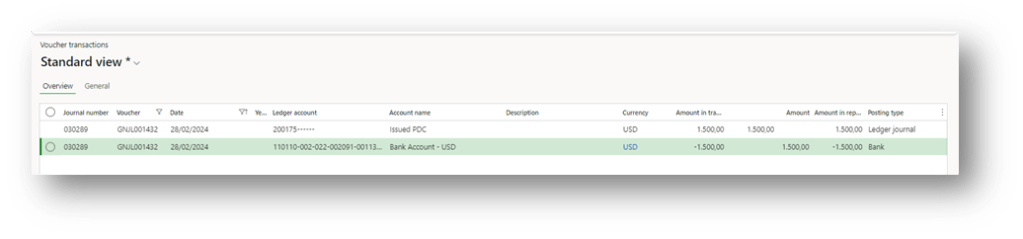
D365FO will post the effective payment through the bank account and write-off the clearing account:
Configuration
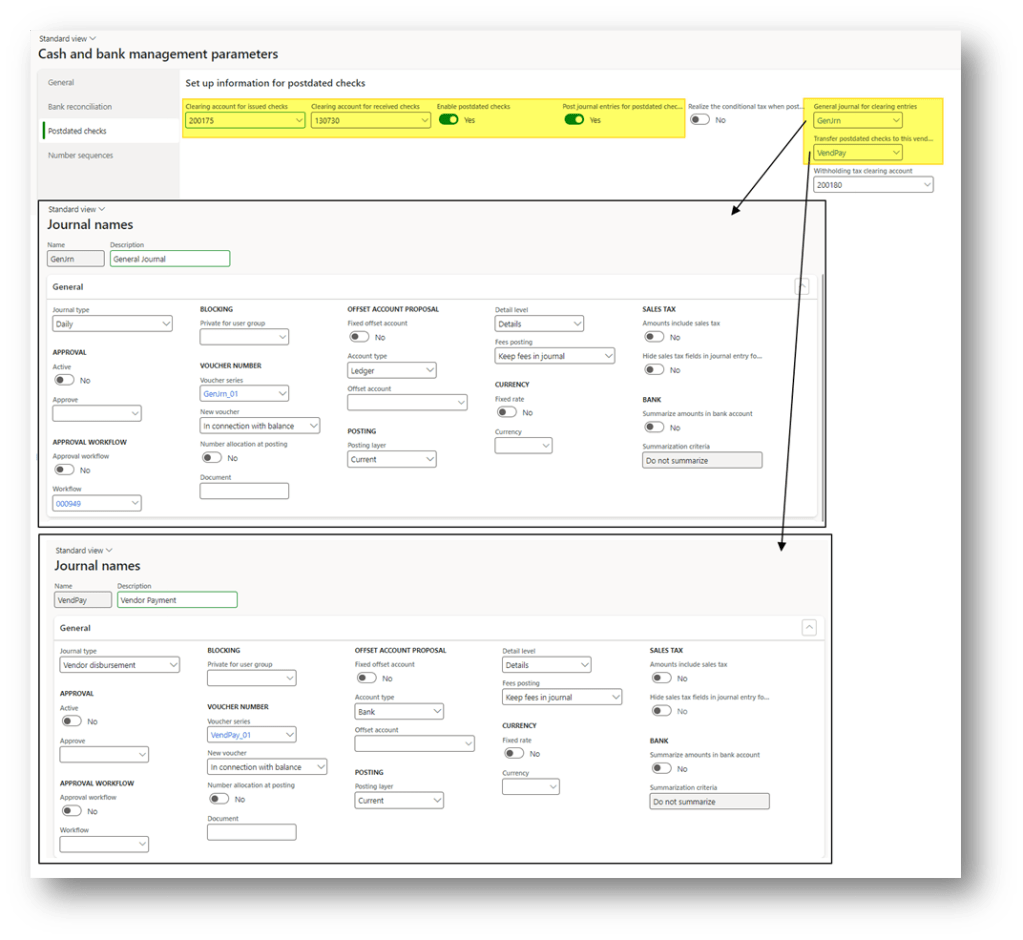
Cash and bank management parameters
Go to: Cash and bank management> Setup> Cash and bank management parameters.
- Clearing account for issue check: Insert the clearing account for the vendor
- Enable postdated check: Enable the possibility to use the postdated check;
- Post journal entry postdated check: Select a general journal;
- General account for clearing entries: Select the journal to use to issue vendor payment (see the upper account matrix)
- Transfer posted check for this vendor payment journal: Select the journal to use to issue check event (see the upper account matrix)
Methods of payment
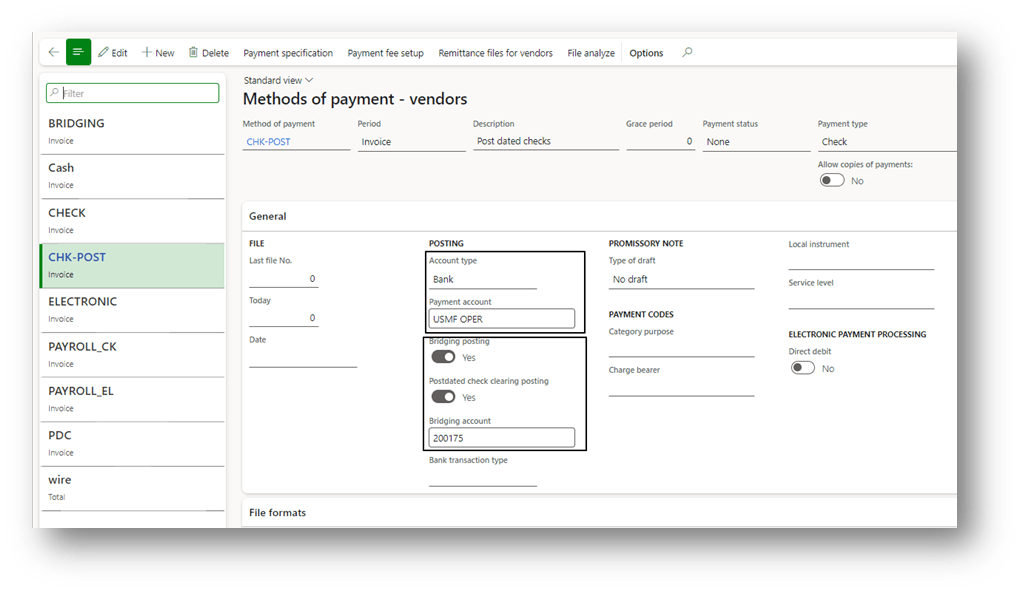
Go to: Accounts payable> Payment setup> Methods of payment.
Create a dedicate payment method for the postdated check and focus on:
- Select the flag “posting check clearing posting” to indicate that a method of payment is linked to a postdated check;
- Insert the bank account to use to back the vendor payment

 Dax365FO
Leave a comment