
The distribution is moving the budget plan from the child to the parent from a scenario targeting a specific scenario. Typically, it is used in zero budgeting when the department generated the budget from its own forecast. Then, those budget plans are moved to the consolidate budget, where the CFO reviews them and agrees with the department about the final value to insert.
There are two different kinds of distribution:
- Manual aggregation: Triggered manually by the k-users;
- Automatic aggregation: Triggered automatically by D365FO during the workflow process
Business actives
1. Manual distribution
Select our parent master plan. We can also click on “Budget plan hierarchy” to verify the relationship between the budget plan:
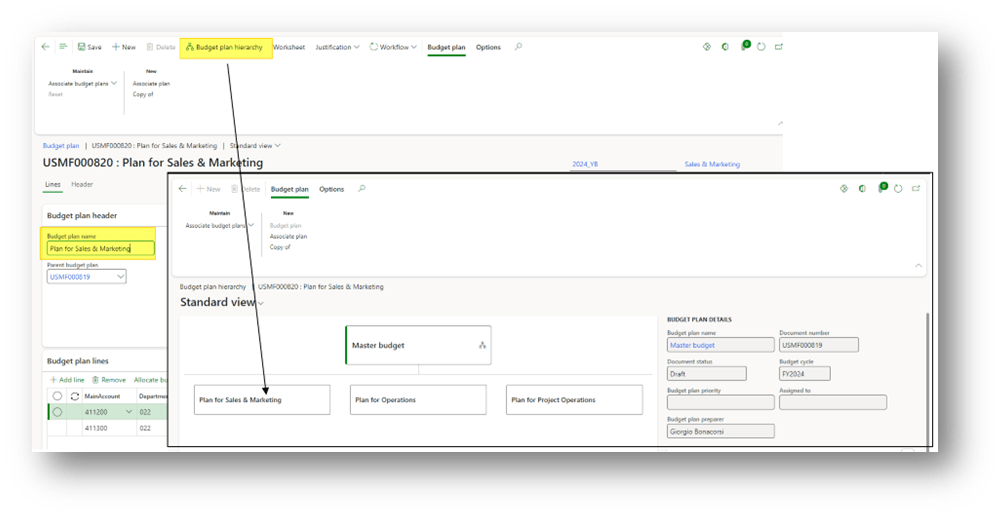
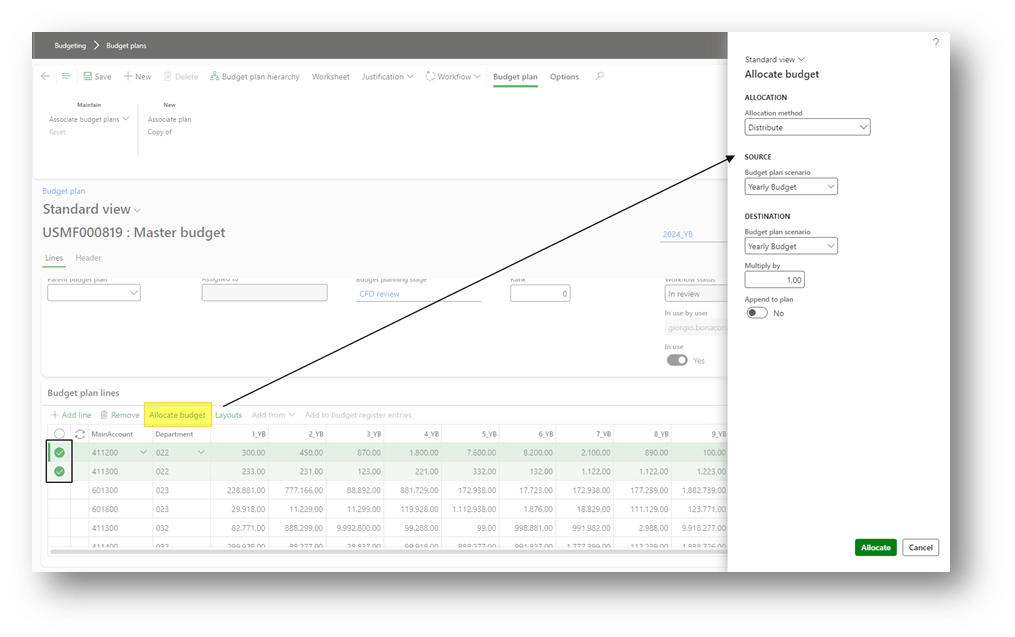
It’s not intuitive, but the aggregation process should be launched from the parent budget plan. D365FO will recover the budget information from the sub-budget. Click on “allocate budget” and select:
- Allocation method: Aggregation
- Source budget plan scenario: Columns collections here to recover the data from the child budget;
- Target budget plan scenario: Columns collections here to apply the data to the parent budget;
- Multiply by: whether we want to apply a particular multiple or let as value 1;
- Append Don’t select if we want to update the lines with the sub-budget info. Otherwise, select this flag to sum the child budget amount with the amount already present in the parent budget;
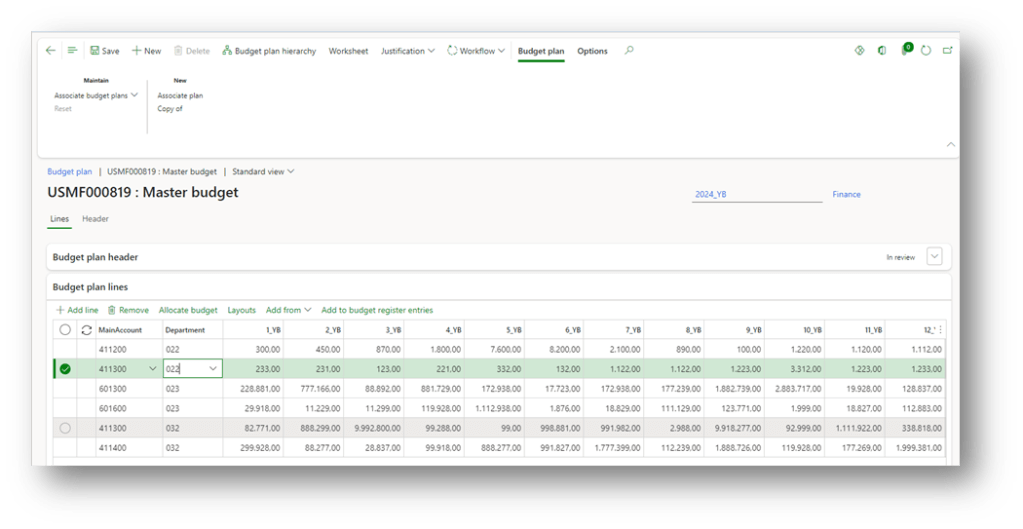
As we can see, at the end of the process, the parent budget line is present in the sub-budget:
2. Automatic distribution
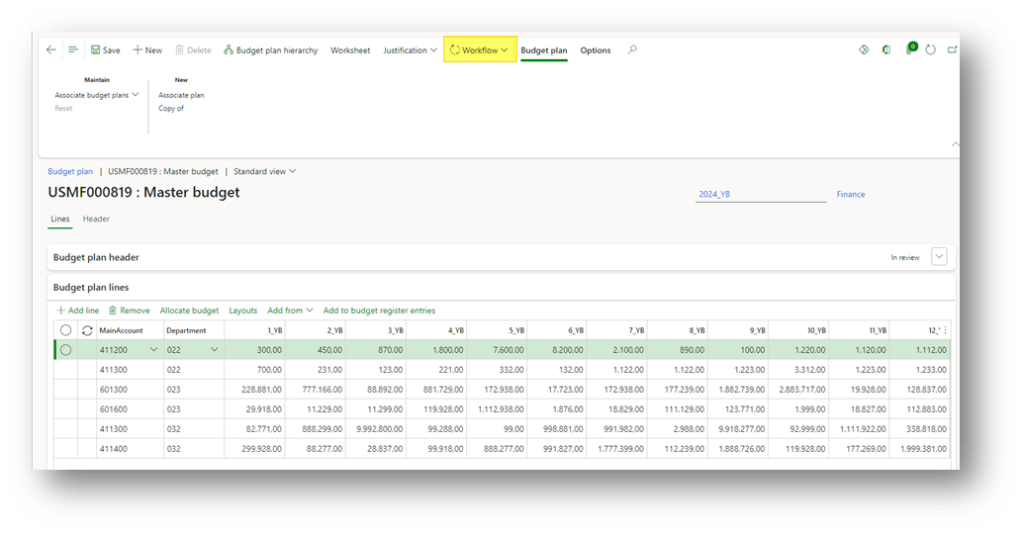
The aggregation is made automatically by D365FO when we launch the workflow on the budget parent. The process is the same as the manual function. In reality, it’s not so simple because it means the workflow structure constrains the distribution. For more information, go to see the configuration:
Configuration
Workflow
Go to: Budgeting> Setup> Budget planning> Budgeting workflows.
Create a workflow with the type “Budget plan workflows”, and use the element “Budget planning stage allocation”:
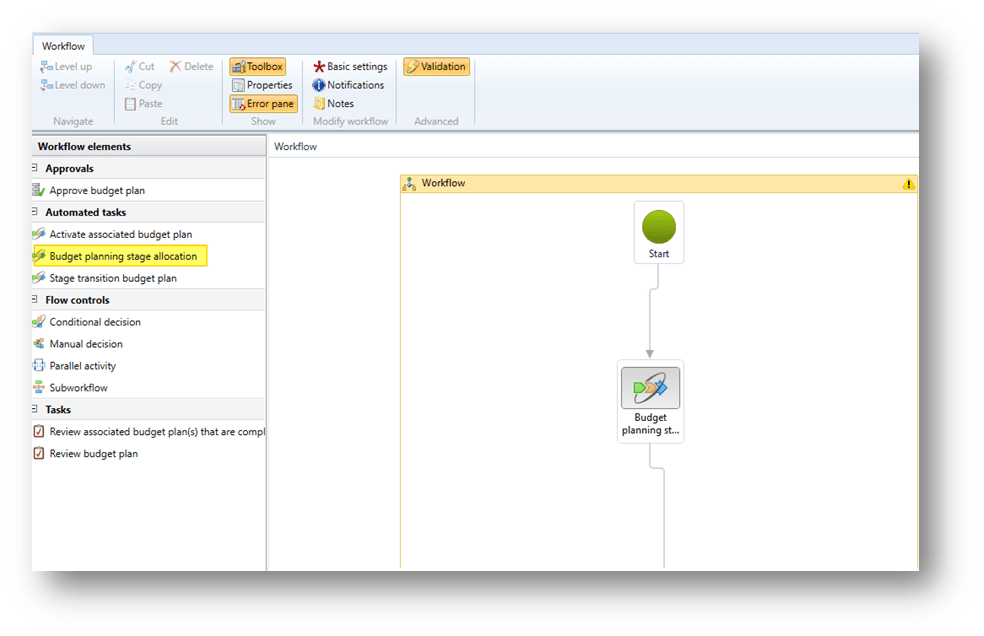
The system is going to trigger the “allocation schedule” based on the combination of “budgeting planning” + “stage” inserted as input in the stage allocations configuration:
Stage allocation
Go to: Budgeting> Setup> Budget planning> Budget planning configuration.
Insert for which combination of budget planning and stage, the allocation schedule to apply based and in which order:
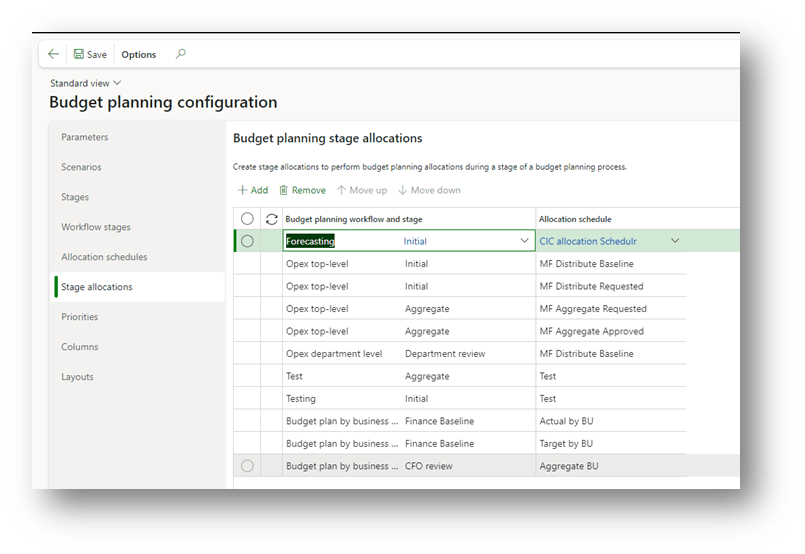
Allocation schedules
Go to: Budgeting> Setup> Budget planning> Budget planning configuration.
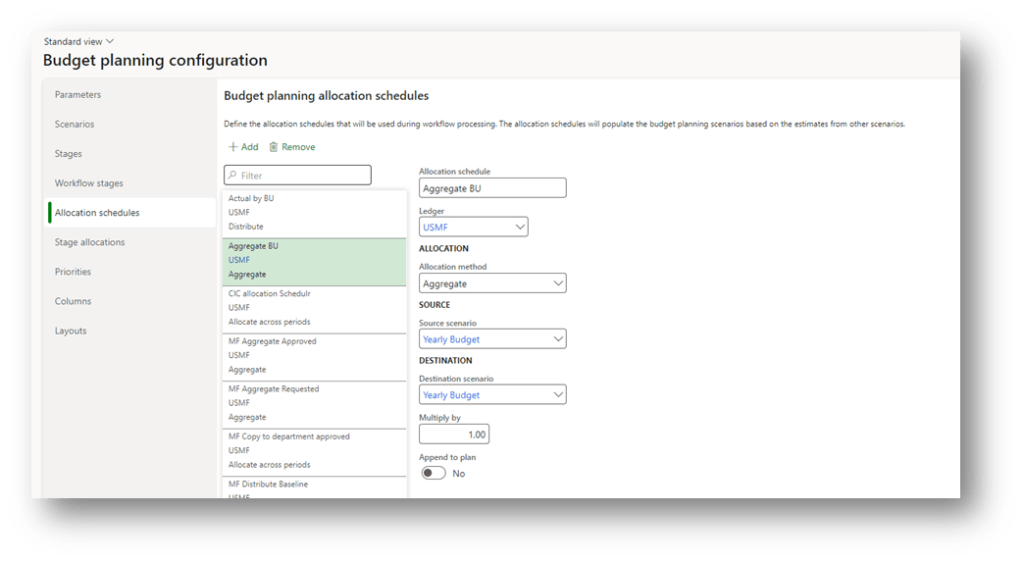
We are going to define our schedule rule. For the aggregation, the information to insert is as follows:
- Allocation schedule: Identifier name;
- Ledger The legal entity where we can apply the rule;
- Allocation method: Aggregate
- Source scenario: Columns collections here to recover the data from the child budget;
- Destination scenario: Columns collections here to apply the data to the parent budget;
- Multiply by: If we want to apply a particular multiple, let as value 1;
- Append to plan: Don’t select if we want to update the lines with the sub-budget info. Otherwise, select this flag to sum the child budget amount with the amount already present in the parent budget;

 Dax365FO
Leave a comment