
How to create a budget planning from the forecast positions
The forecast position is related to human resource management. We can create a cost forecast for the position in the future period. This kind of forecast is disconnected from the compensation business process and configuration. So, we can run the compensation management in a third system. In D365FO, we are going to insert an amount approximation of the cost element we would like to tack on in the future.
The activities for planning to create the original budget are:
- Create the budget cost elements
- Insert the forecast position;
- Generation of the original position budget
Create the budget cost elements
Go to: Budgeting> Setup> Budgeting planning> Budget cost elements.
There are two kinds of cost elements:
- Direct: we assign directly the amount that we want to allocate (ex. Salary of 35.000 euro per year)
- Indirect: it’s a percentage base to other cost elements ( ex. Bonus is 5% of the salary)
Direct cost element
Insert at least these data:
- Budget cost element: the ID of our cost element;
- Budget cost type: Choose what type of element is for the resource:
- Earning: principal source of earning;
- Benefit: extra benefit;
- Tax: tax to pay/retain
- Other: Other type of element
- Forecast position override: allow editing of the cost in the forecast;
- Allocation method: Allocation time method (from start date, monthly, quarterly, weekly or biweekly)
- Cost calculation: the calculation to perform for each legal entity:
- Legal entity: legal entity concerned;
- Effective: Start date
- Expiration: Dato of expiration;
- Main account: Main account involved;
- Annual amount: estimate amount;
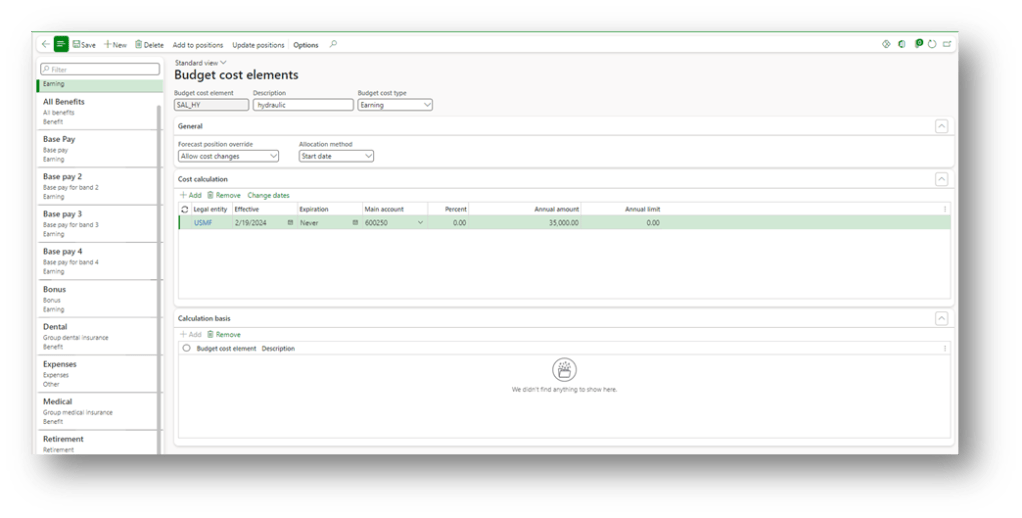
Indirect cost element
Create a cost element in the same way the direct elements are used. The differences are:
- Cost calculation: the calculation to perform for each legal entity:
- Percent: estimate amount;
- Annual limit: we can insert the maximum threshold for the annual cost calculation
- Calculate basis: Insert the other cost element to sum to have the basis
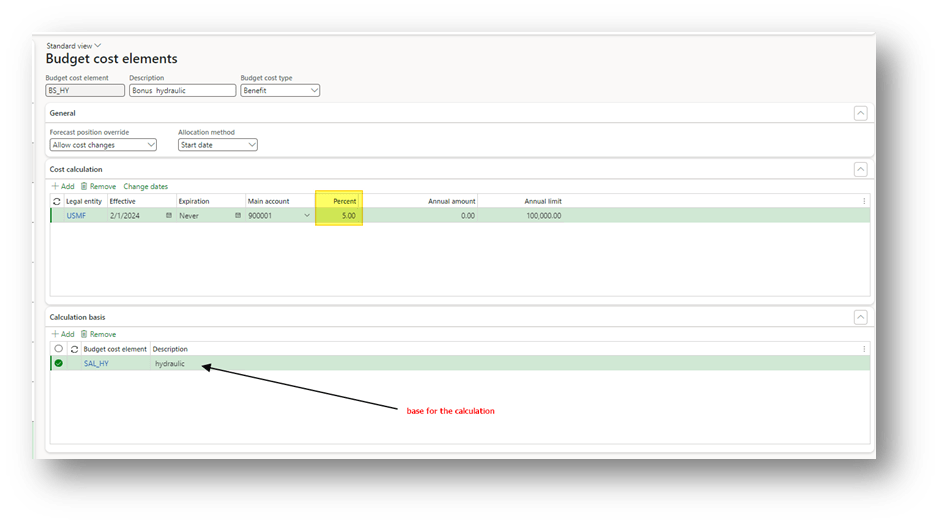
Insert the forecast position
Go to: Budgeting> Forecast positions.
It’s necessary to add the position inside the budgeting planning process and scenario that we would like to consider: Click on “add existing position”, select the position, the budgeting planning process, the scenario concern and the budget cost element:
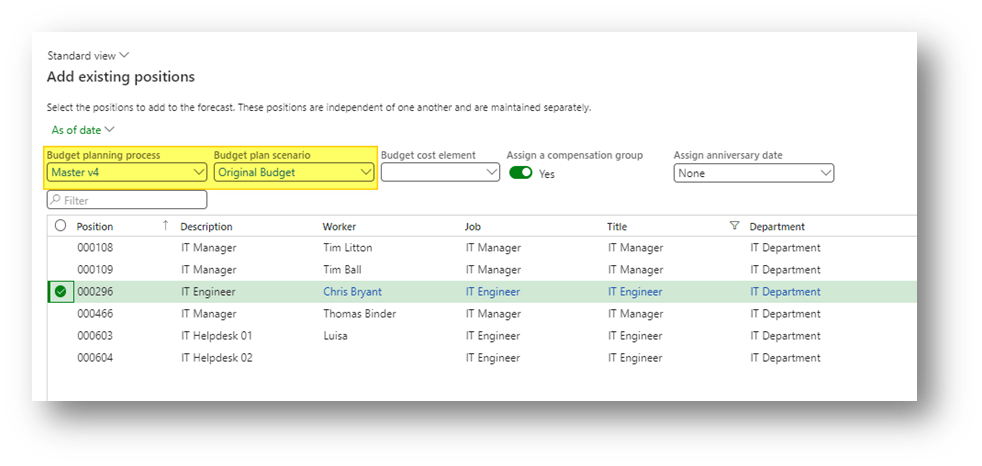
In the forecast position, we can see the details of the total amount forecasted for the period concerned. We can decide to modify it based on the position necessity:
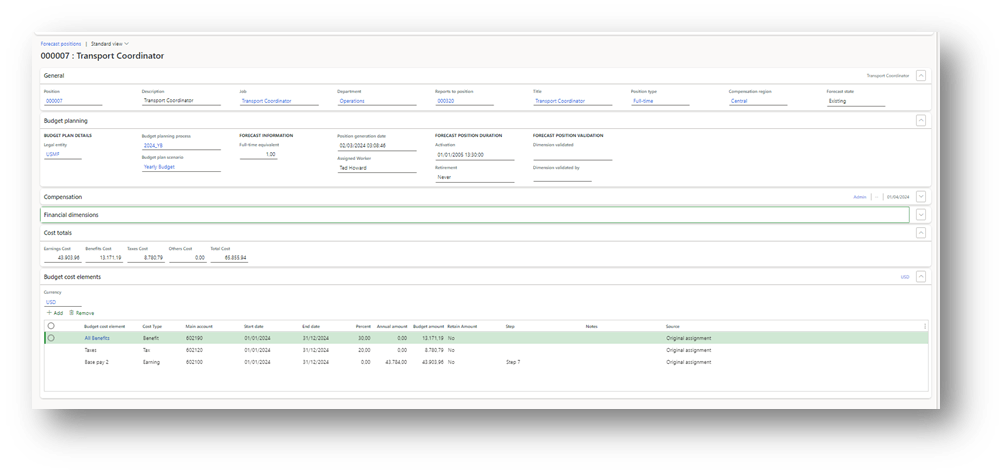
Generate budget
Go to: Budgeting> Periodic> Generate budget plan from general ledger
Here, select our budget planning process and the budget scenario:
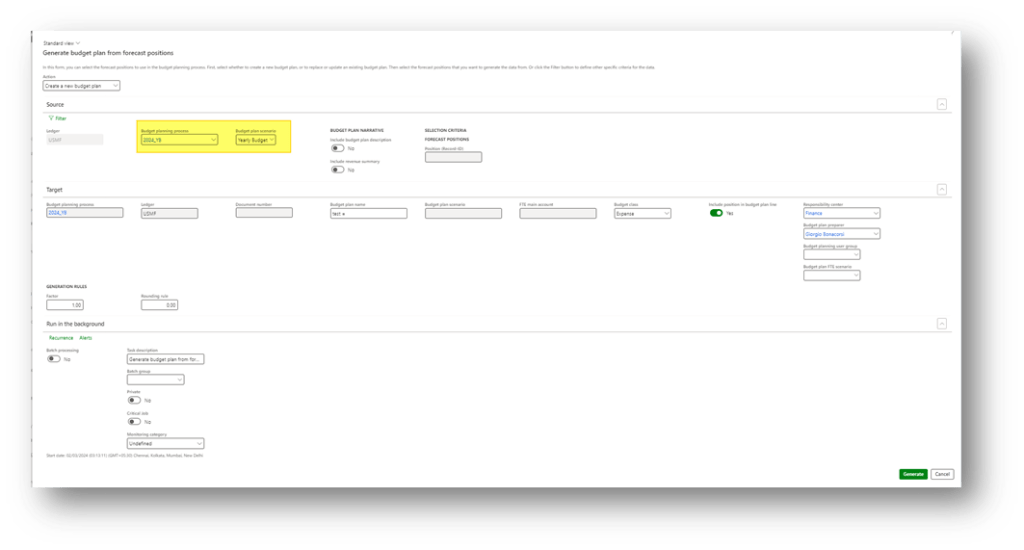
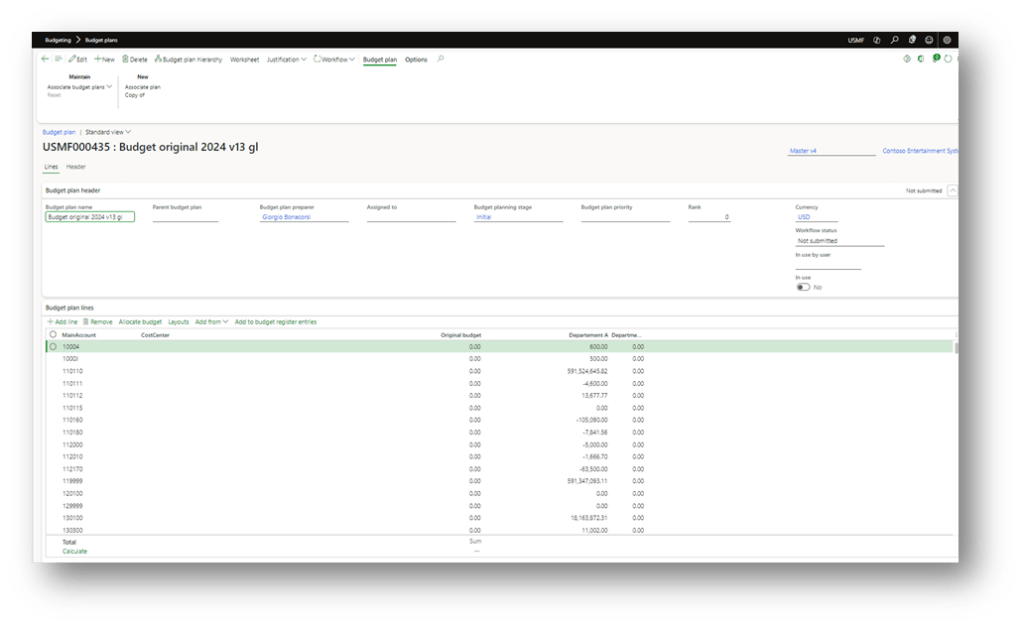
Launch the generation. When D365FO has finished, we can see the budget planning proposition:

 Dax365FO
Leave a comment