
Business requirements
Sometimes, we need to apply automatic charges in our sales or purchase orders. In this article, we will see a specific pathway: the automatic addition of a charge code at the header and/or line level. The system will add the charge exactly like the k-user can but respond to specific criteria set in the configuration.
We will focus on the explanation in the sales order, however, keep note that the solution is exactly the same for the purchasing. So, if you understand the solution for the sales module, we can easily understand the implementation in the purchase module too.
D365FO solution
In this session we going to see how to implement this function in D365FO.
Configuration
Accounts receivable parameters
Go to: Accounts receivable> Setup> Accounts receivable parameters.
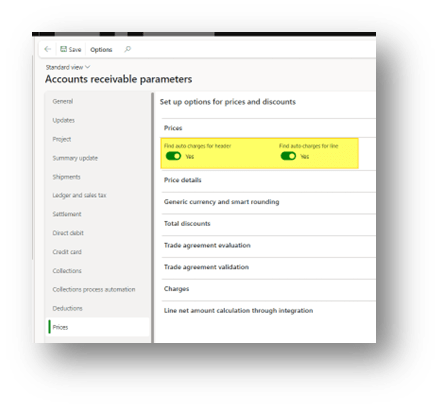
Jump in the price tab and activate the feature to apply the charge automatically. We can decide if applying the automatic charge in the header or/and the line:
Charge code
Go to: Accounts receivable> Charges setup> Charges code
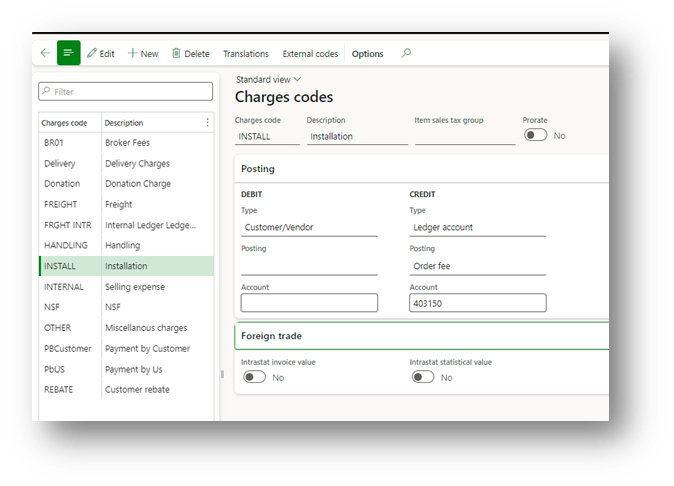
Create the charge code exactly as usual. In the example, we create an installation charge. We say: the customer is in “debit,” so we increased the value of our invoice, and as “offset” we set a revenue account:
Auto charge
Go to: Accounts receivable> Charges setup> Auto charges
When we activate the feature, the system applies all the rules present in this form. Firstly, decide if we want to apply a rule at the header or line level:
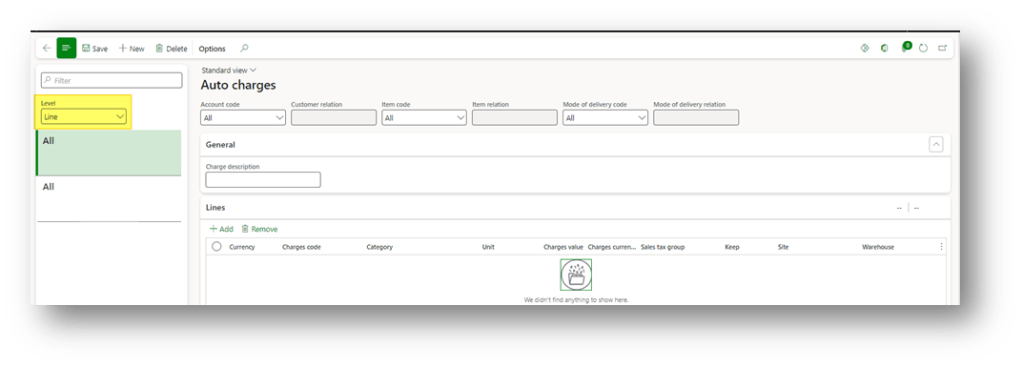
Then insert these configurations:
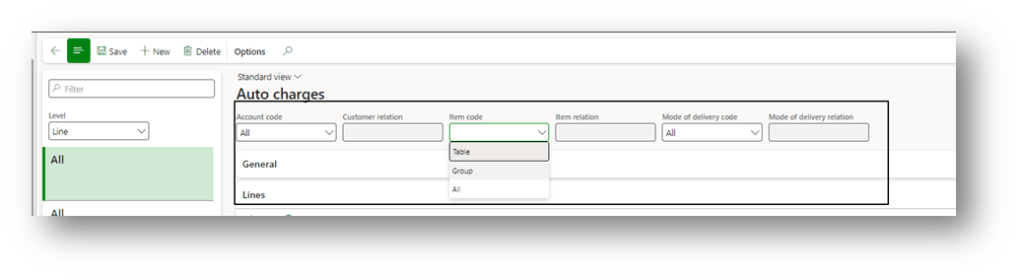
- Recognize condition: The combination of factors when recognizing the automatic charge. For our factors, we can decide to apply it:
- All: all valueGroup: specific charge groups;
- Mode table: specific value (like a specific item, customer, etc.…)
The factors are different based on the header or line level:
- Header: Customer + Mode of delivery code in header level
- Line: Customer + Item + Mode of delivery code in line level
- Charges code: insert the charge code to apply automatically. As well, we can also define the criteria for the calculation of the charge amount and the value to apply. The more common are:
- Fixed: fixed amountPcs: unit amount for the unit selectPercent: percent amount
- Intercompany percent: percent only for intercompany transaction
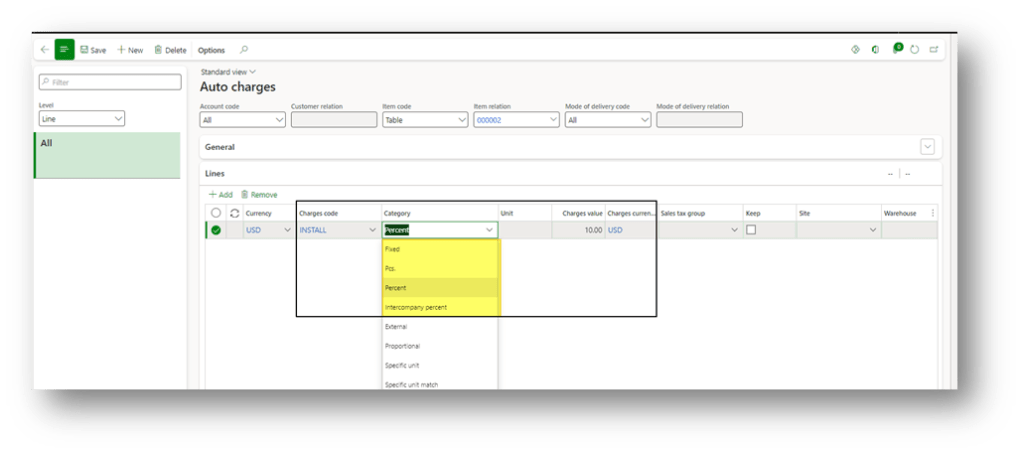
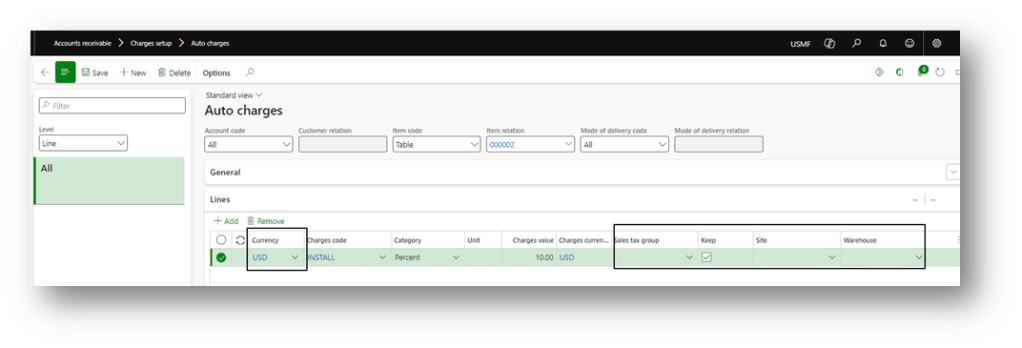
As additional information, we can insert conditions based on the currency order and inventory dimension. Flag keeps maintaining the charge of the order after the invoicing. We can configure a default sales tax group.
Charge Group
It’s optional, but we can configure the charge group to use the auto-charge rules. Do it only if we decide to use a group as recognized criteria. Here is the path where we can create our groups:
- Customer charge groups: Go to Accounts receivable> Charges setup> Customer charge groups
- Delivery charges groups: Go to Accounts receivable> Charges setup> Delivery charges groups
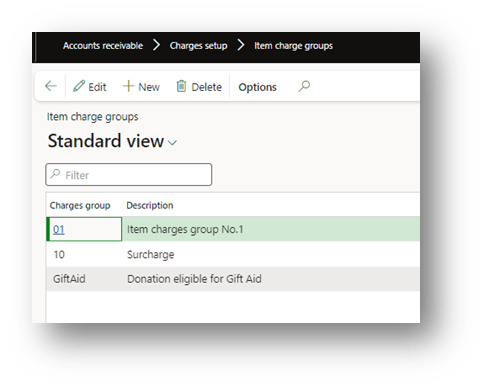
- Item charge groups: Go to Accounts receivable> Charges setup> Item charge groups
Here is an example of an items charge group:
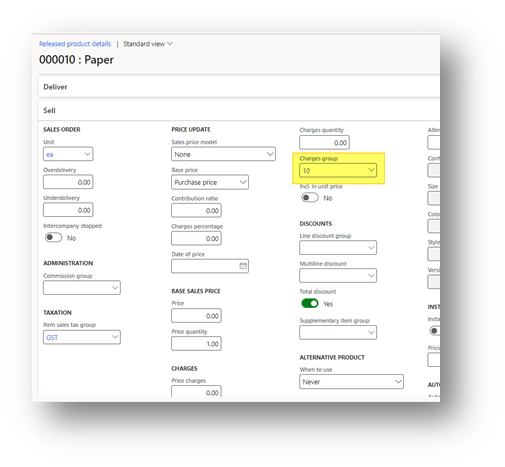
When we finish, remember to jump in the master data involved in the transaction (customer, items or delivery mode and set the correct charge group. Here is an example of an item master data:
Process
Create sales order
Go to: Accounts receivable> Orders> All sales orders.
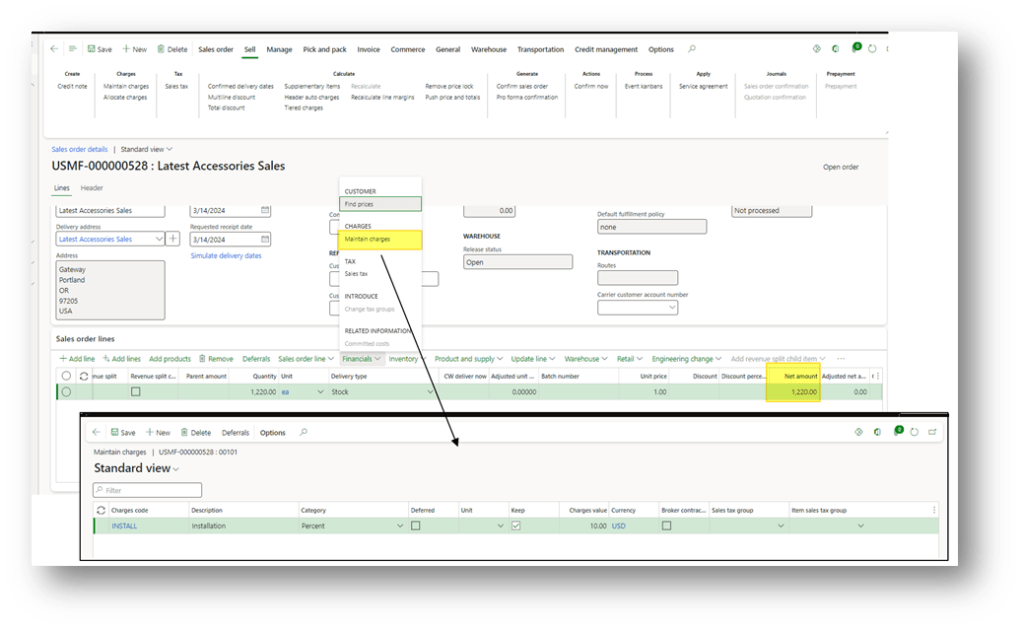
Create a sales order as usual. Here, if we jump into the charge header or line, we can find the charge automatically applied by D365FO:
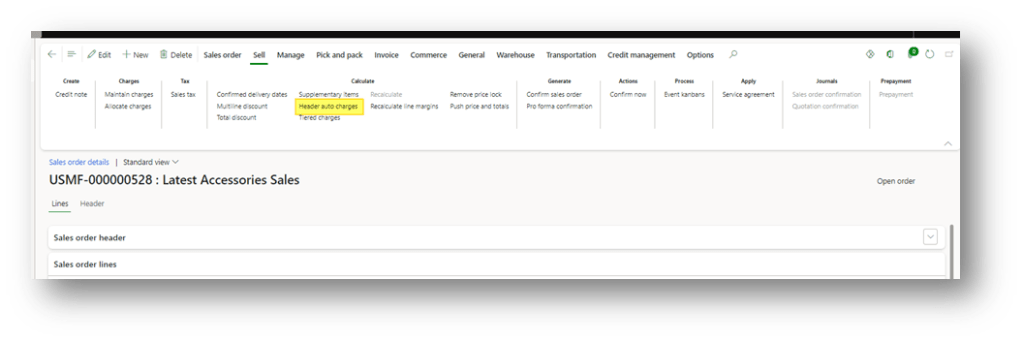
If we have some trouble to recover the charge on the header, we can ask the system to recalculate it. For the lines: we need to delete and reinsert the record:
Note: in the sales order, the only charge group we can modify/insert is the customer charge group. The system will check the group allocated directly to the items or deliver mode cards for the other factor.

 Dax365FO
Leave a comment