
Solution D365FO
This article continues the previous article: link. Please consult it if you want deep-dive architectural information and a framework vision of the different alternatives relating to managing vendor prepayment.
Business process
1.Vendor payment
Go to: Accounts payable> Payments> Vendor payment journal.
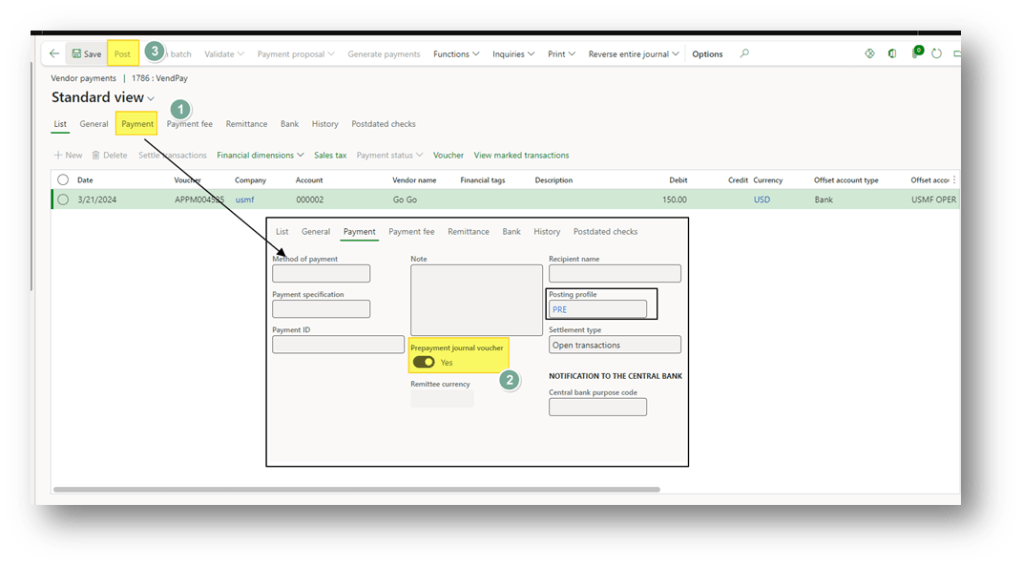
Create a vendor payment as usual, but before posting the journal, go to the ” Payment ” tab and select the “Prepayment journal voucher” field to signal that it is a prepayment. The system automatically changes the posting profile base when we select this flag.
At the end, post the payment journal to complete the task.
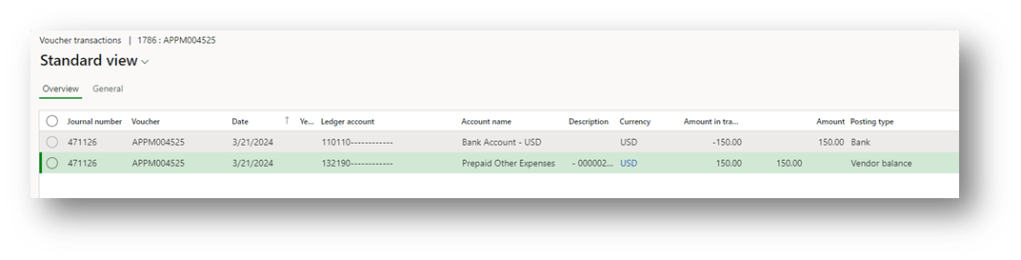
As you can see, we will have a payment voucher to a dedicate balance sheet main account:
2. Settle pre-payment
Match the open transaction on the vendor master data using the current process. We will explain the common process here: matching the prepayment before the invoice registration:
Vendor invoice from free text-invoice
Go to: Accounts payable> Payments> Vendor payment journal.
Create your vendor invoice as usual. Before posting, click on “Settle transactions” and select the prepayment to match.
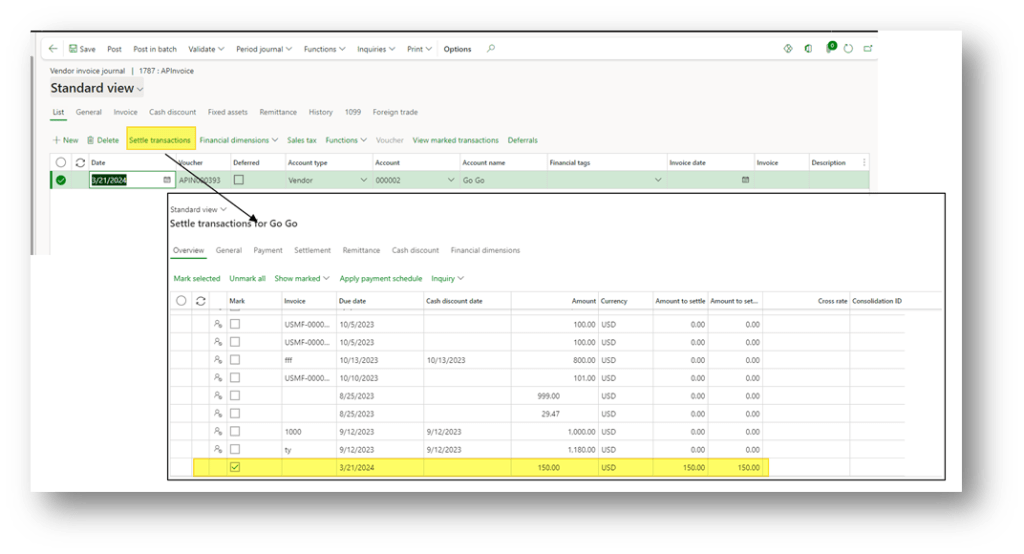
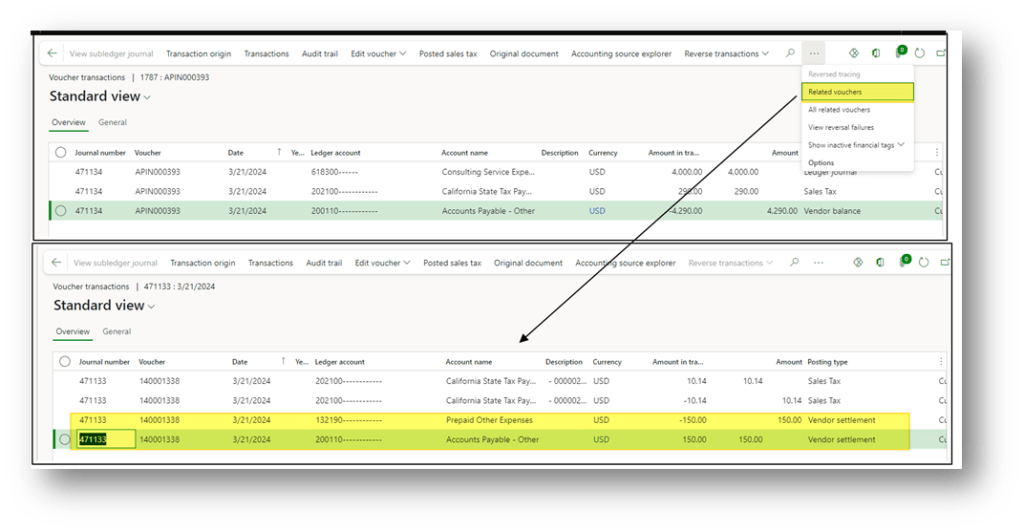
Proceed as usual with the posting. The vendor invoice posting will create two vouchers:
- Vendor invoice voucher:
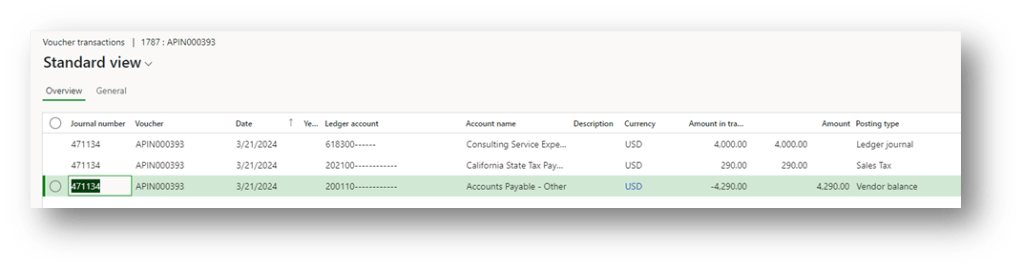
- Vendor compensation:
Vendor invoice from purchase order
Go to: Accounts payable> Purchase orders> All purchase orders
Create your purchase as usual. Before posting, click on “Open transactions” and select the prepayment to match.

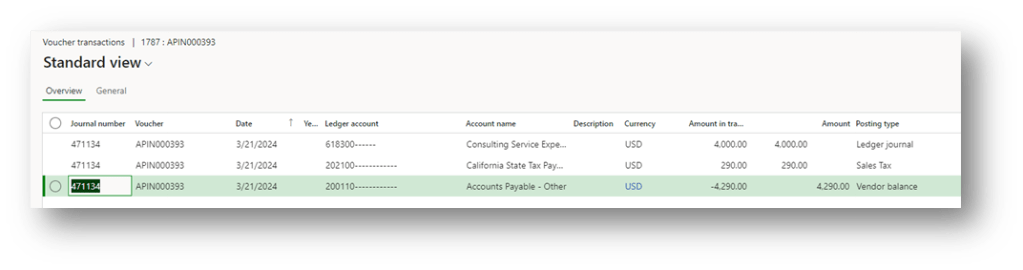
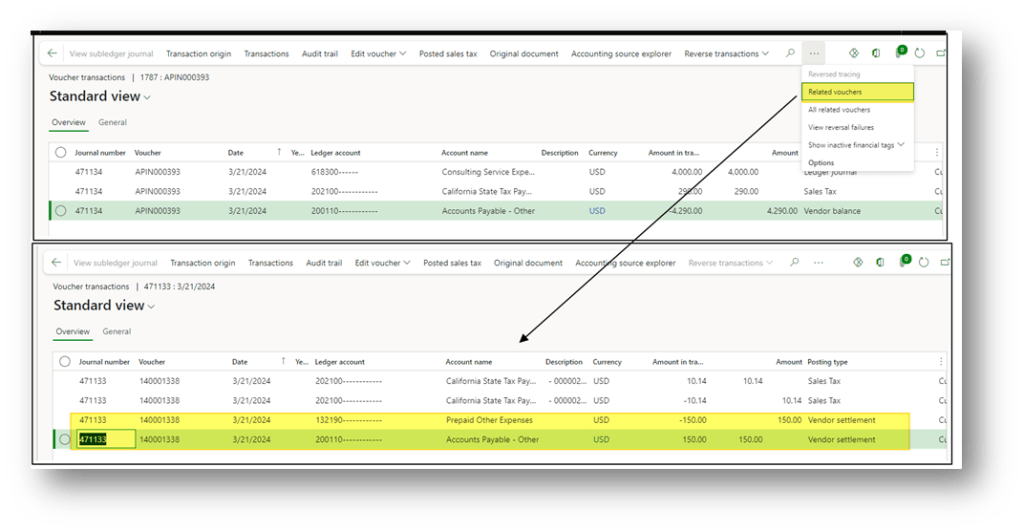
Proceed as usual with the posting. The vendor invoice posting will create two vouchers:
- Vendor invoice voucher:
- Vendor compensation:
Configuration
Accounts payable parameters
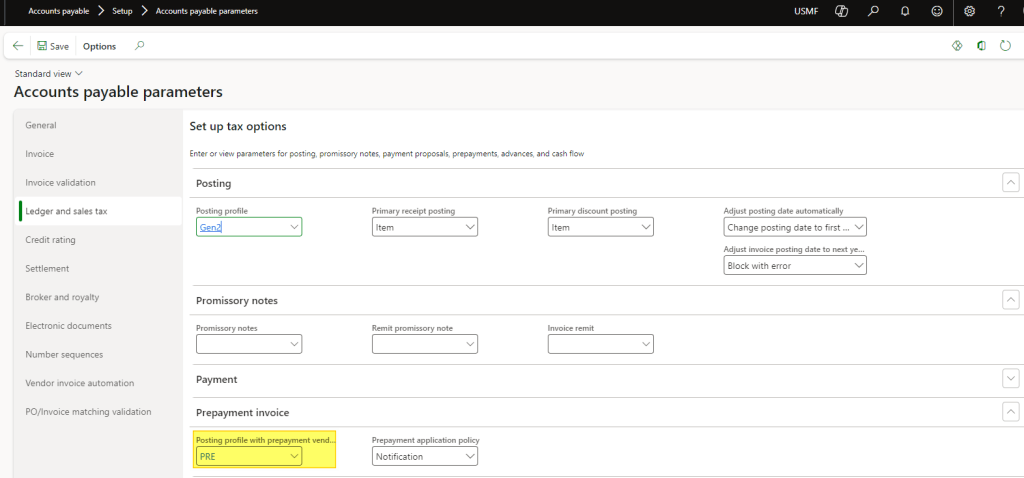
Go to: Accounts payable> Setup> Accounts payable parameters
Select here the posting profile to use associate the vendor prepayment posting:

 Dax365FO
Leave a comment