
Business requirements
The journal entry is a subsequence of two activities: 1) creation of the journal and 2) journal posting. There are a bunch of solutions to make the creation of a journal easier (we will see it in further articles). However, for now, we will focus specifically on the second step: journal posting.
Sometimes, the requirement is to automatically and recurrently post some specific journal, subject to particular criteria. Typically, it touch the journal generated by the system and that we are sure about the correct entry. Of course, this kind of automatization should be run only after to have tested the rightness of the journal touched.
Solution 365FO
Business case
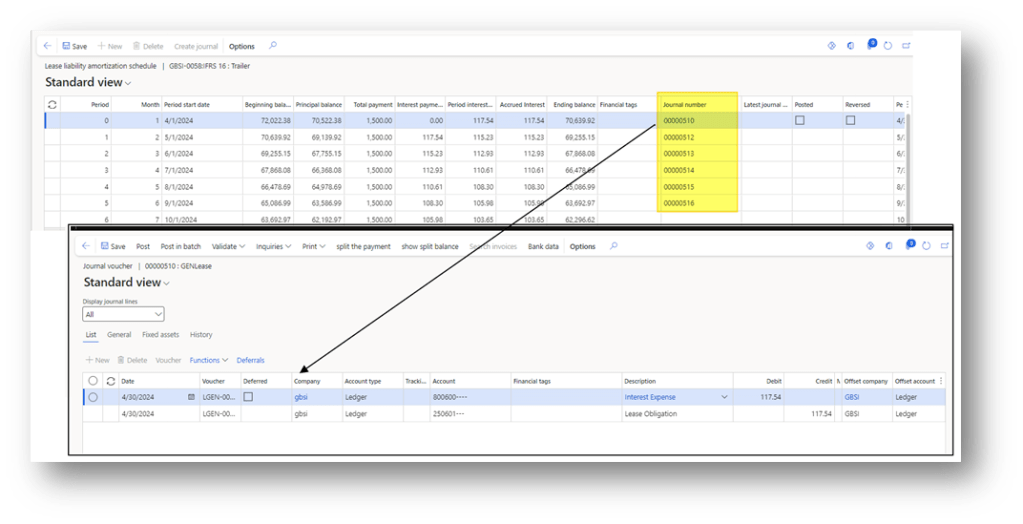
This is a financial lease. As we can see, the system automatically forecasts and generate the entry to do. So, we want to ask the system to proceed with the automatic monthly posting of those journals:
Post journals
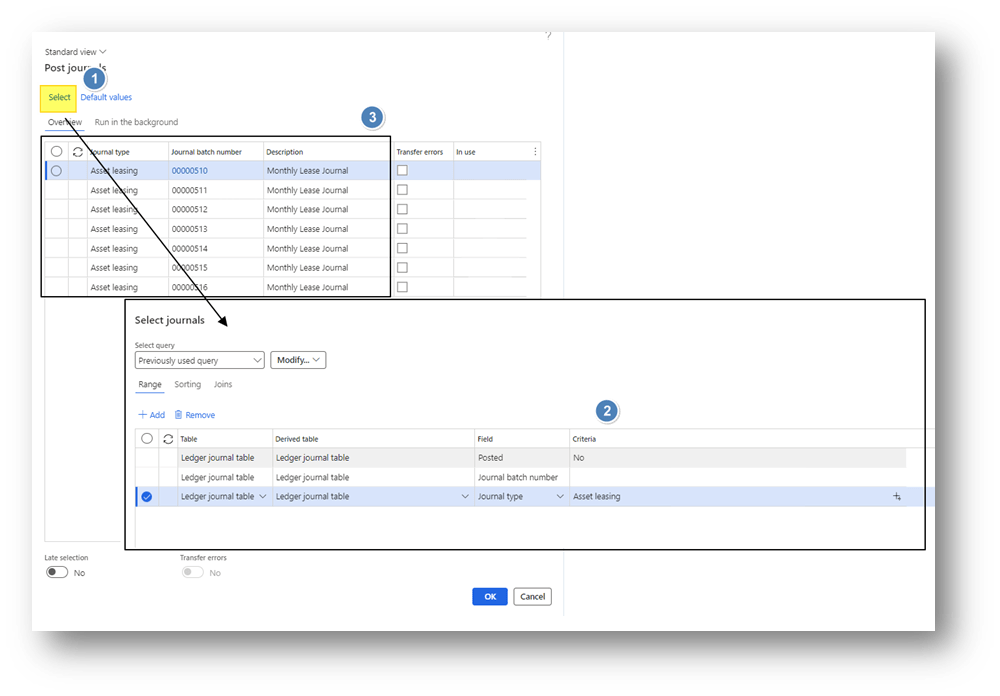
Go to: General Ledger> Journal Entries> Post journals.
We can set our function to automatically proceed with posting specific journals. Here are the steps to follow:
- Click select
- Insert the criteria to identify the journal subject to automatic posting;
- We can review the result of the journal intercepted by D365FO at the beginning before launching the automatic posting.
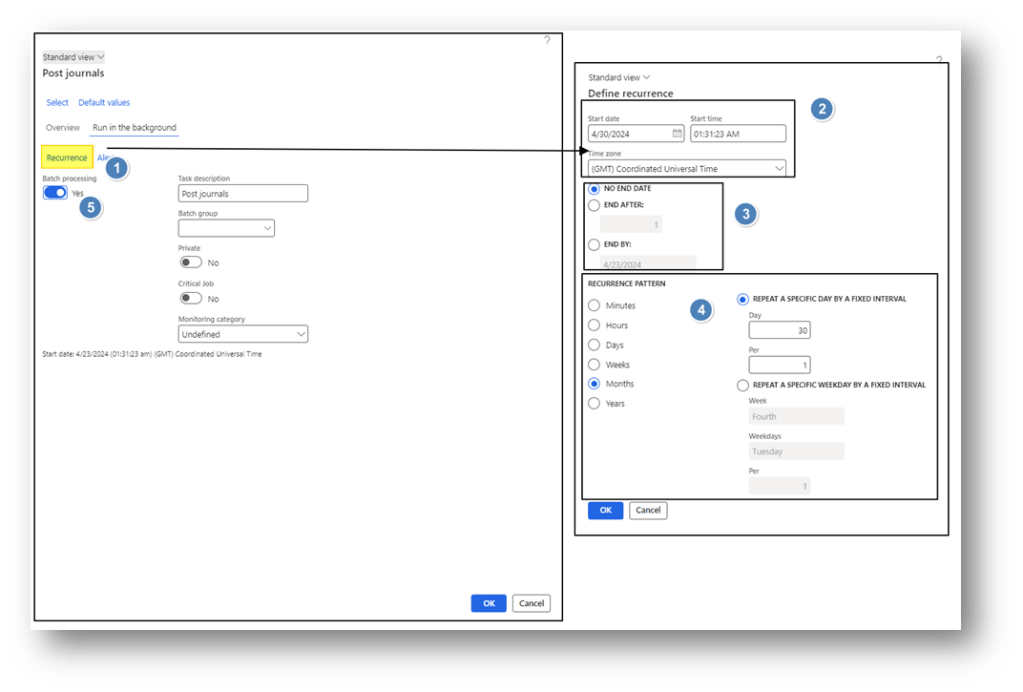
After that, when we are sure that all run is correct, we can set the automatic and recurring posting as a batch, following these activities:
- Click in recurring;
- Set the start date and time
- Set when it’s end
- Set the recurring posting
- Flag post, to execute it in the background periodically
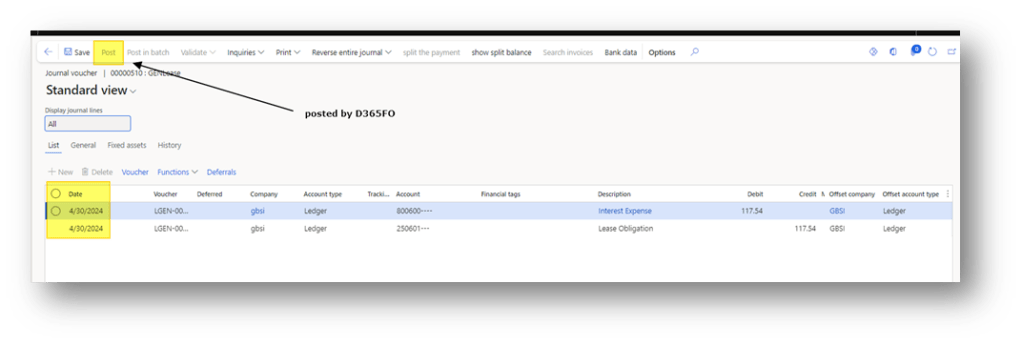
Finally, when all is set, we can launch the batch. The reference date is the posting date present in the journal. It is used by D365FO to compare with the batch date and decide if to post or not journal (if the batch date is upper to the posting date in the journal, the system will post it):
Tips
- Don’t mix the journal subject to automatic and manual posting. For the automatic posting create a dedicate journal name;
- When we run to launch the batch, use the admin user because the batch will do the automatic posting using the user ID of the person who configurated and launched:
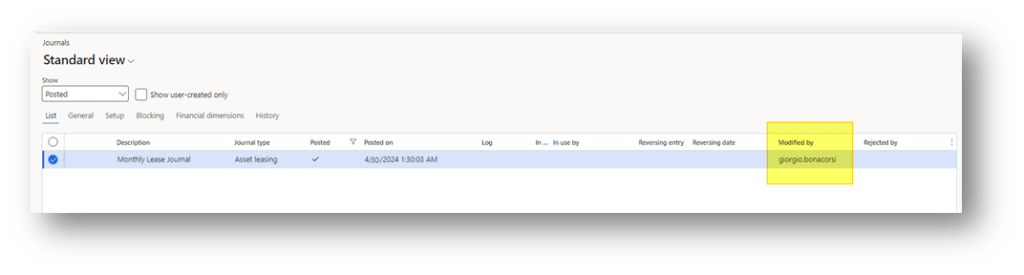
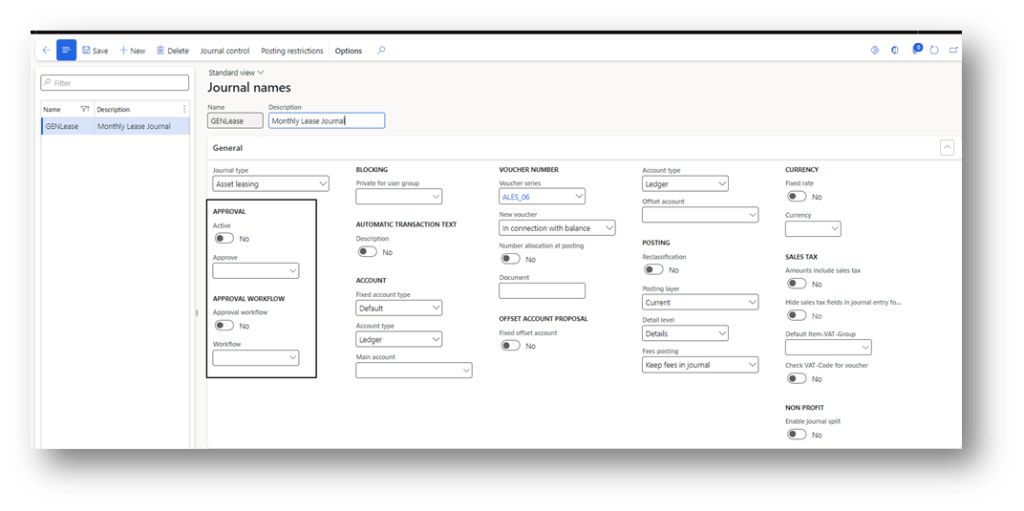
- To approve the journal before the posting, we can set on the journal an approval group or a workflow:

 Dax365FO
Leave a comment