
Business requirements.
The journal voucher template is a function that allows us to copy and paste a journal previously posted. It’s used to avoid reinserting the same entry from the beginning. It can be used as an alternative to the periodic journal for recurring posting.
Business process
Copy general journal
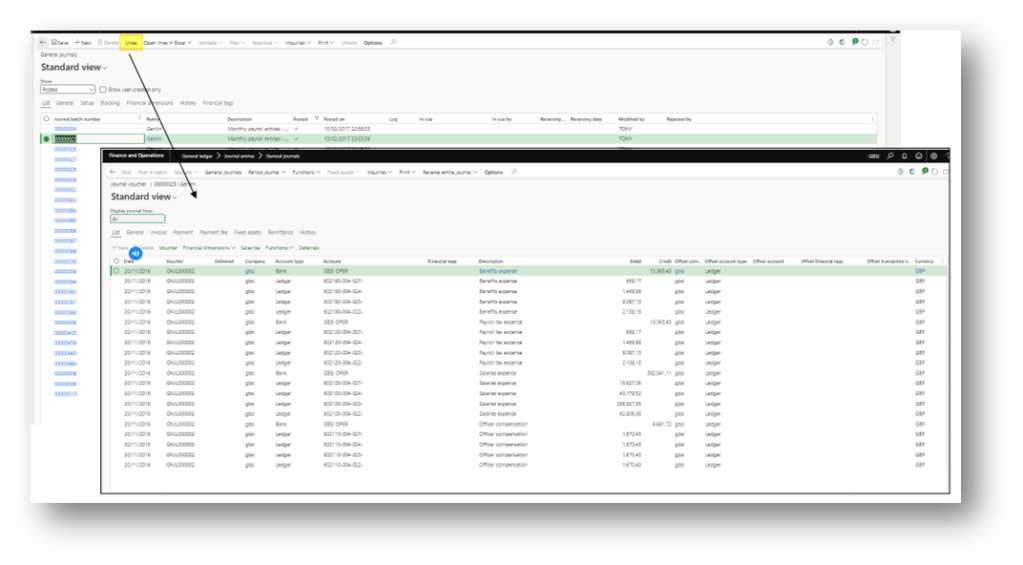
Go to: General Ledger> Journal entries> General journals.
Select our journal already posted and jump on the lines:
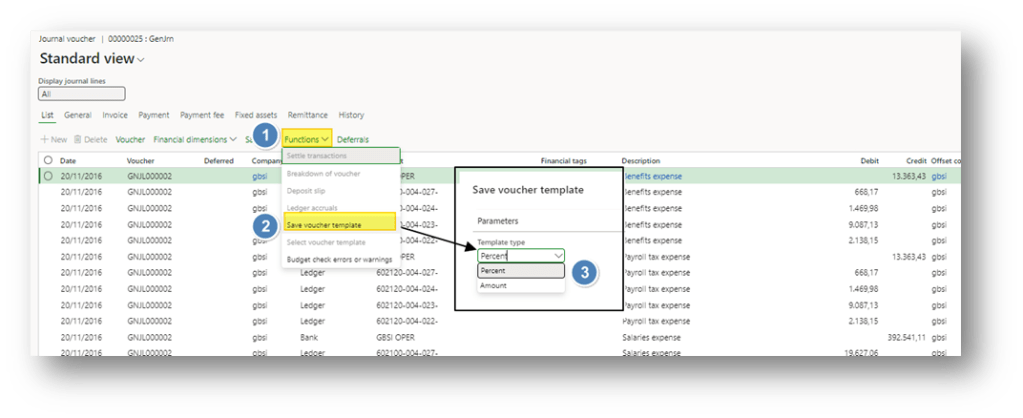
Here, we will select the “Save voucher template” function from the lines. This means the voucher line will be selected using our template. Then, we have to choose which type of template is it:
- Percent: We will insert the total amount of our new voucher during the recovery process. Then, the amount will be redistributed based on the percentage structure of our template.
- Amount: We will recover the same amount of the voucher template.
Create new journal
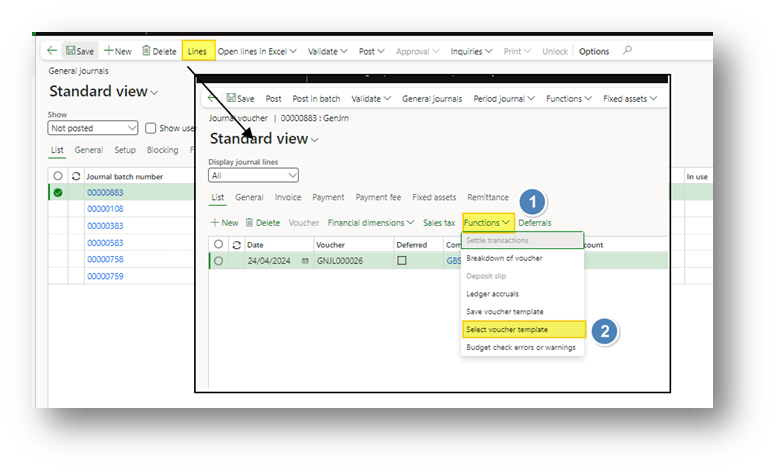
Go to: General Ledger> Journal entries> General journals.
Create a new journal (choose the journal name we prefer; it’s unimportant). Launch the function “Select voucher template” to recover the template created:
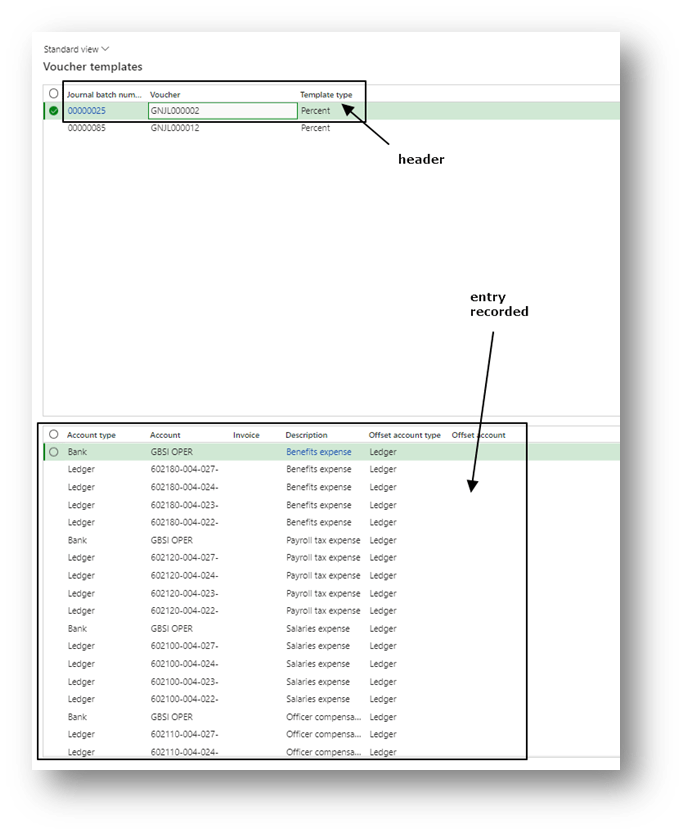
Choose the template. As we can see, there is a header with the generic information about the voucher saved, and below the lines details:
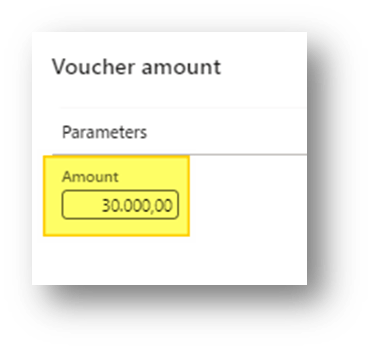
Insert the total amount if the voucher template selected has the type “percent”. If the type is equal to “amount”, it’s not needed because we are going to recover the same amount present in the original document:
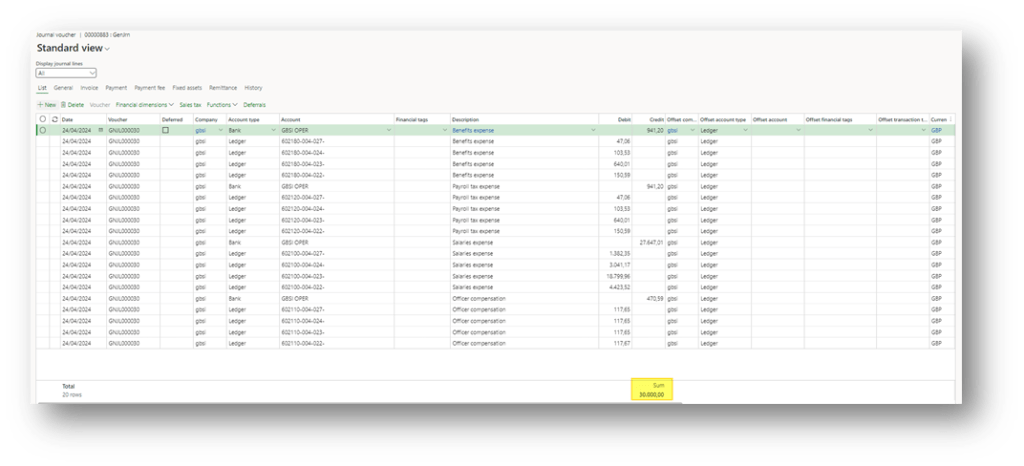
Here is the result of the extraction made. As we can see we have copied another voucher:
Tips
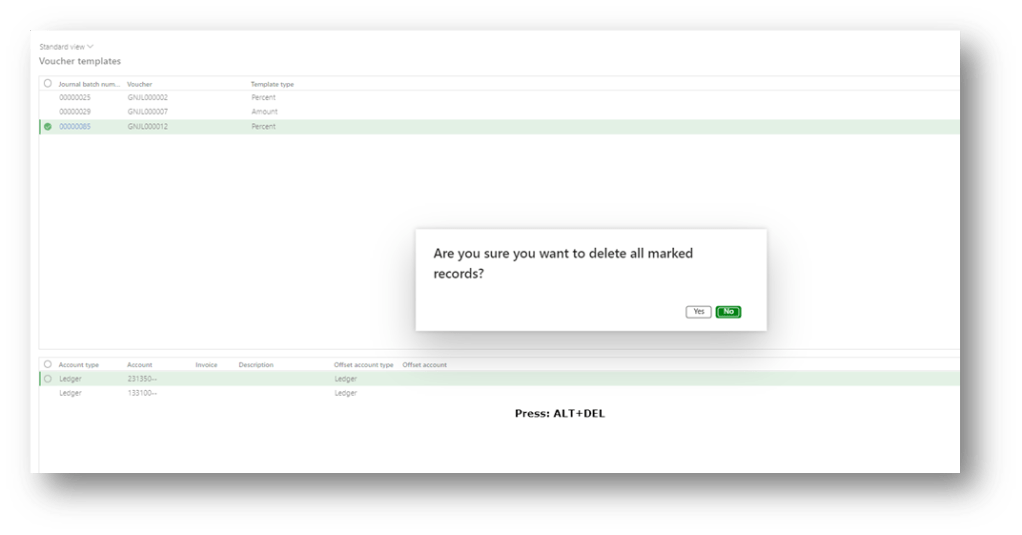
- If we want to delete a template, we can press ALT+DELT into the form “Select voucher”:
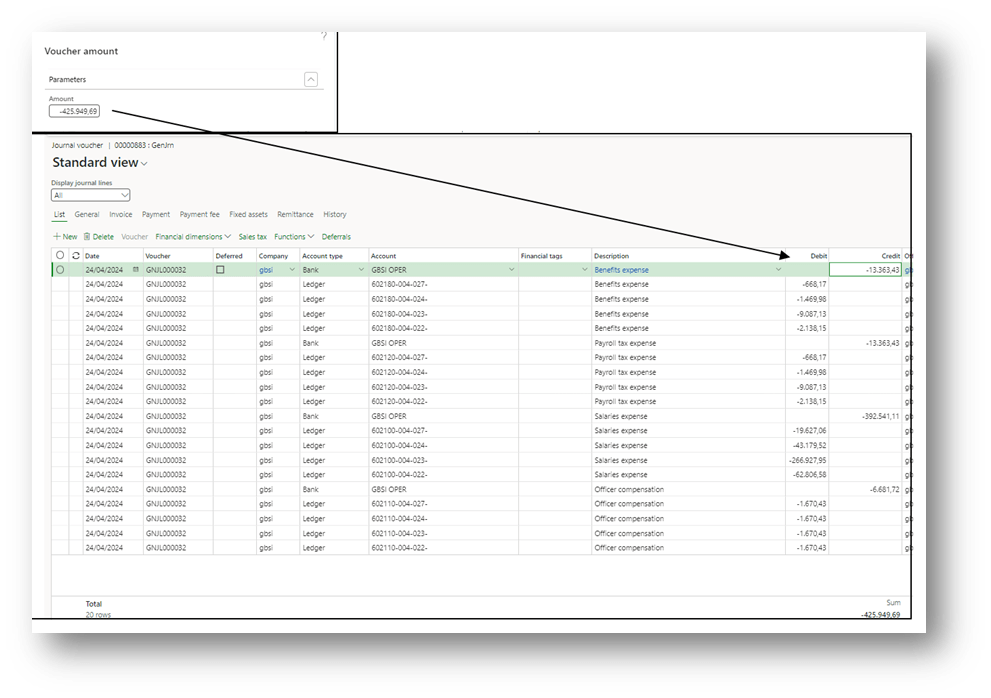
- The percent method allows us to make a reverse entry. We can insert the same total of the original voucher but with the negative sign. It’s one of the alternatives offered by the system to perform a write-off:
- It’s possible to select for multiple time the journal template

 Dax365FO
Leave a comment