
Business requirement
Filtering is a constant necessity in our daily work. We leverage it during the inquiry, report, batch, and function launches. However, are we sure that we fully handle all the system’s functionalities? Let us propose a journey and a complete overall overview through the different filter options offered by D365FO.
Solution D365FO
The filter options available in the system are:
- Quick filter;
- Grid column filtering
- Pane filter;
- Advanced filter or sort;
Therefore, there is not a best filter because each one provides pros and cons. During the presentation, we will present their aspects in order to make it easier to weigh the best option decision in the function of our needs.
Quick filter
Pros: quicker option
Cons: filter just one variable, using an exact value
The quicker filter of D365FO. It is represented as a box above the form. Insert the value to select and variable pressing the up or down keyboard button.
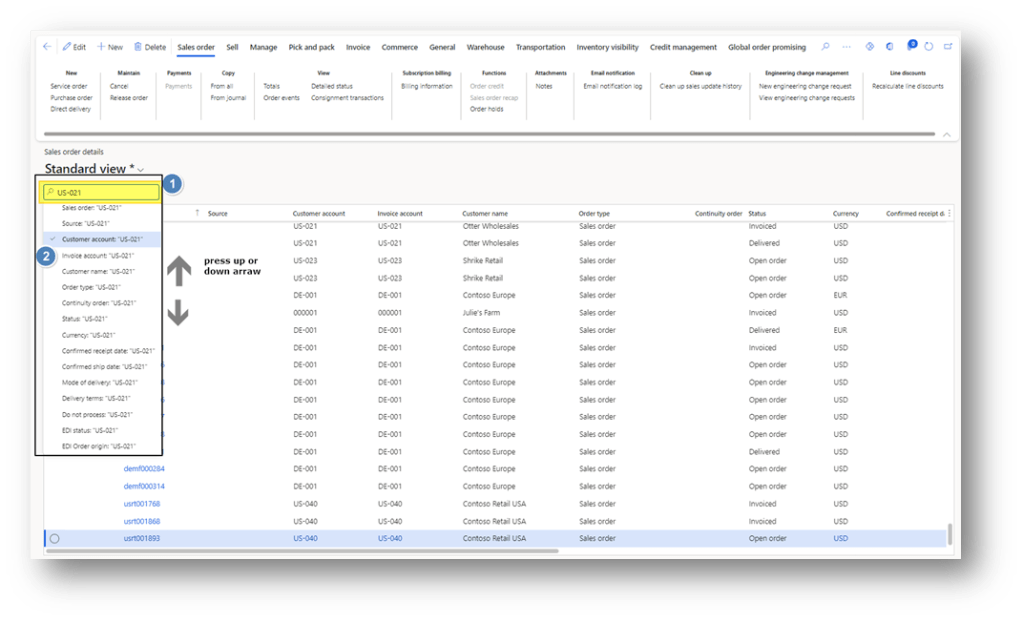
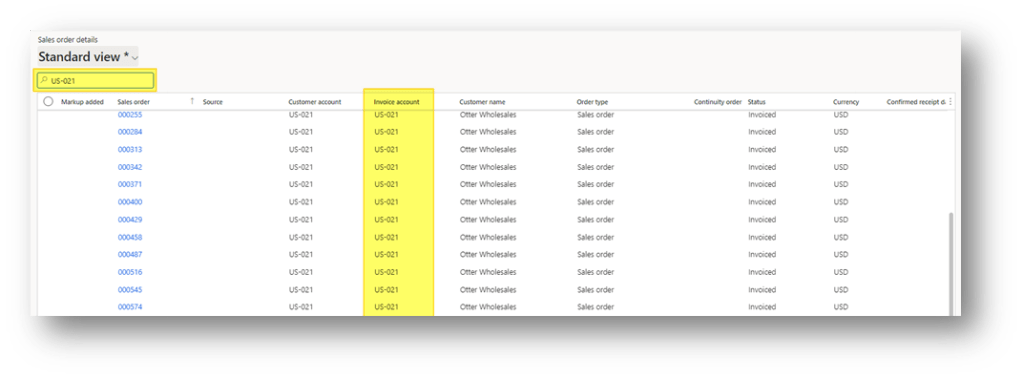
Press enter and see the outcome:
Grid column filtering
Pros: Possibility to filter multiple variables in contemporary
Cons: The columns should be visible in the form, and we cannot add a join table, the relations are predefined
Like an Excel filter, we can select from each column’s header the filter that we want to apply.
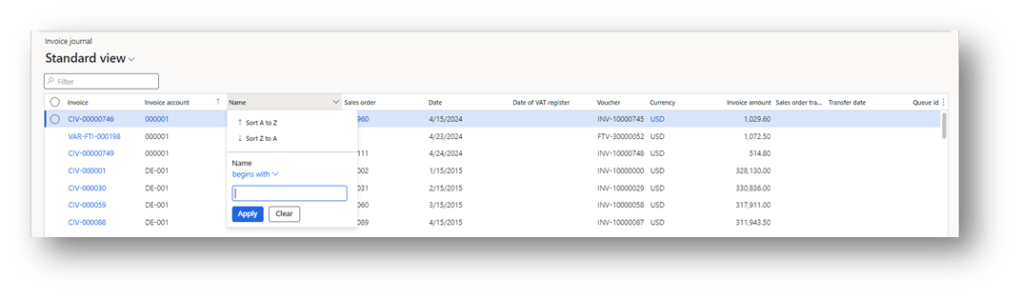
The filters are intuitive, however before to deep dive in the definition of each one, we would like to mention two honorable options:
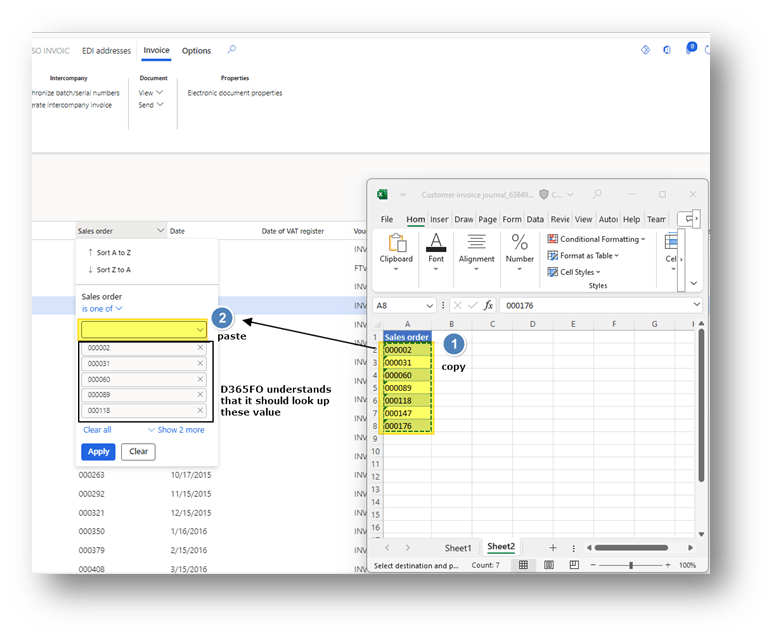
- is one of: if we have a bunch of values to select, we can leverage this one. The kind thing is that we can copy the filter’s value from a text or an Excel and drop it on the fields.
- matches: Match is the more complex, but versatile criteria. We insert the syntax of the research. For example: including all the invoices posted these last 90 days, will become based on the MS syntax: DayRange(-90,0)
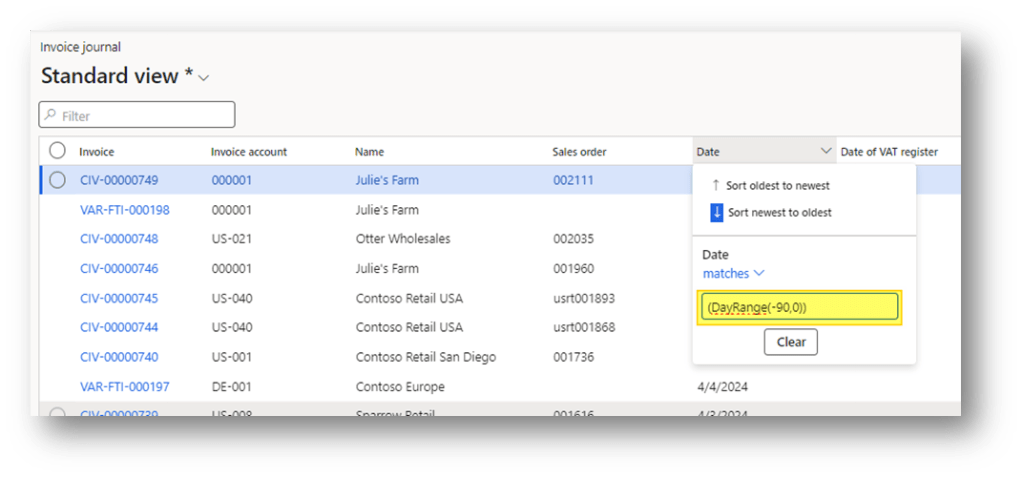
We can even concatenate multiple criteria, using the match option. Those one have to be separated by a comma. For more details about the syntax you can read the Microsoft specification:
- Filter expressions: https://learn.microsoft.com/en-us/dynamics365/fin-ops-core/dev-itpro/user-interface/filtering#filter-expressions
- Advance filtering query option: https://learn.microsoft.com/en-us/dynamics365/fin-ops-core/fin-ops/get-started/advanced-filtering-query-options
Now, we will see the intuitive criteria. Notice that the criteria change based on the data type.
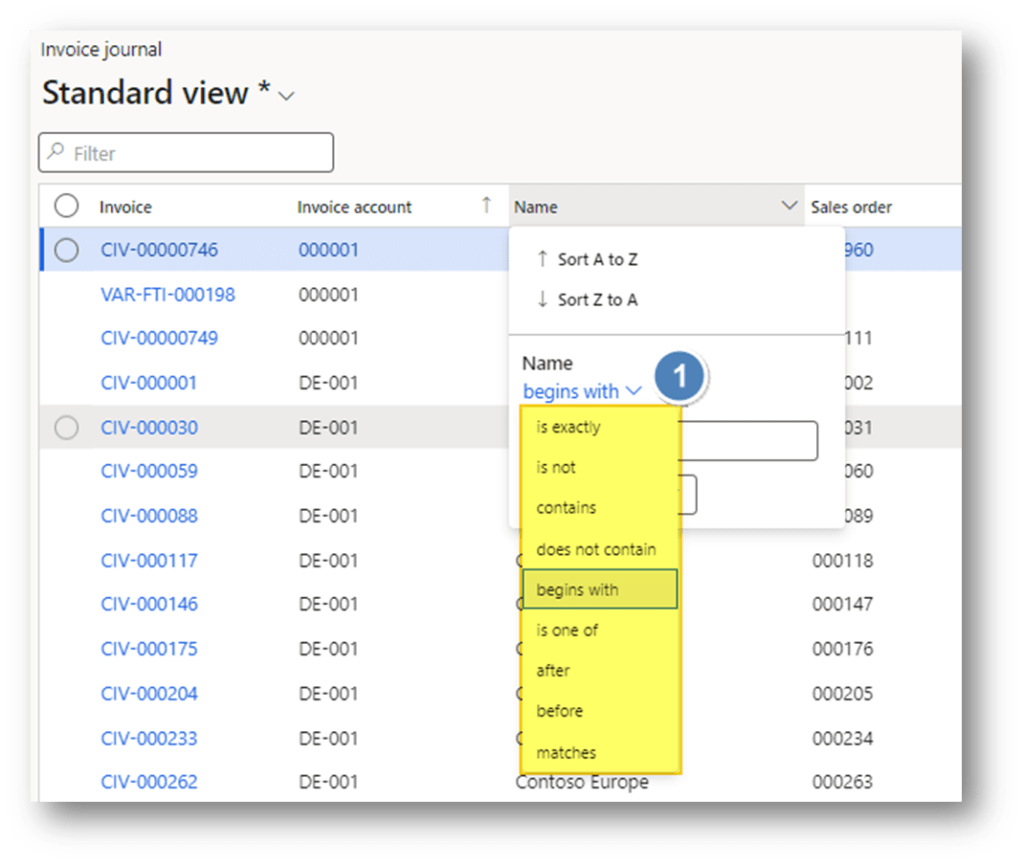
- String format:
- is exactly: match with exact value;
- is not: don’t contain this exact value;
- contains: contain al least this concatenation of character;
- does not contain: don’t contain this concatenation of character
- begins with: begins with those characters
- is one of: the explanation upper;
- after: It means all values after this, based on the alphabetic order
- Before: It means all values before this, based on the alphabetic order
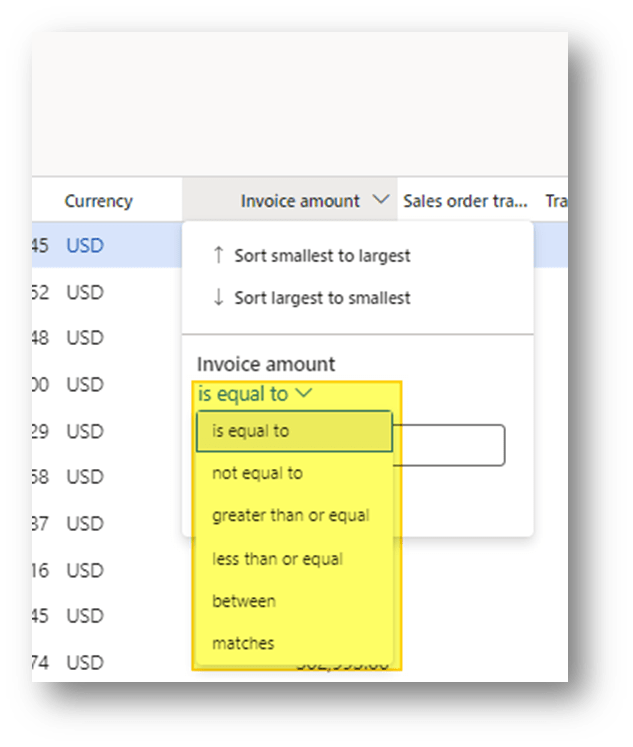
- Number or date format:
- is equal to: match with exact value;
- not equal to: don’t contain this exact value;
- greater than or equal: as mention by the label – greater than or equal;
- less than or equal: as mention by the label – less than or equal;
- between: between to value
- matches: the explanation upper;
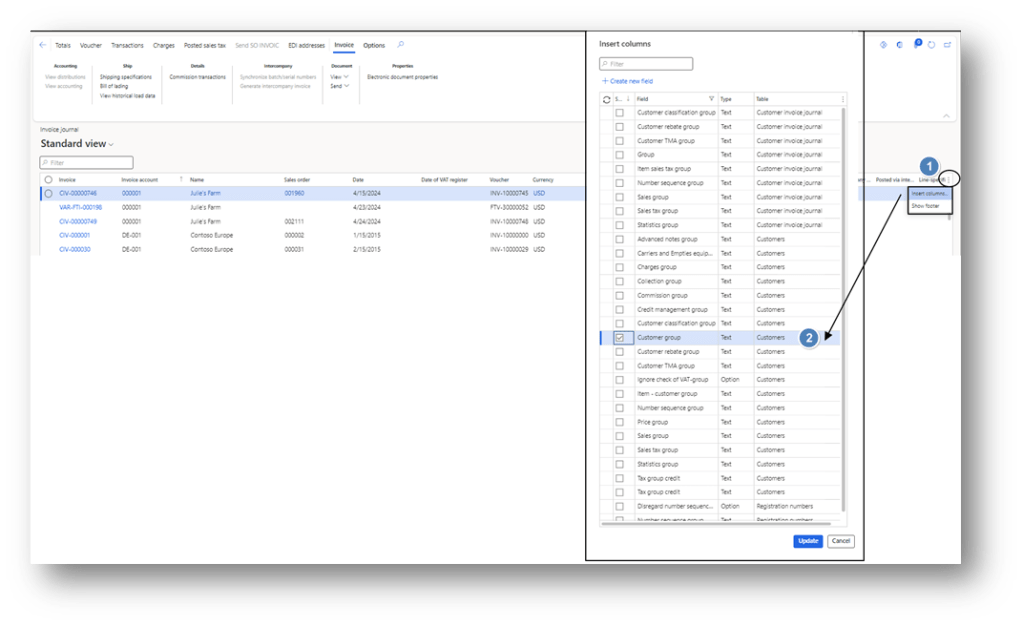
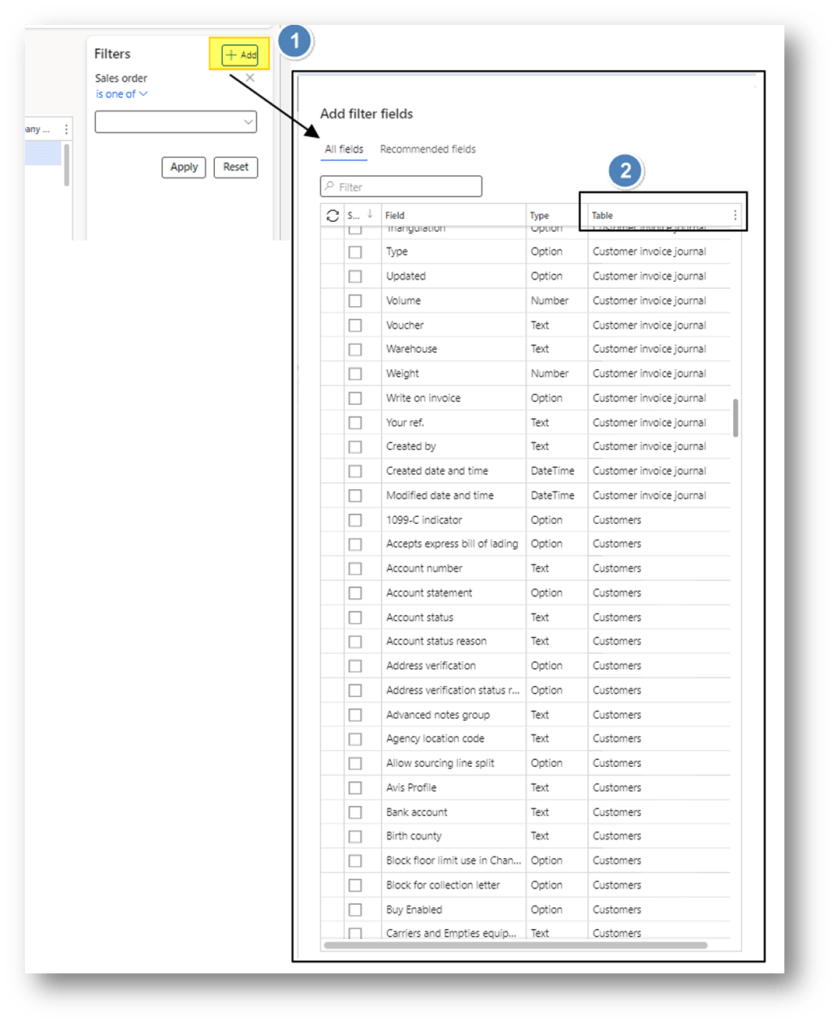
To apply a filter, we should see the columns in the grid. Click on the three buttons to add a new one. An interesting thing to note is that in D365FO, we have the possibility to add columns from joined tables. However, we cannot modify the join proposed by the system. In this example, from the customer invoice, I can choose to add the customer group present in realty in the customer master data:
Filter Pane
Pros: Possibility to filter multiple variables in contemporary, also if the are not visible on the form
Cons: Cannot add a join table, the relations are predefined
When we click on the icon panel, here, we can choose which field to use and apply as well exactly the same criteria used in the “Grid column filtering” options. The difference with the grid is that it is not necessary to see the columns and their values:
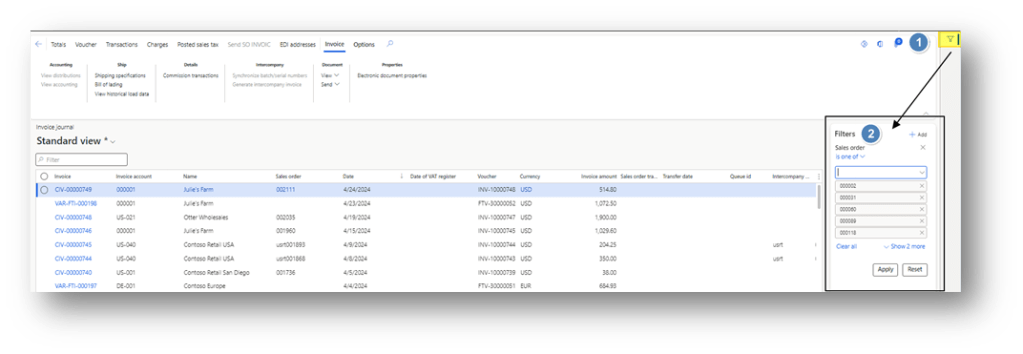
We can apply criteria for related tables:
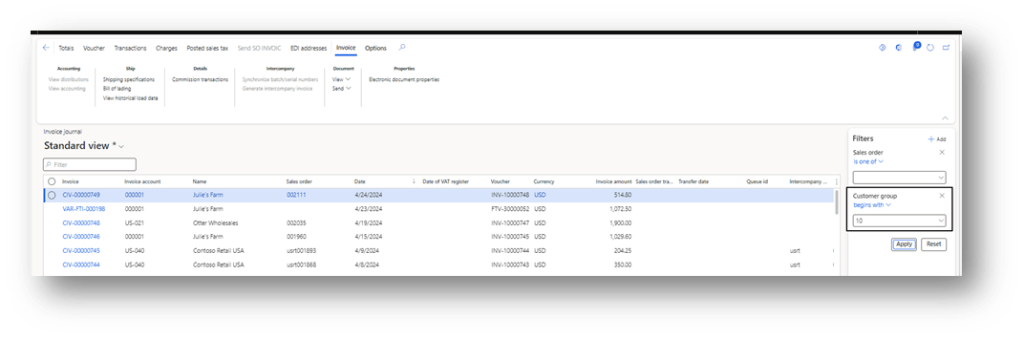
Example: we are in the customer invoice form. We can apply a filter based on criteria not of our invoice but the customer master data. In this case we filtered the form based on the customer group “10”:
Advance filter or sort
Pros: We can filter multiple variables from multiped tables. Furthermore, we have the possibility to add new tables joint and drive the sort presentation data.
Cons: Complicated filter.

It is the Chuck Norris filter.
The filter is generally available in the batch select criteria, inquiries or report launcher. However, we can also leverage it from the inquiries if we click in: option>Advance filter or short.
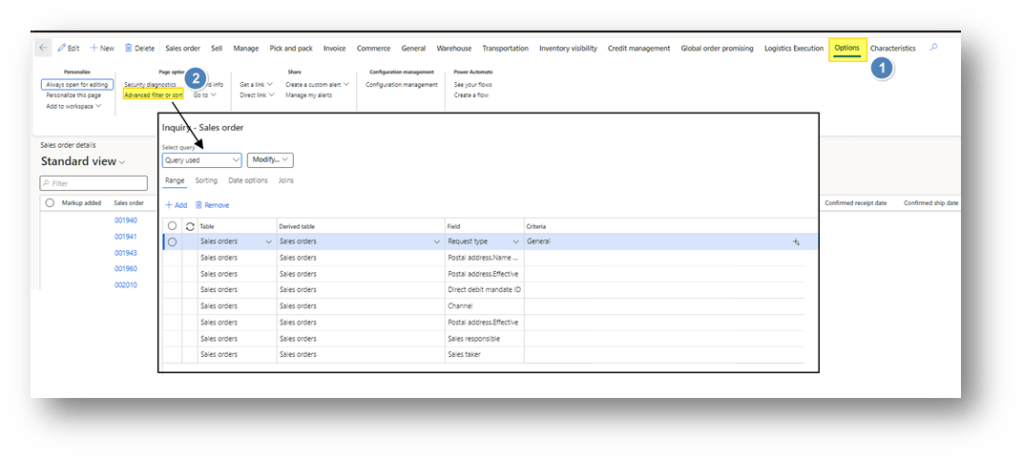
The function offer the possibility to doing a filter adding and selecting the field:
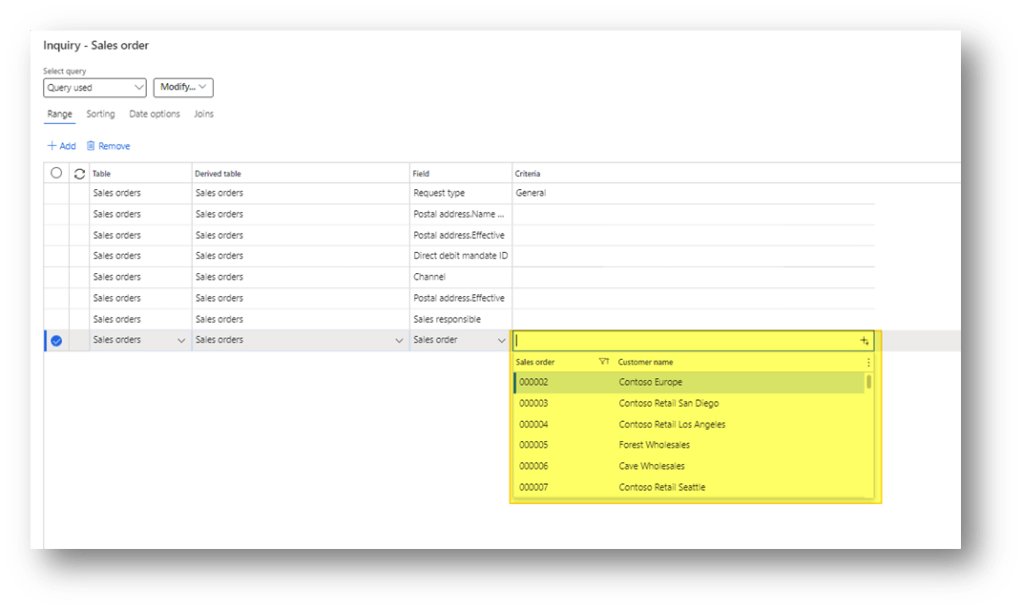
For complex filter formulas, we can read as well the Microsoft specification: https://learn.microsoft.com/en-us/dynamics365/fin-ops-core/fin-ops/get-started/advanced-filtering-query-options
Notable options to mention are:
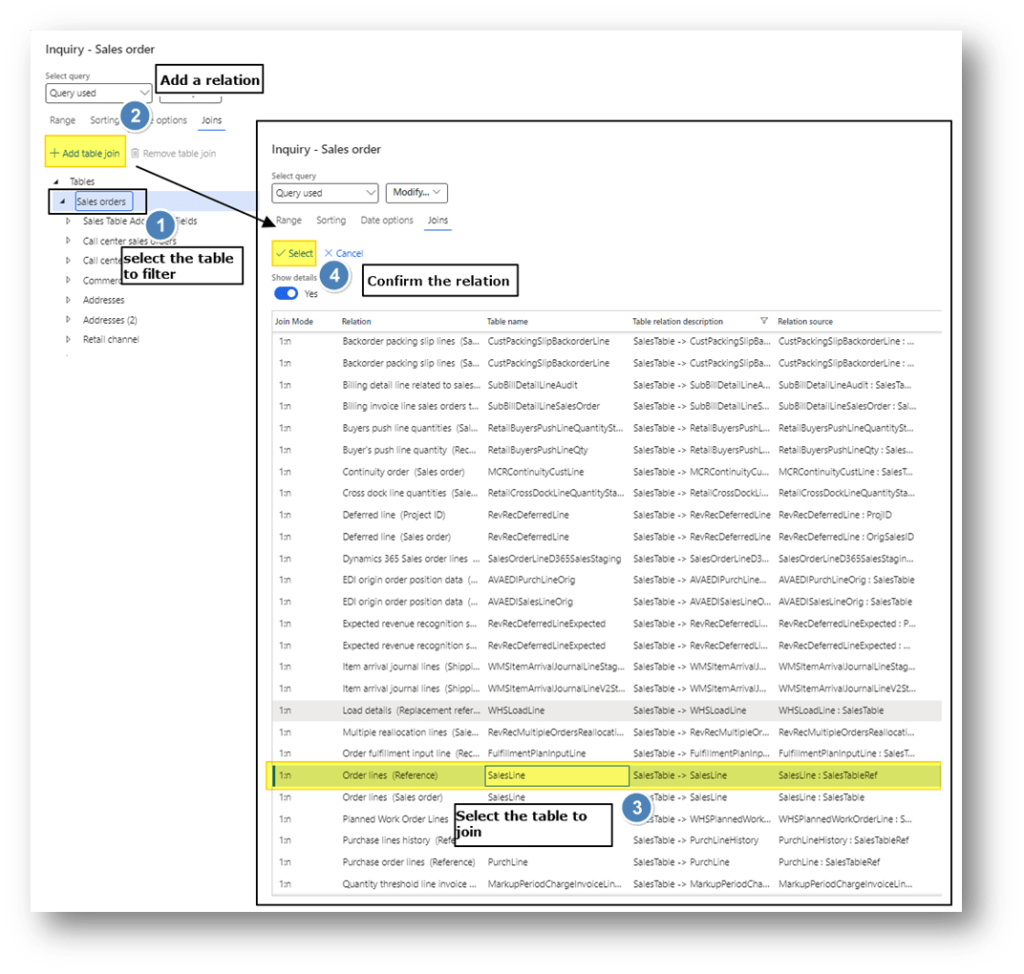
- Add join with another table: Sometimes, we cannot filter our table because the data is contained in another one. For example, we are in the sales order header, but we want to filter the status present on the line. With the advanced filter, we can add a join from the sales order header to the line and go ahead with the filter. Go to the “Join” tab and add the relation:
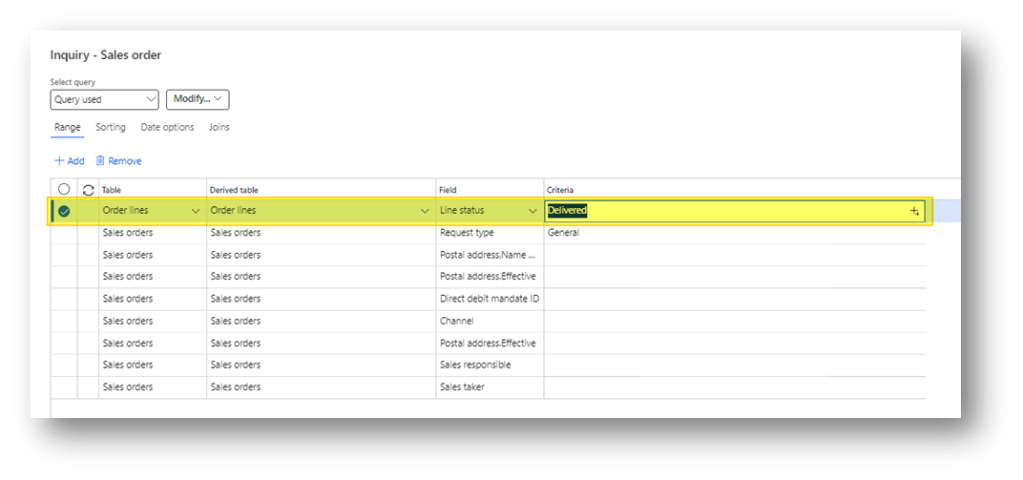
Now, we can filter based on the lines status:
- Soring filter: It’s not a filter, is the organization of the data return. In this example, we say: organize the record based on the sales order in ascending order, when organizing base to the customer in descending order:
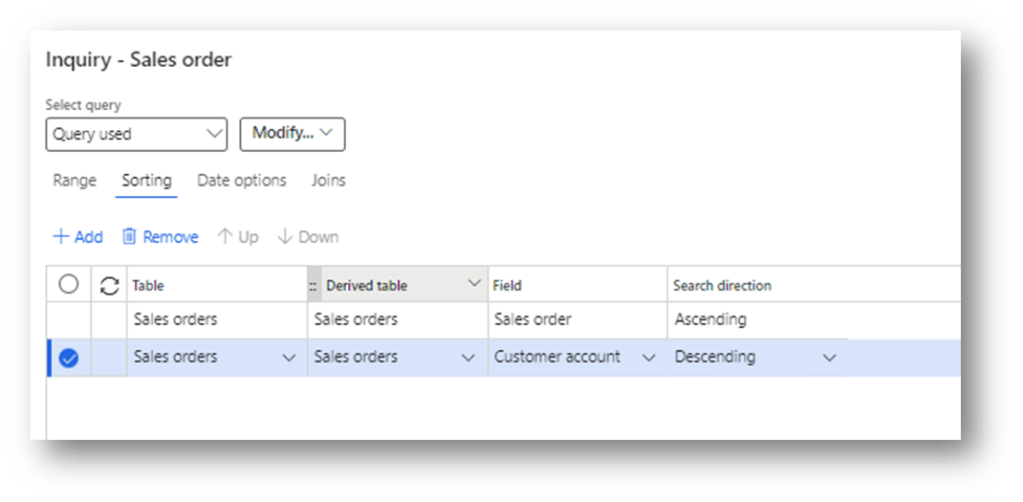
This option can become really important to sort the data in the correct order during the form – report – inquiries – function generation.
Tips
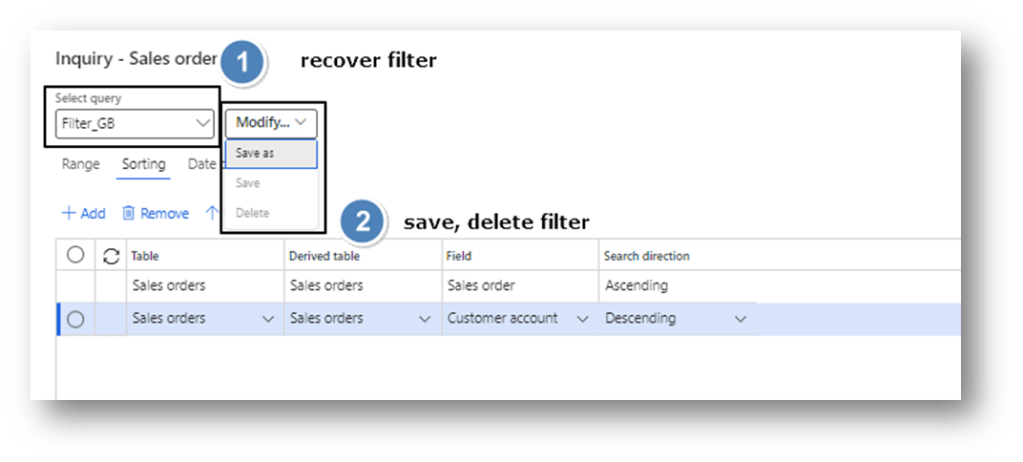
- Query save: we can save and recover the filter from the advanced form. Usually, when we choose a query, the system saves it in our usage data. Therefore, each time that we enter the form the system will recover it:
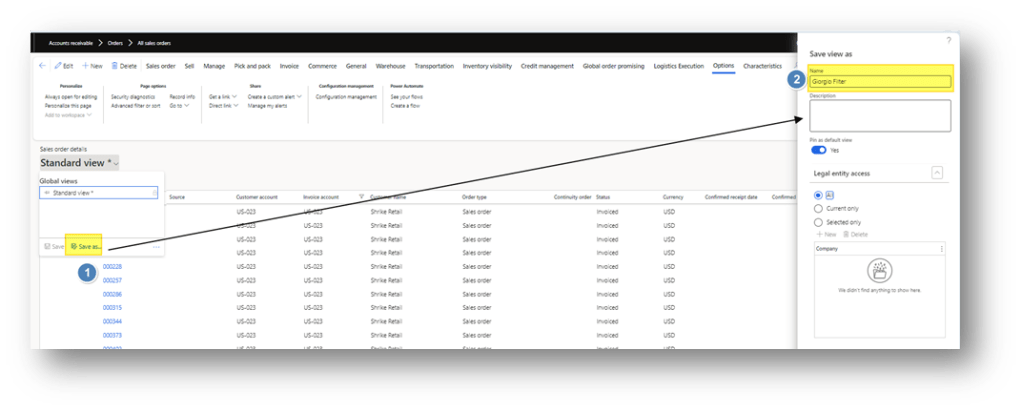
- Filter link to the form: Even we apply a kind of filter, it is possible to link it to our form. For that, after the filter application, and them remember to save the form:

 Dax365FO
Leave a comment