
Version: 10.39
This feature is an extension of the standard function “Advance bank reconciliation”. It allows us to automatically reverse the bridging transaction based on the matching of the the bank statement line. In other terms, the system will automatically generate reverse clearing transactions triggered by the matching made in bank reconciliation. Typically, those entries are used, for example, for credit cards or checks:
| Event | Main account | Debit | Credit |
| Customer payment | Customer | 1000 | |
| Customer payment | Cards Visa | 1000 | |
| Reverse bridging | Cards Visa | 1000 | |
| Reverse bridging | Bank | 1000 |
Without this feature, the users must post manually the reverse entry each time.
Configuration
Feature
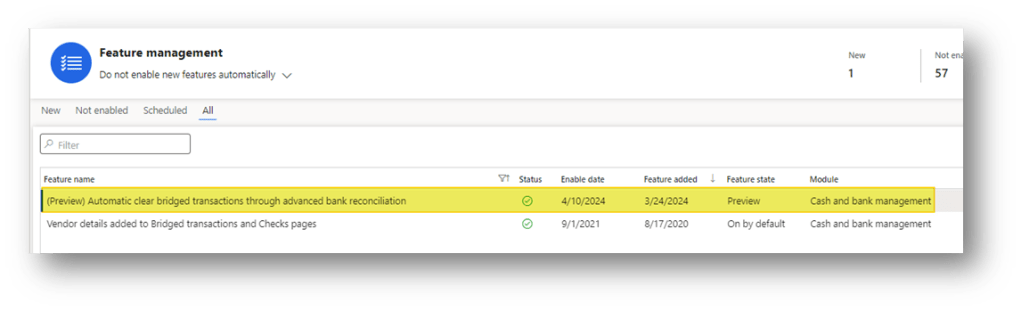
Go to: System administration> Feature management.
We need to enable the new feature “Automatic clear bridged transactions through advanced bank reconciliation”:
Methods of payment
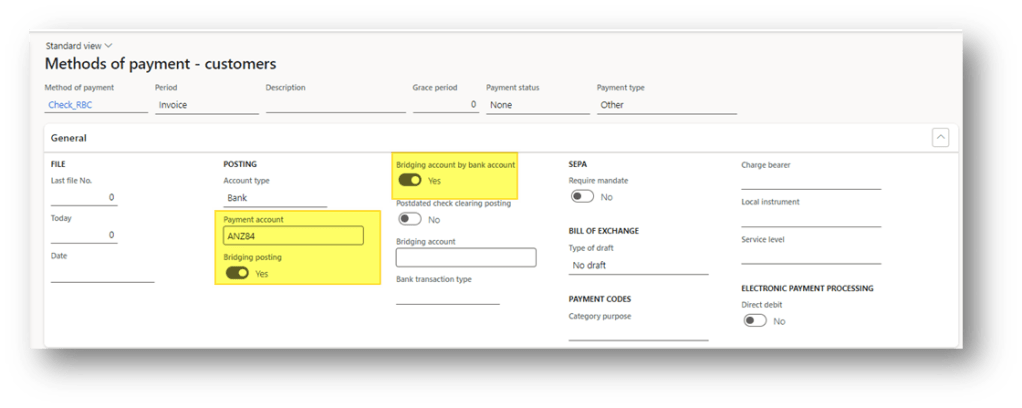
Go to: Accounts receivable> Payments setup> Methods of payment.
As usual, we select the flag “Bridging posting” to allow the bidging transaction. Furthermore, we have to also activate the flag “Birdging account by bank account” to use this feature, and add the bank account involved in it.
In this case, we don’t need to insert the “Bidging account” because we will set it directly in the bank account master data.
Bank accounts
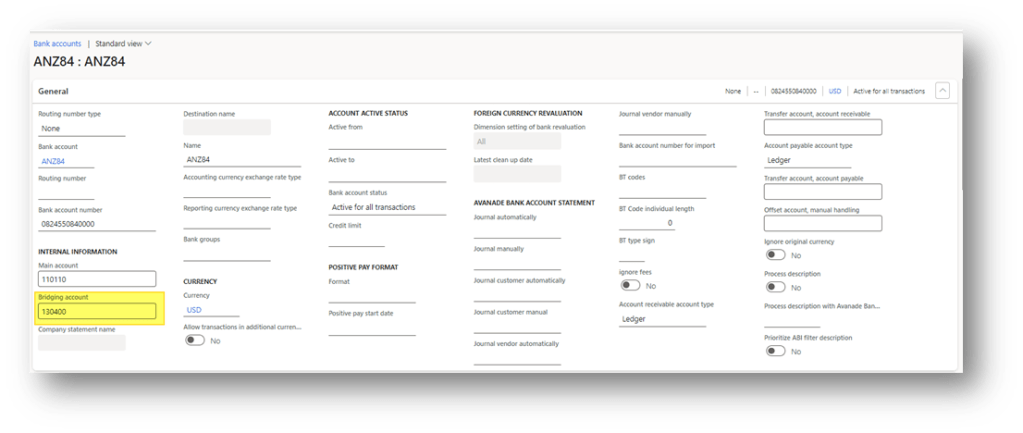
Go to: Cash and bank management> Bank accounts>Bank accounts.
Here, we have to insert the bridging main account:
Bank management parameters
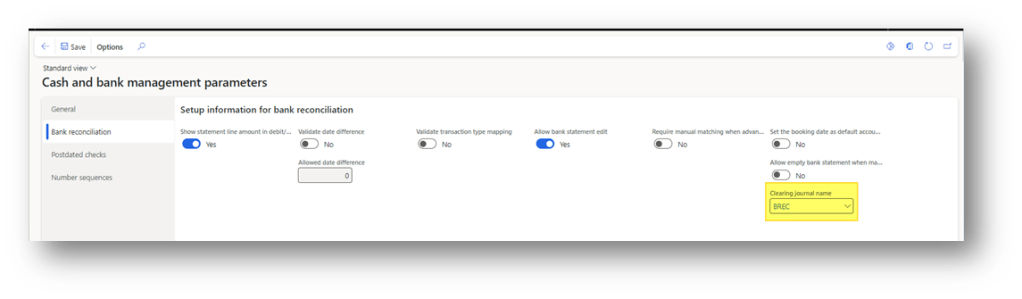
Go to: Cash and bank management> Setup> Cash and bank management parameters.
The system will automatically post the clearing of the bridging account when we mark the bank statement as reconciled. Indicate in the parameters the journal name that D365FO should use for this clearing:
Process
Customer payment
Go to: Accounts receivable> Payments> Customer payment journal.
Create a payment journal as usual, and pay attention to the right payment method is inserted. When we use the payment method configured previously, the system automatically individuates the correct bank account to use and insert automatically the bridging account as offset.
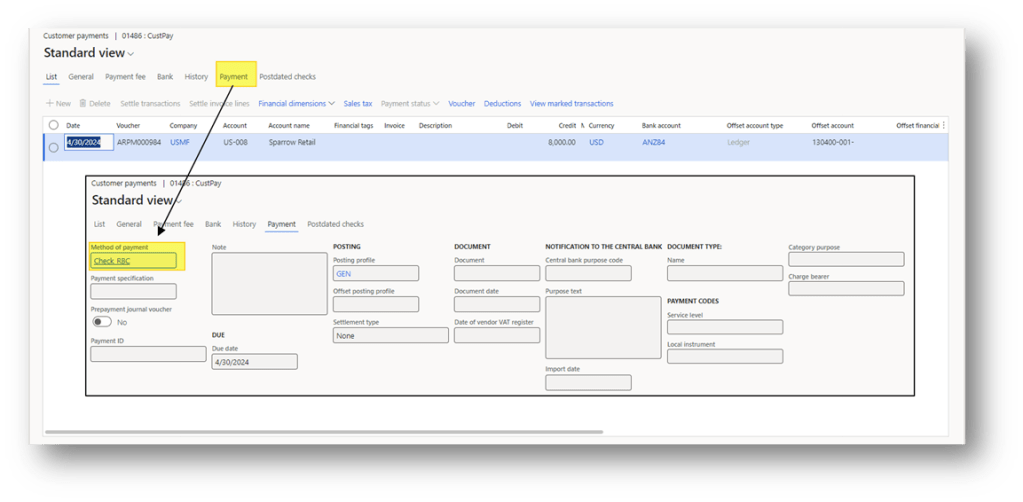
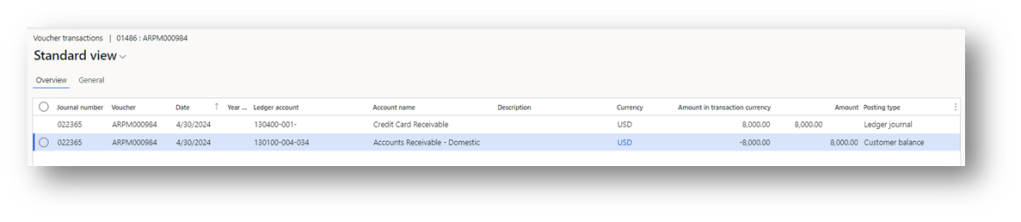
Perform the posting as usual. We can see that the voucher moves the T account:
Bank reconciliation
Perform the bank reconciliation as usual (manually or automatically). There are any changest through the bank statement import and reconciliation:
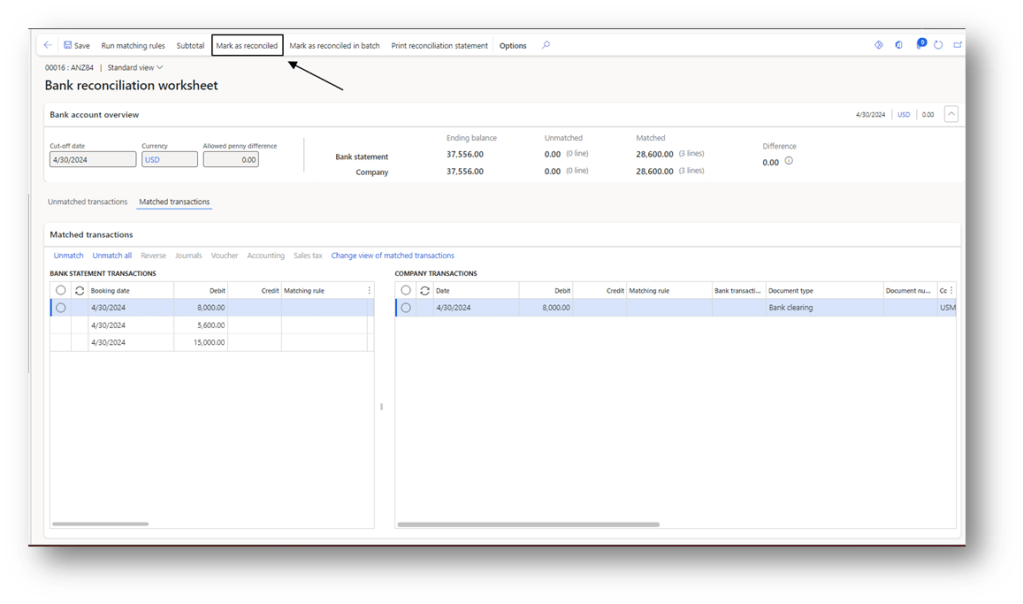
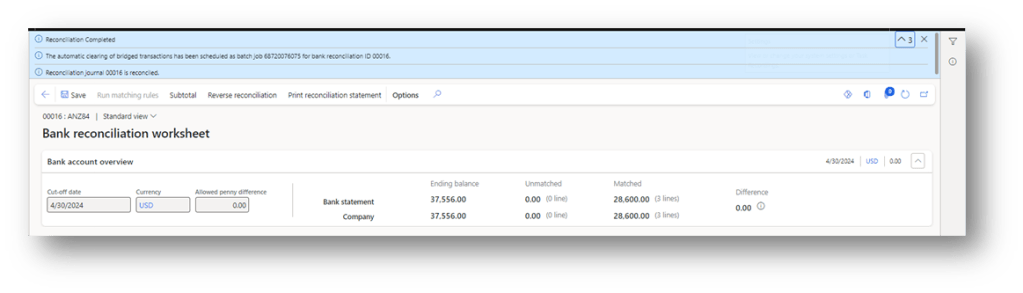
When we mark the statement as reconciled, the system automatically posts the clearing of the bridged account:
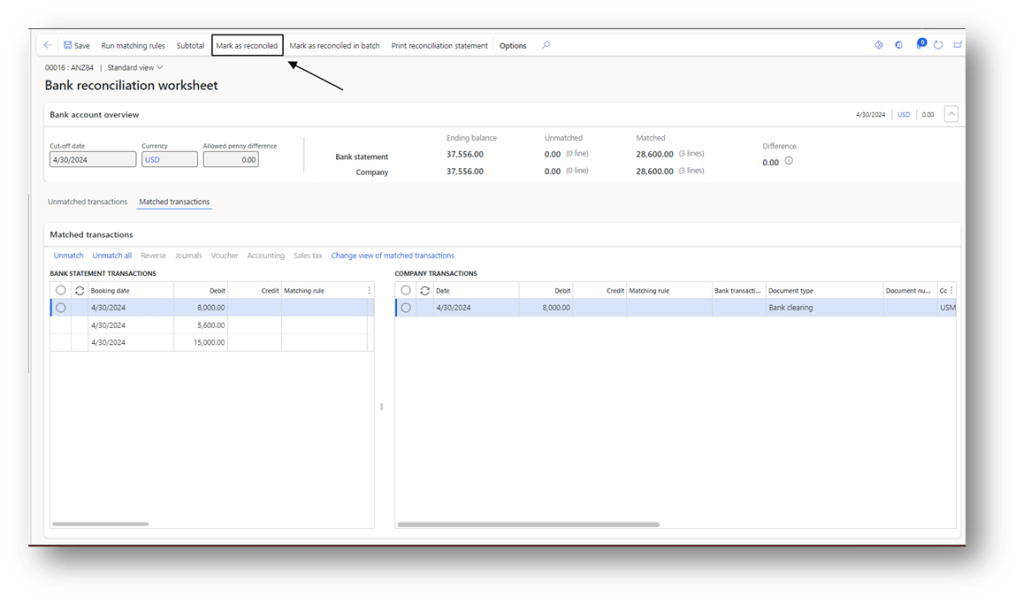
Automatic clearing of bridged transactions
As we can see after the reconciliation, D365FO launch automatically a batch to perform the clearing:
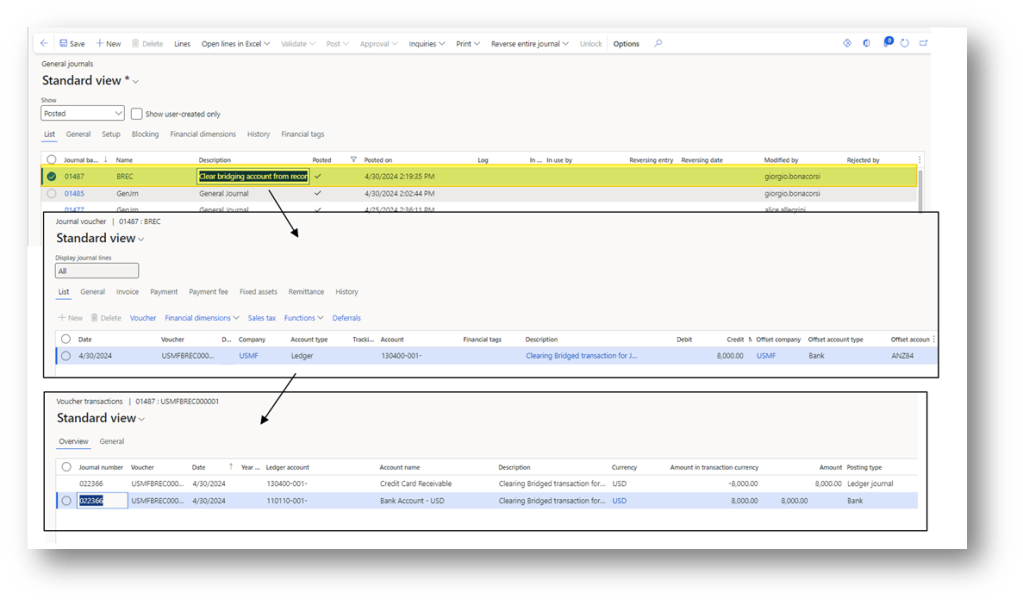
When it’s finished, we can see that the system was automatically posted the clearing of the bridging account:
Note: if there is some trouble, we can manually re-launch the batch to perform the clearing. It’s present in this path: Cash and bank management> Periodic tasks> Clear bridged transactions.

 Dax365FO
Leave a comment