
Business requirement
Sometimes, the settlement is made directly from the main account transactions. This can be applied when we use a bridging account and we want to be sure that the events that happened in debit match those in credit. For example, it can be related to credit card transactions. Matching the transaction manually is a consistent loss of time and concentration for the accountants.
This article presents a D365FO solution for automatically matching transactions between them. Once we have the matching criteria, we can create a recurrence job and let the system do the matching.
D365FO solution
The accountant has to focus on the system’s indication about how to do the automatic settlement and then check the effects. Configured correctly, it’s a powerful tool that can save working time. However, the tools also present some constrictions that we will discuss.
Configuration
Active feature
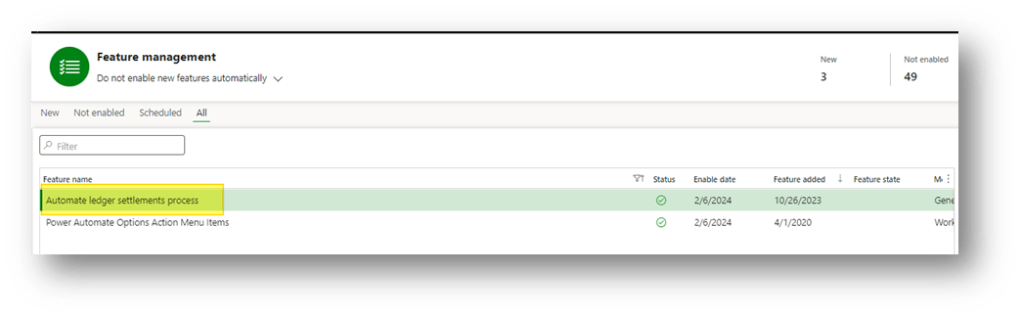
Go to: System administration> Workspaces> Feature management.
We need to activate the feature: Automate the ledger process. This is for activating the D365FO solution throughout the system.
General ledger parameters.
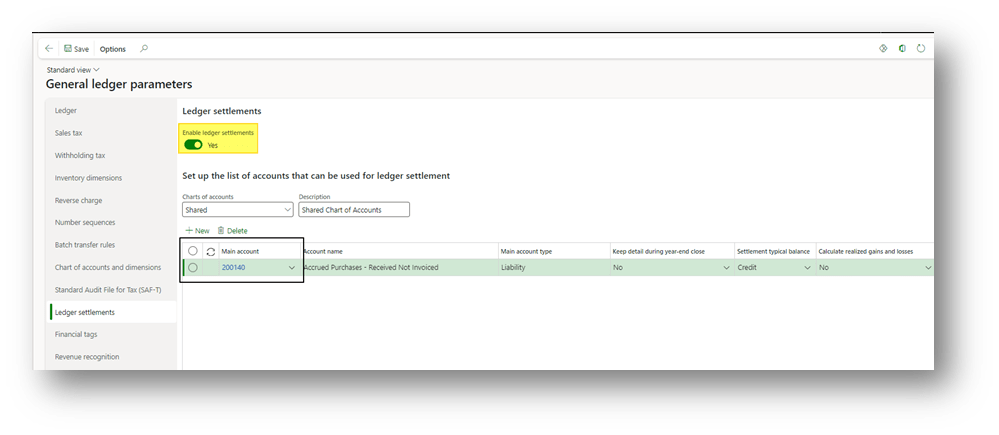
Go to: General ledger> Ledger setup> General ledger parameters.
Open the tab: Ledger settlements. Here, we indicate the main accounts that are subject to accounting settlement. Note that this setup is used also when we configure the manual settlement.
Process automation
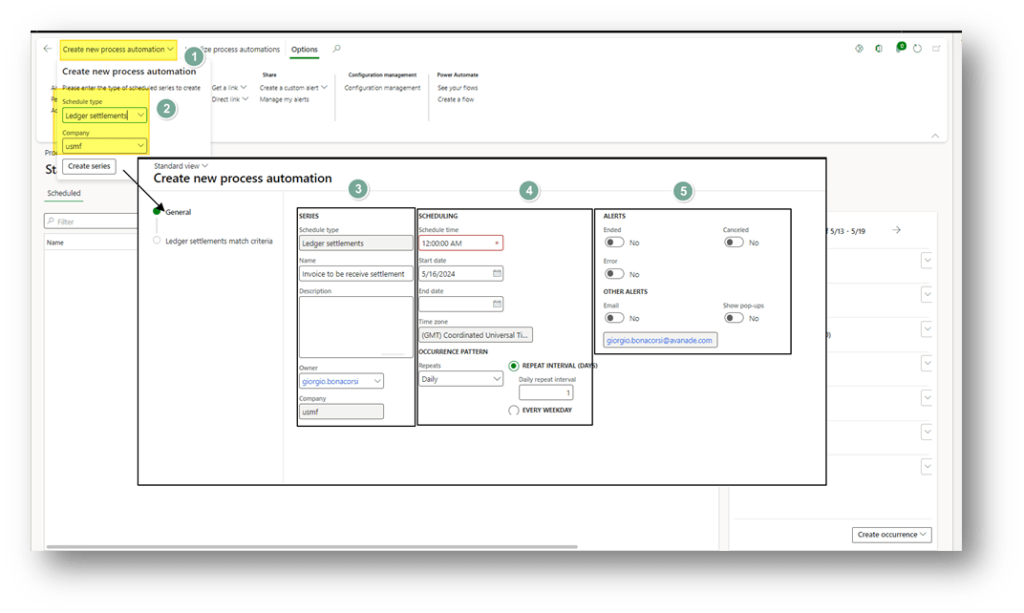
Go to: General ledger> Ledger setup> Process automations.
At this point, we create a new process with the schedule type “Ledger settlement” for our legal entity. Then, we configure the series description, time scheduling and notification policy:
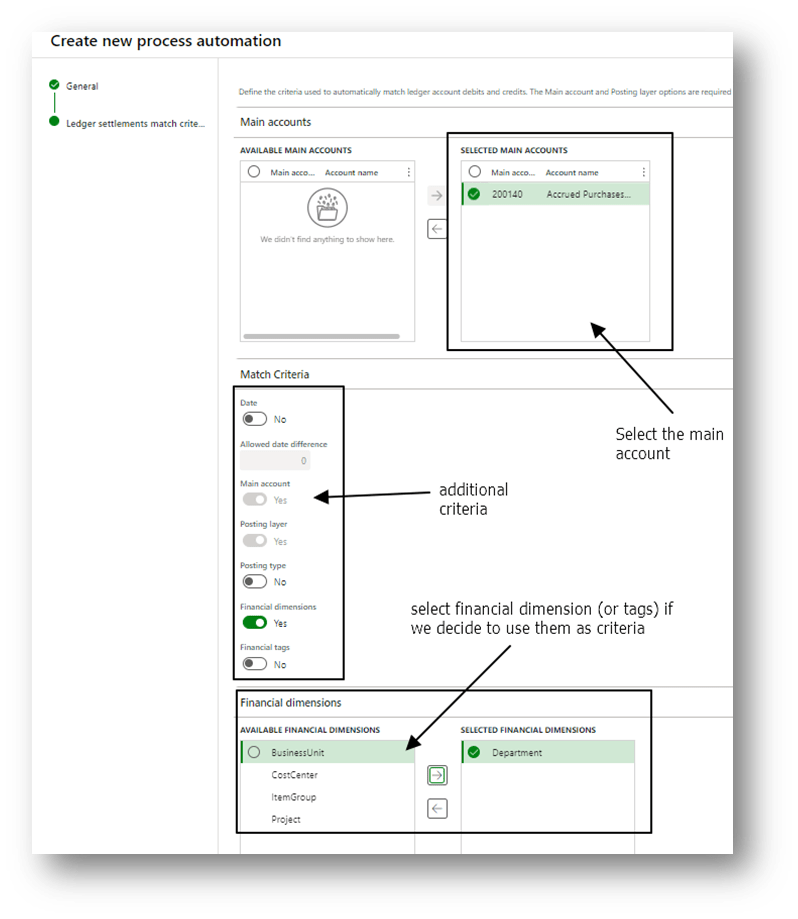
Then, we have the milestone of our solution: the configuration of the matching criteria. It’s important to focus on these criteria; otherwise, the solution doesn’t work properly.
The first thing to note is that the amount in credit and debit should be the same to match the transactions. If, for some reason, the total amount is split into multiple rows, that does not work.
Furthermore, we can add additional criteria to our matching logic. They are all based on recognizing if the information present in debit and credit are the same. These criteria can be:
- Date;
- Posting type
- Posting layer;
- Financial dimension
- Financial tags
Note that we can set a tolerance range for the date:
When the configuration is complete, we can launch our job.
Inquiries
Process automation history
Go to: General ledger> Ledger setup> Process automations.
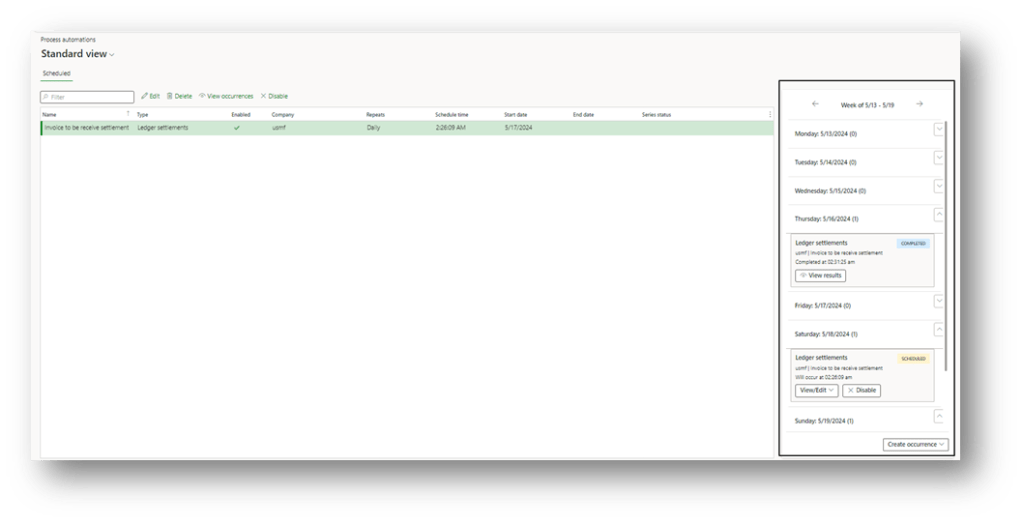
Here, when we select our recurrence, we can check the forecast schedule, state of the art the working done by D365FO, and decide if to change or not the future schedule:
Ledger settlements
Go to: General ledger> Periodic tasks> Ledger settlements.
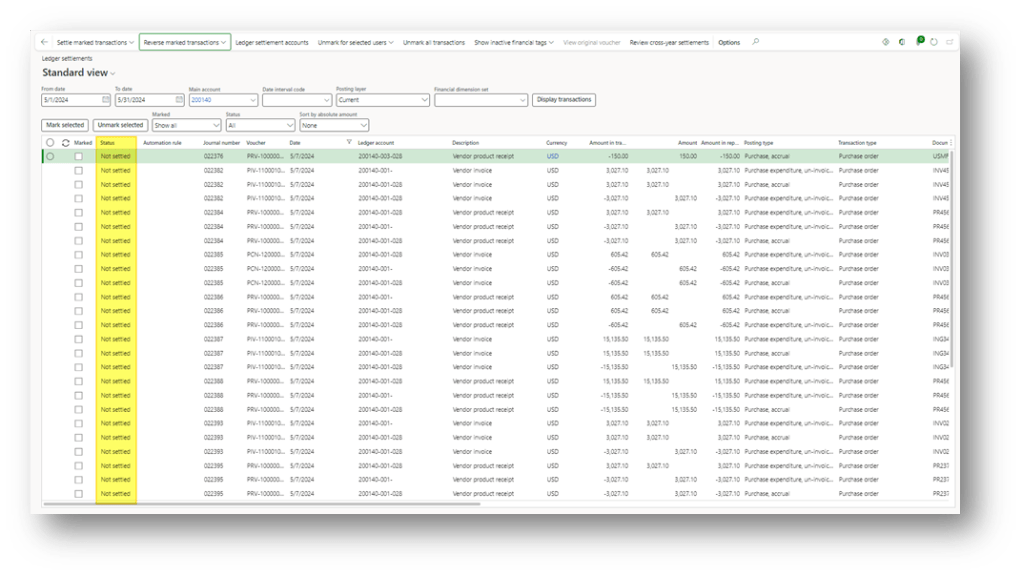
Here, we see the main account transaction to settle. In this example, we have the transaction before the automatic settlement running:
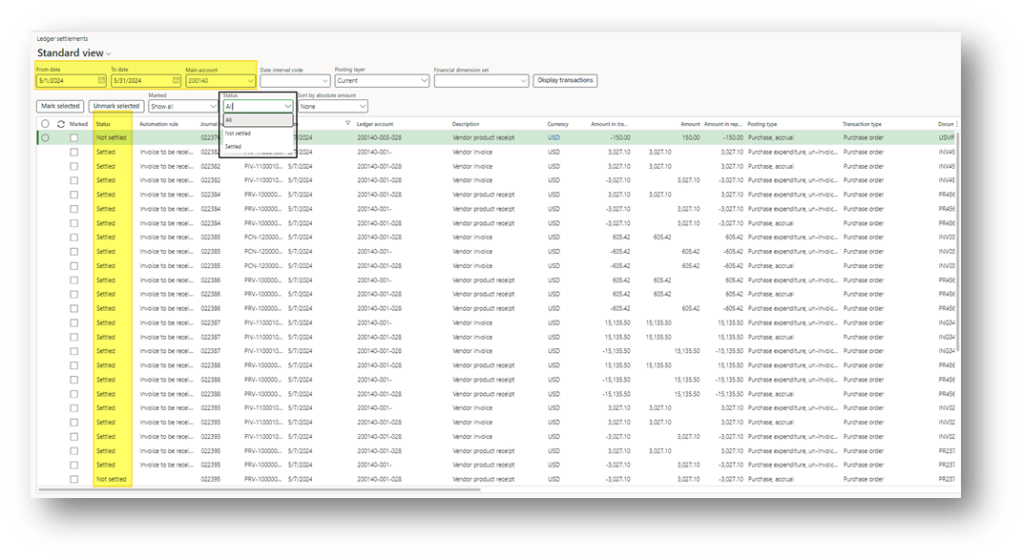
We are just waiting for the job to finish work. When it’s finished, we can check the result filtering the status:
Source and credit

 Dax365FO
Leave a comment