
Business requirements
The workflow applied on the general ledger has a specific purpose: to authorize the posting of the journal. So, it’s the final step before the posting, where we will ask the approbator if to approve or not the journal.
Solution D365FO
There are two alternative ways to set the approver on a journal:
- Approver group: This is the concept where we get the approbation from a user group. There is no workflow to set, and the system will always request approbation from at least a member of the user group before going ahead with the posting;
- Workflow: This is how we set a workflow to identify the journal’s approver. It’s more complicated, and it’s appropriate if we have some advanced criteria to apply. For example, we could differentiate the approver based on the total journal’s amount.
Approver group
Configuration
Go to: General ledger> Journal entries> General journals.
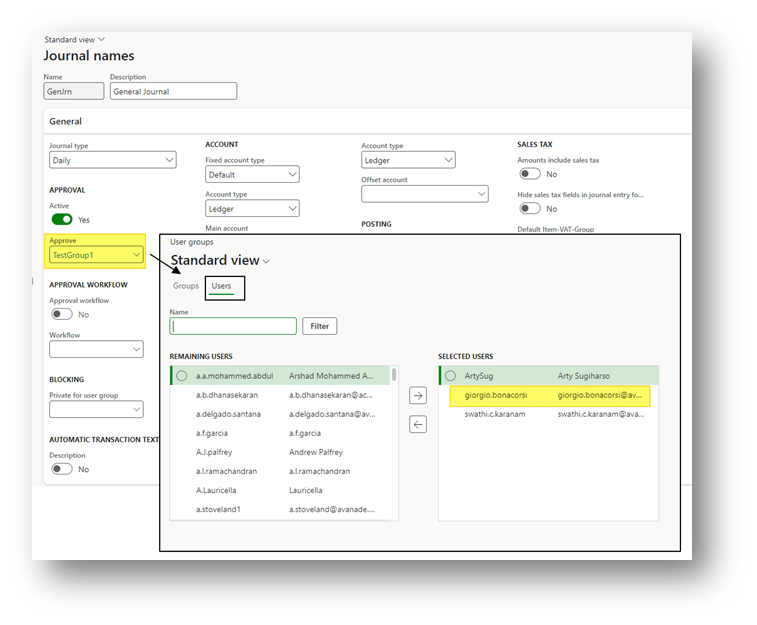
In the journal configuration, select the user group that will approve. In this group, we should have the user’s approver:
Process
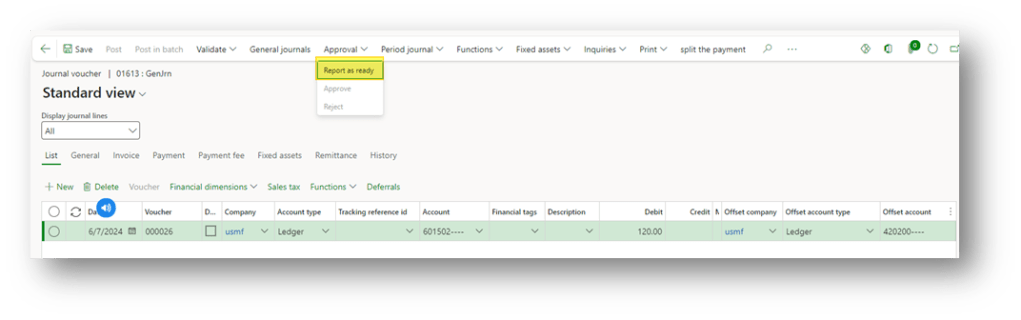
Create the journal as usual, and then we are ready to post; click on Approval>Report as ready. When we ask for approbation, the journal will freeze, so we cannot edit anymore:
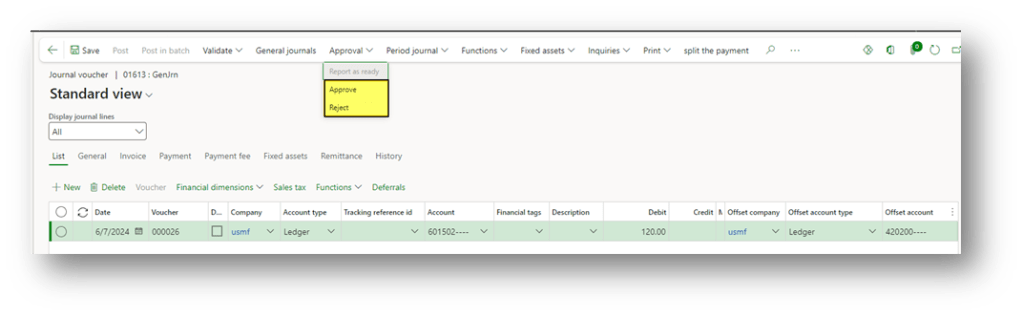
No notifications are received by the approver, so it should be an extra system. At least one member of the approver group should open the journal and decide what to do:
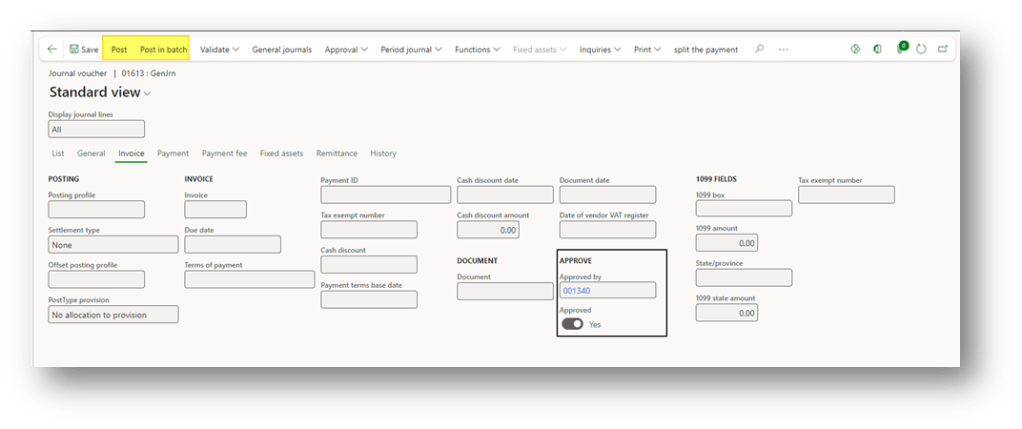
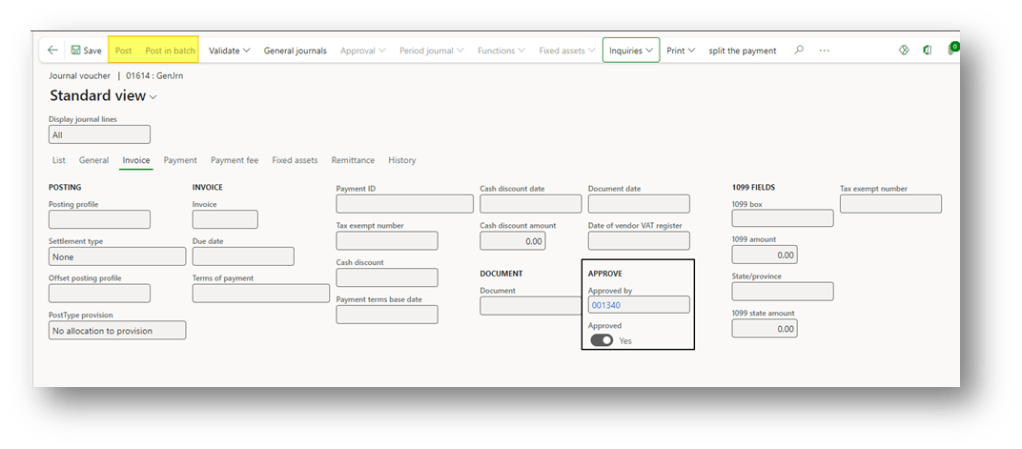
When the journal is approved, we can see that the field “approved” is turning on, and we have the name of the user who approved it. Therefore, it will be ready to post:
Workflow
Configuration
Workflow
This configuration should be done in Microsoft Edge. Go to: General ledger> Journal setup> General ledger workflows.
Create a new workflow with the type “Ledger daily journal workflow”.
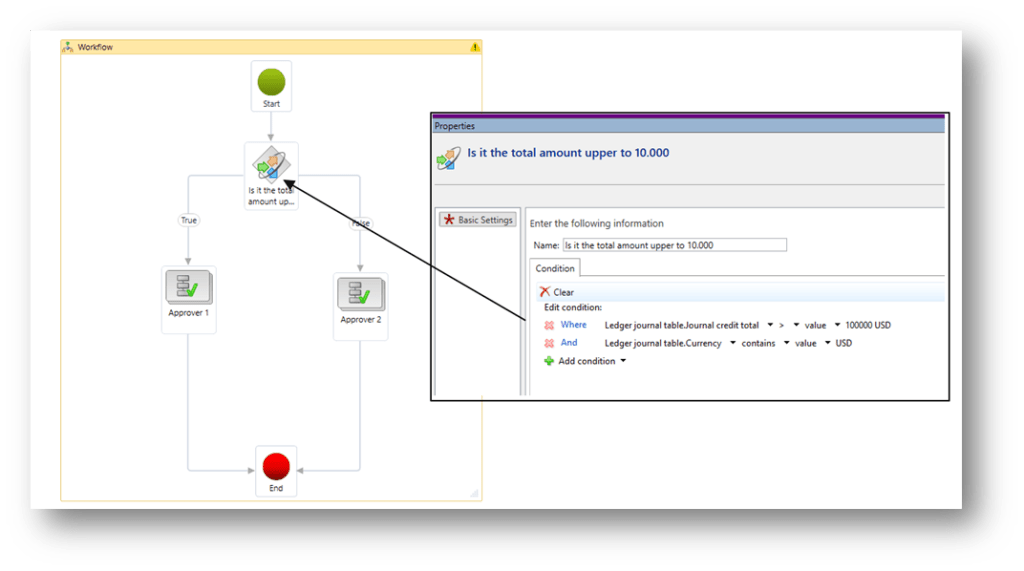
Our workflow can be set using this component:
- Approve daily journal: it’s at least the component to insert into. It’s where we indicate that the journal should be approved and who has to do it;
- Conditional decision: Automatic conditional decision based on the information present in the journal (line the amount inserted inside, etc..);
- Manual decision: This is not the approbation; it is the manual decision request. It’s used to show the approbation path that the workflow will follow manually;
- Parallel activity: Separate the flow in two parallel activities
- Sub workflow: we can invoke another ledger daily journal workflow as sub-workflow;
Here, we can find an example of workflow. In this case, if the total amount is up to 10.000$, we will ask for the approbation of approbator 1 and other approbator 2.
Journal
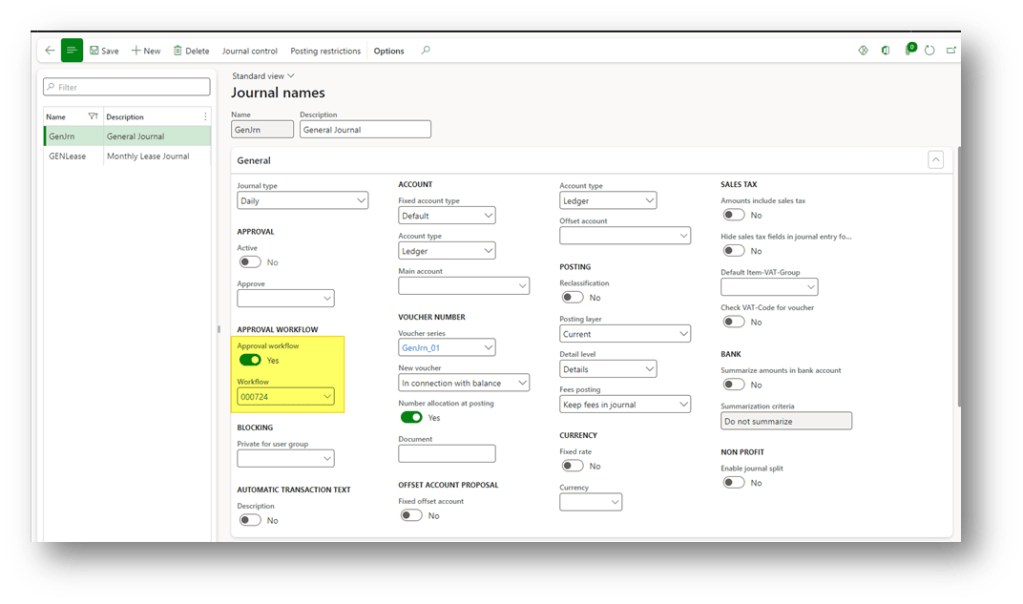
Go to: General ledger> Journal entries> General journals.
In the journal configuration, select the workflow to use:
Process
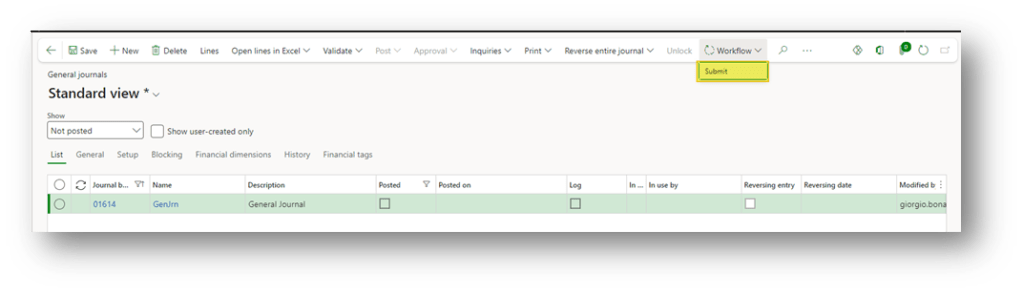
Create the journal as usual, and from the header journal, we submit the request for approval:
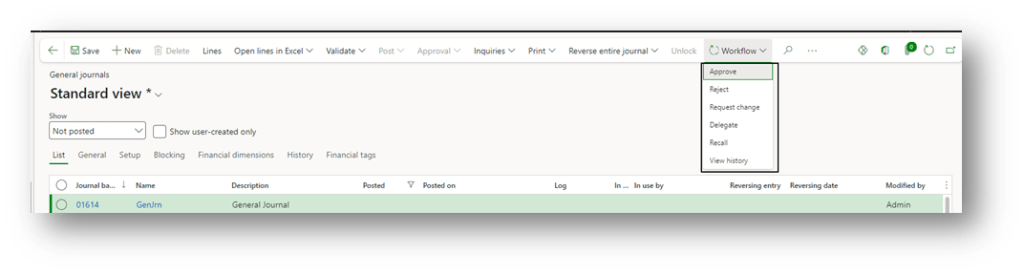
As we can see from the history, the system calculates and allocates the workflow decision to the proper user. When it’s finished, the approver can decide the actions to take:
When the journal is approved, we can see that the field “approved” is turning on, and we have the name of the user who approved it. Therefore, it will be ready to post:

 Dax365FO
Leave a comment