
Business requirement
Sometimes, it is more convenient for the user to work in Excel and then import the data into D365FO, particularly when we have a massive volume of data to process. D365FO offers an integration between some tables and Excel. This integration can be leveraged to import data into the system.
D365FO Solution
The Excel integration is natively configured, so we don’t need to do anything. However, we can leverage configuration changes to set up customized templates that we would like to use.
Process
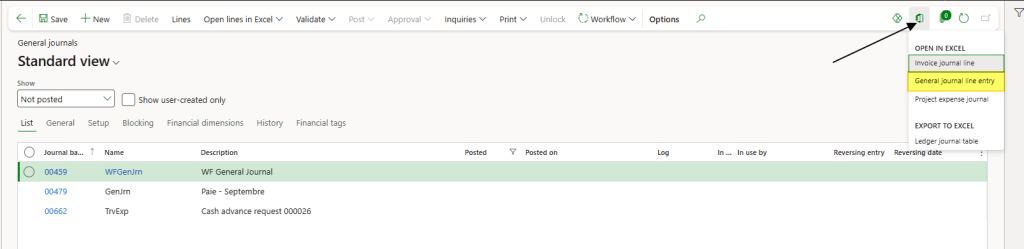
In the form we are interested in, in the upper-right corner, we can see the Excel template that can be used to insert the records. Select the template to open an Excel file that is automatically integrated with D365FO:
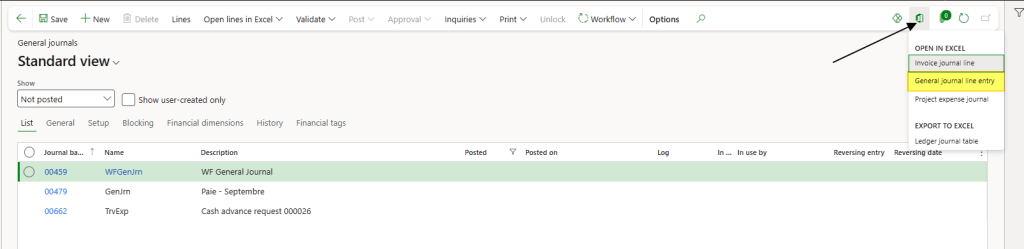
Open the Excel file that was downloaded from your web browser.

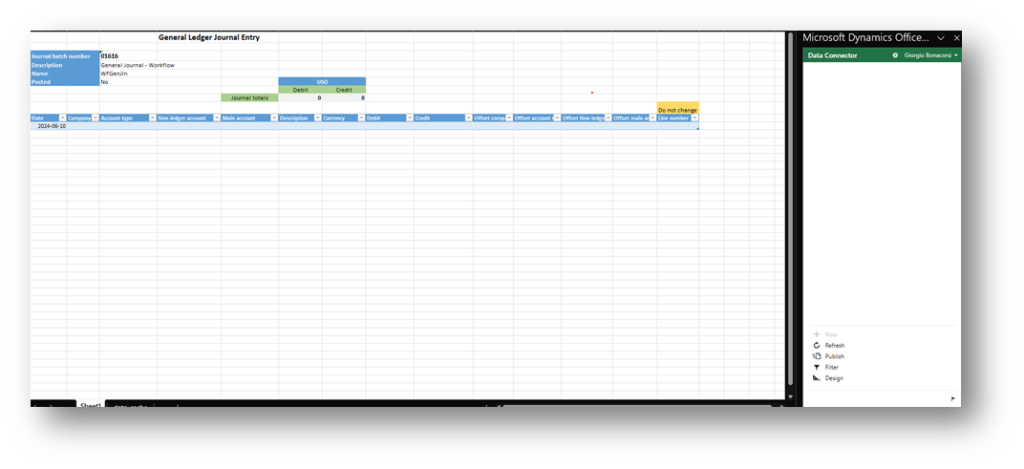
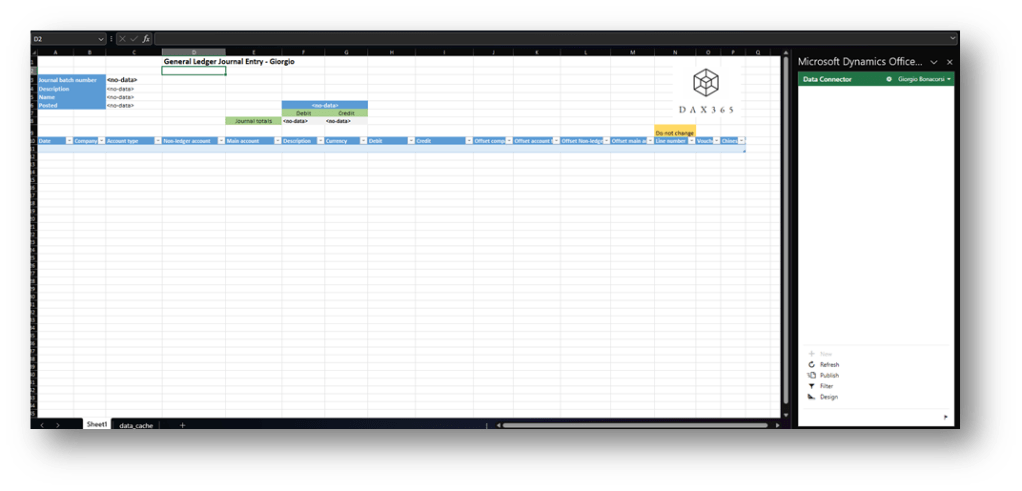
Now, we can see our Excel is already integrated with D365FO. Insert our credential to complete the integration access, and following these step:
- Modify the structure
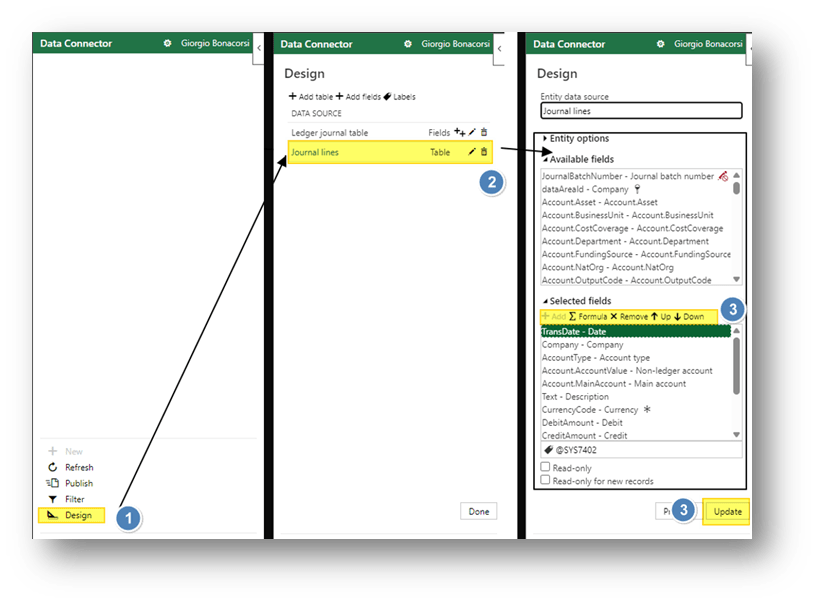
Before working on it, we can decide to modify the data structure.
Select “Design” and add/remove the field that we want to see or modify into our structure:
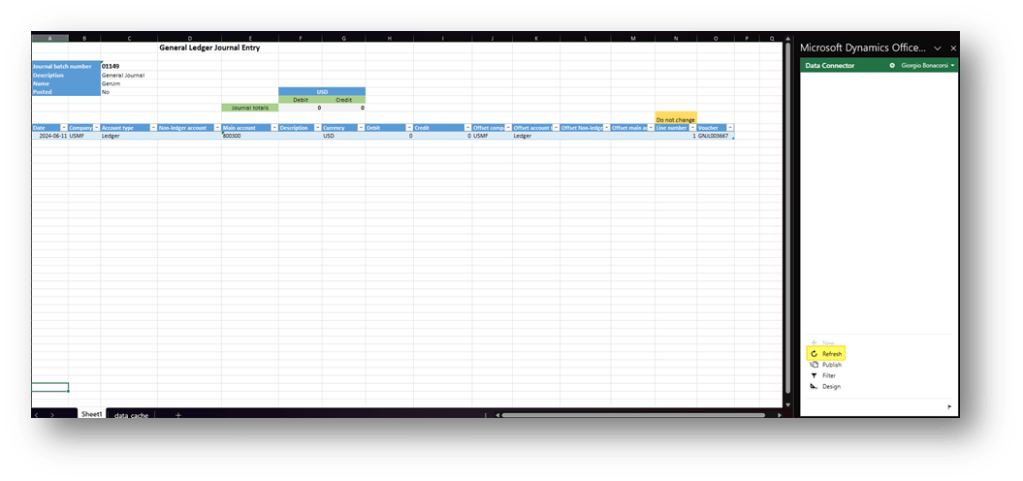
When we finish modifying the structure, we can press “refresh” to import the data already present in the journal:
- Insert the data
You can insert records directly into the table. Do this in the usual way by adding or deleting rows as needed. For certain fields, Excel will suggest values retrieved from D365FO:
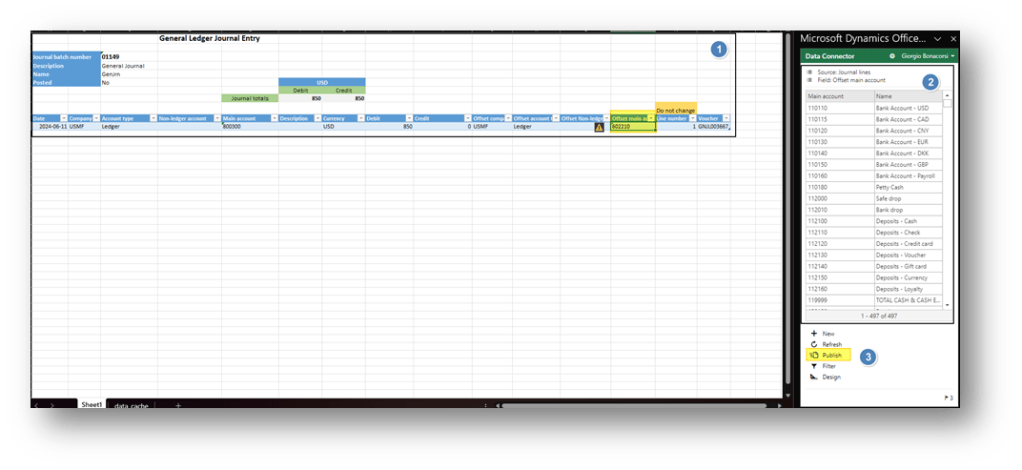
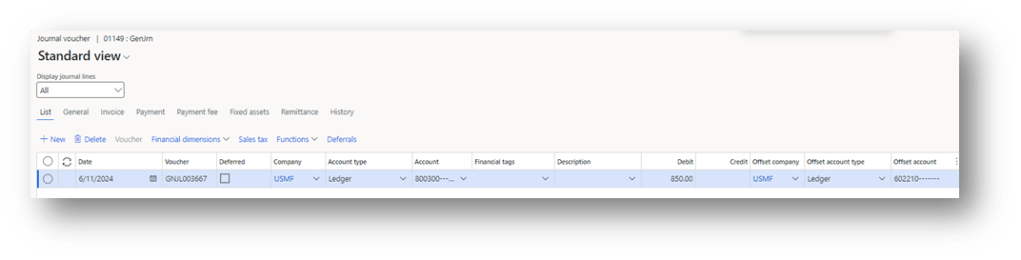
After the publishing, we can see the data in D365FO:
Configuration
In the form we are interested in, in the upper-right corner, we can see the Excel template name:
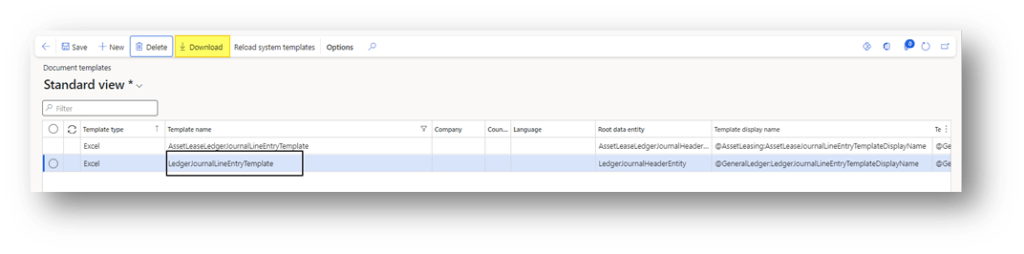
Then go to: Organization administration> Setup> Office integration> Document templates.
Select the appropriate template based on its name. In this case, choose the template named “LedgerJournalLineEntryTemplate” and download it.
Modify the template structure. In our case, we have added a logo:
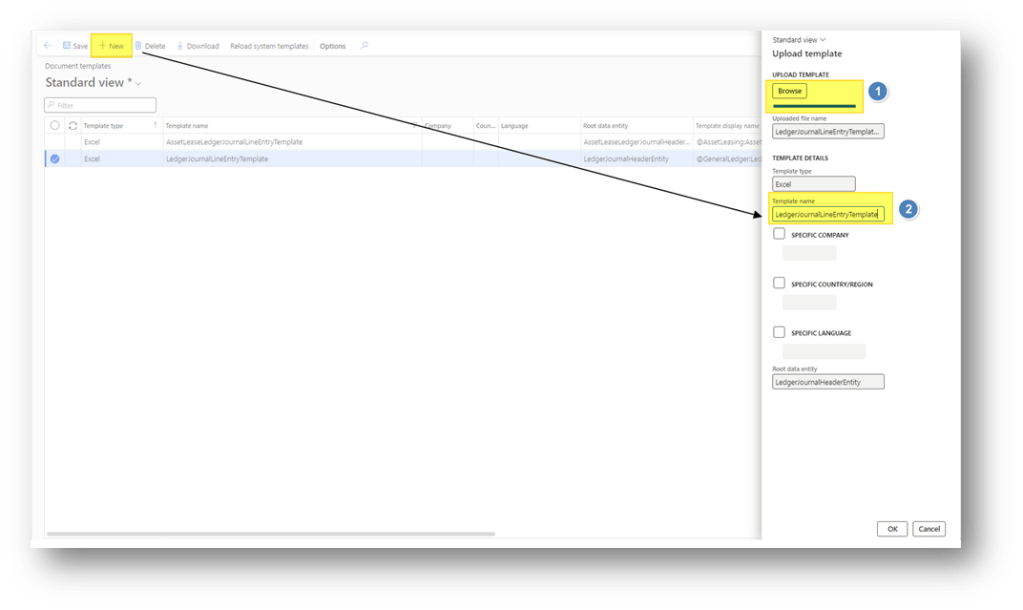
Return to the Document templates form and create a new template. Upload the modified Excel file, using the same name as the original template and save. Whenever possible, segregate the template by company or by the user’s language.
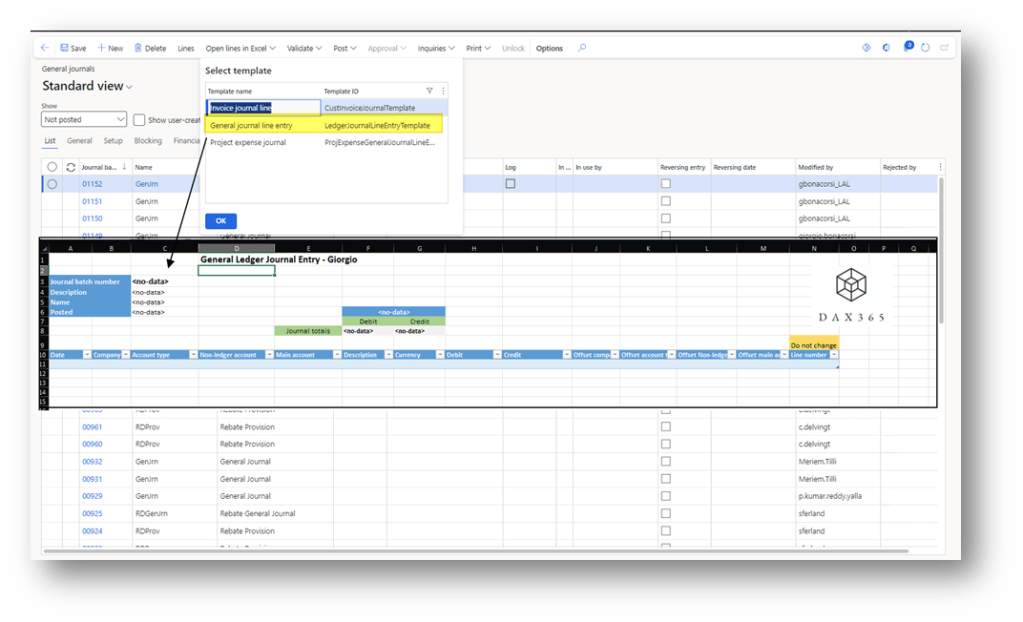
Now we can see that the system use our template:

 Dax365FO
Leave a comment