
In this configuration we map the value between the Invoice captured and D365FO. The values that we can map are:
- legal entity
- vendor account
- Items
- Expense (procurement category)
Elements can have several mapping conditions. During the decode, if at least one condition is satisfied, the system will do the mapping. In other words, It’s not requested that all conditions mapped satisfy the return of the D365FO value.
Configuration
Legal Entities
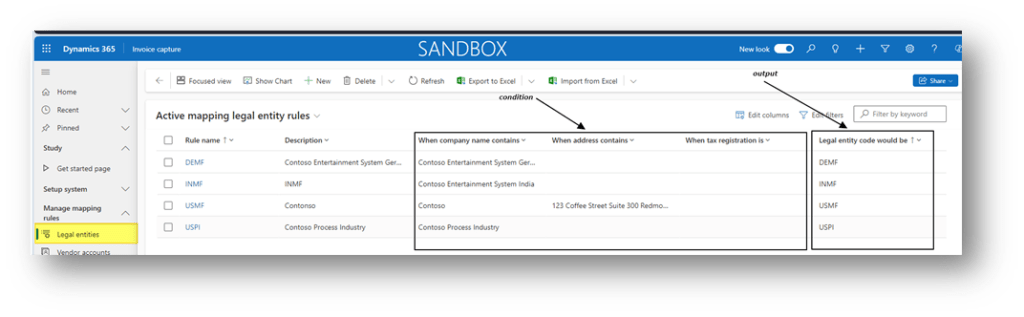
Go to: Setup system> Manage mapping rules> Legal entities.
Here, we insert:
- Rule name: Id;
- Description: brief description;
- When company name contains: It’s a condition;
- When the address contains: It’s a condition;
- When tax registration is: It’s a condition;
- Legal entity code would be: Legal entity value in D365FO;
Vendor accounts
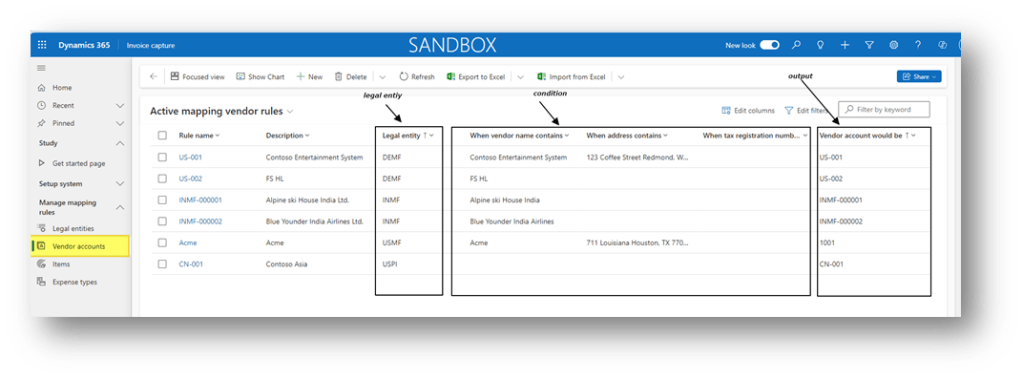
Go to: Setup system> Manage mapping rules> Legal entities.
Here, we insert:
- Rule name: Id;
- Description: brief description;
- Legal entity: It’s a condition, and it’s delimiter the mapping perimeter;
- When vendor name contains: It’s a condition;
- When the address contains: It’s a condition;
- When tax registration number is: It’s a condition;
- Vendor account would be: Vendor account in D365FO
Items
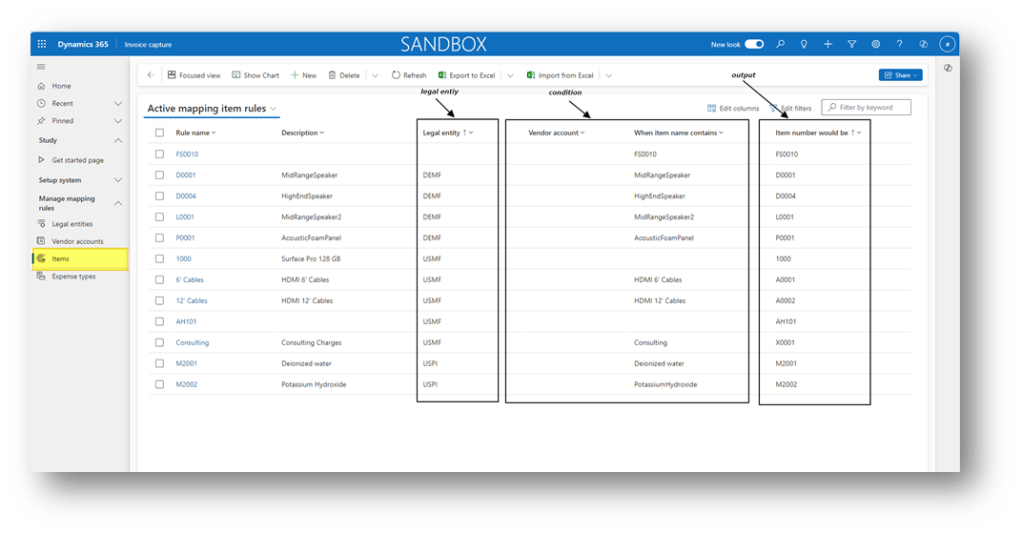
Go to: Setup system> Manage mapping rules> Legal entities.
Here, we insert:
- Rule name: Id;
- Description: brief description;
- Legal entity: It’s a condition, and it’s delimiter the mapping perimeter;
- Vendor account: It’s a condition;
- When Item name contains: It’s a condition;
- Item number would be: Items in D365FO
Expense types (procurement category)
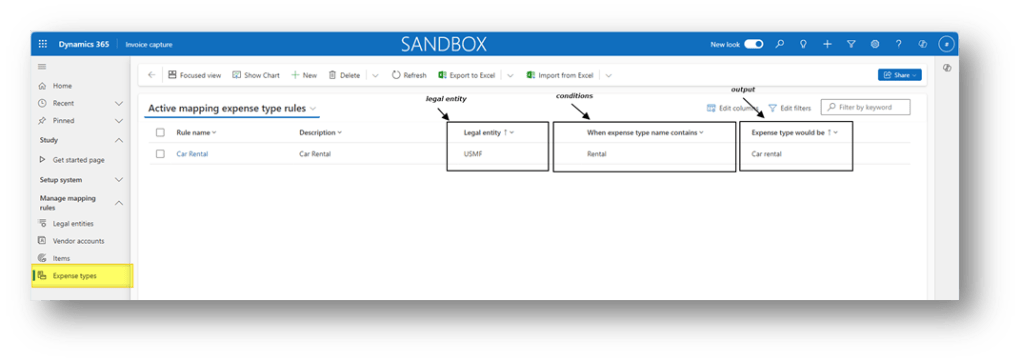
Go to: Setup system> Manage mapping rules> Legal entities.
Before to go forward, we need to understand that is call expense type, it’s the procurement category in D365FO.
Here, we insert:
- Rule name: Id;
- Description: brief description;
- Legal entity: It’s a condition, and it’s delimiter the mapping perimeter;
- When expense type name contains: It’s a condition;
- Expense type would be: Expense in D365FO;
Import/Export massively configuration
Add/Update
Some configurations, like the vendor or the items, are difficult to maintain manually. Therefore, it’s possible to import them massively throughout an Excel file. Here, we are going to make an example of the item’s configuration.
About the template to use, it’s enough to export the value already present in the configuration. We will simply use this excel to insert our data:
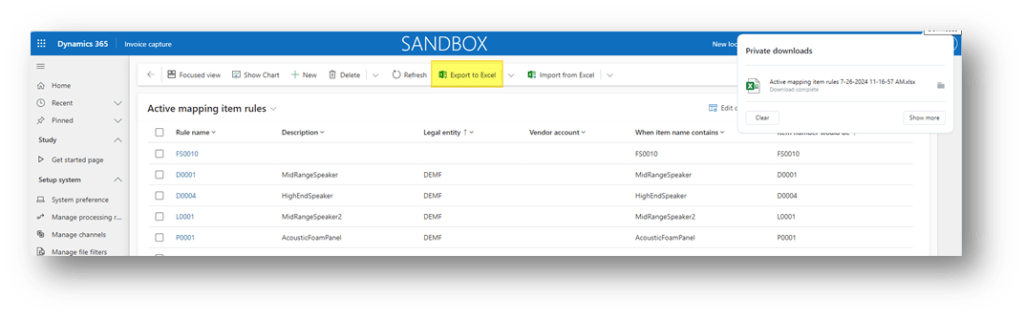
Change the Excel based on our requirements. It can be used to add or modify records:

Then, when we have the new configuration file, we can start the massive import:
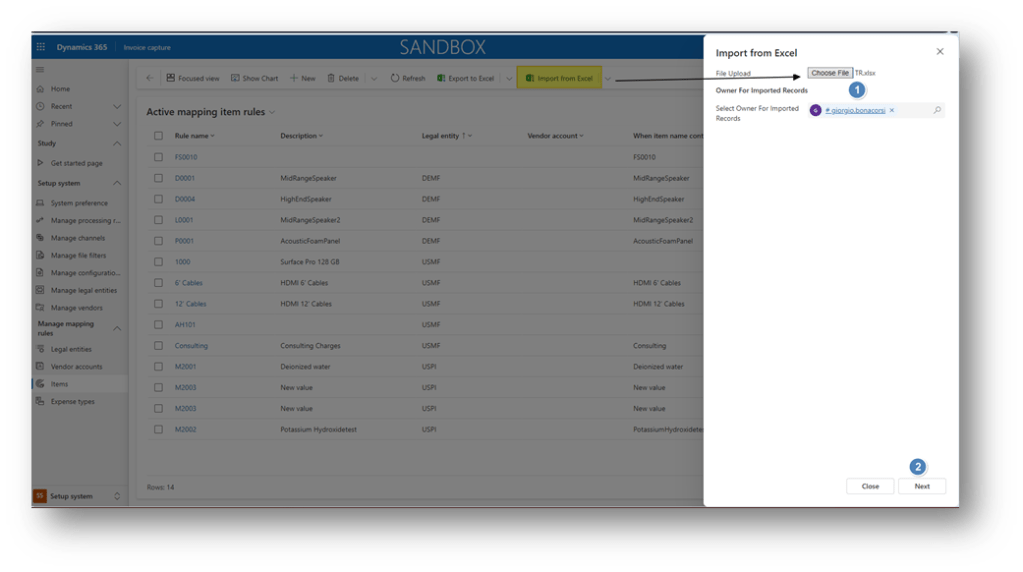
If we allow duplicates, we don’t update the existing records, but we will add new ones. Otherwise, if the record key is the same, and we don’t allow the duplicate, so the import will update the records already present in the configuration:

Delete
We can filter the records and then process manually with the massive deleting:
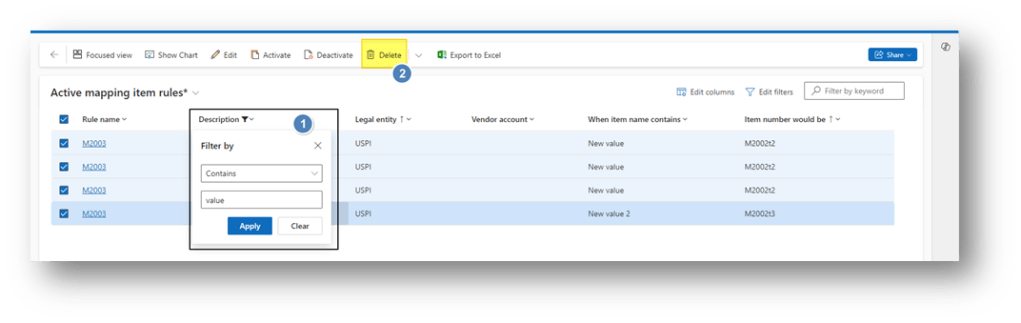
Note
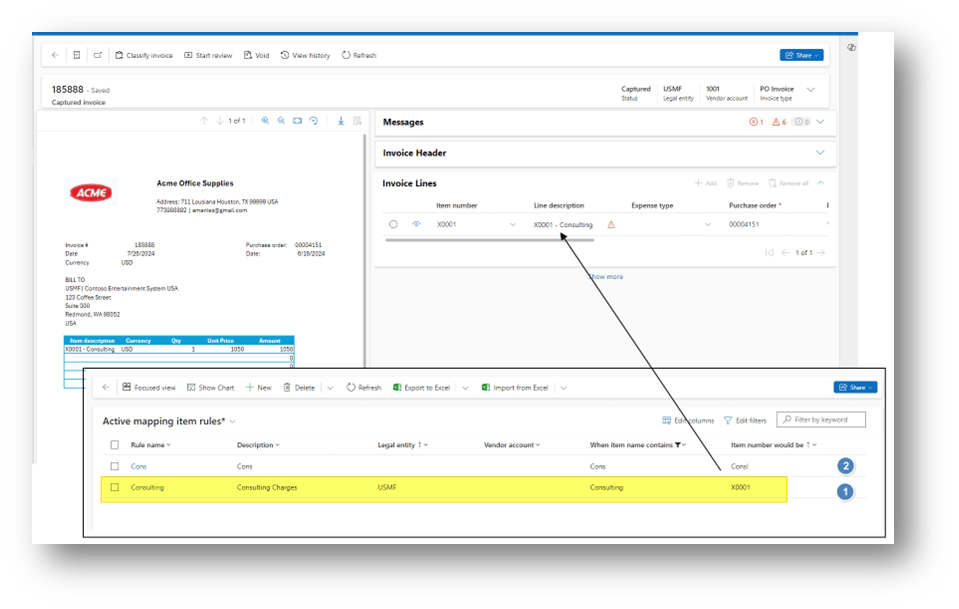
Mapping conflict
How does the system work in case of a condition conflict? The invoice capture selects the first condition inserted that it found (the order is based on the setup creation date):

 Dax365FO
Leave a comment