
Solution D365FO
The principle of this solution is that during the line entry, we will select the invoice involved throughout the settle function. This selection has two advantages:
- Inheriting on the payment line the information from the invoice selected;
- Match automatically the invoice and the payment;
With the vendor payment proposition we don’t directly select the invoice to include on journal, but we let D365FO do it. A proposal will be created based on the criteria inserted during the creation. For example we can ask to D365FO to create a payment proposal for all the invoice with EFT payment method and with the due date at the end of this month.
Keep in mind that the process is exactly the same. So, for commodity, we will explain it throughout a vendor invoice journal, but consider that if we understand the logic , we can indifferently use this function in the account payable or receivable.
Business process
Insert the payment journal
Go to: Account receivable> Payment> Customer payment journal or Account payable> Payment> Vendor payment journal.
We create our journal and jump on the line, and firstly we have to select our customer. Then, we press “payment proposal”:
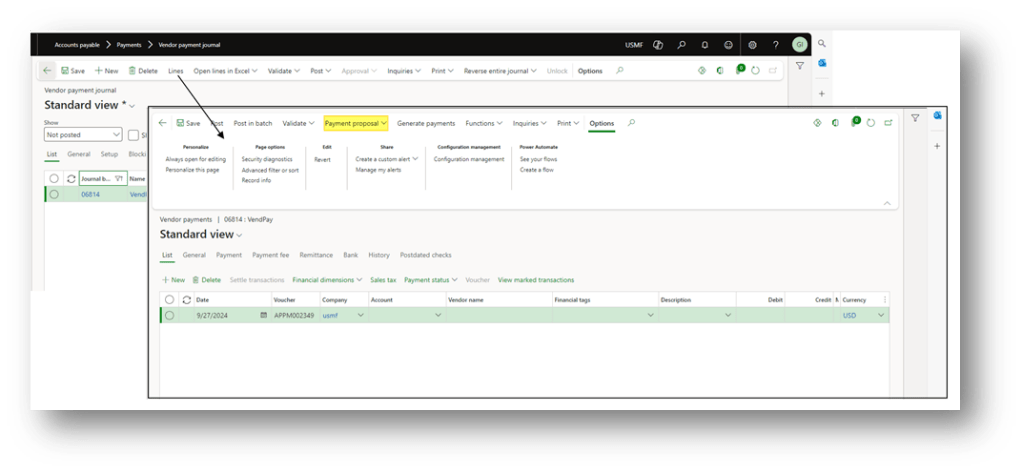
Payment Proposal
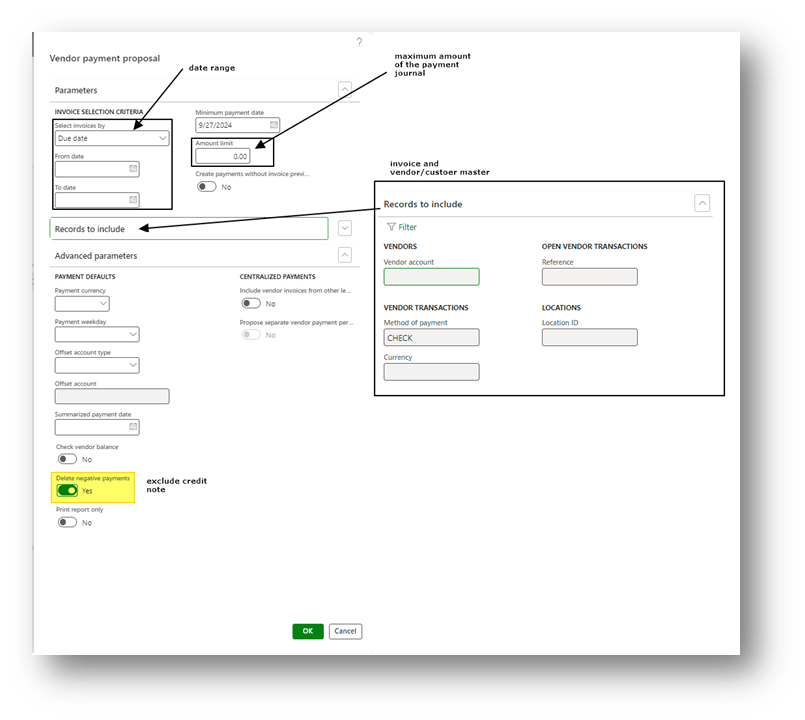
D365FO will look for the open invoice and calculate the journal entry to insert based on the criteria we will give him. So, in this form, the first thing to do is to insert the criteria. The fields that we usually handle are:
- The invoice due date range
- Maximum amount of the payment journal;
- Value present on the invoice or customer/vendor master data. We suggest to insert at lease a filter based on the payment method;
- Exclude negative payment (if the payment method has a “period = invoice”, it means that we eliminate the credit note)
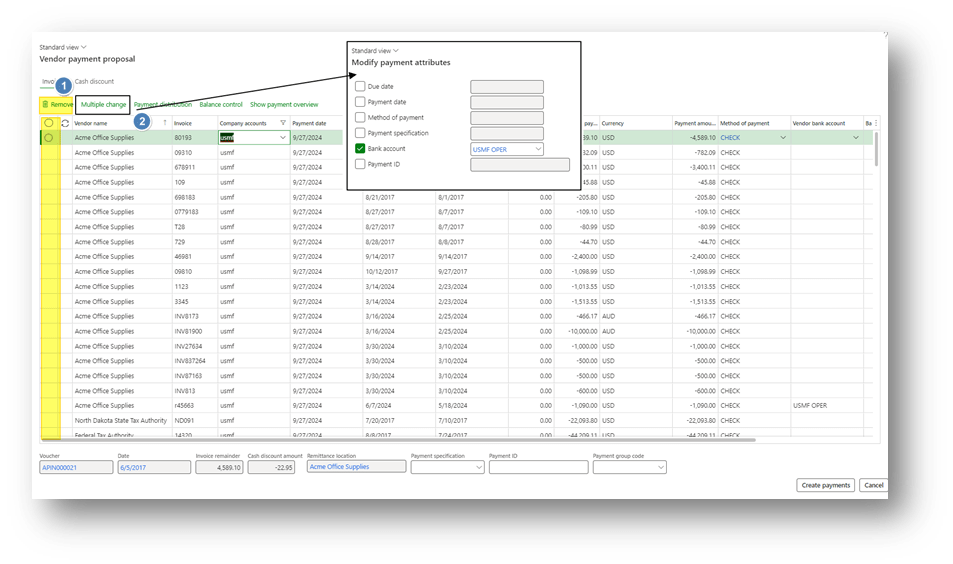
Before inserting the data in the journal, D365FO show the invoice intercepted based on the criteria, and it is possible for us to remove the invoice that we want to exclude or do a massive update. If it isn’t set as default on the payment journal, we suggest to massively to an update to insert the the offset bank account:
Post
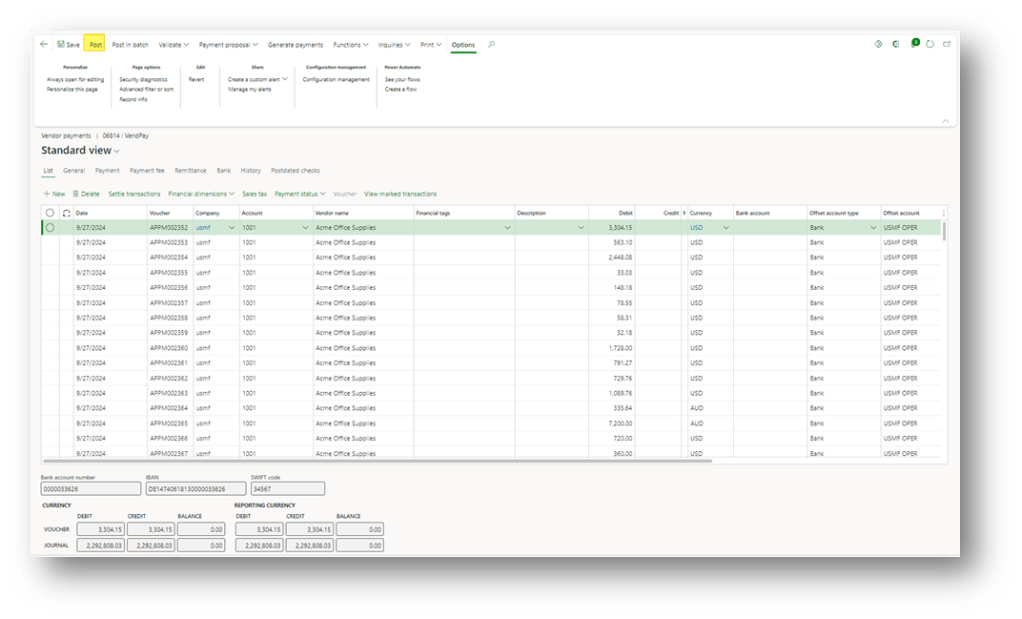
Lastly, when we validate, D365FO will create the journal, and we can go ahead with the payment journal posting:

 Dax365FO
Leave a comment