
Business requirement
Sometimes, we have to insert a description tied to the value present on the document posted (like the invoice number, invoice, date, etc.) into our voucher transaction. There exists a function in D365FO that allows the system to insert a description based on the generic rules set on the system. In this article, we will show you how to configure it and how it works.
Solution D365FO
Configuration
Go to: General ledger> Journal setup> Default descriptions.
Here, we can set the automatic text, the automatic description inserted during the posting. Many documents are configurable, so we will do our example based on the customer’s free text invoice.
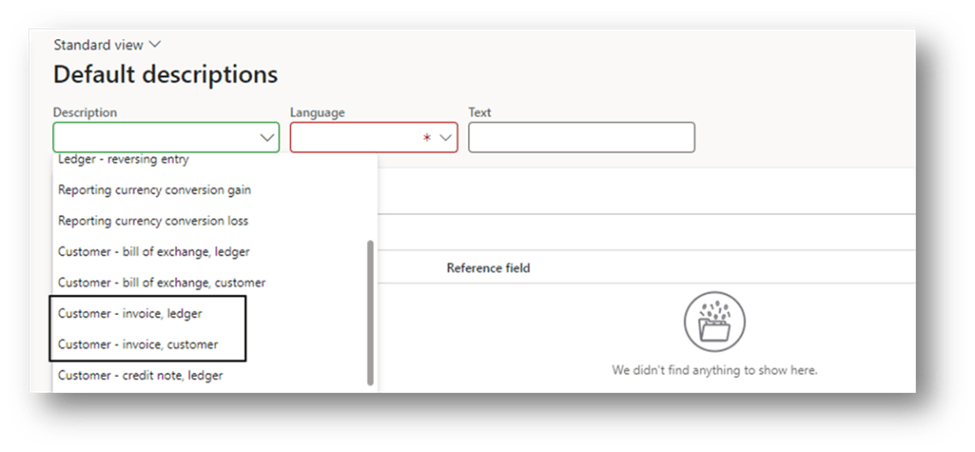
Create a new rule, and the first component to choose is the description type. It’s how to identify the voucher line we will put in our description. For our case, we have:
- “customer invoice, customer”: balance sheet link to the customer;
- “customer invoice, ledger”: other than the transaction
The second field is the language. It’s based on the document language. For example, if we have as user language us-en and for the customer invoice “fr” (language that I remind comes from the customer master data), the system will consider “fr” as the reference language for the default description:
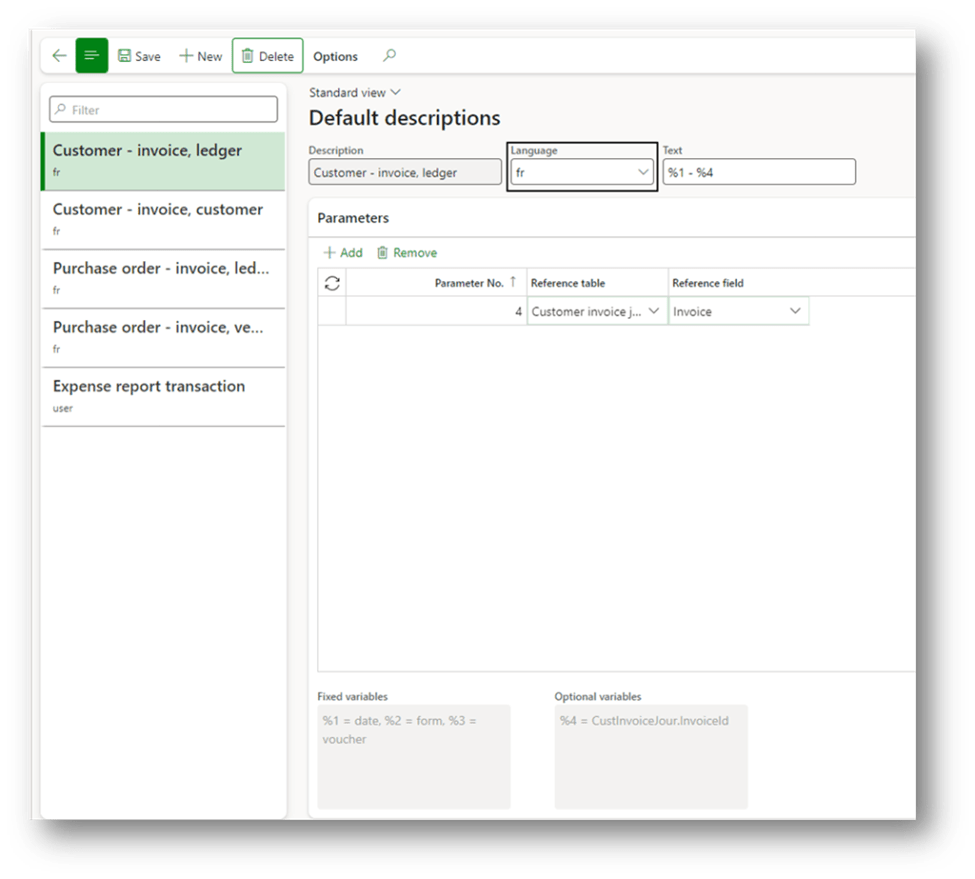
Finally, in the third field, we can insert our automatic test. It’s a text description where we can inject variables from the document. There are two kinds of variables available:
- Fixed: predefined by D365FO. In our example, they are the transaction date, form and voucher number;
- Optional variable: Variable defined by the parameters inserted. In this example the invoice number
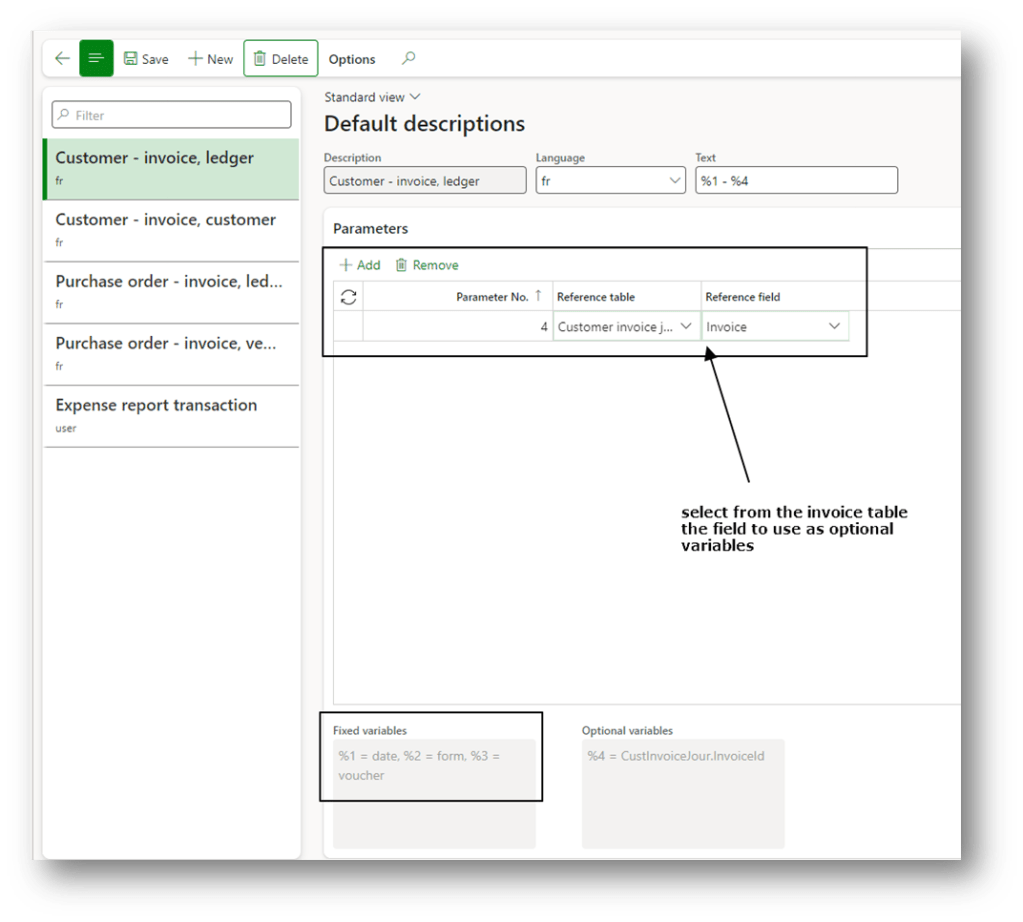
Hence, combine the text and the variable, we obtain our automatic description. Example in this case we say: combinate transition data and invoice number.
Process
We do a free customer text invoice as usual. Based on our example, you can see the transaction date and the invoice number:
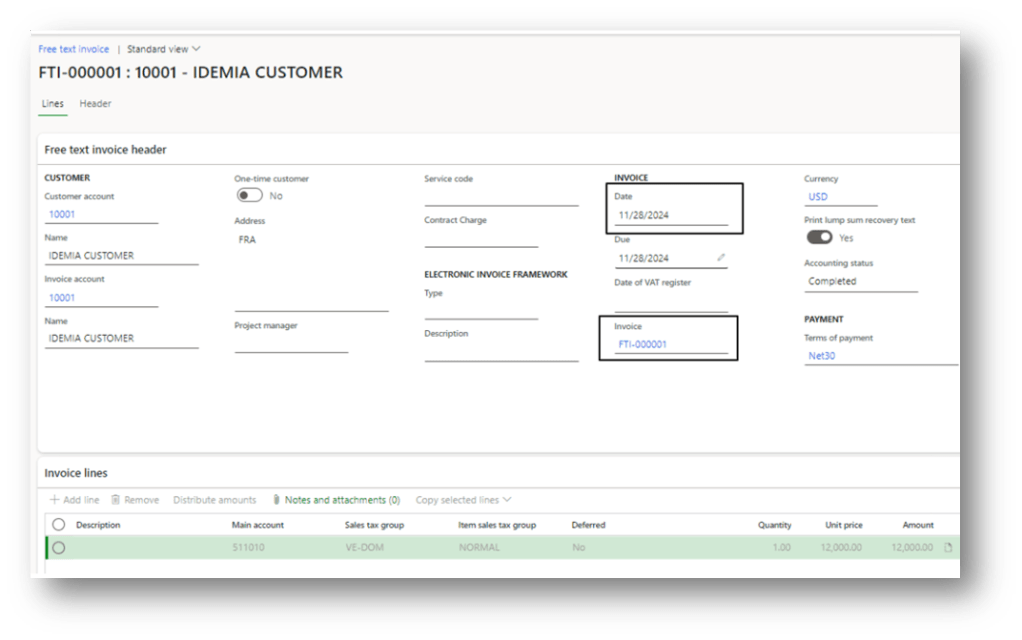
We can see below the description generated by the system for the transaction. As you can see, D365FO will insert the value coherently with the setup:
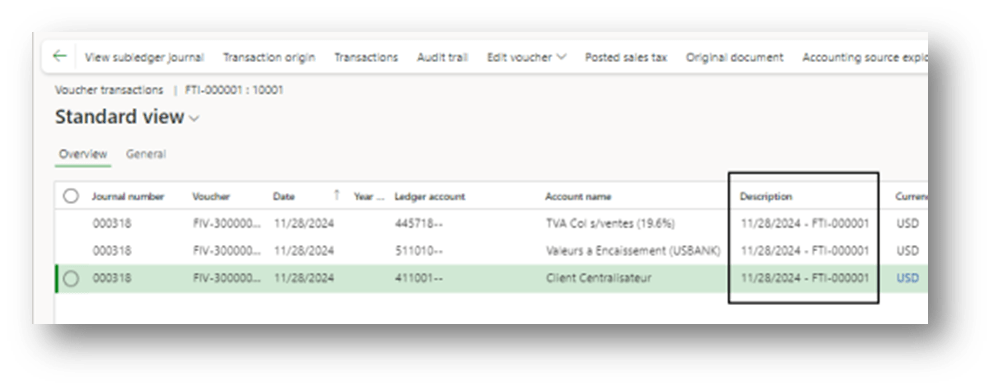
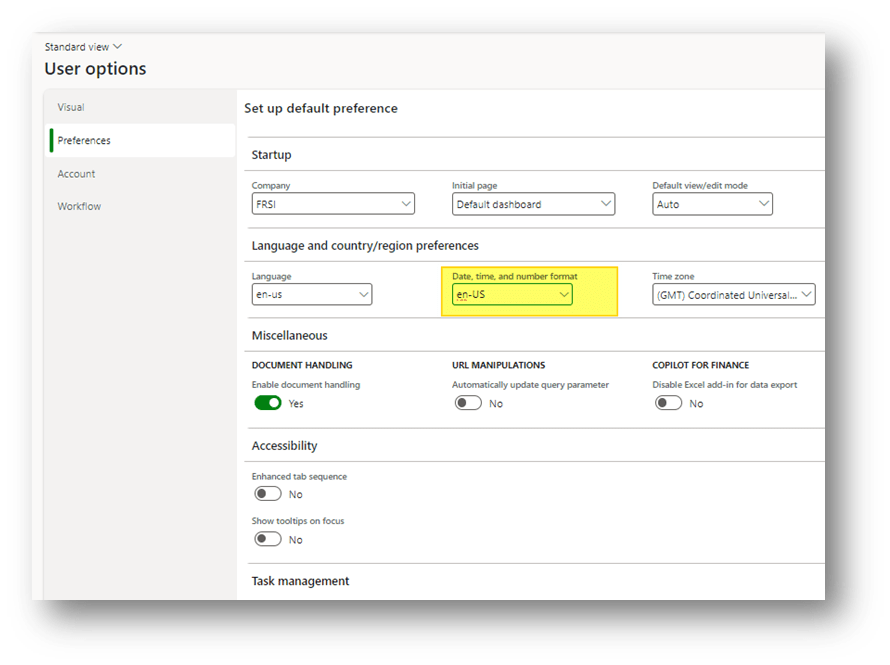
Note: The address insert is led by the user configuration date format:

 Dax365FO
Leave a comment