
Business requirement
This article will share the different options that we have available for inquiries regarding the settling transaction into the vendor master data.
Inquires and reports
Overview
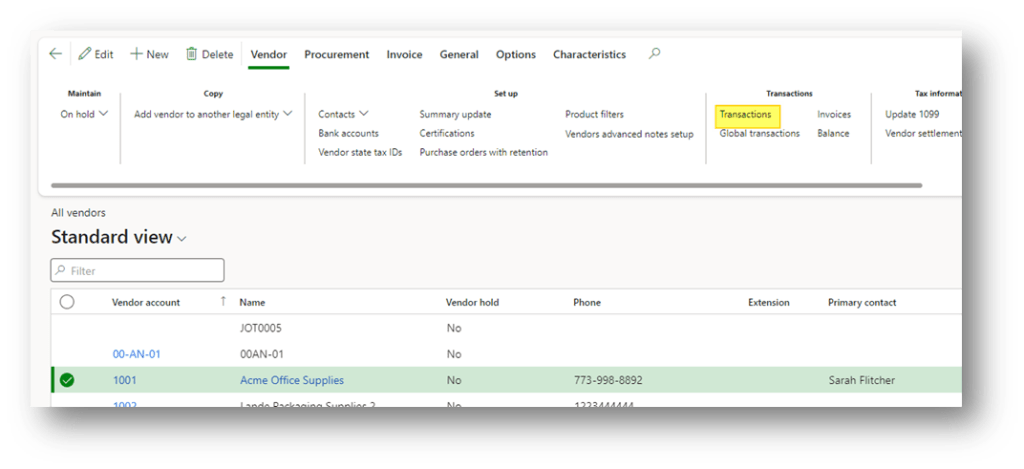
Go to our vendor master data and press “transaction”:
From the vendor transaction we can see an overview of the total amount and the amount settled:
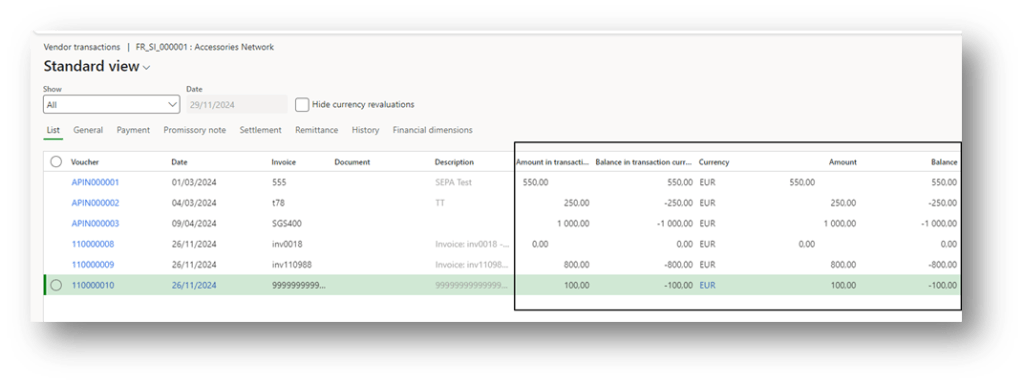
Details invoice not yet settled
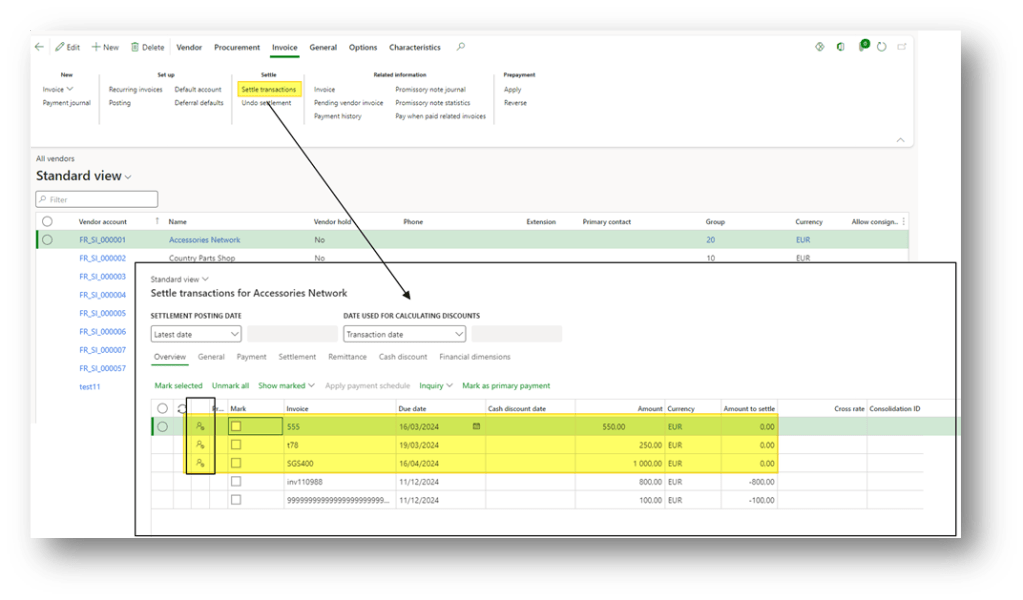
Also if the settle transaction is not yet posted, D365FO tack that the document is already engaged on a vendor payment journal. All form use as data source: VendTrans and VendSettlement.
From the vendor transaction
Open the settle transaction from the vendor master data. We can see the transaction already engaged on a vendor payment journal marked:
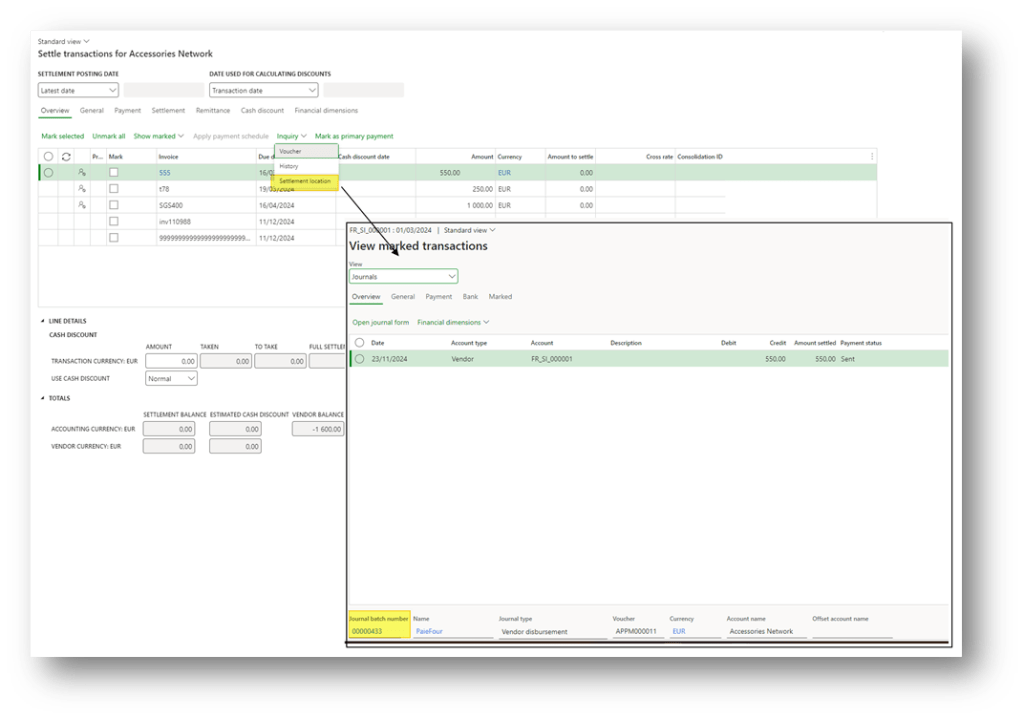
For each transaction we can recover the journal number pressing in “settlement location”:
From the vendor journal line
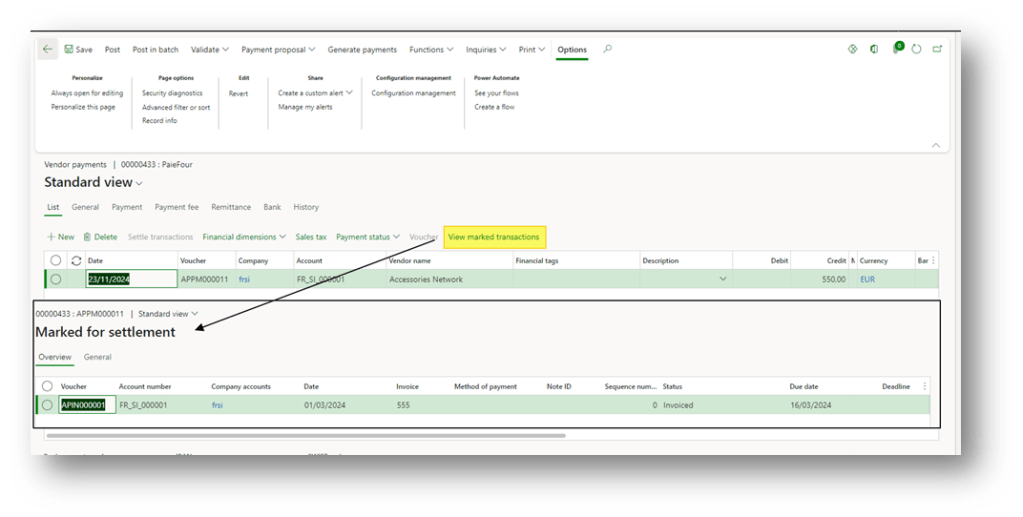
Go to our vendor journal line, select the line and press “view marked transactions”. From here, we can see the details for the invoice settle:
Details invoice settled
These option are useful to inquiries to inquiries the invoice already settled. Mainly D365FO is based on two level of inquiries:
- Vendor settlement: The transaction how currently settle the invoice;
- Settlement history: It’s the history of the previous settlement
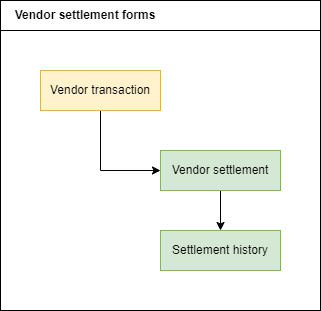
All form use as data source: VendTrans and VendSettlement.
From vendor transaction
Go to our vendor master data and press “transaction”:
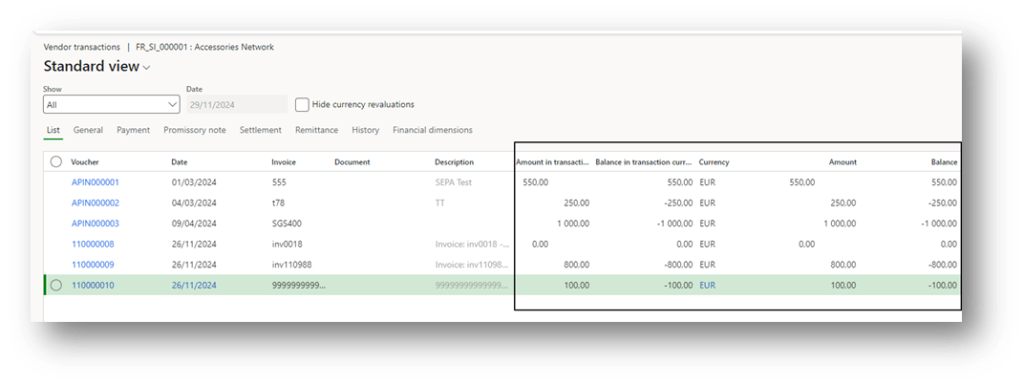
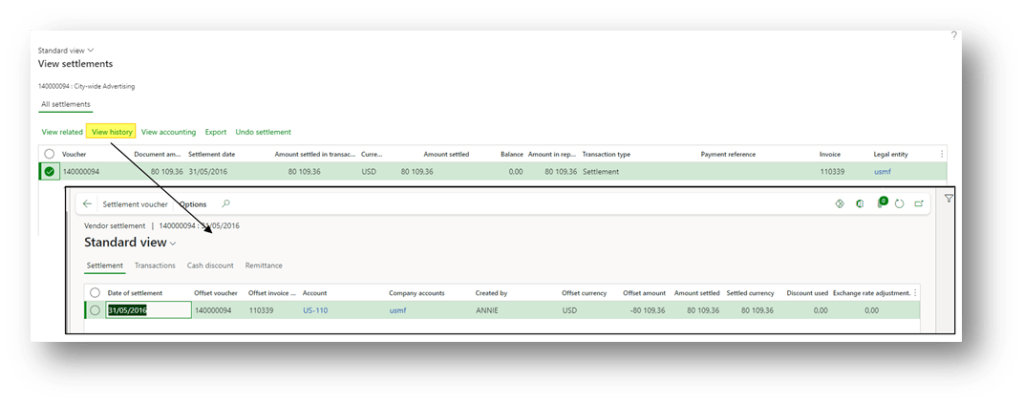
From here we select the specific transaction. From here we can press “view settlement” to see all the transaction who they are currently settle:
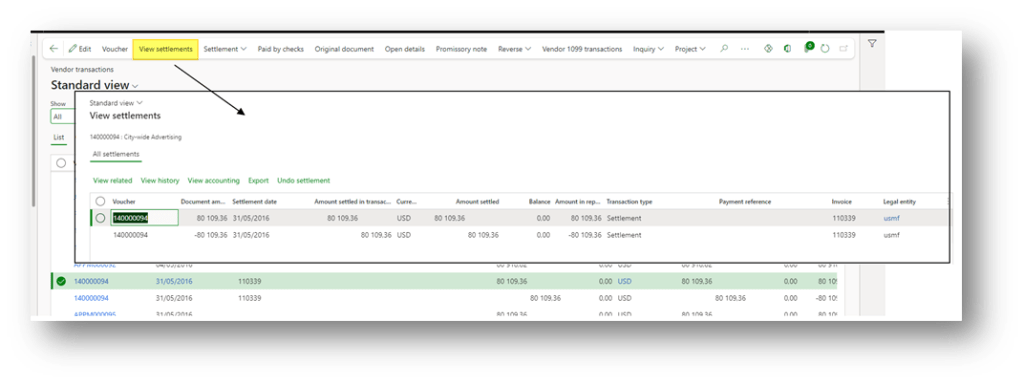
If we desire, we can also press view history to see the log of the settle (who did it):
From payment history
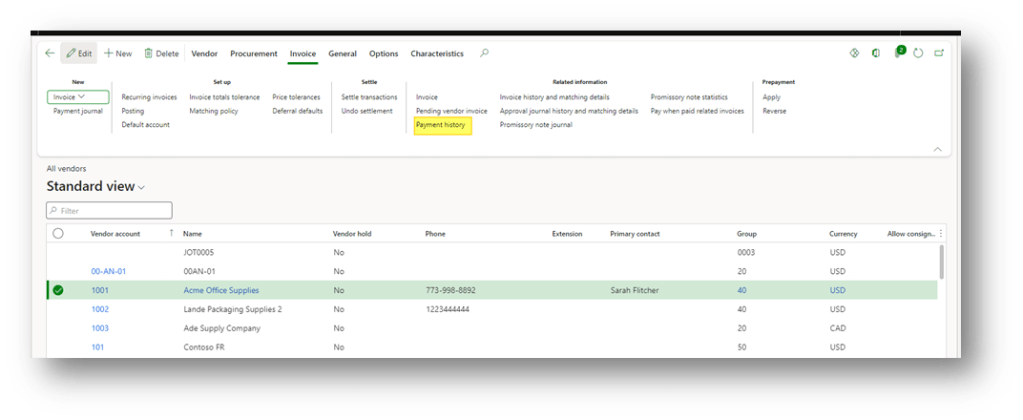
Go to our vendor master data and press “payment history”:
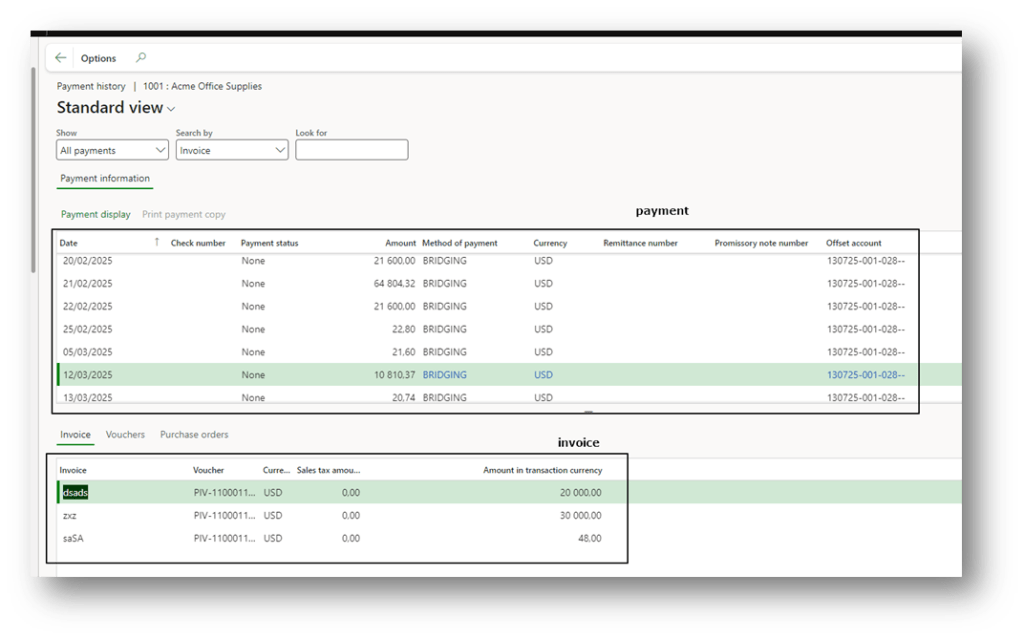
Select our payment on the top and below we can see the invoice payed:
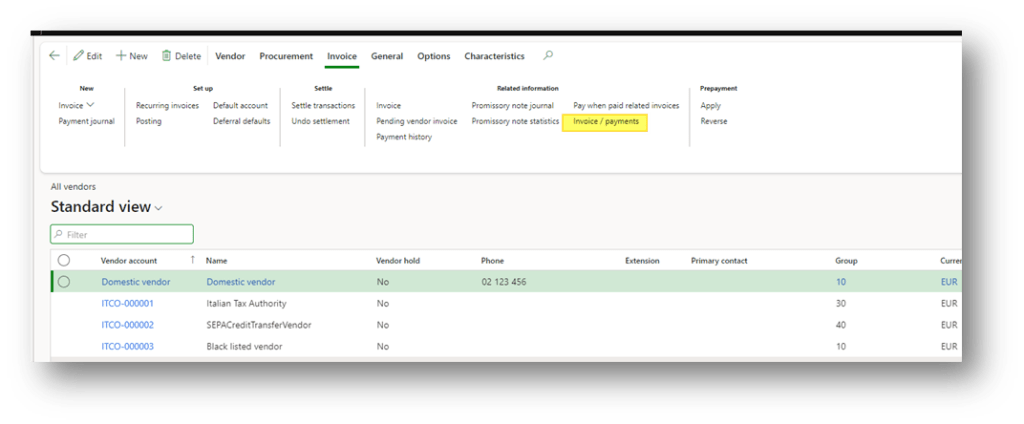
Invoice/payment [IT]
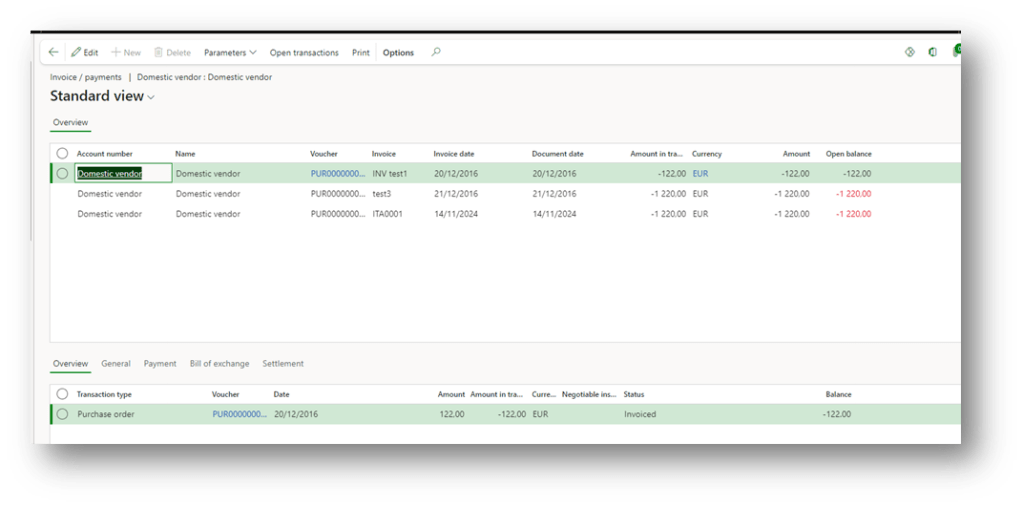
In some country we have specific report to give us more details about the invoice and the payment related. Example: in the Italian localization press “Invoice/Payments”.
We can see upper the details of the invoice and down the payment related.
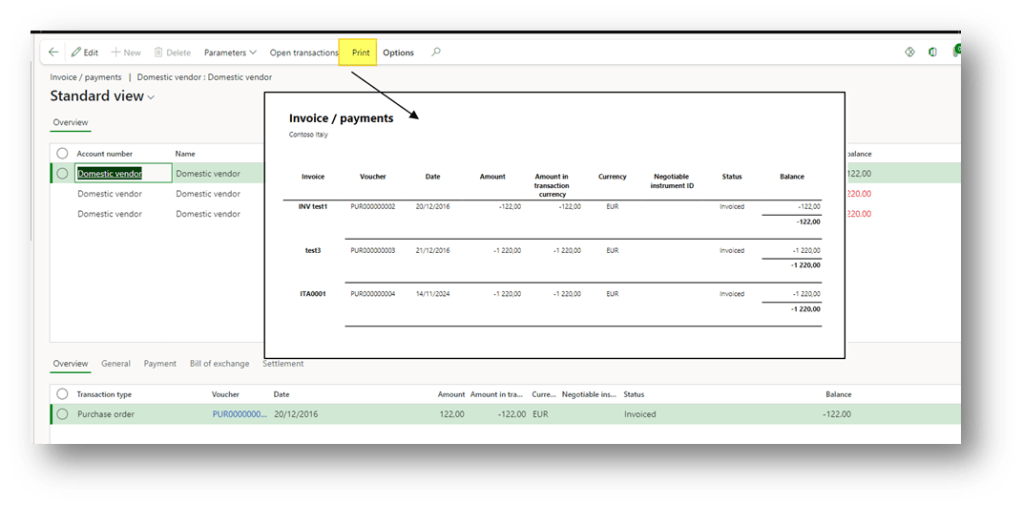
Notice, we can have the print version with the details of the invoice in a report version:

 Dax365FO
Leave a comment