
Business requirement
Recording the work done in a project is a common requirement. Those records should include the hours consumed by the resource working on a specific project. There are several ways to do this, but we will see the solution based on the timesheet here.
Solution D365FO
The process is that 1) the resource inserts the hours consumed during the week for the projects, and then 2) submits the timesheet for approbation. The approbation will run based on the workflow involving the approvers. If the user needs help, we can assign a delegate who inserts the hours for the user in question. In the end, 3) when the timesheet is approved, the system will automatically post the hours on the projects throughout a specific batch (typically, the batch recurrency is set weekly).
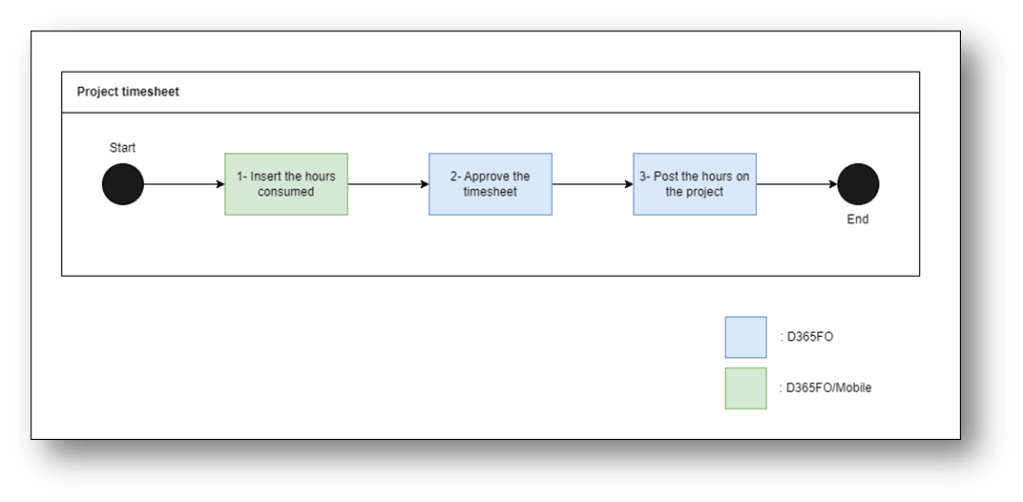
Process
1- Insert the hours consumed
Go to: Project management and accounting> Timesheets> My timesheets.
Press new and add a new timesheet. The system will automatically propose the resource tied to the user and today’s date. The week involved is the week that contains this date. If you want to change the week, you can select a random date for the week that you prefer. Important note: is not possible to post two timesheets for the same week (we will see in another article how to do a correction).
We can insert here the time consumed by the projects. Notice, we can insert also project from other legal entity:
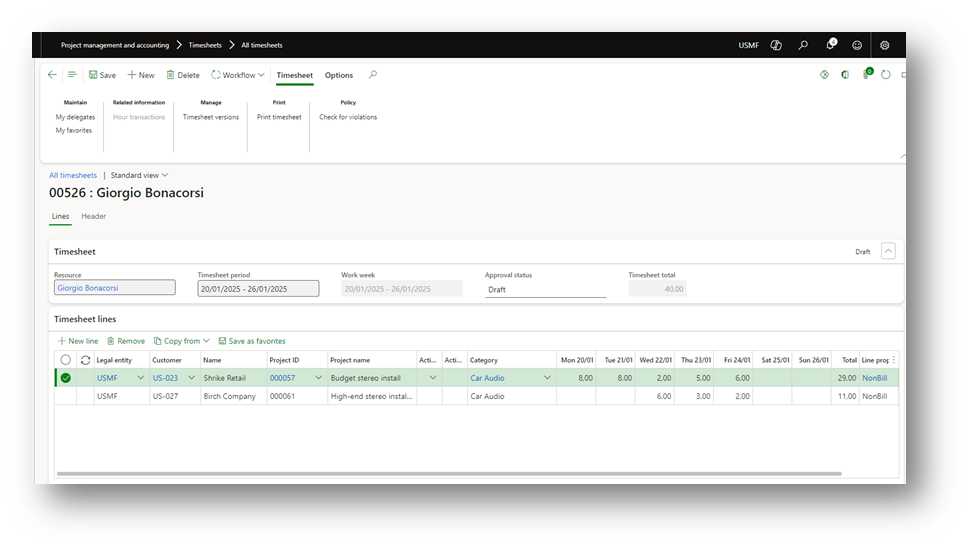
For each line created, we have to specify at least the project and transaction category. However, it is possible to also add additional information like the activities. Consider the data present on the timesheet:
- Tax: the “sales tax group” is inherited from the project, and the “items sales tax group” from the category;
- Customer: It’s inherited from the project;
- Financial dimension: It’s inherited from the project
There are also function copies that allow us to quickly insert the project line into your timesheet. We will deep dive in another article, by we can anticipate that:
- Timesheet: copy the data from another timesheet;
- My favorite: we can save the timesheet lines as favorites. Each time that we create a timesheet we can recover the data from there. The favorites can also be configurated (for more details, see below how to configure the favorite);
- Assignments: Based on resource assigned on a project.
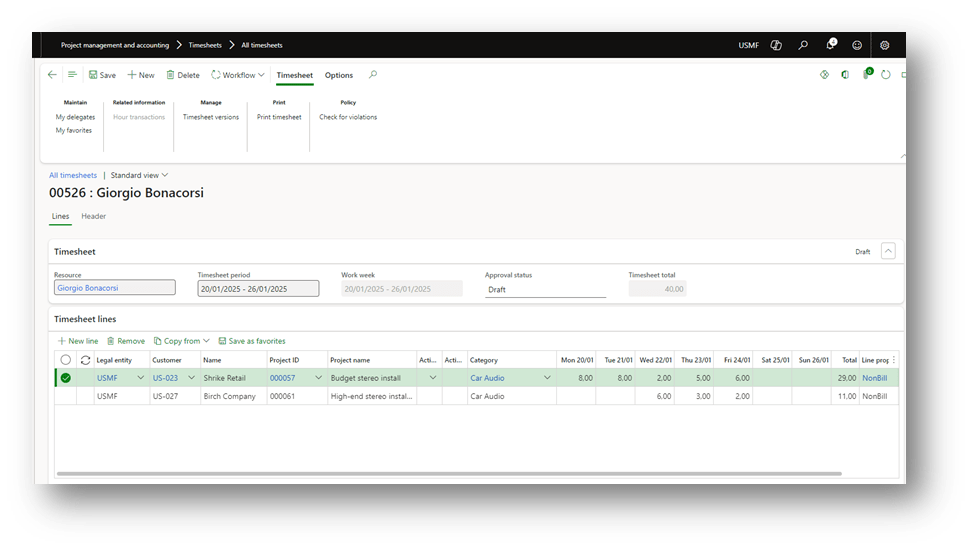
2-Submit workflow
Go on the timesheet, and when we are sure that we have finished, we press “Submit”:
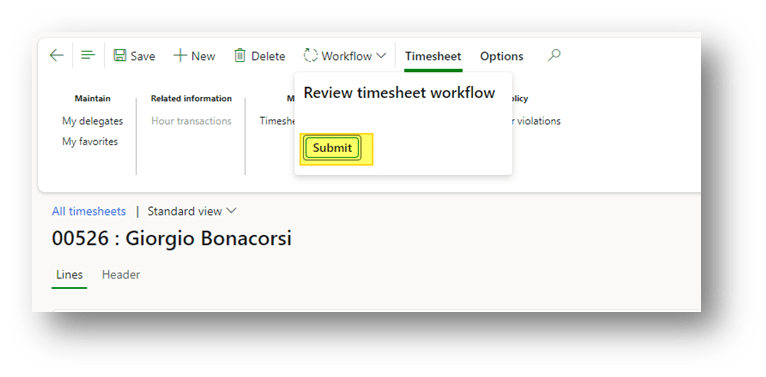
The system will follow the “Review timesheet workflow” to understand who should approve it. The process is the same for each out-of-the-book workflow.
3-Post the hours on the project
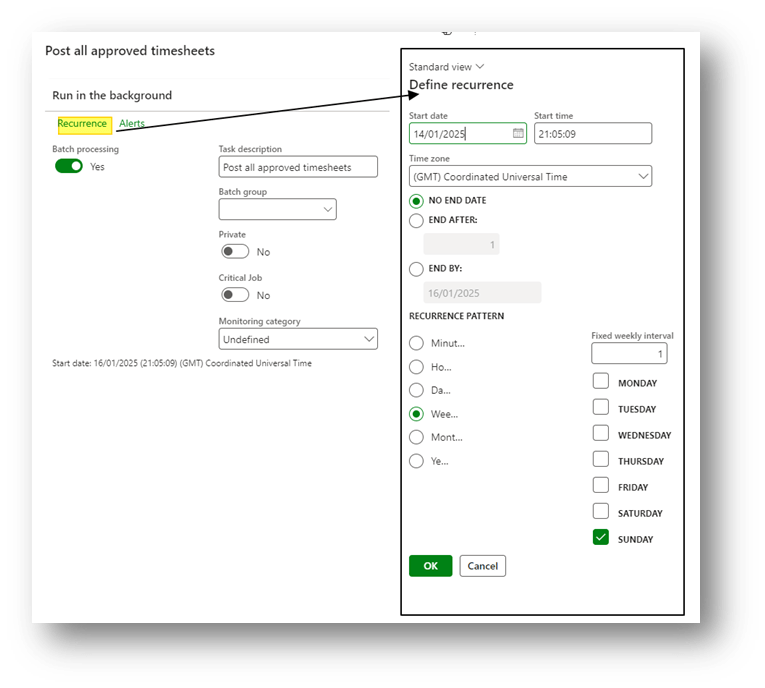
Go to: Project management> Periodic> Timesheets> Post all approved timesheets.
This points is necessary if on the parameters we have set the posting as “automatically”. All timesheets approved will be posted by this batch. Consider that usually, we set a weekly recurrency on each weekend:
Configuration
Timesheet period type
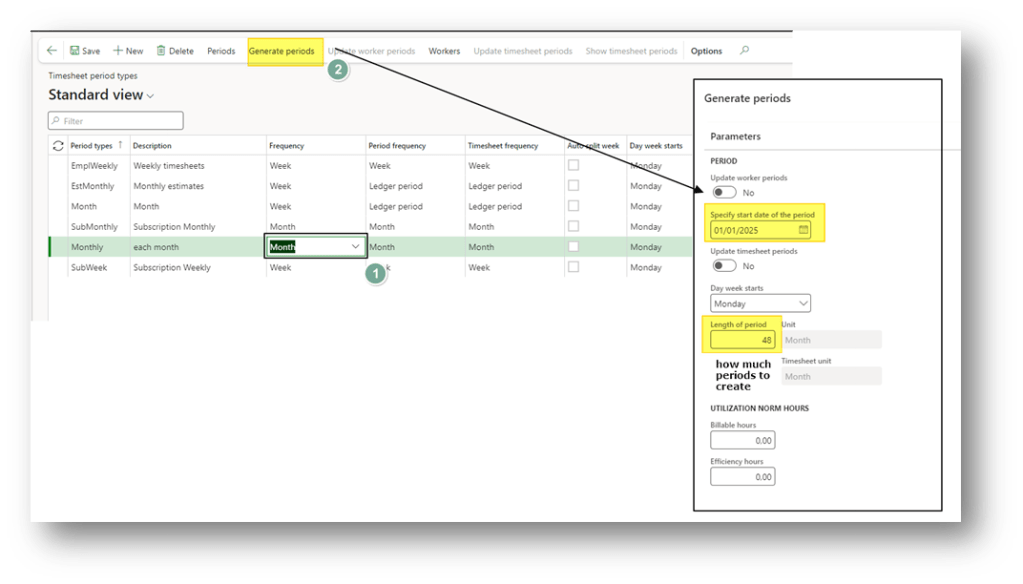
Go to: Project management and accounting> Setup> Timesheets> Timesheet period types.
Create the timesheet period and generate the periods. When we generate the periods, we say how many periods we want to create:
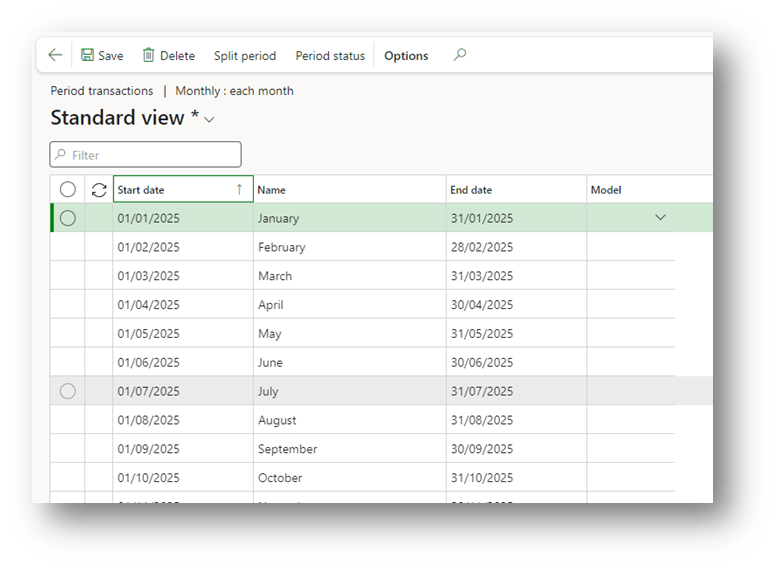
Click on “Periods” to see the result:
Resource
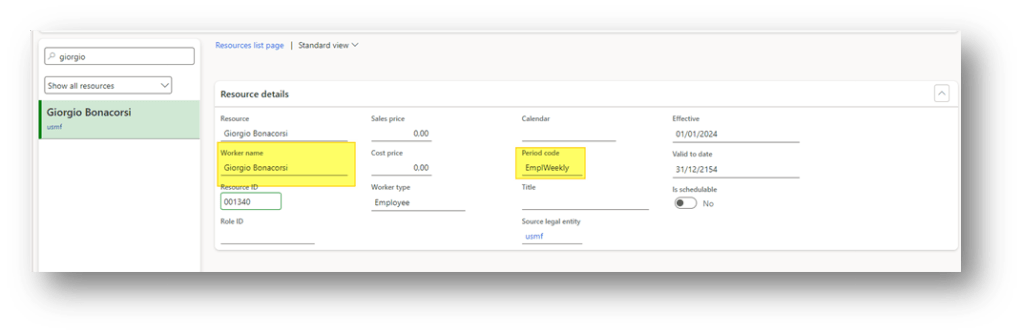
Go to: Project management and accounting> Project resources.
The user who inserts the timesheet should be inserted as resource. The resource is tied the worker Id link to the user profile. As information, we have to insert also the timesheet period:
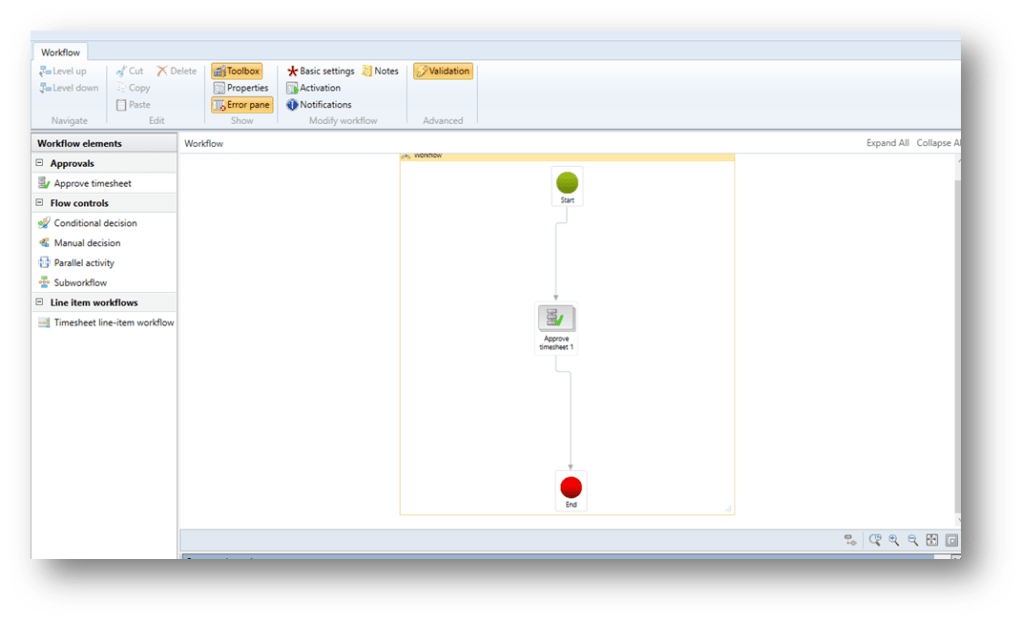
Approval workflow
Go to: Project management and accounting> Setup> Project management and accounting workflows.
We have to set the approval workflow for the timesheet. The workflow name is “ Review timesheet workflow”, and the component to approve the workflow is “Approve timesheet”. Below, we can see the minimum setting:
Project parameters
Go to: Project management and accounting> Setup> Project management and accounting parameters. Here are the basic information about parameters to focus on:
- Day week starts: Which day is the week start days;
- Approved timesheet posting: Automatically means that we have to use the batch to post the timesheet approved. Besides, manual means that the timesheet is posted when we approve it;
- Maximum number of timesheets per period: Number max of timesheet allow per period (for example per week). Usually is 0.
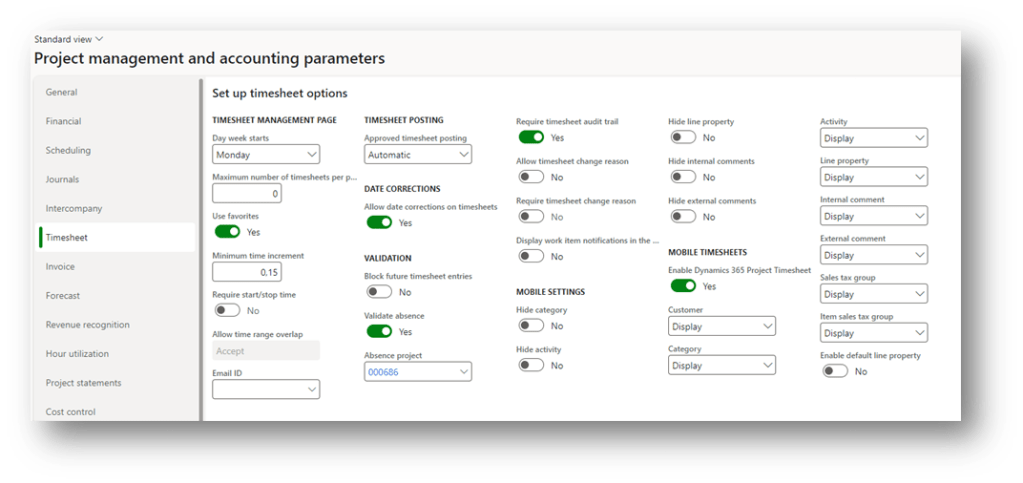
The other parameters will be explained, piece by piece when we will see the different functions/features related to the timesheet.

 Dax365FO
Leave a comment