
Business requirements
Users often want to receive workflow approval notifications by email. However, it’s not always clear how to set this up in D365FO. This article explains the necessary configuration to enable this functionality.
Configuration
User information
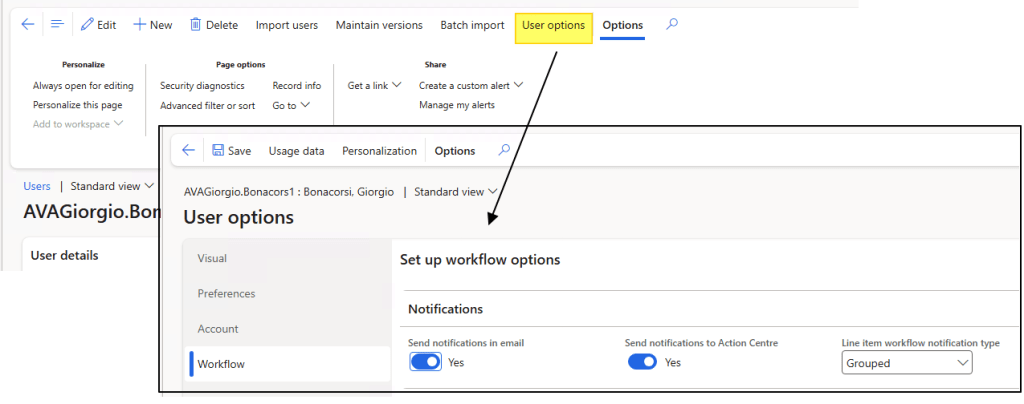
Go in: System admiration> Users> Users.
Select the user and open the “user option”. Under the tab “workflow” we set “send notification in email”:
System email template
That’s the secret ingredient (thanks the college who teach me).
Go to: System administration> Setup> Email> System email templates
Create the template, making sure to include the following elements:
- Subject: Use the placeholder %subject%. This should automatically retrieve the subject defined in the Approval connector within the workflow.
- Body Text: Use the placeholder %message%. You can structure this as an HTML file (see example below). This placeholder will be replaced by the message content defined in the Approval connector within the workflow.
<BODY>
%message%
<BR>
</BODY>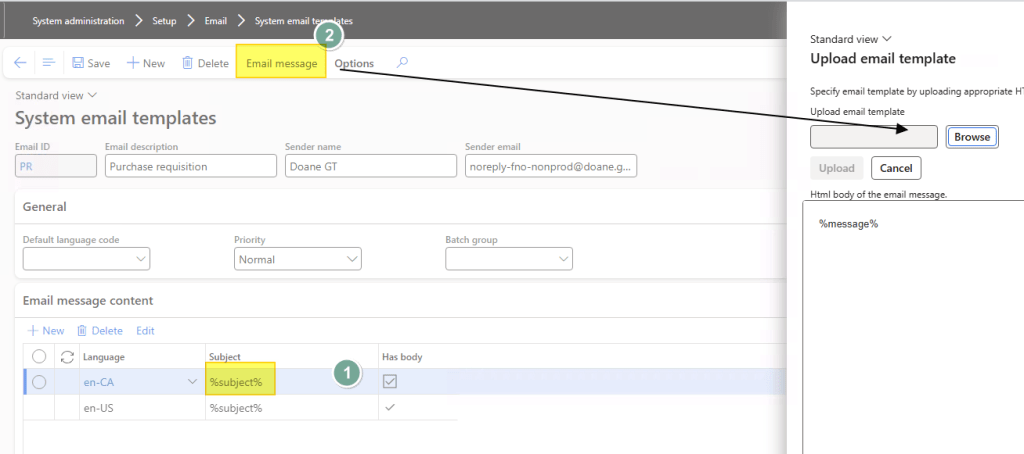
Workflow configuration
The configuration is the same for all workflows. Please select the one you are interested in.
Generic properties
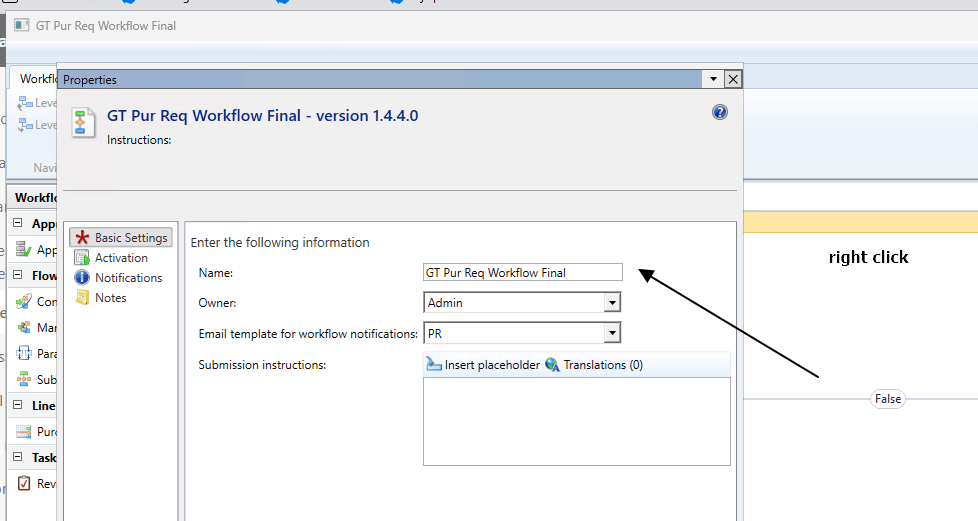
Set the email template use as base structure for our notifications:
Approvals connector
Select he approval connector and open the priority. From here we will set when we want to trigger the notification:
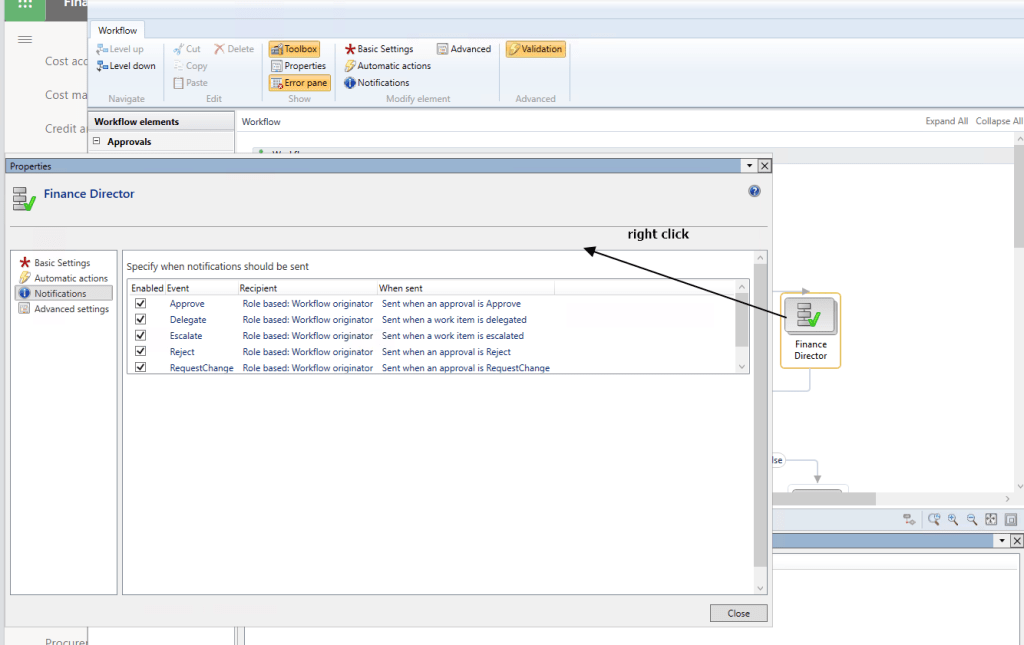
Drill down one level into our Approval connector:
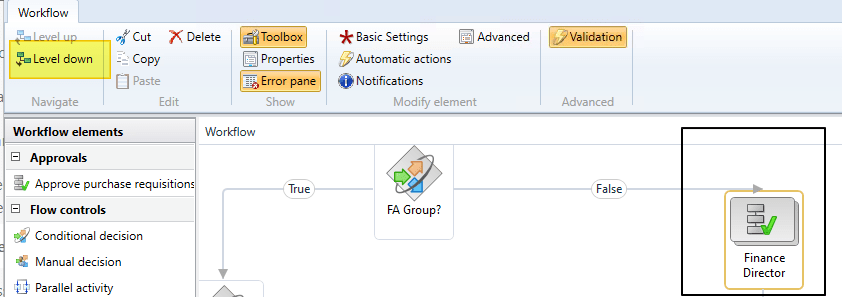
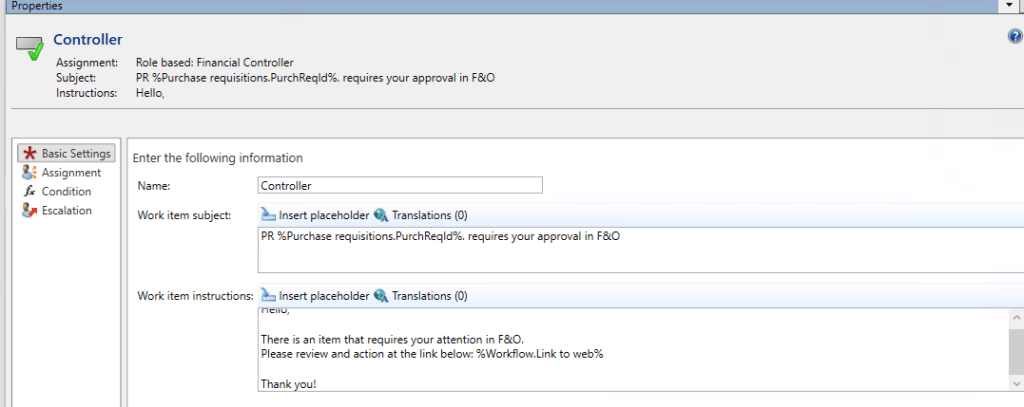
From here open the proprieties and do these setting:
- Subject + Body: Thanks to the configuration we applied to the email template, these values will be used as the content of the approval email, such as:
- %subject% → will be replaced by the subject defined in the Approval connector
- %message% → will be replaced by the body content defined in the Approval connector
Note that we can use the placeholders available in the workflow:
Process
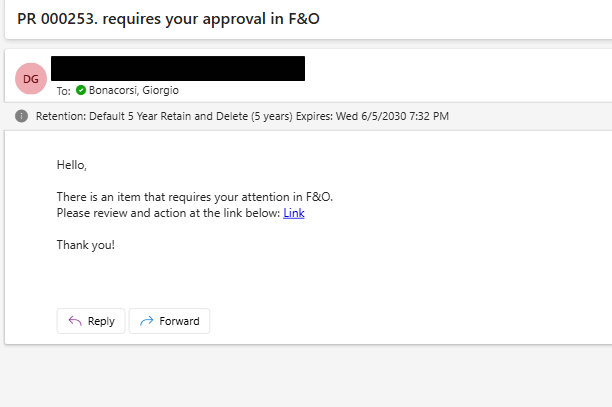
Run the business process and we will receive the notification approval email:
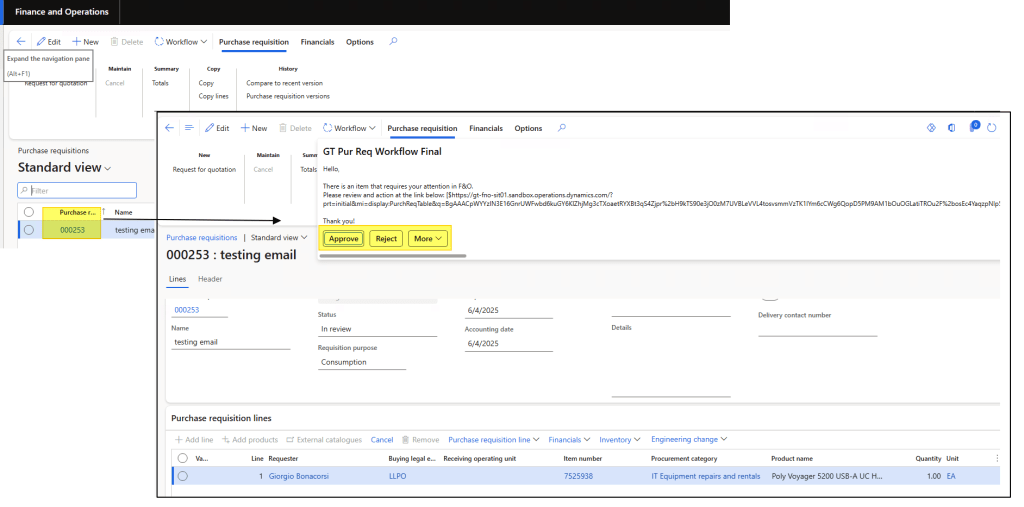
Then we can open the system and go forward with the approbation process:

 Dax365FO
Leave a comment