
Business requirements
Financial tags are an alternative to financial dimensions for collecting information related to ledger transactions. While it’s not the focus of this article, it’s important to note that financial tags differ significantly from financial dimensions. Unlike dimensions, financial tags do not enforce validation rules during data entry, and they cannot be used for trial balance inquiries. These inquiries out of the box are performed at the transaction level.
As a result, financial tags are typically used to track statistical or supplementary information at the transaction level, which can later be leveraged for reporting in an external Business intelligence tool, such as in Power BI. Furthermore, it’s even interesting to know that we can use the financial tag to leverage the auto-settlement ledger function: Automate ledger settlements – Dax365FO
For more details on the differences between financial dimensions and financial tags, you can refer to this excellent: Differences between financial tags and financial dimensions – Finance | Dynamics 365 | Microsoft Learn
Therefore, the key question regarding financial dimensions is: who is responsible for entering the values in our transactions? For a long time, the answer was that these values had to be entered manually.
However, from version 10.0.42 Microsoft has introduced financial tag rules, a feature designed to automate the population of financial tag values. This solution allows you to configure rules that automatically pull information from master data, document headers, or lines and apply it to the relevant financial tags. The types of transactions where this feature can be leveraged include:
- Allocation journal
- Fixed assets journal
- Customer payment journal
- Free text invoice
- General journal
- Reporting currency adjustment
- Sales order
- Vendor invoice journal
- Vendor payment journal
D365FO Solution
Configuration
Enable feature
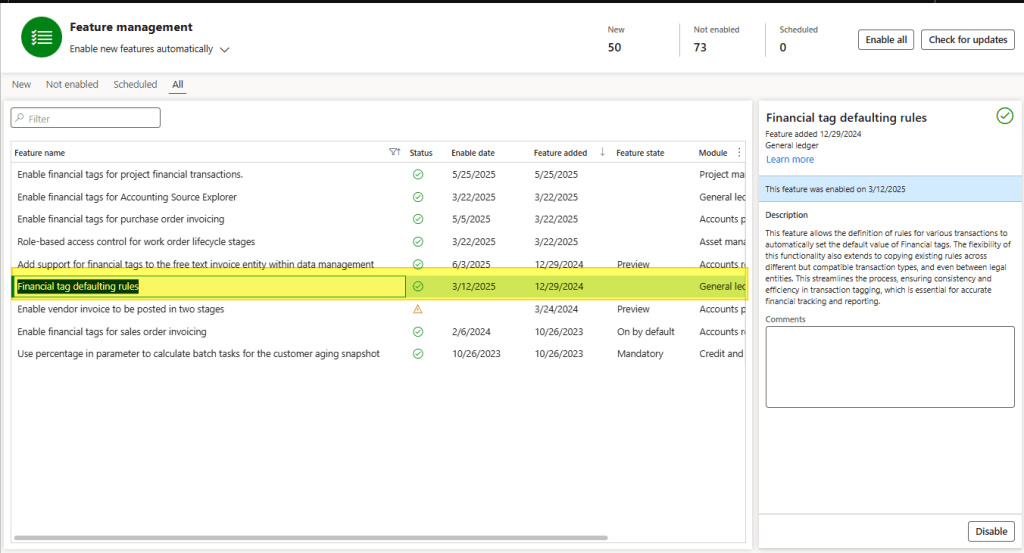
Enable the feature “Financial tag defaulting rules”, available from the version 10.0.42:
Financial tag rules
Go to: General ledger> Chart of accounts> Financial tags> Financial tag rules.
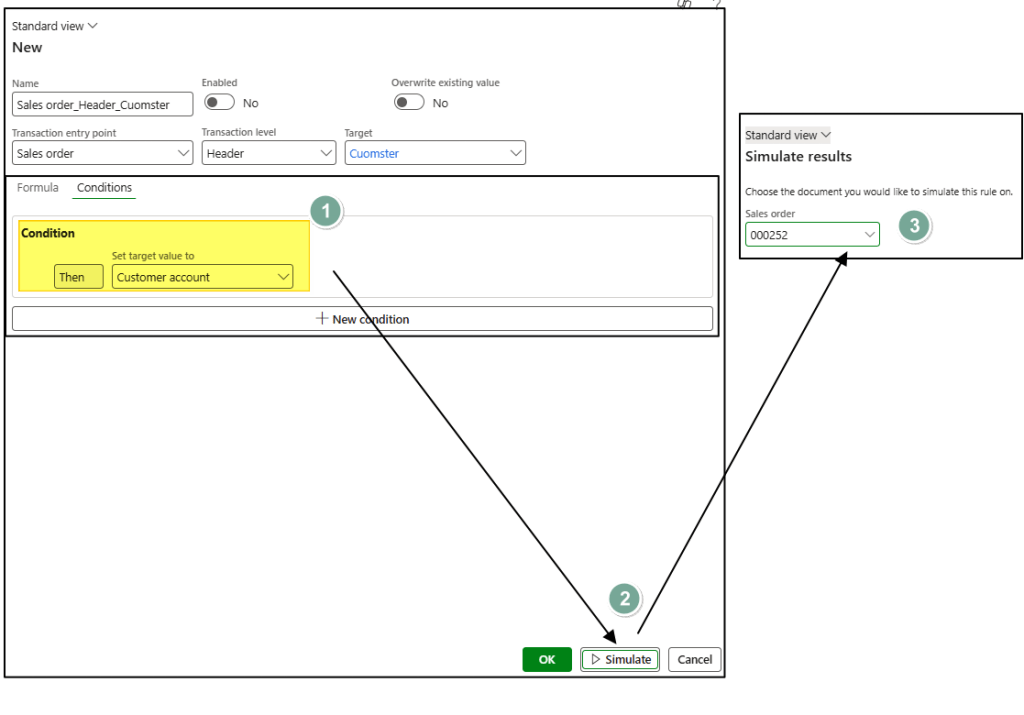
Create the tag rule inserting these information:
- Name: This is auto-generated by D365FO when you select the relevant fields below. It typically reflects the combination of entry point, level, and tag target;
- Transaction entry point: Specify the document where the rule will be applied;
- Transaction level: Define at which level D365FO should insert the value (from header or lines level);
- Target: Select the financial tag (previously defined in the system) where the value should be auto-inserted;
- Overwrite: Enable this flag if you want D365FO to overwrite an existing tag list value. Only if the identified value from the rule is different from the one already present in the tag list;

Set the criteria to auto-insert the value, and simulate the outcome selecting an existing document:
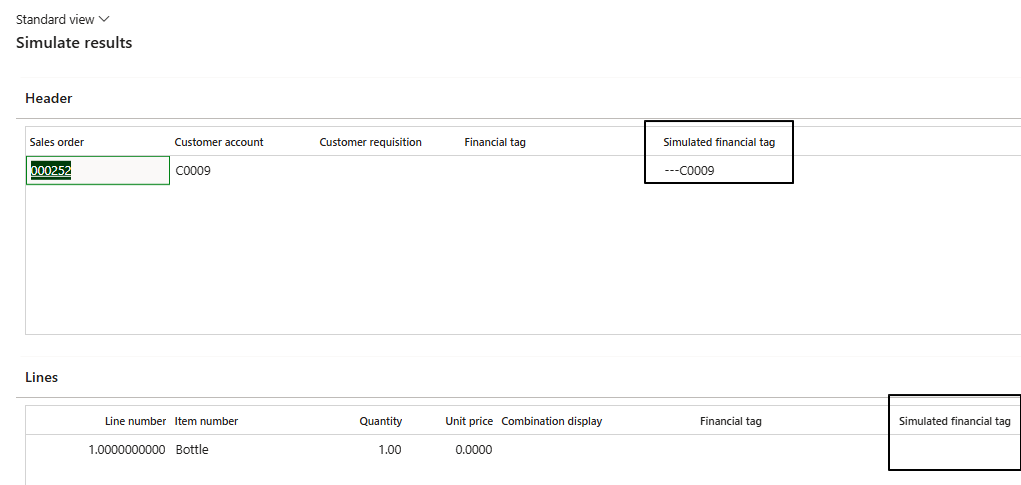
We can see the result of the simulation concerning our example:
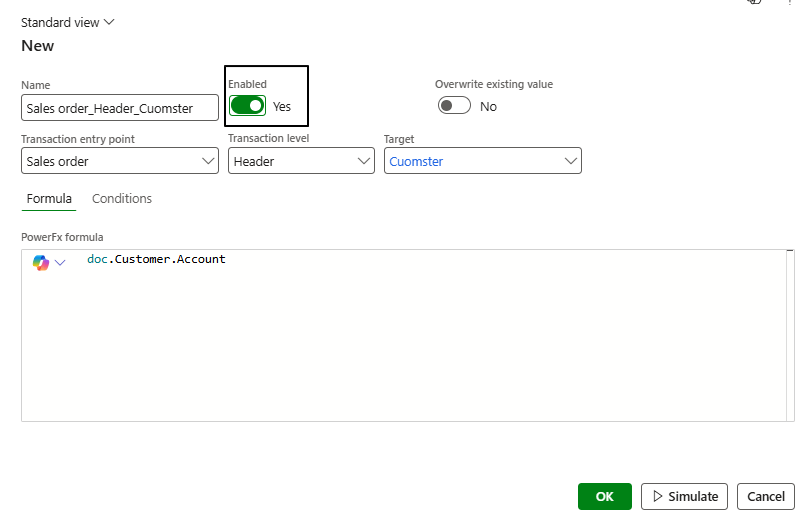
Note that you can also define the criteria directly using a Power Fx formula. You can experiment with the criteria to view the code proposed by D365FO and then adjust it based on your specific needs. When we have finished the set the rules, we can turn on activation:
Process
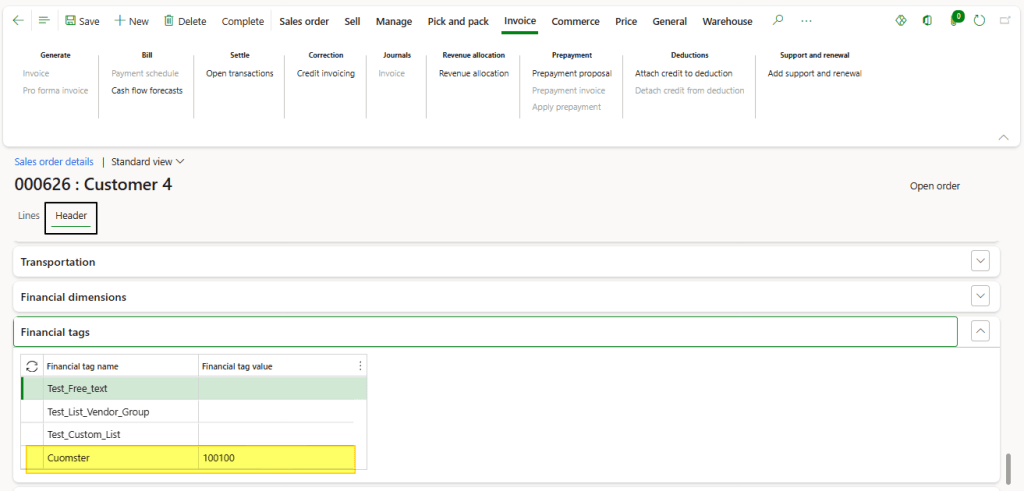
Proceed with the usual process across the different documents. In our example, you can see that the financial tag is populated automatically.

 Dax365FO
Leave a comment