
Introduction
The budget can be set in the dedicated module, but it is often too generic for project management needs. During project definition, we create detailed forecasts for hours, items, and expenses. The user wants more granular budget control based on the project-specific data entered. In D365FO, there is an option to enter a budget directly at the project level, in addition to (or instead of) using the forecasts.
Configuration
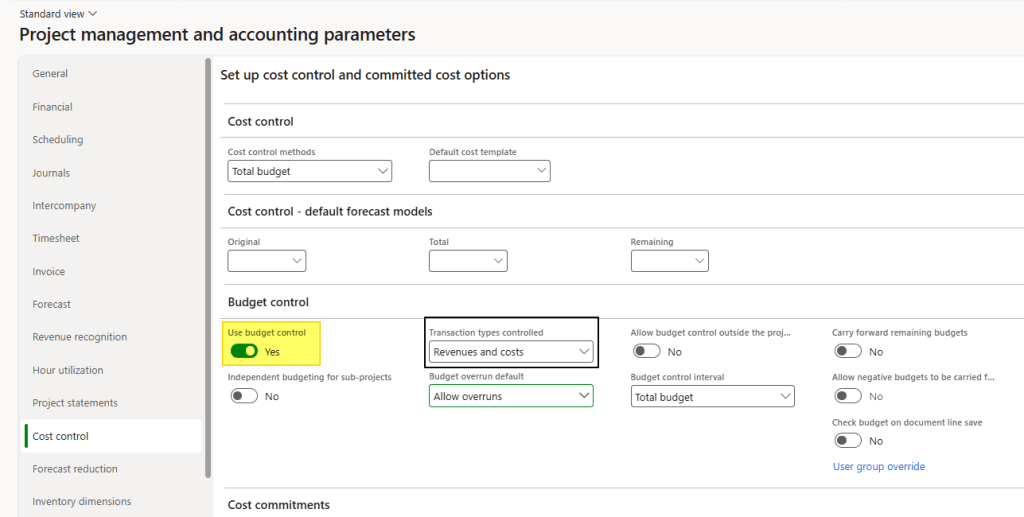
Project management and accounting parameters
Path: Project management and accounting> Setup> Project management and accounting parameters.
We must enable the “Use budget control” flag and select which transaction types to control. These two settings are the minimum required to activate the feature.
Budget wokflow
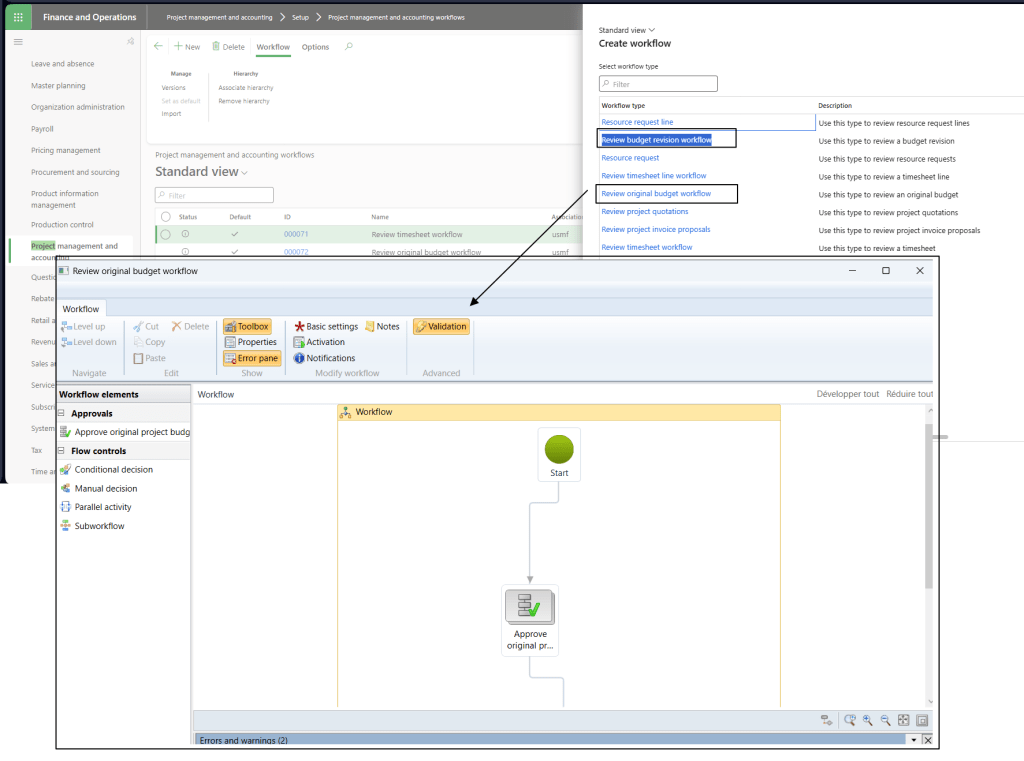
Path: Project management and accounting> Setup> Project management and accounting workflows
We should create two separate workflows to manage the budget lifecycle:
- Original Budget Review Workflow: Used to approve and create the initial budget.
- Budget Revision Review Workflow: Used to revise the approved original budget.
Forecast models
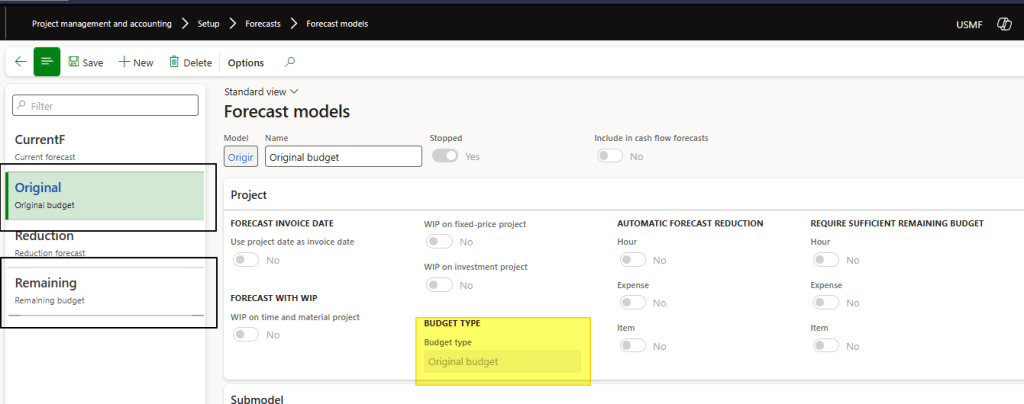
Path: Project management and accounting> Setup> Forecasts> Forecast models.
Create the forecast models (which define the type of entries) to enter our budget amounts.
- Original budget: Uses the initial budget amounts committed when creating and approving the original budget.
- Remaining budget: Uses the current remaining amounts throughout the project lifecycle. Actual transactions reduce the balances; budget revisions increase or decrease them.
- Carry-forward: Uses carry-forward budget amounts. This optional process transfers unused budget from one fiscal year to the next.
Process
Project configuration
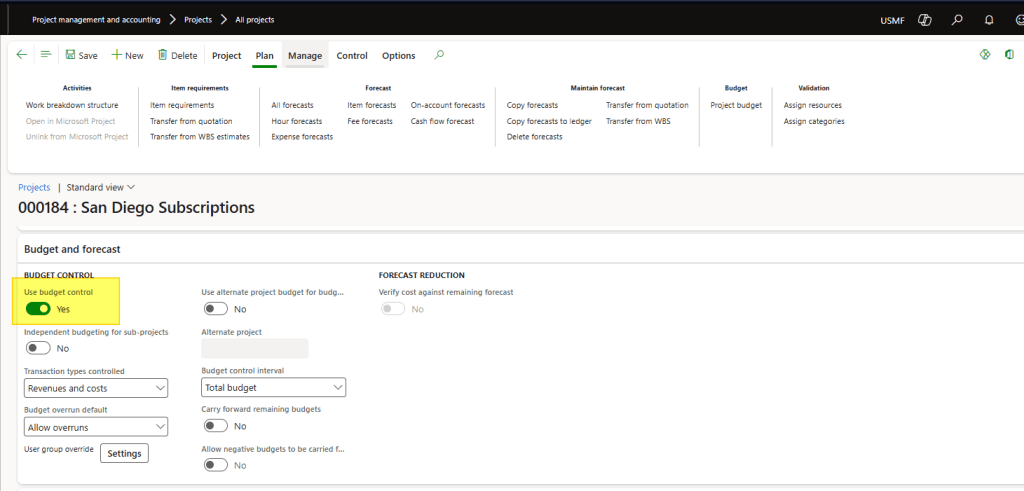
Path: Project management and accounting> Projects> All projects.
Select the project and enable the “Use budget control” flag.
The other settings are the same as those in the Project management and accounting parameters.
However, you can override them and apply different settings just for this project.
Insert the project budget
Open the project budget form:
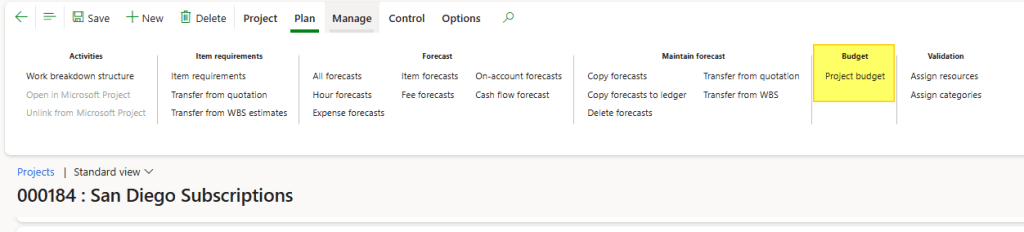
From here, there are two ways to enter the budget:
- Copy from the already created budget forecast
- Enter the values manually
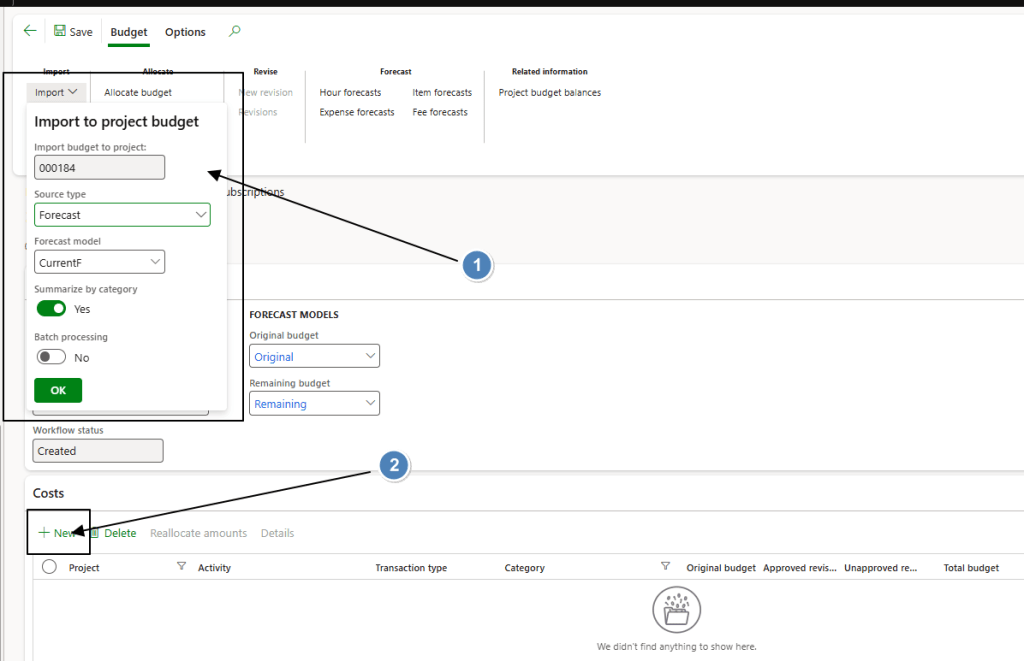
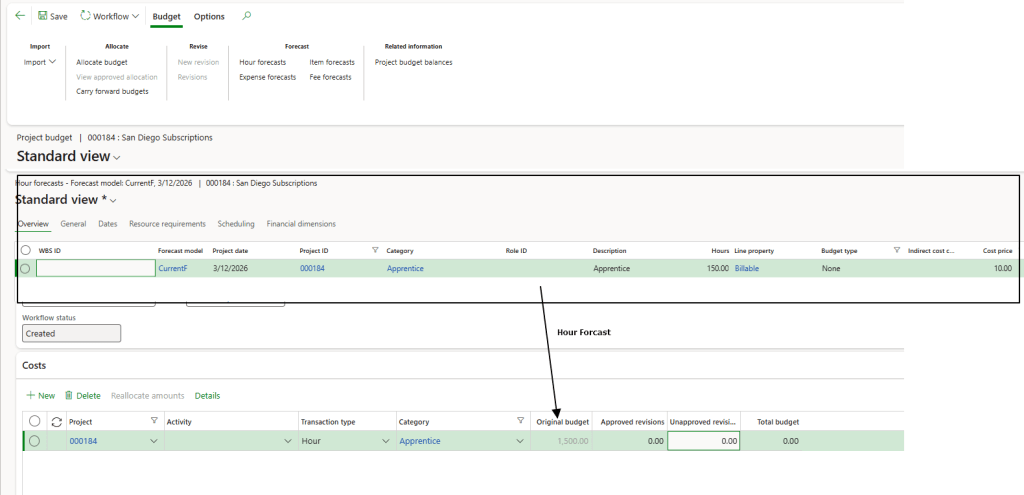
We can see in this case an example of copy from hour forecast:
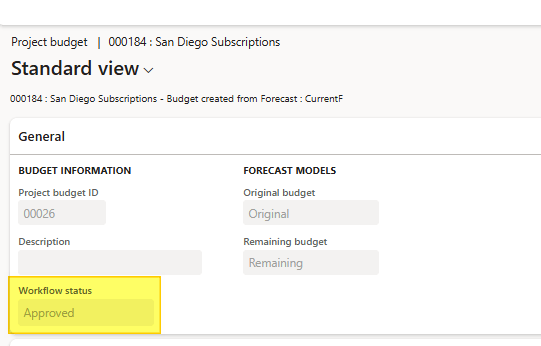
When the budget is ready, launch the approval process:
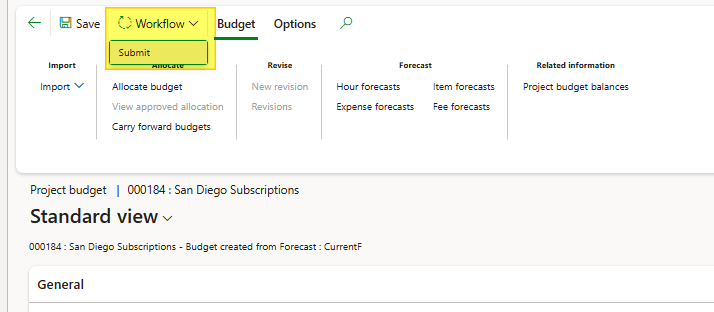
Follow the approval process until the status is “approved”:
Post the project transactions
Enter project transactions as usual (e.g., expense journals, hour journals, timesheets, purchase requisitions, etc.). There are no limitations from the budget function. The budget control will check the budget amount against the pending and posted transaction:
In this example I create two entry:
- Posted hour transaction:

- Pending transaction:

Budget control
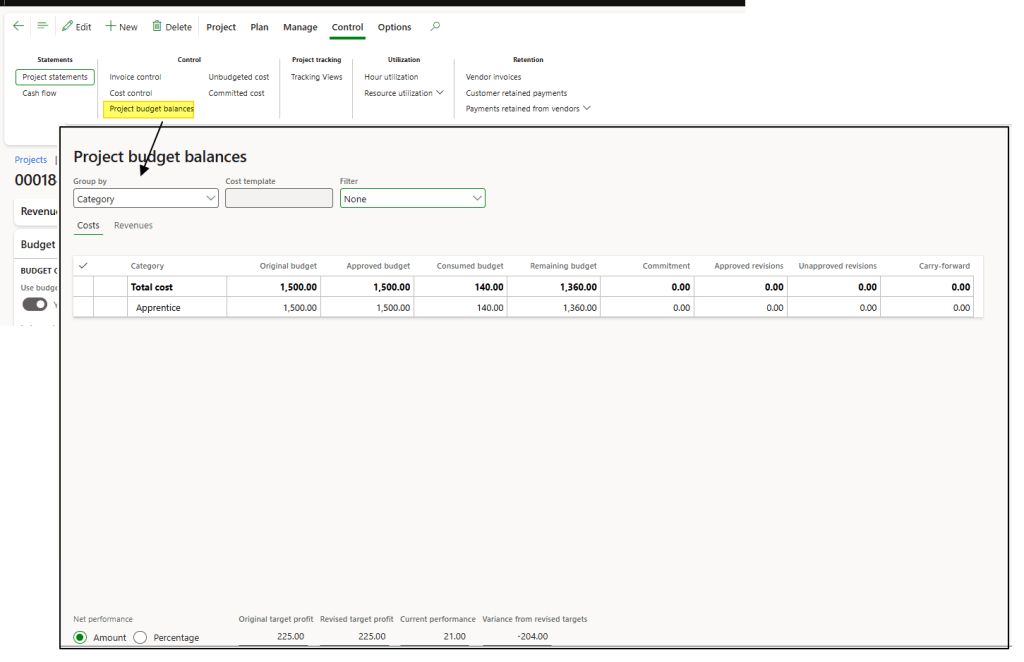
Click “Project budget control” to view the consumed and remaining budget amounts. Note that only posted transactions are considered.

 Dax365FO
Leave a comment