
Business requirement
In B2C, companies commonly accept credit card payments. Before fully confirming the service, the customer’s bank must authorize the card (verifying funds availability).
Solution D365FO
D365FO includes a built-in feature to authorize credit cards, checking validity and available funds, before proceeding with order processing steps.
Important note: D365FO handles the authorization check, but the actual payment capture is performed by the bank. Then we have to reconcile the customer payment did by your credit card with the bank statement received from the bank.
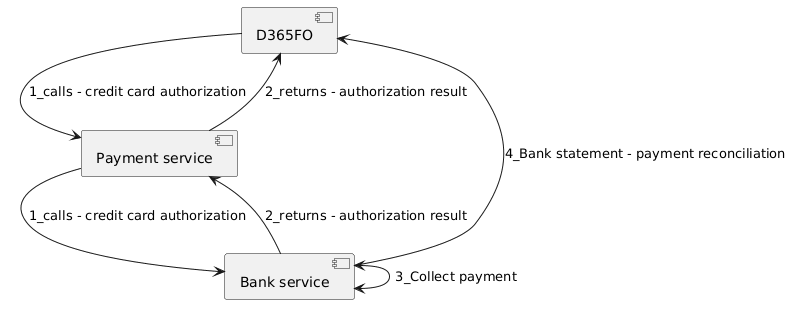
Configuration
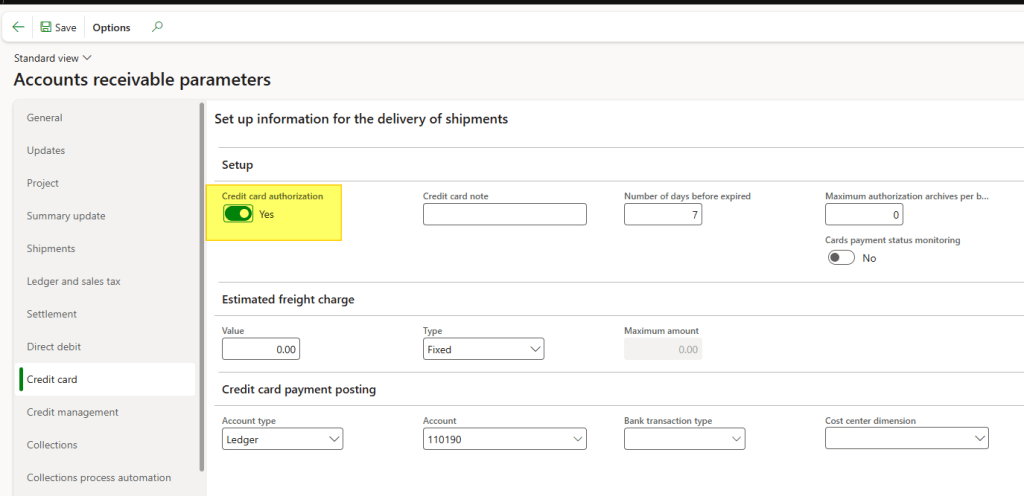
Account receivable configuration
Path: Accounts receivable> Setup> Accounts receivable parameters.
Enable the feature to authorize/validate the credit card via the payment service. Specify the offset account to be used when the system automatically generates the customer payment journal.
Note: The system will use this configured offset account instead of the one defined in the payment journal setup.
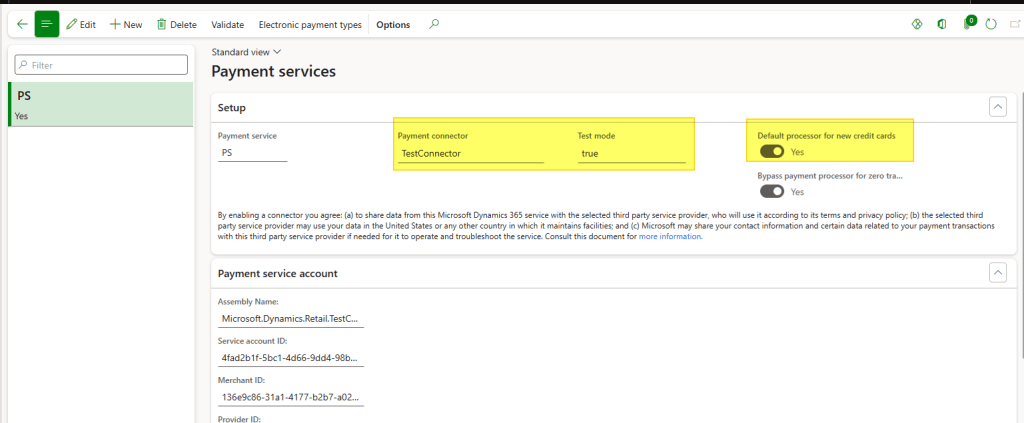
Payment services
Path: Accounts receivable> Payments setup> Payment services.
This configuration should be completed by a developer with technical knowledge of the payment service API specifications.
However, you can configure a test payment service for initial testing.
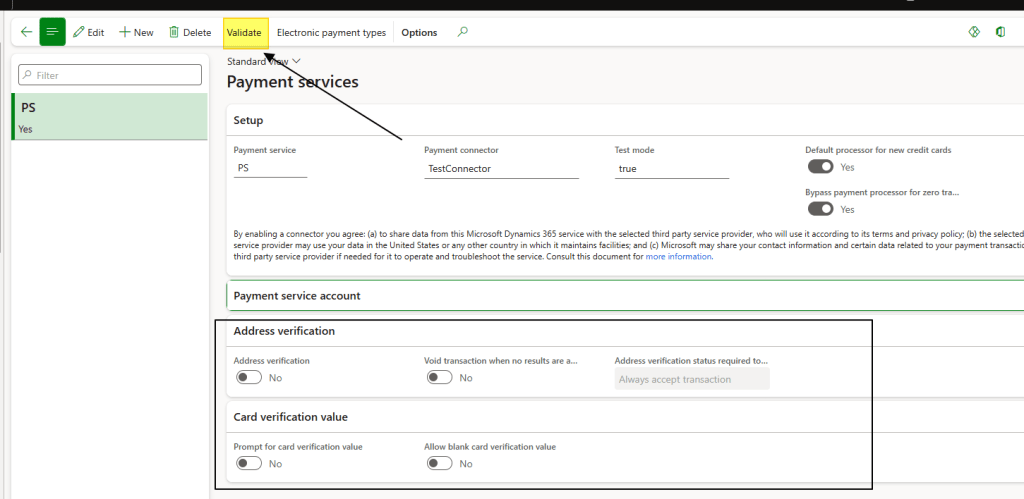
Insert the journal to use for automatically generated payments. Choose whether to enable additional checks (Level 2/3 processing for enhanced data submission):
Level 1 basic: date, amount, description
Level 2 adds: level 1 + shipping/merchant addresses, tax info
Level 3 adds: level 2 + order line details
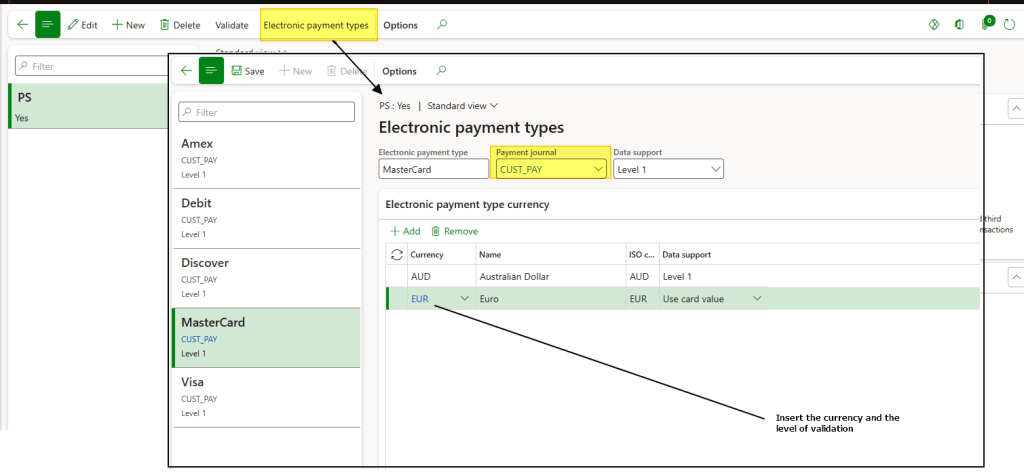
You can also enable additional validation about the billing address or credit card verification value(card’s security code). When the configuration is ready we can validate it.
Methods of payment
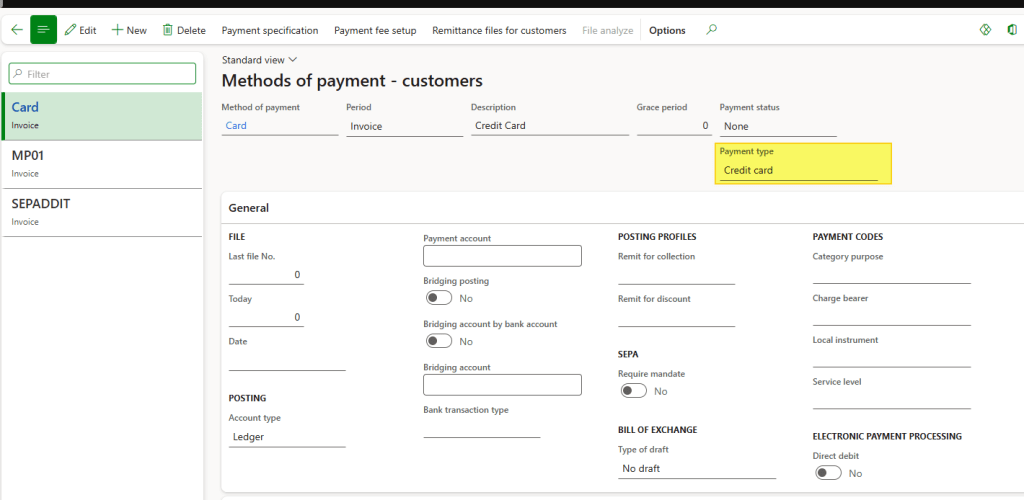
Path: Accounts receivable> Payments setup> Methods of payment
Create a methods of payment and set the payment type as “credit cad”.
Term of payment
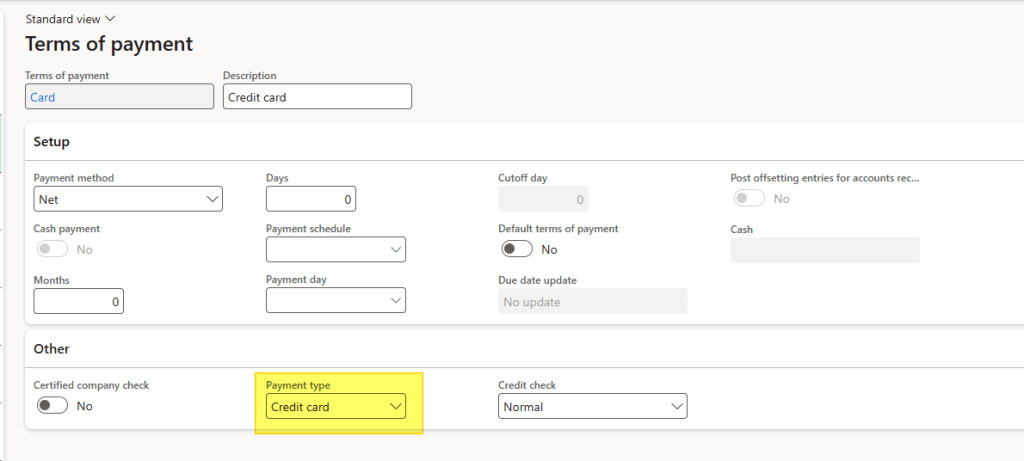
Path: Accounts receivable> Payments setup> Terms of payment
Create a term of payment and set the payment type as “credit cad”.
Process
Customer master data
Path: Accounts receivable> Customers> All customers.
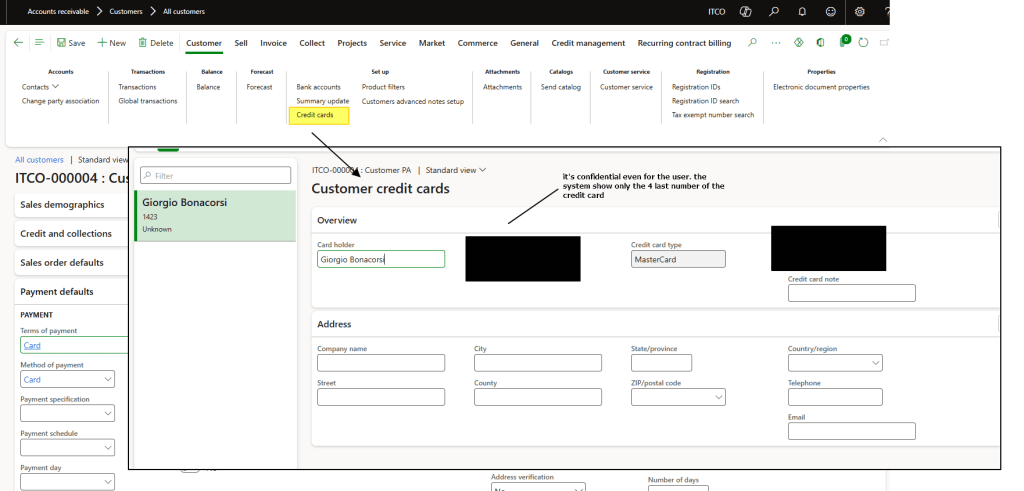
It is not mandatory to enter credit card details in the customer master data.
However, it is recommended because it speeds up sales order creation: the values are automatically inherited from the customer record instead of being manually entered on the sales order header.
Select the payment method and payment terms specifically dedicated to credit card transactions.
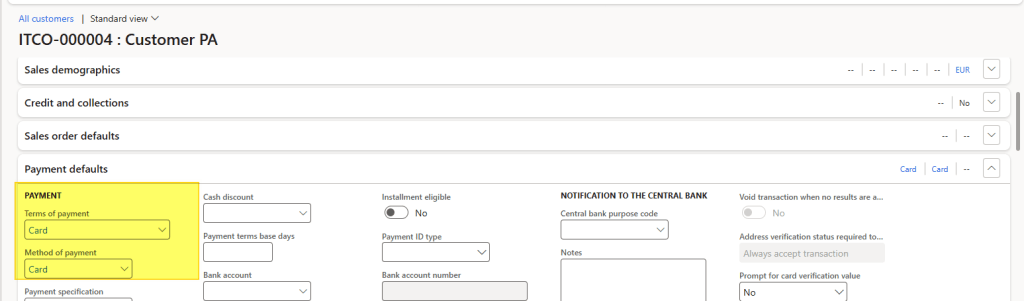
Enter the credit card information in the customer record so it can later be selected on sales orders.
Note: The credit card is not applied automatically by default to sales orders. It must be manually selected from the Sales order header each time.
Sales order
Path: Accounts receivable> Orders> All sales orders.
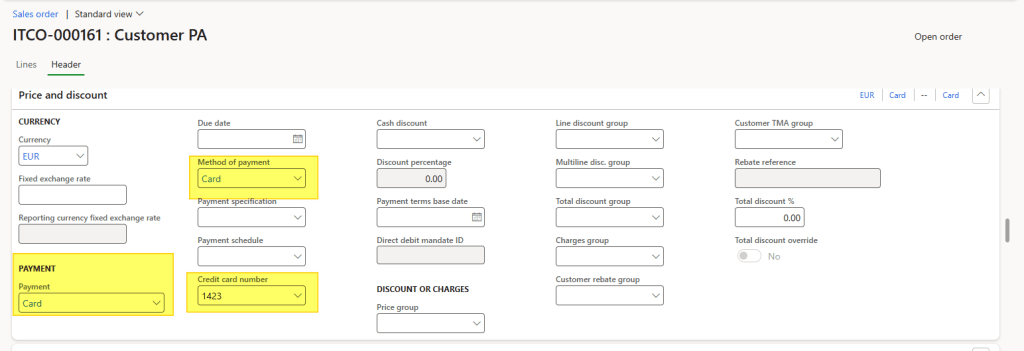
Verify that the payment method and payment terms applied on the document are the ones dedicated to credit card transactions.
Manually select the desired credit card from the Sales order header to apply it to this order.
Note: The credit card is not applied automatically.
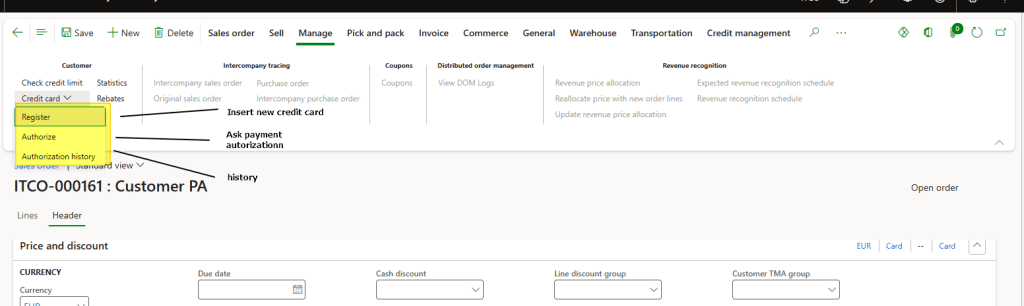
Request validation (payment authorization) of the sales order from the payment service. This process must be triggered manually (it does not run automatically).
Once the authorization is successfully received, the system stores the authorization code. You can then proceed with the standard process: packing slip generation and invoicing.
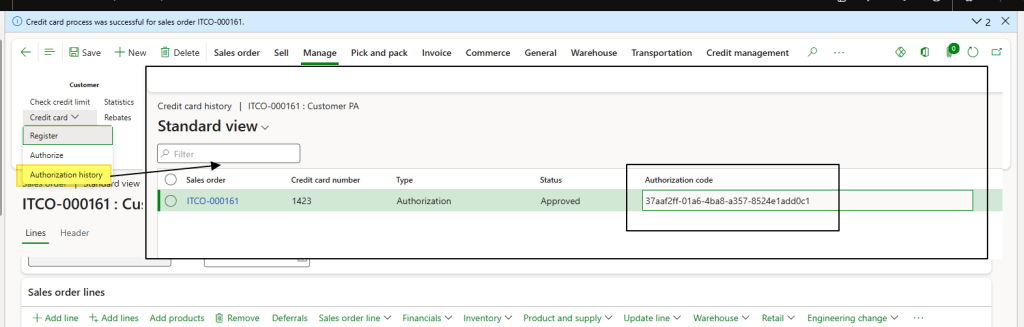
When the invoice is posted, the system can automatically generate the customer payment journal and match the invoice. The system will insert as payment reference the authorization code to accelerate the bank reconciliation process.


 Dax365FO
Leave a comment