
Introduction
The Financial Period Close is a task list manager that helps employees track tasks, assignees, and due dates for the periodic close process.
As a simple checklist, it is not connected to the actual system functions. When a task is completed, the user must manually mark it as done to update progress.
Process
Financial period close
Path: General ledger> Workspaces> Financial period close.
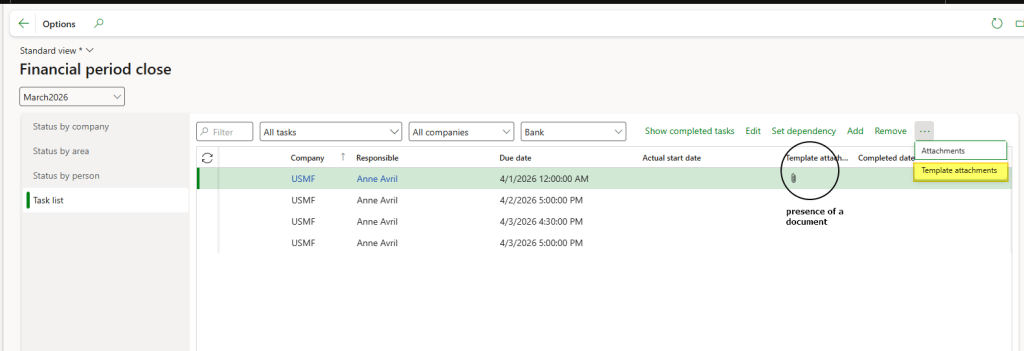
Select the task schedule calendar. From this form, you can view the tasks to be done.
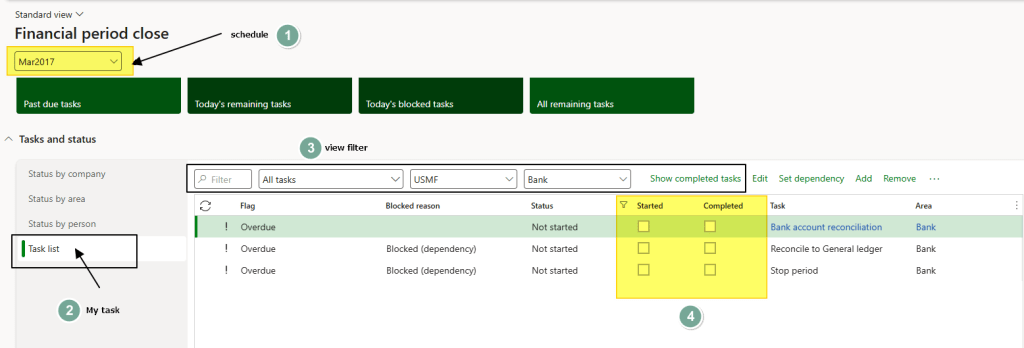
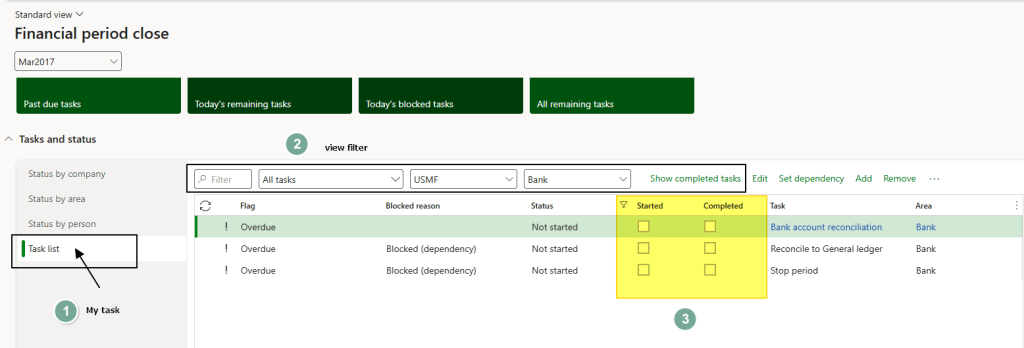
Select the criteria to filter your tasks, and manually mark which ones are started or completed.
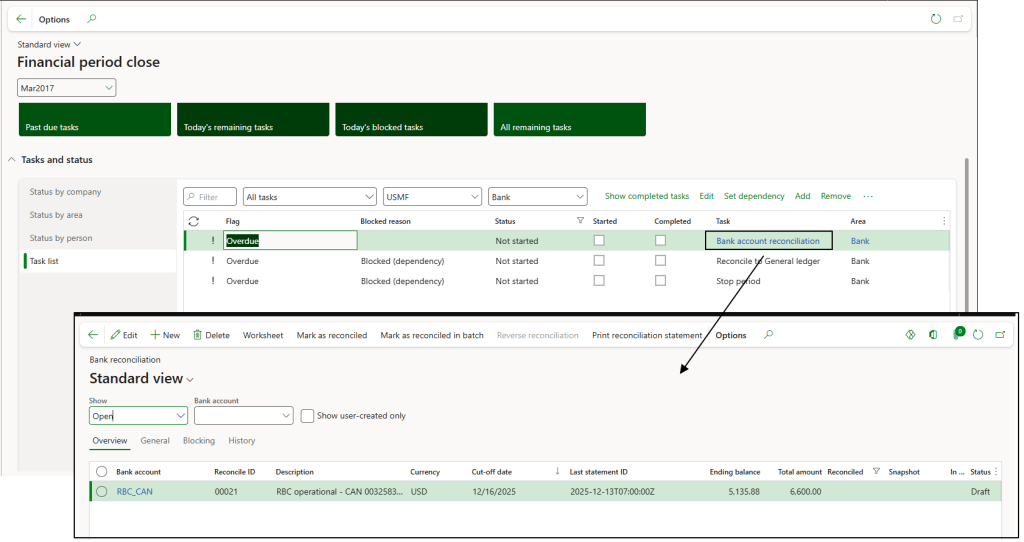
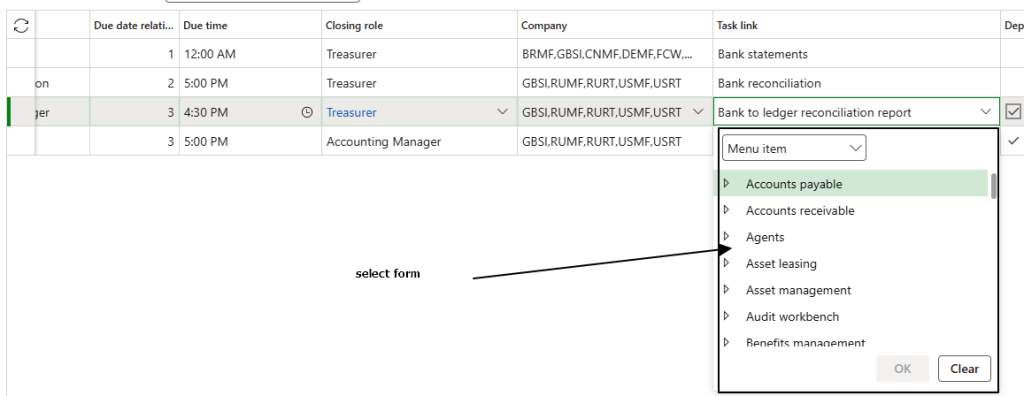
We can click the task link to jump directly to the form where the task is performed.
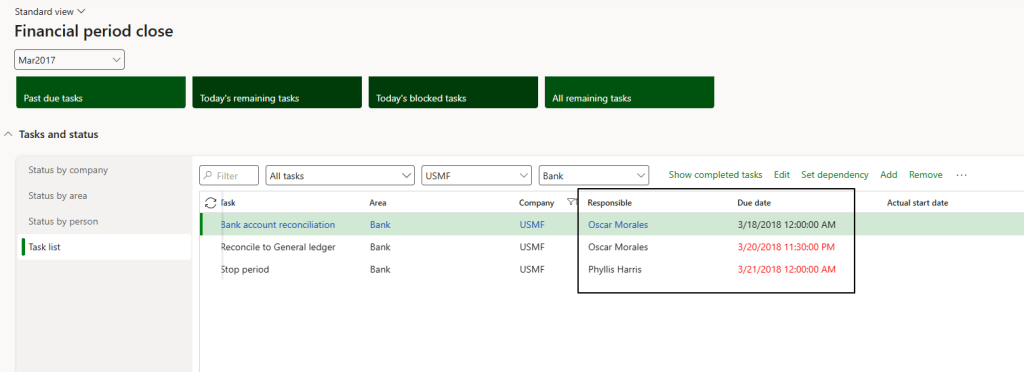
For each task we can see the due date and the owner:
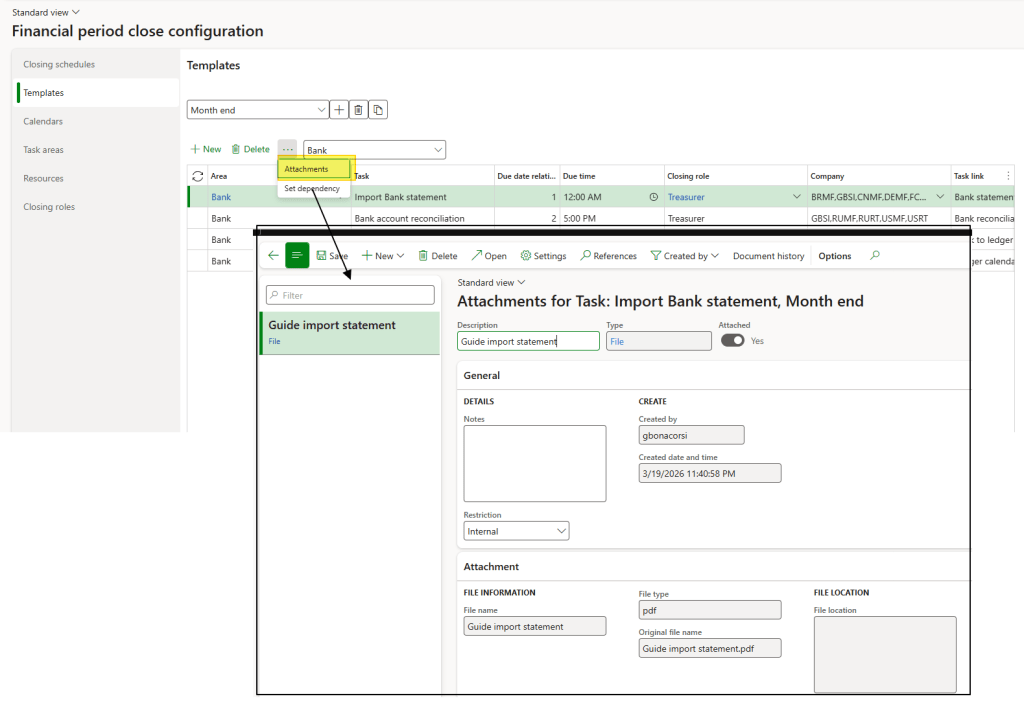
We look at the documentation attachment to help the user.
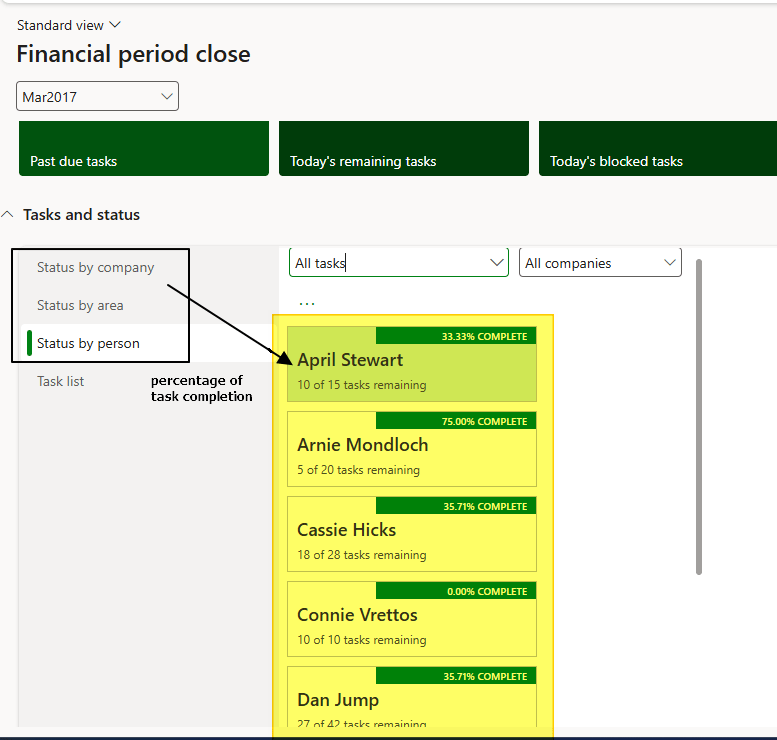
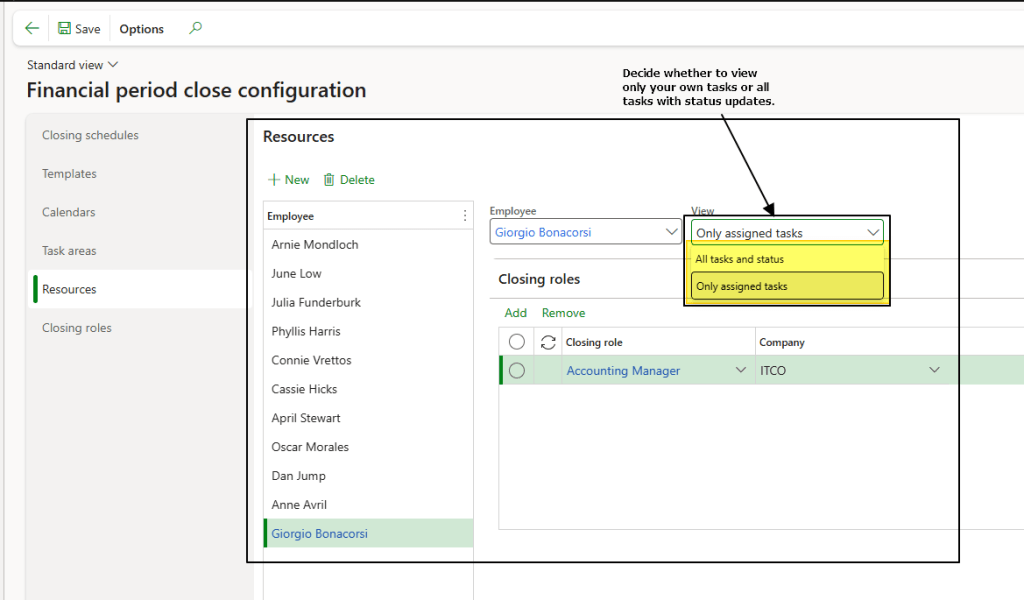
Further along, we can monitor task completion percentage and overall progress. We can assign to the resource whether they are authorized to view all resources/statuses or only their own tasks.
Configuration
Financial period close configuration
Path: General ledger> Period close> Financial period close configuration.
All feature setup and configuration options are gathered here. Below is a list of the configurations and their respective dependency:
- Calendars: Working calendars.
- Templates: List of all tasks and their dependencies.
- Resources: Owners responsible for performing the tasks.
- Employee: Employee master data (not covered in this guide, as it relates to human resource management).
- Closing roles: Roles assigned to perform these tasks.
- Task area: Classification/category of the task.
- Company: Legal entity (not covered in this guide, as it relates to organization management).
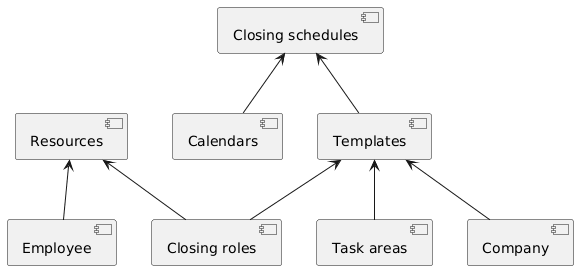
Now we gonna to see configuration sequence.
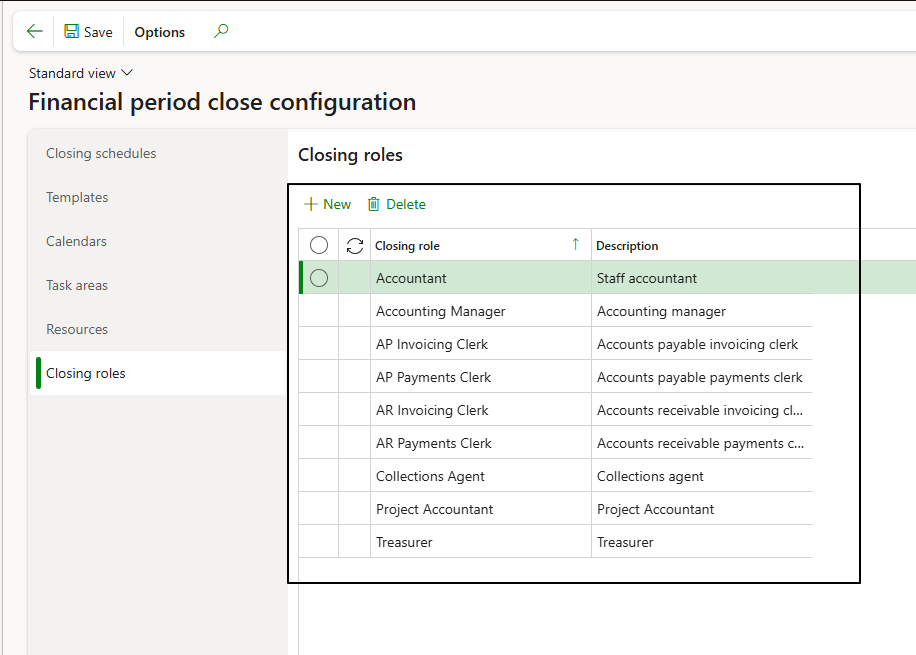
Closing roles
Insert the roles that will perform the task.
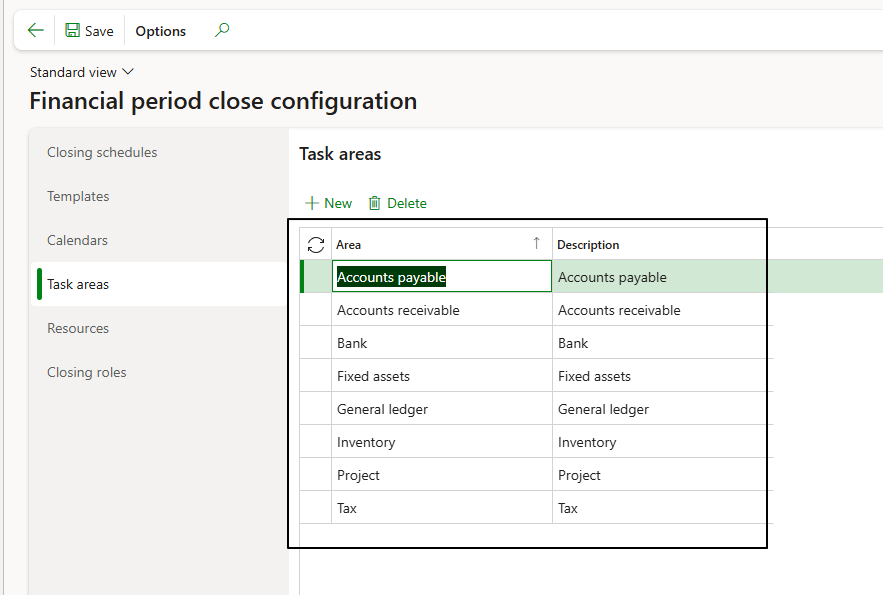
Task area
Insert the area to classify the tasks.
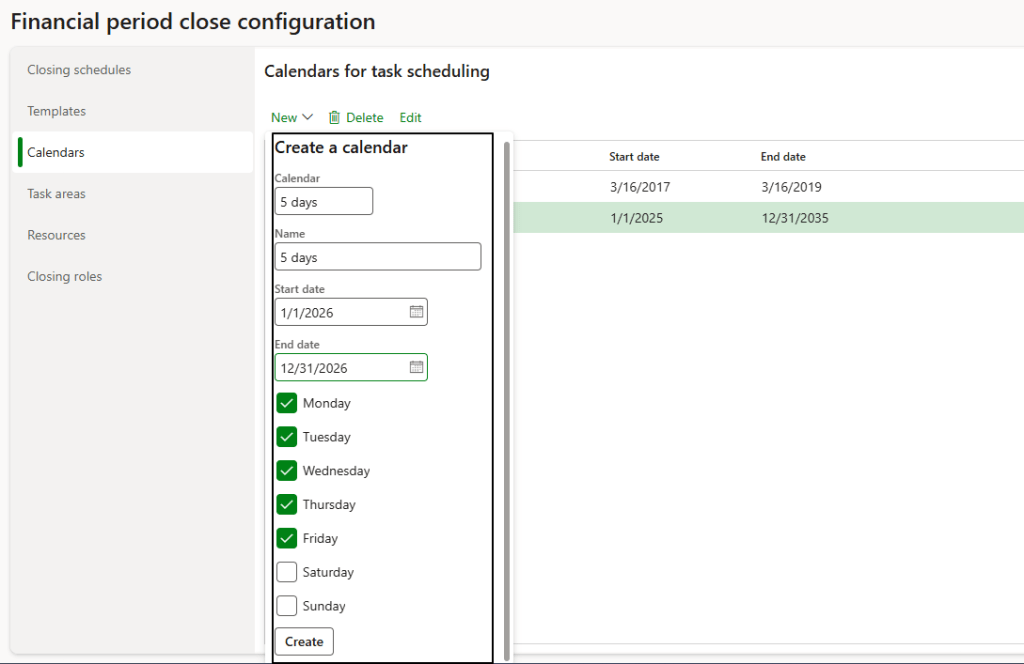
Calendars
Specify the working days of our accountant.
Resource
Assign to the employee the closing roles and the authorization to view either only their own tasks or all tasks with completion status.
Templates
Create the list of task to do. Insert the record, and specify these data:
- Area: Select task area:
- Task: Write task description;
- Due date relative to period end date: Number of day to calcule the due
- Date from the end date period: insert a positive or negative value
- Due time: Due date and time (hh:mm)
- Closing role: Select closing role
- Company: Select company
- Task link: Select the form to open when clicked
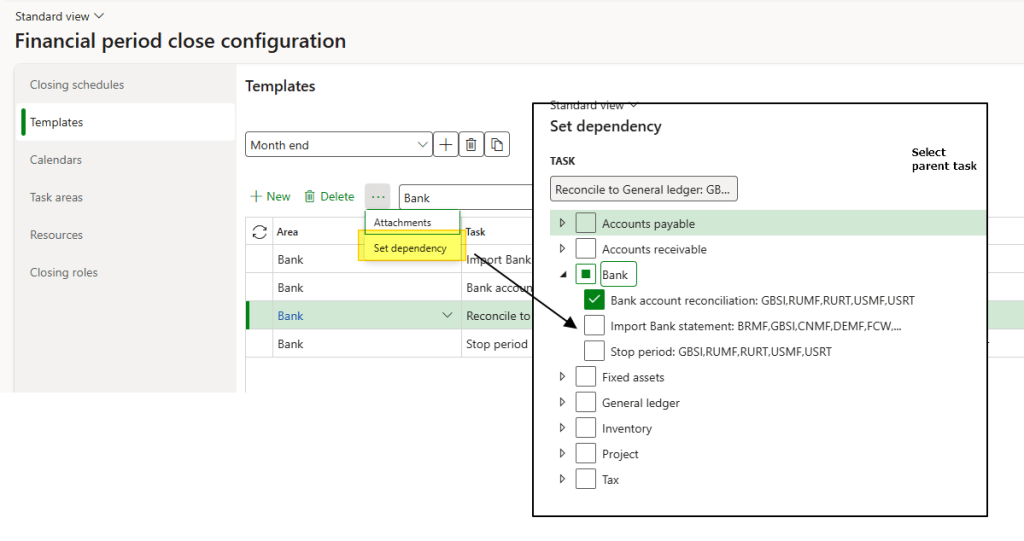
- Dependency: Select task dependency to other tasks
- Attachement: We attach file with additional description:
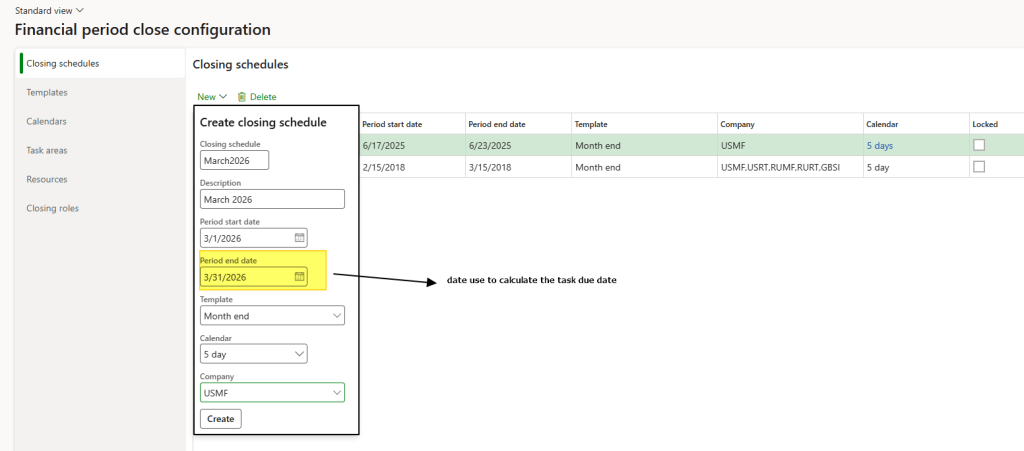
Closing schedule
Create the task schedule from the task template and define the competence date range.

 Dax365FO
Leave a comment