
Introduction
The payment due date calculation takes several factors into account, including business working days. The Payment Calendar identifies if the calculated due date falls on a holiday or non-working day. In this cases, the due date is automatically moved forward to the next available business day.
Configuration
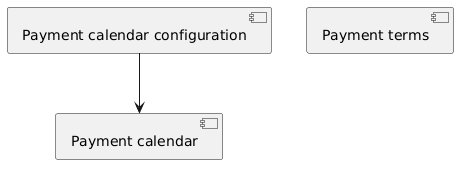
The configuration is the same for both Accounts Payable and Accounts Receivable:
- Payment calendar: Defines working days and holidays.
- Payment calendar configuration: Parameters to select which payment calendar to apply to an invoice.
- Payment terms: Rules for handling non-working days (move the due date before or forward).
Payment calendar
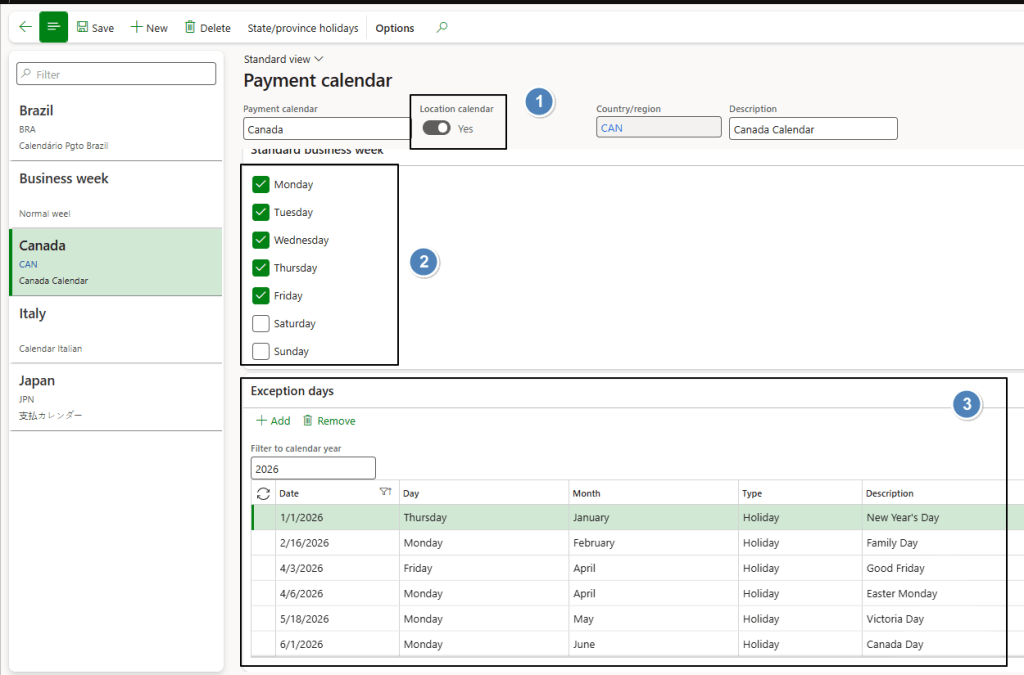
Path: Accounts receivable> Payments setup> Payment calendar.
Select whether the calendar is driven by location. Location means the calendar can change based on the client/vendor address or company address. If the addresses do not determine a specific calendar, leave the setting as No.
Insert the work day for a regular week, and set the exception day suc h as holiday day.
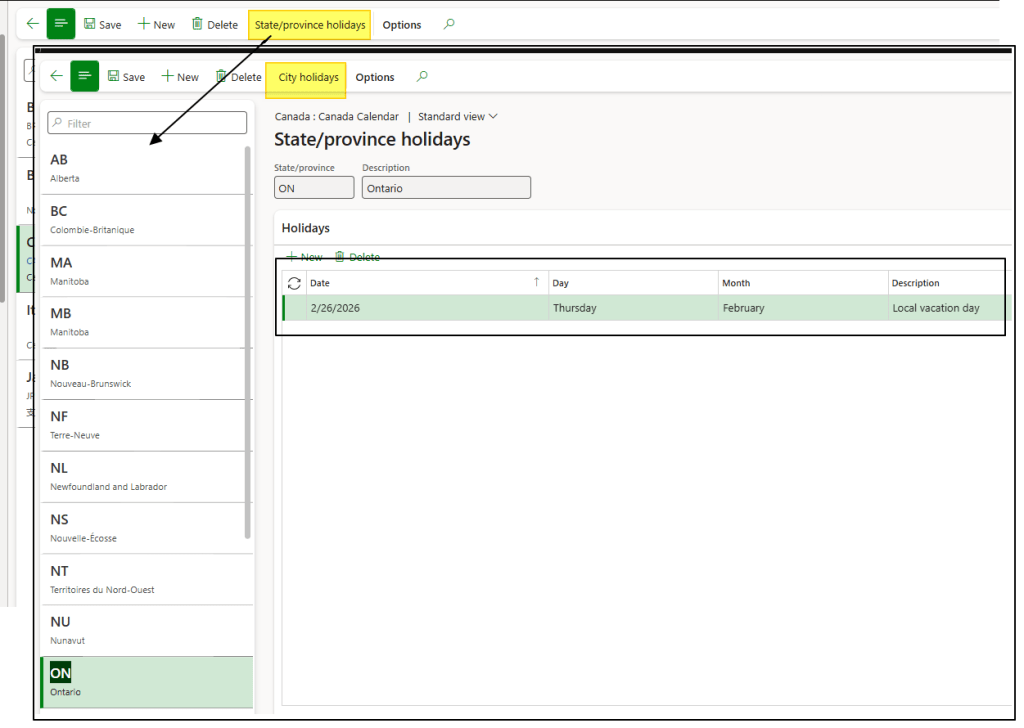
Notice that we can even specify the holiday by Province/State and City:
Payment calendar configuration
Path: Accounts receivable> Payments setup> Payment calendar configuration
We define here the rules to identify the payment calendar to apply at our document.
1- Create rules
Rules to determine the correct payment calendar. The system selects the appropriate calendar using the following criteria:
- Specific: Based on the payment method and terms applied on the invoice;
- Customer/Vendor address: Based on their address (if calendar is driven by location);
- Company: Based on the company address (if calendar is driven by location);
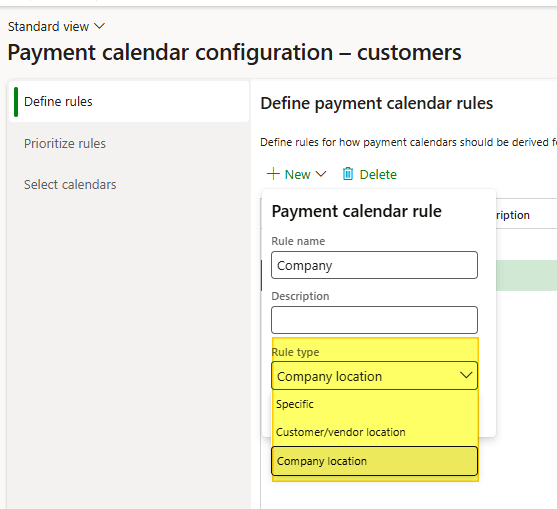
Activate the rule when it’s ready:
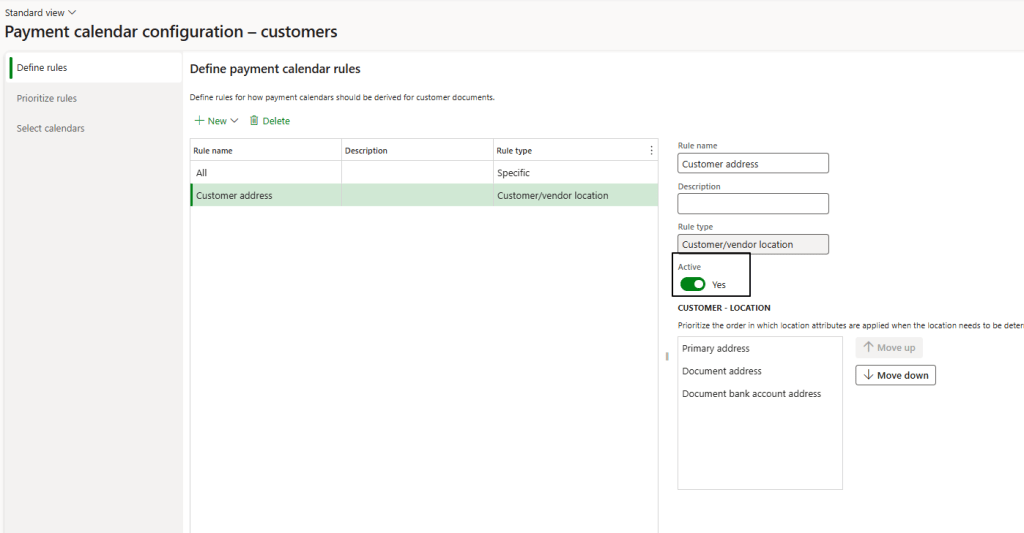
2- Priority rules
Order of rules when creating a new invoice. The system applies the rules in this priority order if the criteria match the invoice. In your case if the customer has no address (on the document or in the bank details), the same business calendar applies to all combinations of payment methods and terms.
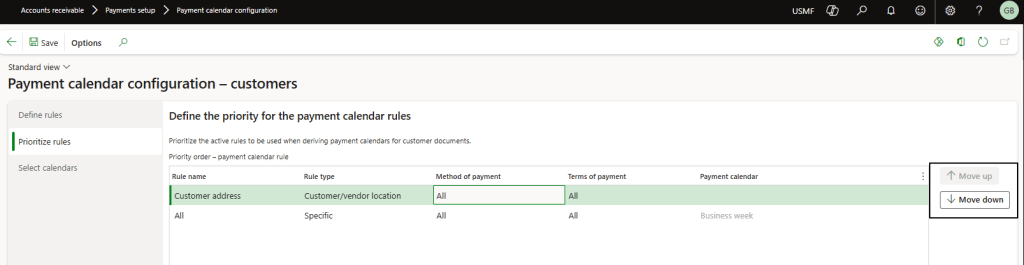
3- Select calendar
Configure only if we are looking the calendar based the location. Select the calendar apply for each location:
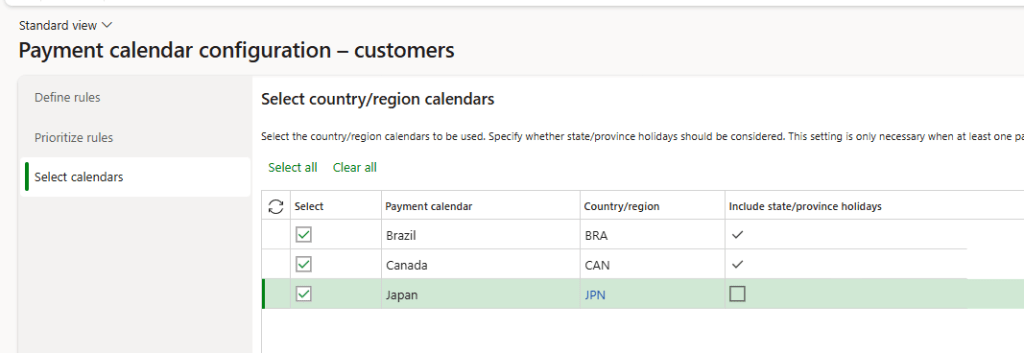
Payment terms
Path: Accounts receivable> Payments setup> Terms of payment
Specify how to update the due date when a non-working day is identified:
- Move forward to the next business day
- Move backward to the previous business day
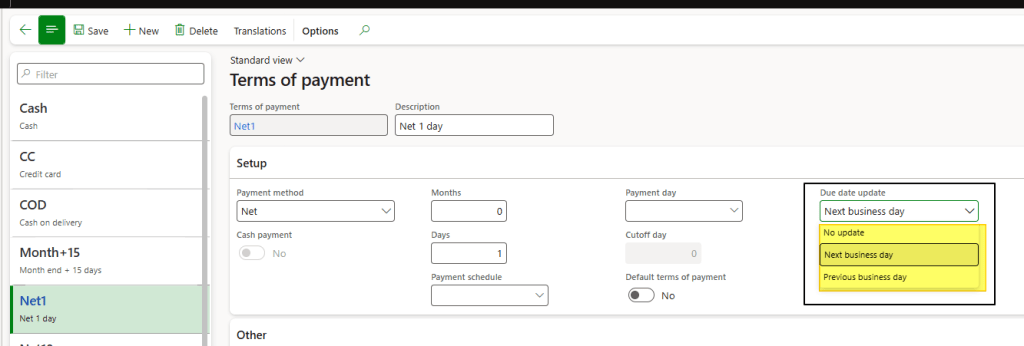
Process
Invoice
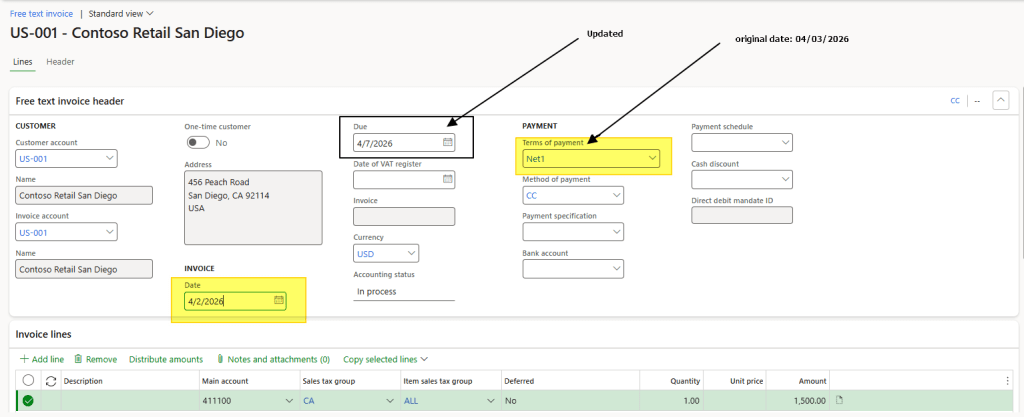
Process the invoicing as usual. When the system identifies a non-working day, it automatically updates the due date according to the rule defined in the payment payment calendar and payment terms.

 Dax365FO
Leave a comment