
D365FO Solution
The process is an extension of the regular procedure used to manage the budget plan with Excel. It consists of applying a dedicated spreadsheet to make advanced simulations and then transferring the result in the budgeting plan using Excel Macro. Below, you can see a quick example:
Example
We start from this revenue situation:
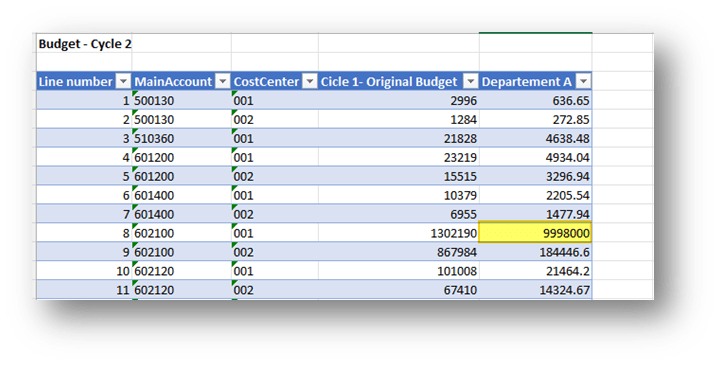
In a separate spreadsheet, we are going to change the variable of your simulation. This case is regarding a simple estimation of the revenue based on the multiplication of the sales volume and a rate. After the calculation, we can press the button “transfer” to transfer the simulation’s result in the budgeting planning:
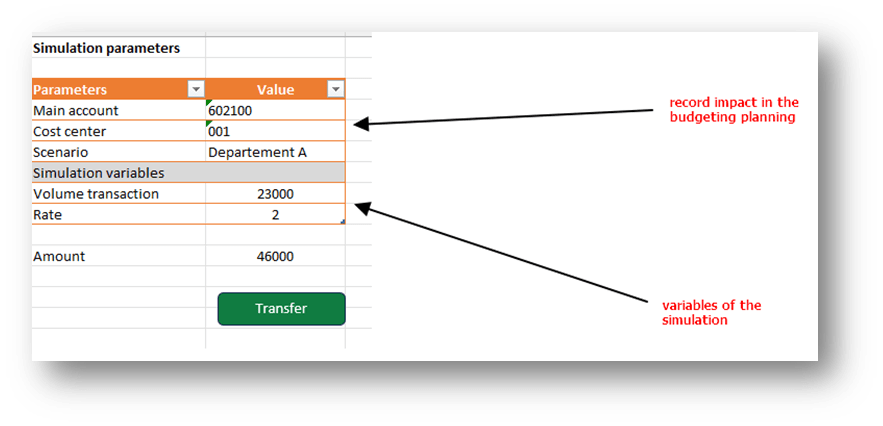
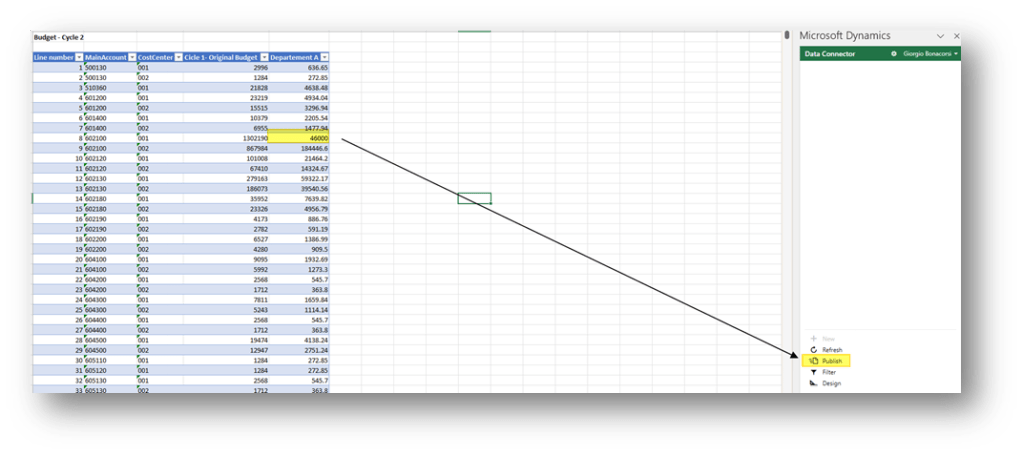
As you can see, the value is automatically transferred in the budgeting planning. Press publishes to transfer the new result in D365FO and complete the process:
Configuration
You need to create a dedicated Excel template linked your budgeting planning. The configuration in D365FO is the same that we follow for the regular Excel spreadsheet (remember not to launch the generation after the updating). The differences are:
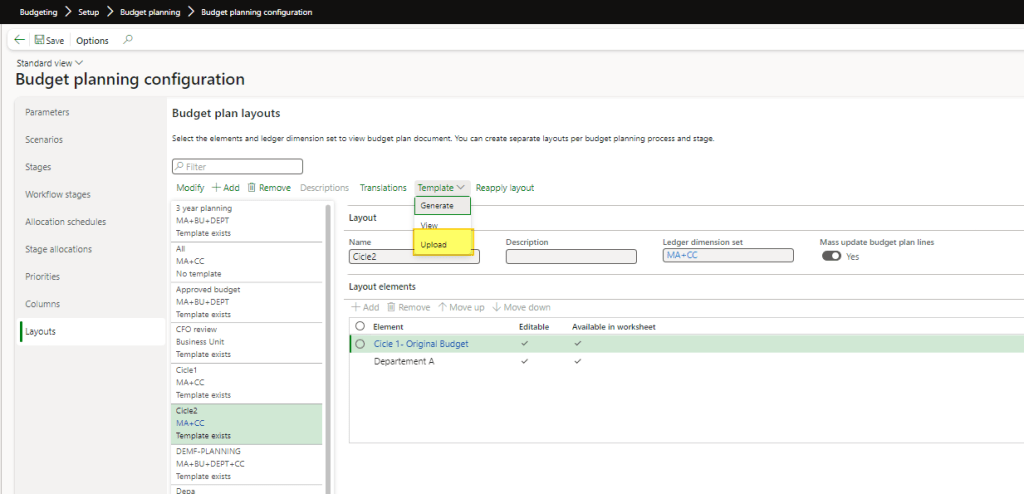
- Simulation sheet: We need to add an additional speed sheet where we will design the structure and the calculation of your simulation calculation:
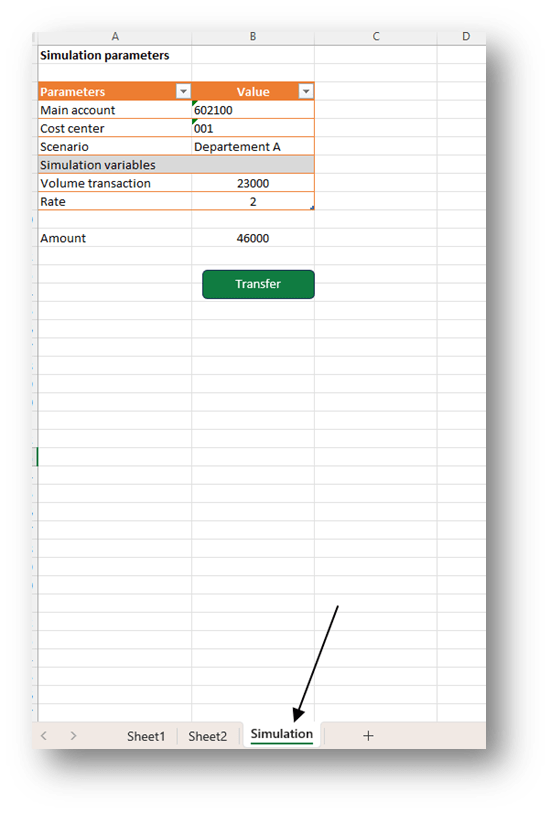
2. Transfer macro: We need to insert a Macro to transfer the results.
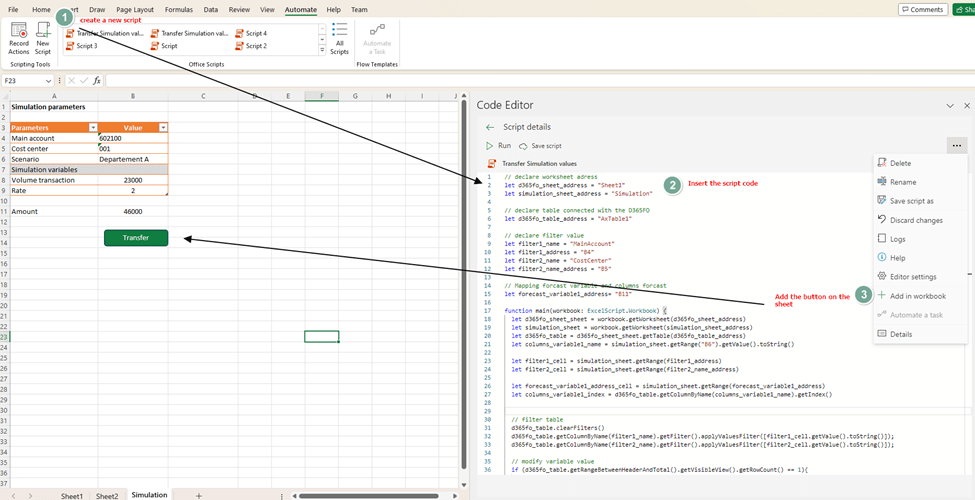
Below is the script that I’ve used. Feel free to change it to readapt at your simulation model and loop it if you need to transfer multiple values:
// declare worksheet adress
let d365fo_sheet_address = "Sheet1"
let simulation_sheet_address = "Simulation"

// declare table connected with the D365FO
let d365fo_table_address = "AxTable1"

// declare filter value
let filter1_name = "MainAccount"
let filter1_address = "B4"
let filter2_name = "CostCenter"
let filter2_name_address = "B5"

// Mapping forcast variable and columns forcast
let forecast_variable1_address= "B11"

function main(workbook: ExcelScript.Workbook) {
  let d365fo_sheet_sheet = workbook.getWorksheet(d365fo_sheet_address)
  let simulation_sheet = workbook.getWorksheet(simulation_sheet_address)
  let d365fo_table = d365fo_sheet_sheet.getTable(d365fo_table_address)
  let columns_variable1_name = simulation_sheet.getRange("B6").getValue().toString()

  let filter1_cell = simulation_sheet.getRange(filter1_address)
  let filter2_cell = simulation_sheet.getRange(filter2_name_address)

  let forecast_variable1_address_cell = simulation_sheet.getRange(forecast_variable1_address)
  let columns_variable1_index = d365fo_table.getColumnByName(columns_variable1_name).getIndex()


  // filter table
  d365fo_table.clearFilters()
  d365fo_table.getColumnByName(filter1_name).getFilter().applyValuesFilter([filter1_cell.getValue().toString()]);
  d365fo_table.getColumnByName(filter2_name).getFilter().applyValuesFilter([filter2_cell.getValue().toString()]);

  // modify variable value
  if (d365fo_table.getRangeBetweenHeaderAndTotal().getVisibleView().getRowCount() == 1){


    let variable_field_address= d365fo_table.getRangeBetweenHeaderAndTotal().getVisibleView().getCellAddresses()[0][columns_variable1_index]

    d365fo_sheet_sheet.getRange(variable_field_address).setValue(forecast_variable1_address_cell.getValue())
  }

  d365fo_table.clearFilters()
}


 Dax365FO
Leave a reply to Manage budget plan with excel – Dax365 Cancel reply