
Introduction
This article focuses on how to handle differences between the purchase order and the vendor invoice during the invoice posting process. The goal is to ensure that both the inventory transaction value and the financial impact are recorded correctly according to your invoice’s specific circumstances.
Note: This is different from invoice matching validation. Invoice matching is the step where you identify discrepancies and obtain the necessary approvals. In this article, we cover the next step: how to post the vendor invoice correctly once the variances have been indentified.
Solution
The solution depends on the root cause of the delta. Therefore, the very first question to ask is: Is the vendor’s invoice correct? In other words, is the difference due to an error on our side (incorrect purchase order information or product receipt posting), or is the vendor’s document itself wrong?
Important clarification: The vendor invoice is a legal document that states the amount due. We cannot change the total payable amount posted to the vendor account. Instead, we can adjust the voucher structure—based on the specific situation—to correctly recognize (or not recognize) the financial and inventory effects, depending on whether the variance is legitimate or not.
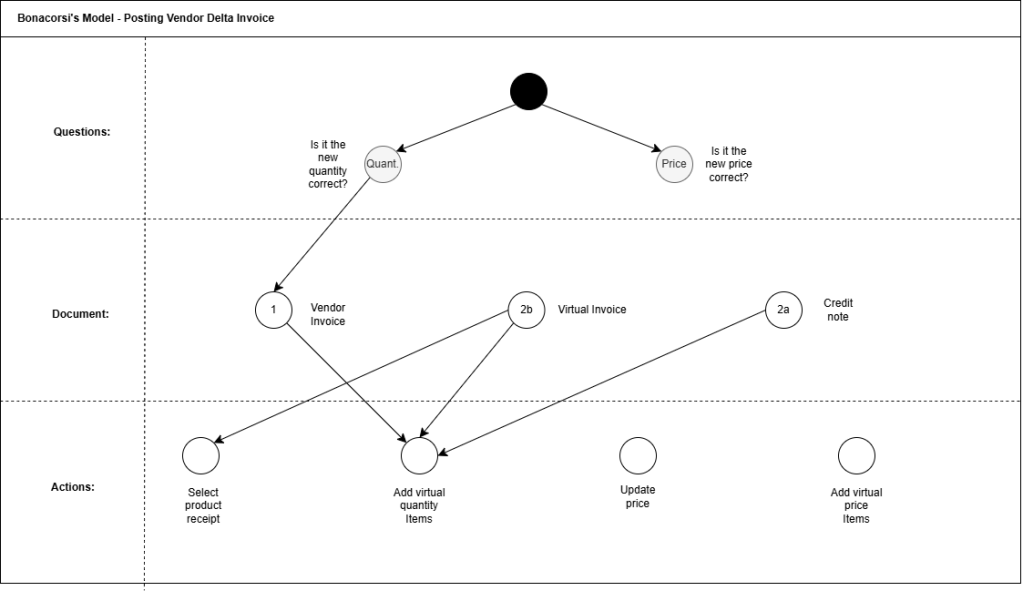
In this article, we will refer to the following diagram, which outlines the solution across three layers:
- Questions: Is the delta related to quantity or price?
- Document: What type of document are we posting? (Vendor invoice, virtual/fictitious invoice, or credit note), and in which order.
- Actions: What adjustments should be made at the document line level to achieve the desired outcome? Our options are:
- updating the product receipt: the warehouse team will update the product receipt quantity, then we can tied the new document at our invoice;
- adjusting line prices: we will update the inventory transaction, inserting the financial amount tied the product receipt;
- inserting virtual (fictitious) quantity/price lines that do not affect inventory transactions: We don’t want to update the inventory transaction, and we don’t recognize the cost in the destination main account (a clearing cost account is move);
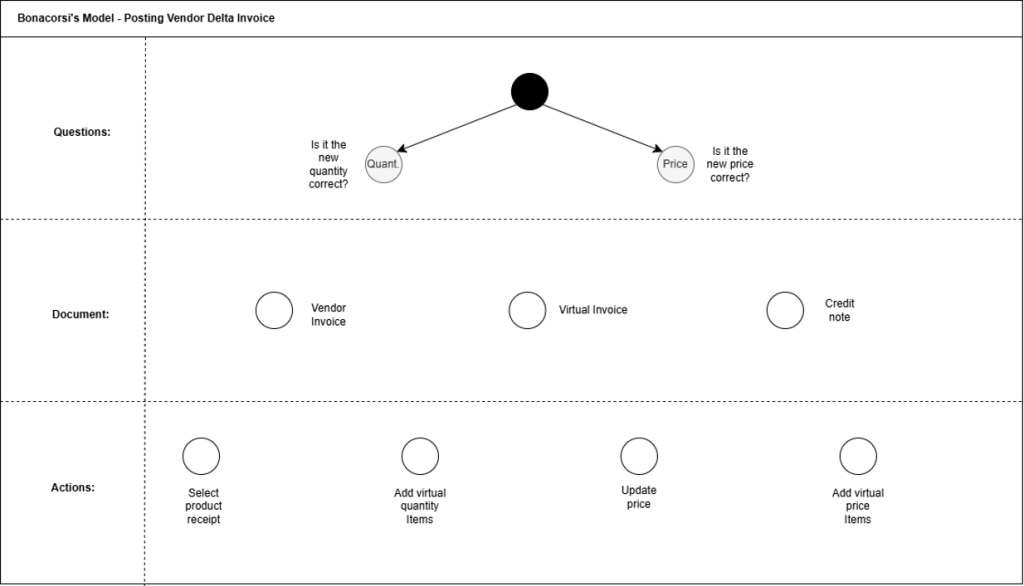
The possible scenarios can be categorized as follows:
- The vendor invoice quantity is correct;
- The vendor invoice quantity is incorrect;
- Defer the invoice quantity check;
- The vendor invoice price is correct;
- The vendor invoice price is incorrect;
- Defer the invoice price check;
The vendor invoice quantity is correct
This is a simple case, we just wait from the warehouse team the posting of the adjustment.
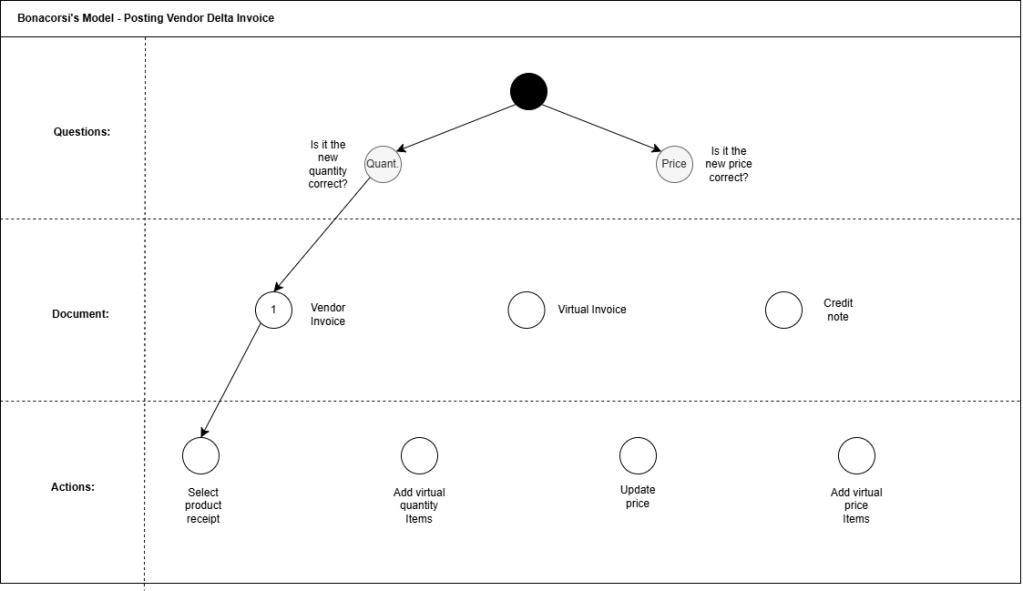
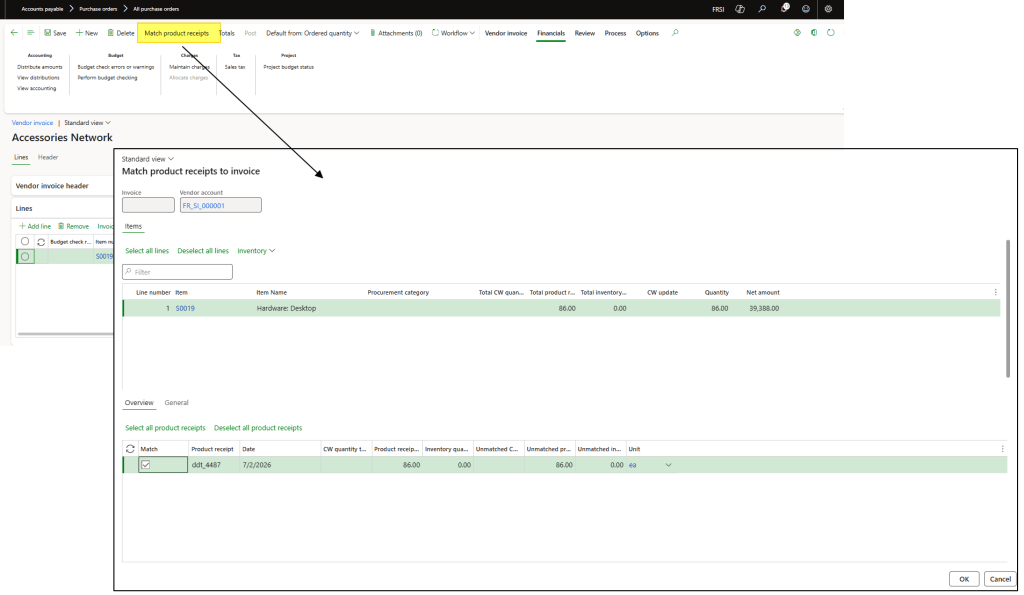
Once we receive the notification, proceed with the invoice posting as usual. Select the appropriate product receipt and continue with the standard invoice posting activities.
The vendor invoice quantity is incorrect
The vendor made a mistake with the quantity, and we request a credit note.
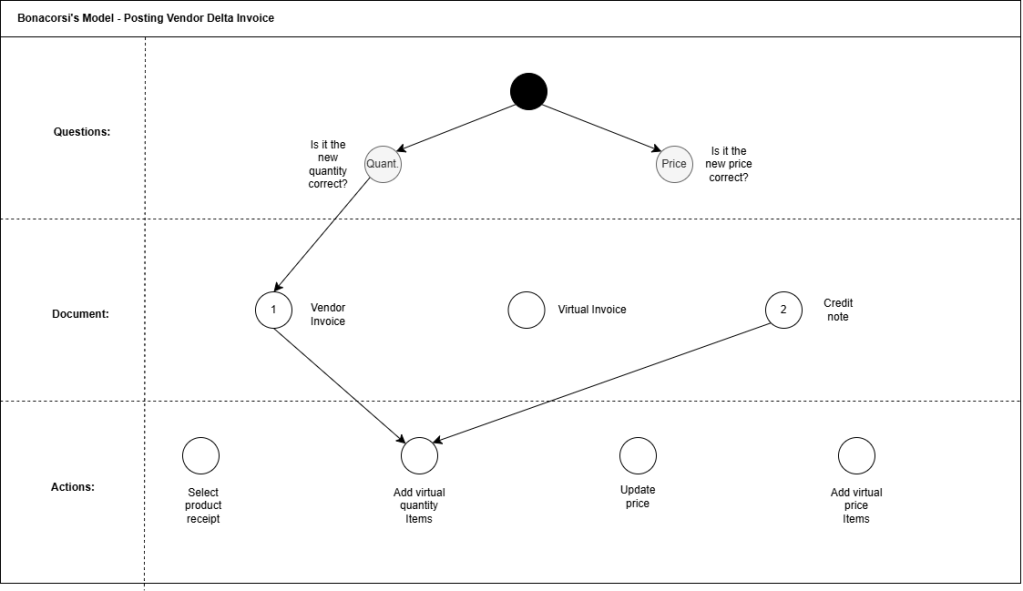
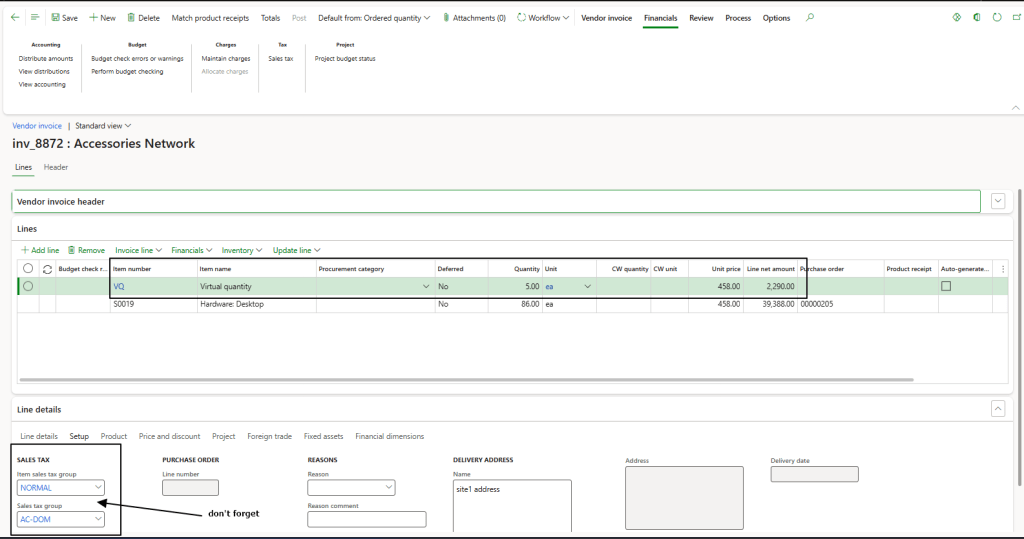
In the meantime, we insert a virtual quantity line on the original invoice while maintaining the correct unit price and line amount.
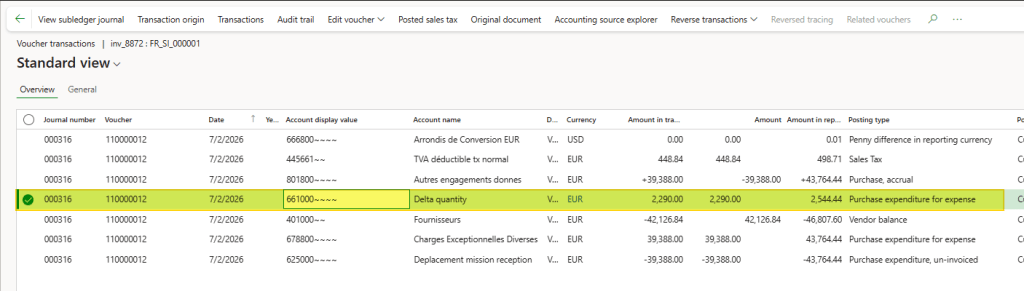
The posting will record the delta amount in a clearing account.
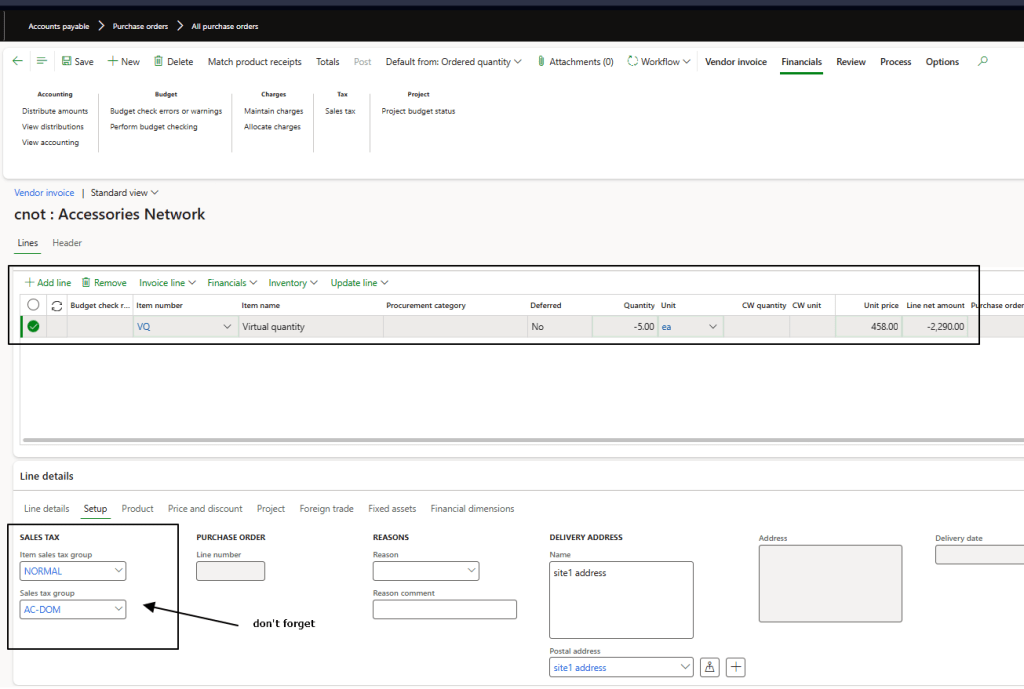
Once we receive the credit note, insert the credit note using our virtual items with the same amount, but with the negative quantity and sign:
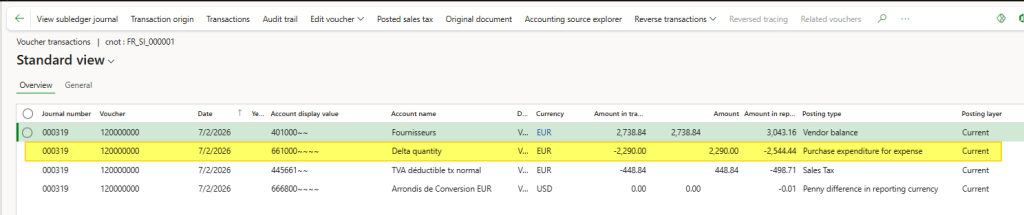
Then, remember to perform the matching of the invoice and credit note in the vendor master.
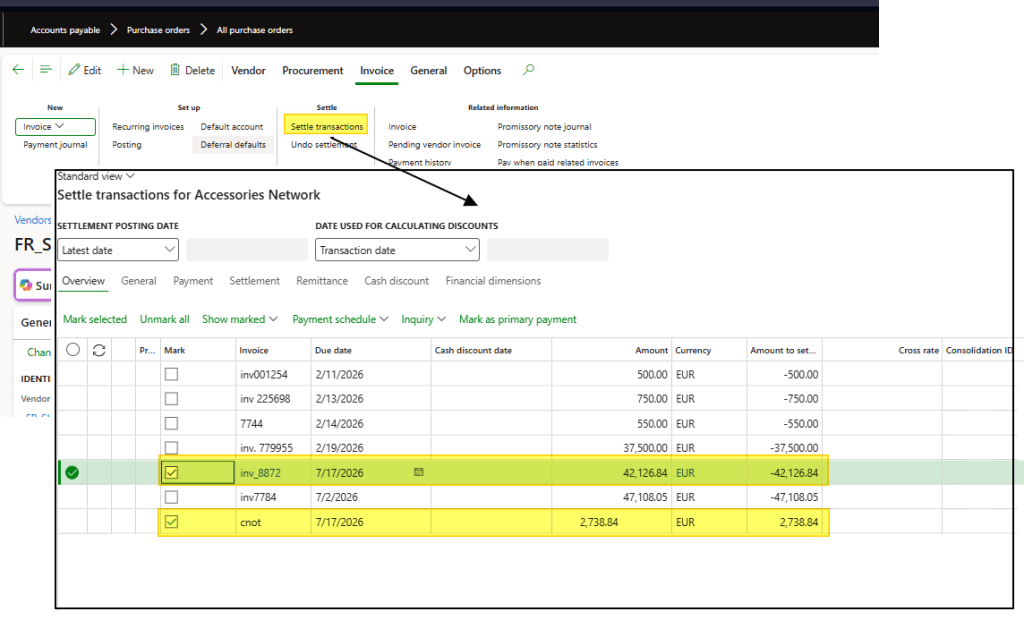
Note: As an alternative, we can post the credit note using the Vendor invoice journal.
Defer the invoice quantity check
We need to post the invoice to proceed with further activities, but the product receipt has not been corrected yet or we don’t know if it’s a mistake from our vendor. So, we defer the check in a second moment.
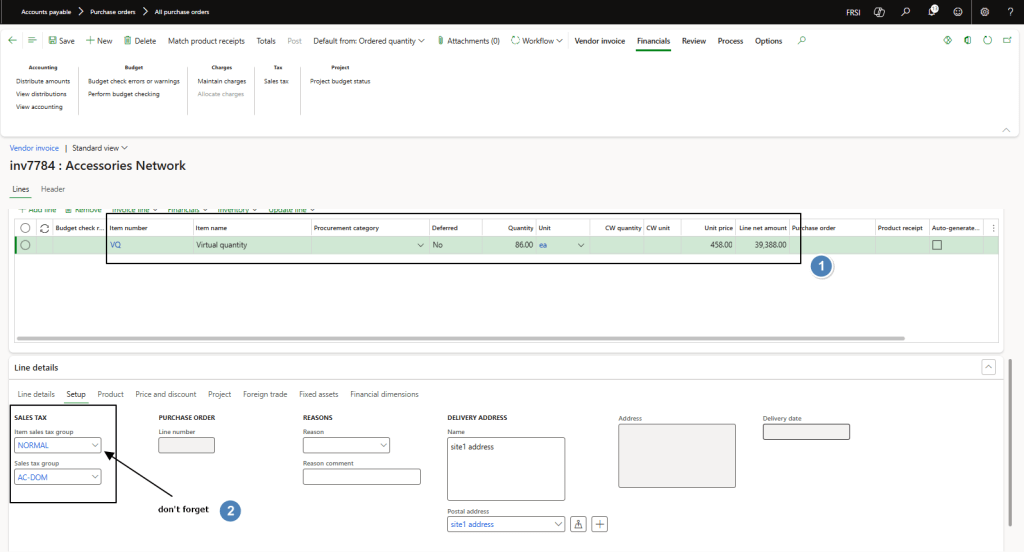
Insert a virtual quantity item while maintaining the correct unit price and line amount (don’t forget to select the appropriate sales tax groups).
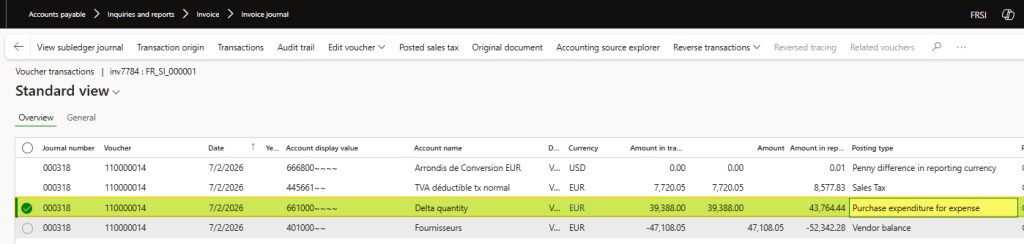
The posting will record the delta amount in a clearing account.
Once we clarify the cause of the delta, we can follow two alternatives:
- 2a) If it is a mistake by the vendor, we will receive a credit note. In this case, we process the document according to the scenario “The vendor invoice quantity is incorrect.”
- 2b) Otherwise, if it is an internal error, we create a virtual (adjustment) invoice. We select the corrected product receipt and add the same virtual items that were used on the original vendor invoice, but with negative quantities. This results in an invoice with a total amount of zero (ensure the tax calculation is correct). For the header information, you can enter whatever is appropriate, but the recommendation is to use the same invoice number and date as the original invoice.
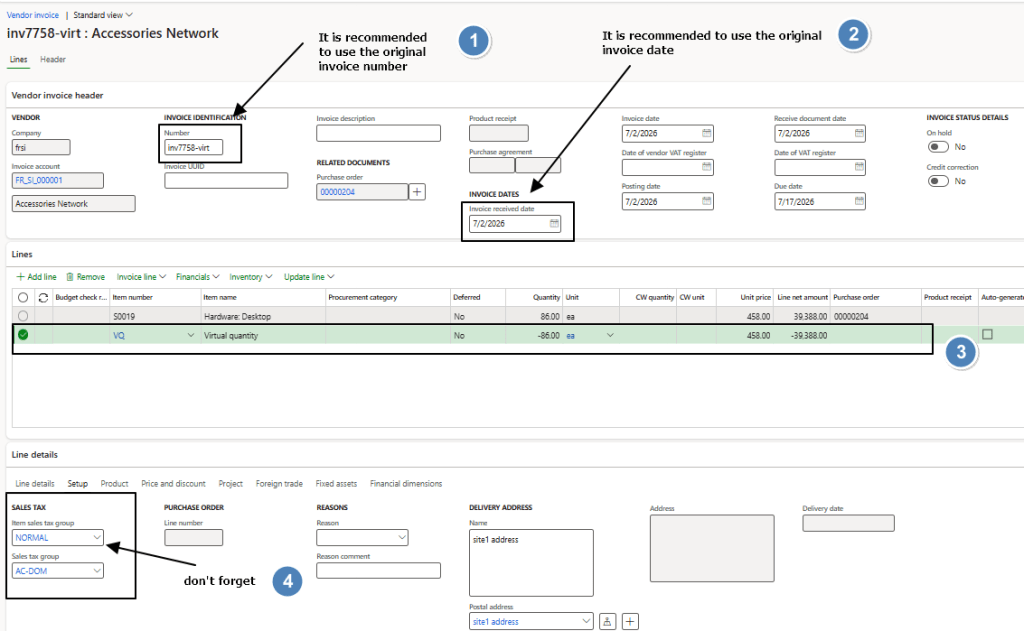
The posting will clear out the clearing account and proceed with the final cost recognition and inventory transaction update.

The vendor invoice price is correct
This is a straightforward case: simply update the invoice lines.
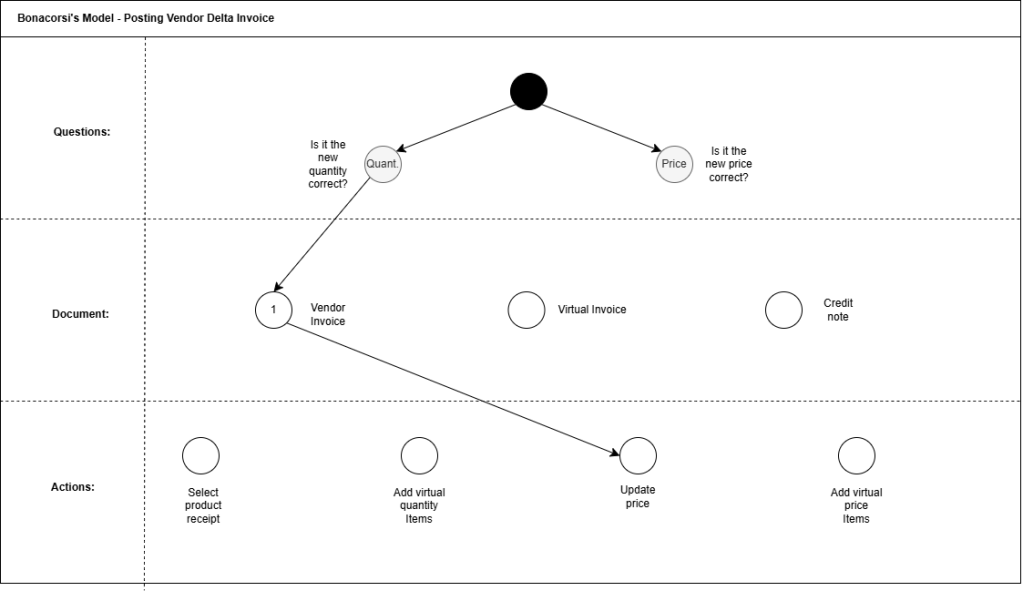
Insert the correct price from the vendor document:
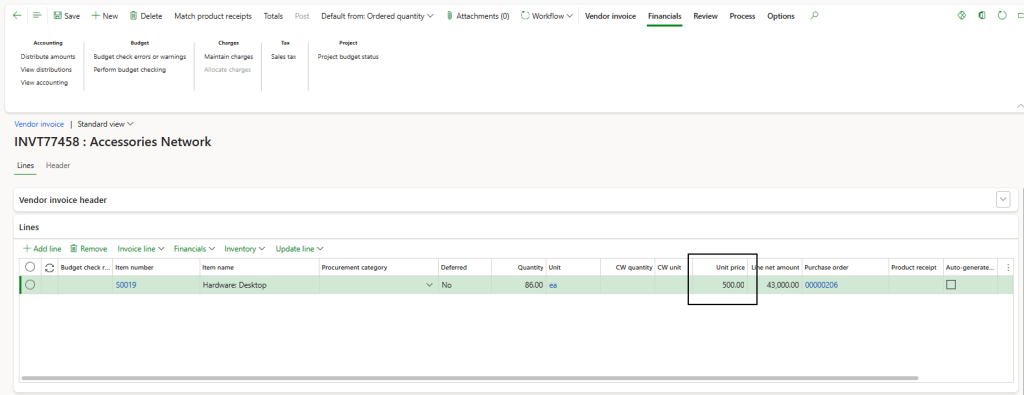
The vendor invoice price is incorrect
The vendor made a mistake with the price, and we request a credit note.
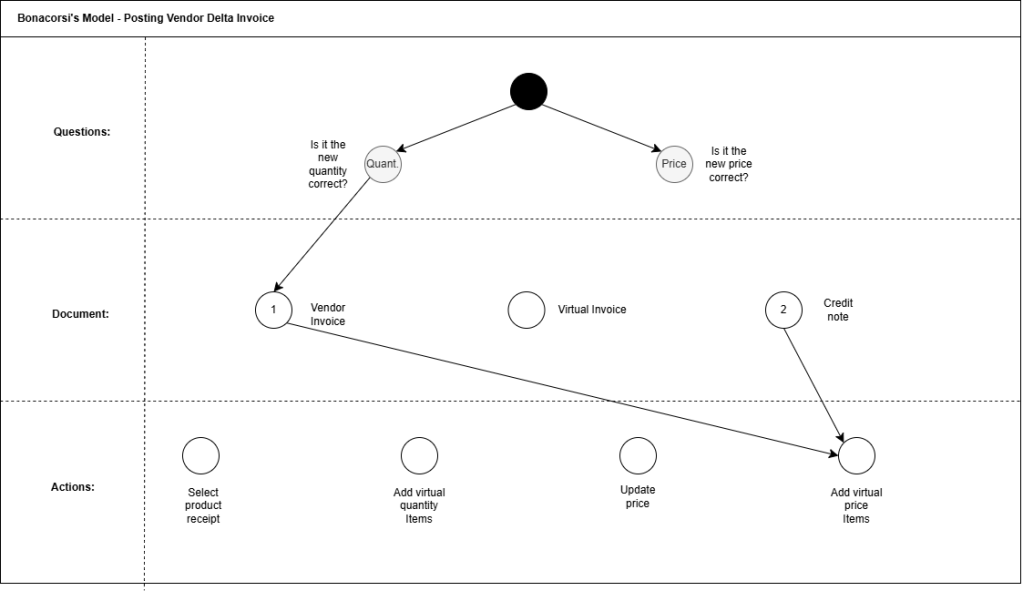
In the meantime, we insert a virtual item price line on the invoice for the delta amount.
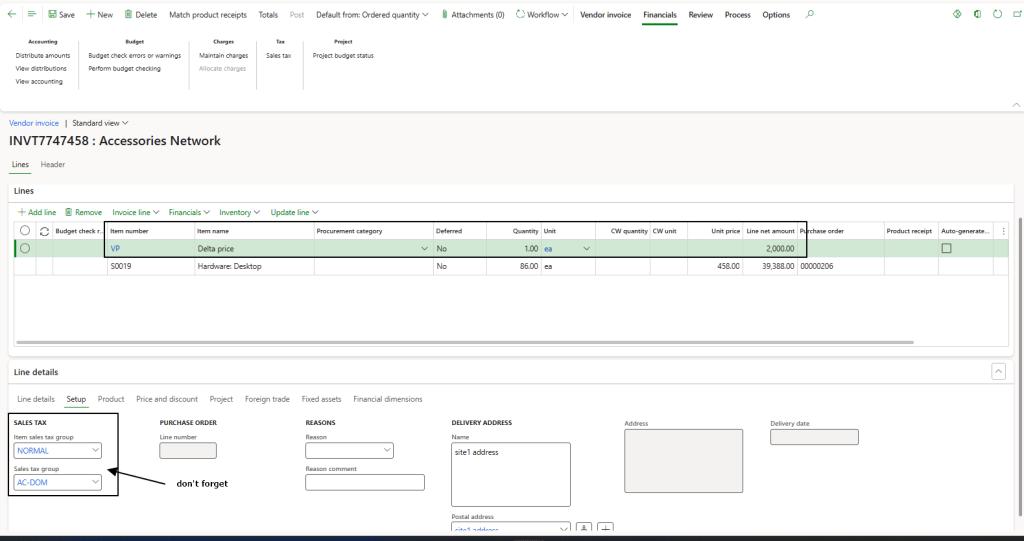
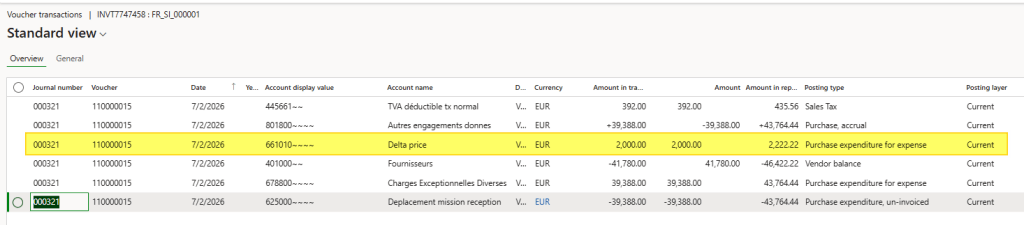
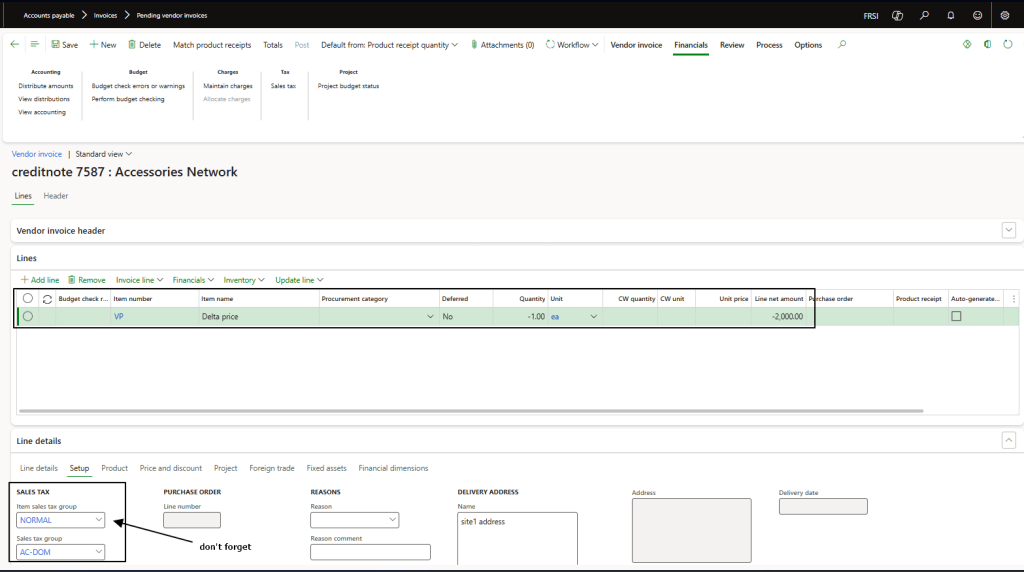
Once we receive the credit note, insert the credit note using our virtual items, but with the negative quantity and amount:

Then, remember to perform the matching of the invoice and credit note in the vendor master.
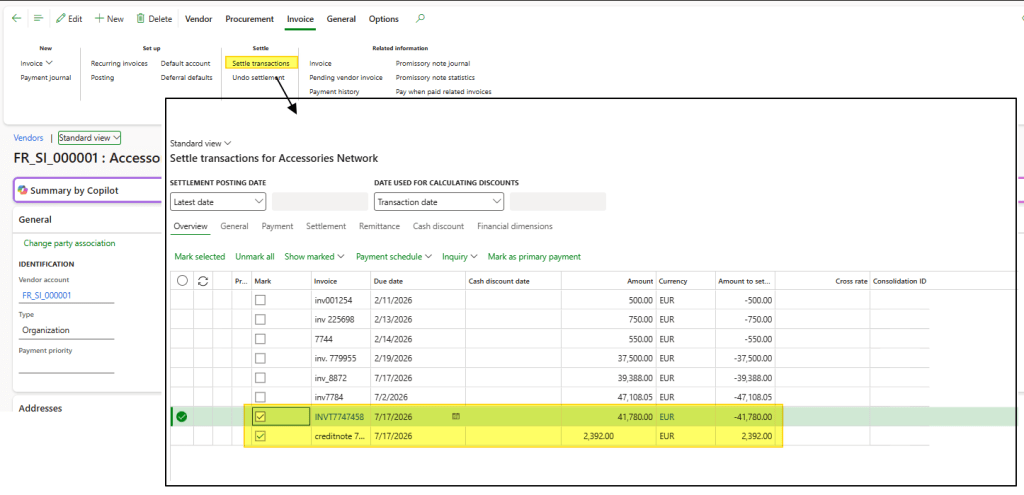
Note: As an alternative, we can post the credit note using the Vendor invoice journal.
Defer the invoice quantity check
We need to post the invoice to proceed with further activities, but we don’t know yet if it’s a price mistake from our vendor. So, we defer the check in a second moment.
Insert a virtual price item while maintaining the correct unit price and line amount (don’t forget to select the appropriate sales tax groups).
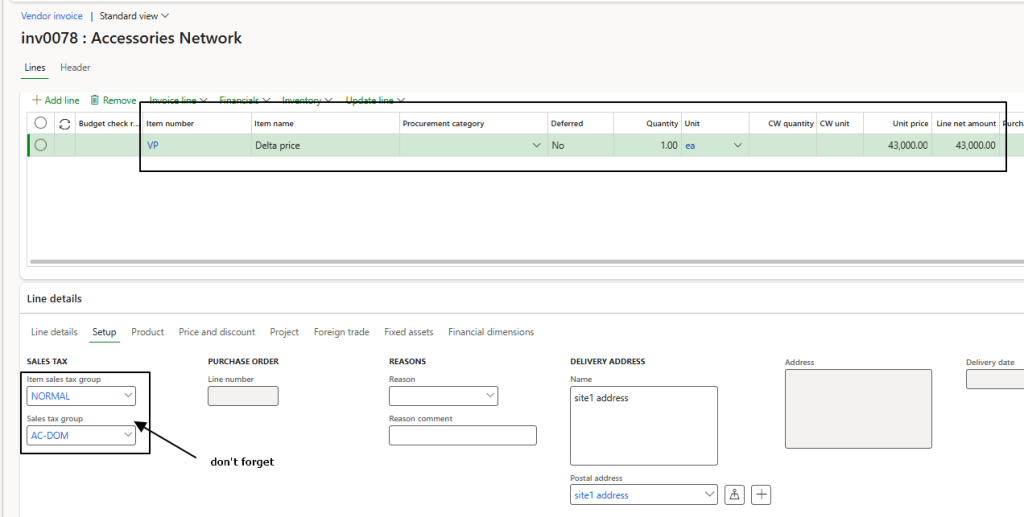
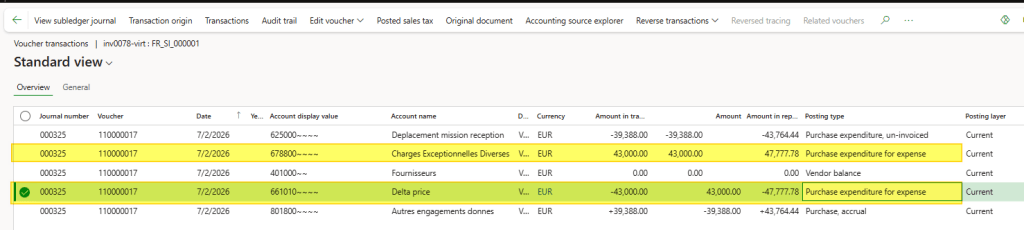
The posting will record the delta amount in a clearing account.
Once we receive clarify the cause of the delta, we can follow two alternatives:
- 2a) If it is a mistake by the vendor, we will receive a credit note. In this case, we process the document according to the scenario “The vendor invoice price is incorrect.”
- 2b) Otherwise, if it is an internal error, we create a virtual (adjustment) invoice. We select the corrected product receipt and add the same virtual items that were used on the original vendor invoice, but with negative quantities and amount. This results in an invoice with a total amount of zero (ensure the tax calculation is correct). For the header information, you can enter whatever is appropriate, but the recommendation is to use the same invoice number and date as the original invoice.
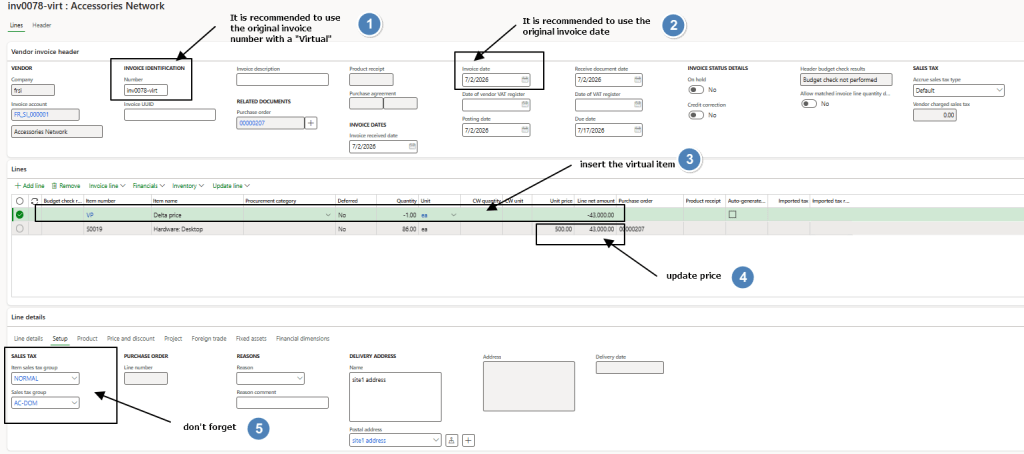
The posting will clear out the clearing account and proceed with the final cost recognition and inventory transaction update.


Leave a Reply