
Introduction
This article is part of a series on the use of deferral functions in D365FO. In it, we will review the key configuration components, their relationships, and the role each one plays.
Configuration
Before examining each configuration component, here is an overview of the configuration:
- Feature: Active the feature to manage the deferral
- Deferral templates: They define the deferral periods, such as a 12-month;
- Event-based deferral template: Alternative of deferral template. The Revenue and Cost recognition isn’t period but event-based. Rather to says 12 months, we set a list of events, and the recognition is completed further down the road during the compilation of each event;
- Items deferred by default: For the sales order, purchase order and items requirements, we define the product or categories where the deferral is triggered automatically, otherwise it’s manual;
- Deferral charges: Sales charge code where the deferral is triggered automatically from the sales order’s line;
- Deferral default: This is the posting profile used for our deferrals. Additionally, we define whether to use the default deferral template or event-based, to be applied in the calculations;
- Revenue recognition deferral parameters: Parameters to configure the deferral journal, sequence numbers, and overall deferral policies.
- Project group: This configuration is necessary only if we want to apply the deferrals in our project journal or timesheet;
Here you can see the relationships between the components, and those in bold are the minimum required:
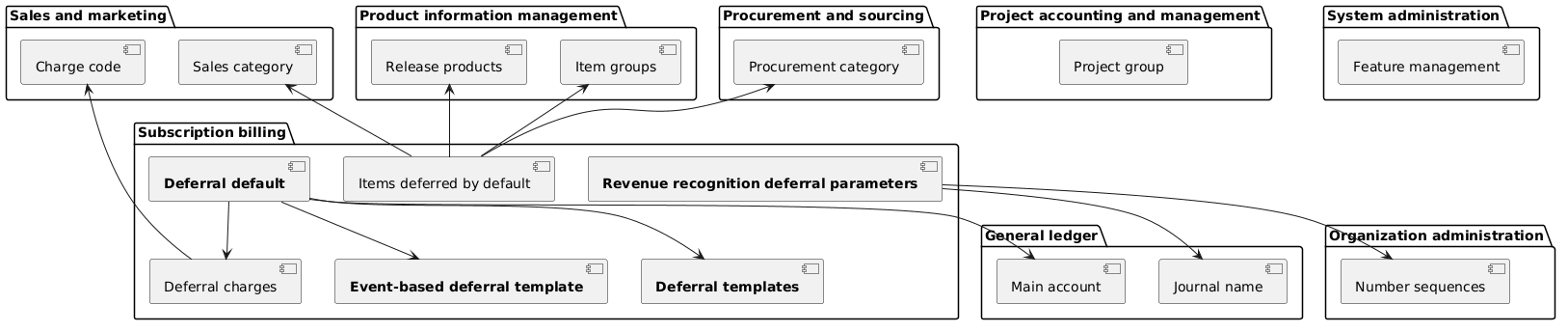
Configuration
Feature
Path: System administration> Workspaces> Feature management.
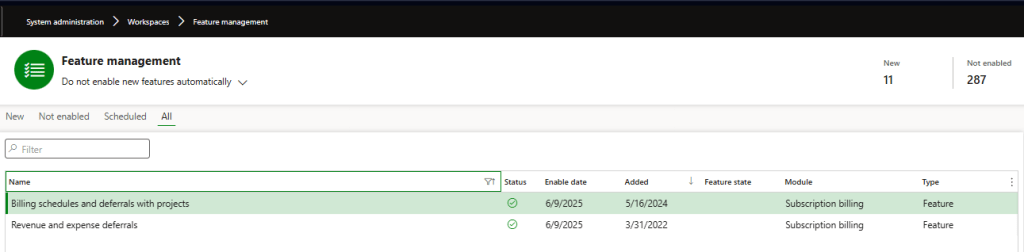
In Feature management, enable the Revenue and expense deferrals feature.
To apply deferrals to projects as well, also enable Billing schedules and deferrals with projects.
Deferral templates
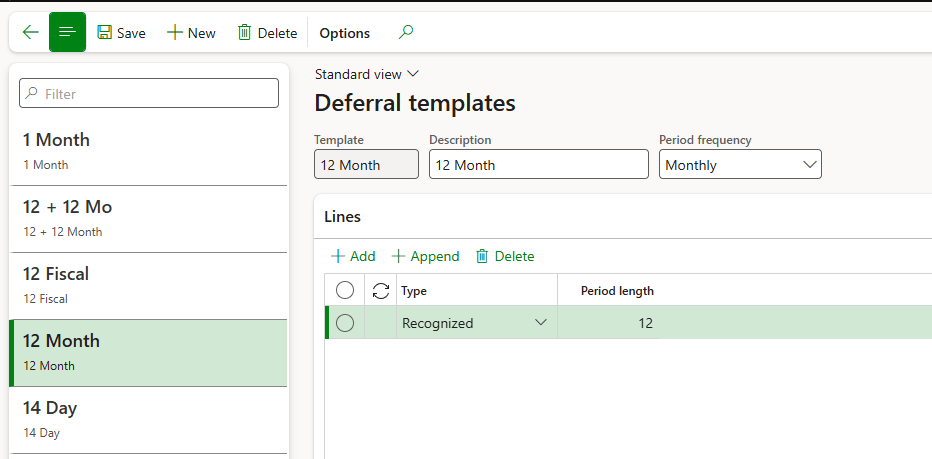
Path: Subscription billing> Revenue and expense deferrals> Setup> Deferral templates.
Insert the period’s unit of measure (like “month”). Then configure the length of the distribution:
Event-based deferral template
Path: Subscription billing> Revenue and expense deferrals> Setup> Event-based deferral template.
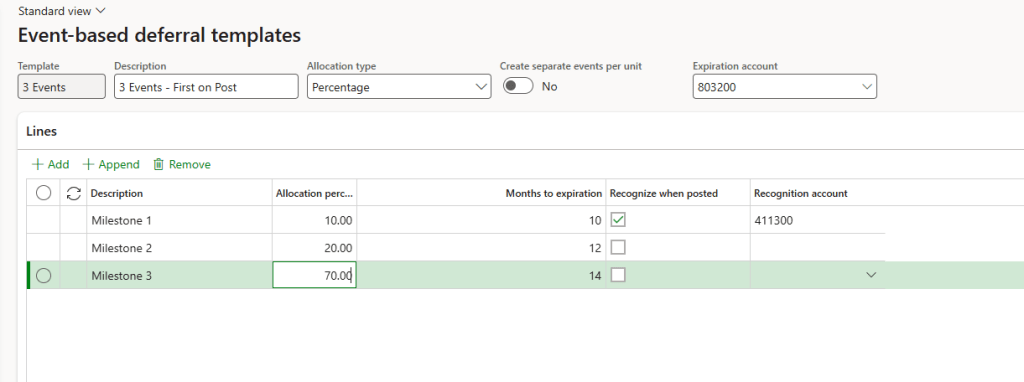
We set from here the event template. Concerning the header, here explanation concerning some configuration:
- Allocation type: How allocate the recognition:
- Variable amounts: A specific allocation amount for each line is entered. The allocation will be inserted directly into the deferral calculation form;
- Equal amounts: The amount is allocated equally for each line.
- Percentage: A amount is allocated based on the percentage value entered for each line.
- Percentage of completion : A cumulative completion value for each line is entered. The completion is track from the deferral schedule;
- Variable quantity: A specific allocation quantity for each line is entered. The allocation will be inserted directly into the deferral calculation form;
- Create separate event per unit: When select the system will create a events for each quantity. Example: if we set in the template 3 events and we have on our line a quantity of 2, the system will create 6 events;
- Expiration account: account to absorbe the revenue/cost after the expiration date;
At the line level the points to keep in mind are:
- Month to expiration: Months to add to calculate the expiration date from the start date;
- Recognition when posted: Recognition immediately when the document is posted;
- Recognition account: main account to use when we choose to set the “recognition when posted;
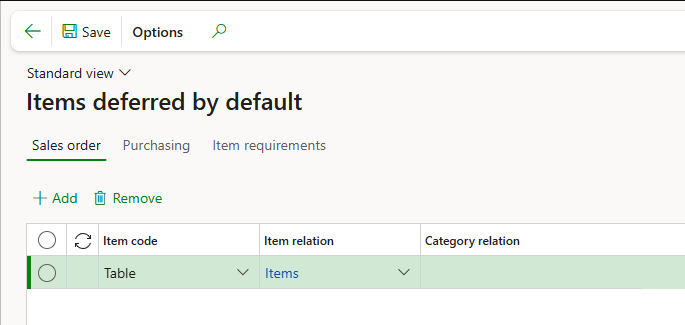
Items deferred by default
Path: Subscription billing> Revenue and expense deferrals> Setup> Items deferred by default.
Select the items for which the deferral will be triggered automatically in sales orders, purchase orders, or item requirements.
As an alternative, you can select the procurement or sales categories.
Deferral charges
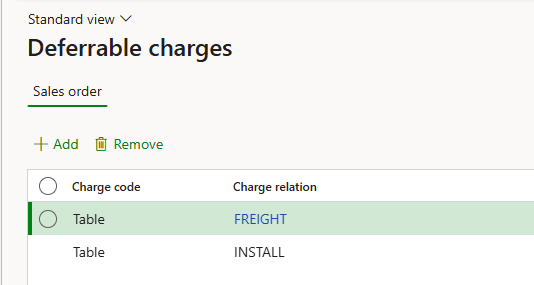
Path: Subscription billing> Revenue and expense deferrals> Setup> Deferral charges.
Select the charge for which we will trigger automatically the deferral in the sales order line:
Deferral default
Path: Subscription billing> Revenue and expense deferrals> Setup> Deferral templates.
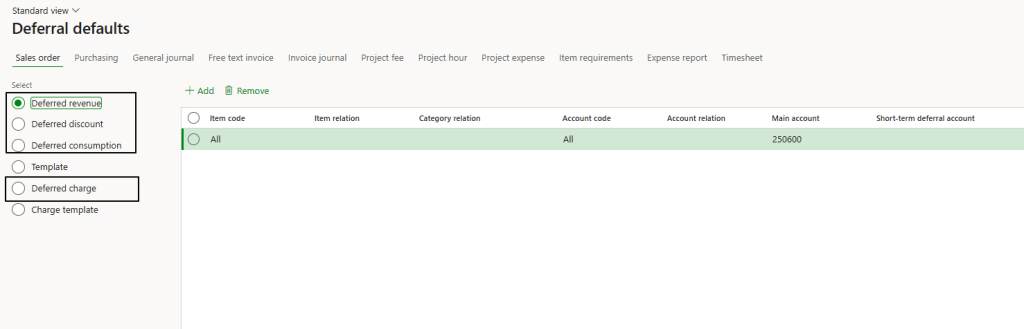
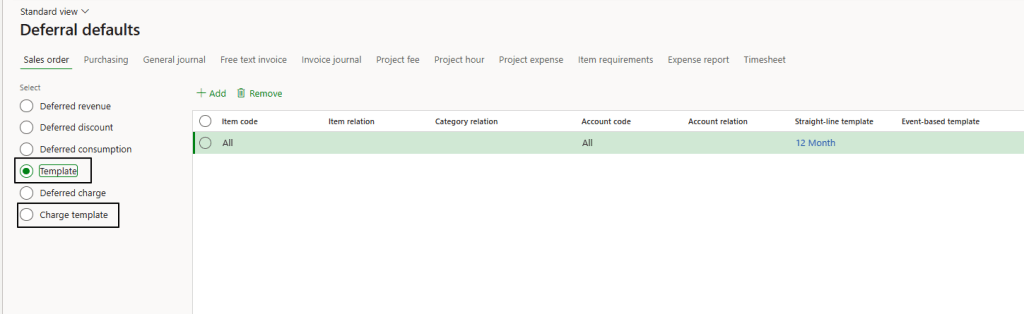
We provide a configuration example based on the sales order, but the same logic can be extended to other documents. The key configurations are:
- Main account: That’s the posting profile, in other words the main account to use during the posting. We can define the main account at the item, item group, or category level:
- Template: we select the deferral template (timeline) or event-based template to apply at our deferral calculation. We can set it for items, items group or category:
Revenue recognition deferral parameters
Path: Subscription billing> Revenue and expense deferrals> Setup> Revenue recognition deferral parameters.
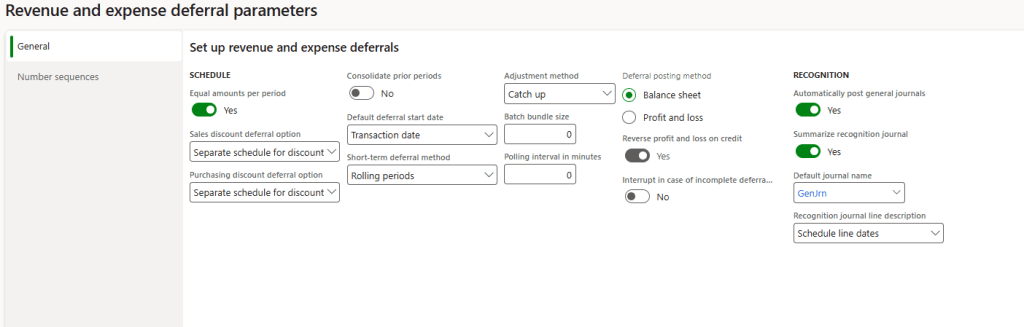
We set from there the general policies to handle the deferral. Below the keys points to focus on:
- Schedule: Policies about the creation of the deferral schedule
- Equal about per period: select whether the number of days in each period is considered or if all periods are considered to have the same number of days.
- Sales discount deferral options: For the Sales discount deferral option, select whether the discount amounts appear on a different deferral schedule from the deferral schedule for the sales order.
- Purchase discount deferral options: For the Purchasing discount deferral option, select whether the discount amounts appear on a different deferral schedule from the deferral schedule for the purchase order.
- Consolidate prior period: Select whether you want to Consolidate prior periods.
- Default deferral start date: Select how the Default deferral start date is determined (transaction date, start of month, start next month or 15th of the month);
- Recognition: Recognition journal posting policies
- Automatically post: Select whether to Automatically post general journals.
- Summary recognition journal: Select whether to Summarize recognition journal transactions so they are consolidated.
- Default journal name: Select the Default journal name for any journal transaction created
- Recognition journal line description: Select the source data for the Recognition journal line description.
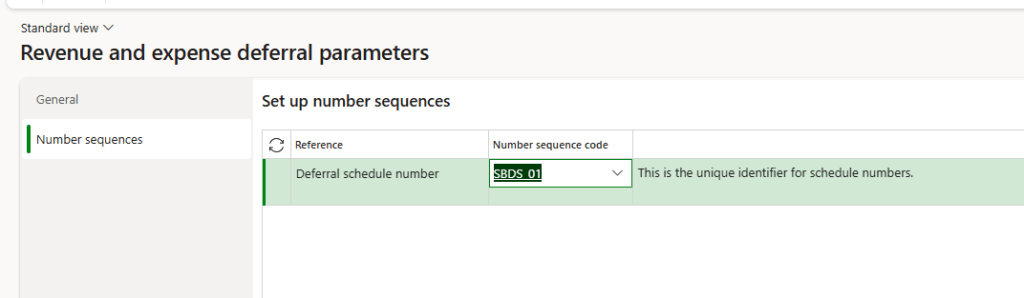
Set the sequence number used to create the deferrals schedule:
Project group
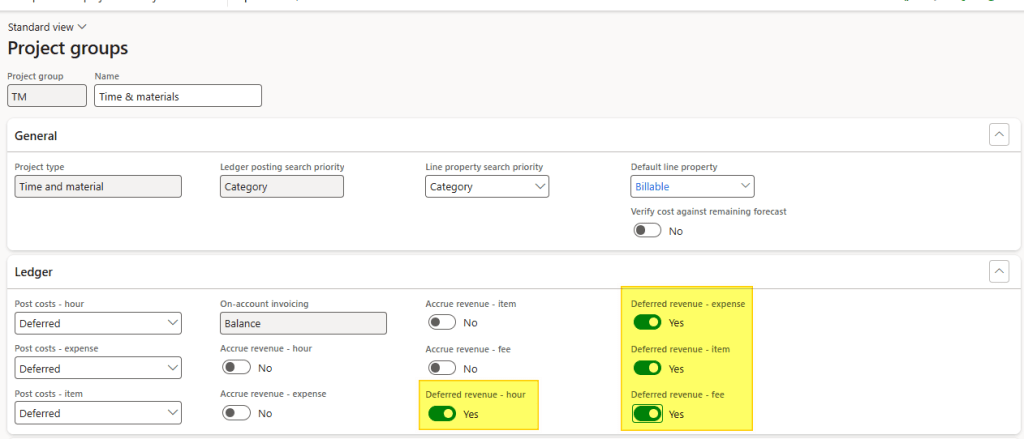
Path: Project management and accounting> Setup> Posting> Project groups.
Select for which journal we will the deferrals:
Source
For those who are interested, here are the sources used to gather information about the configuration:


Leave a Reply