
Introduction
This function enables us to create deferral schemes from documents to defer revenues and costs to future periods. The documents to which we can apply deferral schemes are:
- Sales order;
- Free text invoice;
- Pending invoice
- Vendor Invoice journal;
- General ledger;
- Project hour;
- Project Timesheet;
- Project expense;
- Project free;
- Project Items requirements
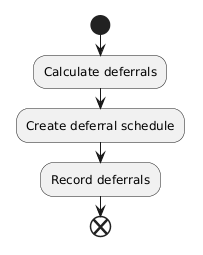
For each of these documents, the process is always the same:
- Calculate deferrals: Insert deferral information into the document. For Sales orders, Purchase orders, and Item requirements, the calculation can be triggered automatically.
- Create deferral schedule: This occurs automatically when the document is posted. The system posts the general ledger entry and creates the deferral scheme.
- Record deferrals: Post the deferral entries. Notice there are two way to track the recognition:
- Straight line: Recognition by period (for example each month, for the next 12 months)
- Event-based: Mark the event completed
This article focus on the process, however you can read here the configuration tied to this function: https://dax365fo.org/2026/06/18/deferral-configuration/
Process
We will process an example using as original document a pending invoice from a purchase order. But consider that the logic is exactly the same all the documents.
However, the layouts are slightly different from one document to another, and the trigger point for deferrals also varies. For more details, see the annex for the location of the button to apply deferrals for each document.
Calculate deferrals
Note: Deferrals can be triggered automatically only from Sales orders, Purchase orders, and Item requirements. For all other documents, the trigger is manual. If no automatic trigger is configured, the deferral calculation parameters remain manual. For more details, refer to the configuration specification: https://dax365fo.org/2026/06/18/deferral-configuration/
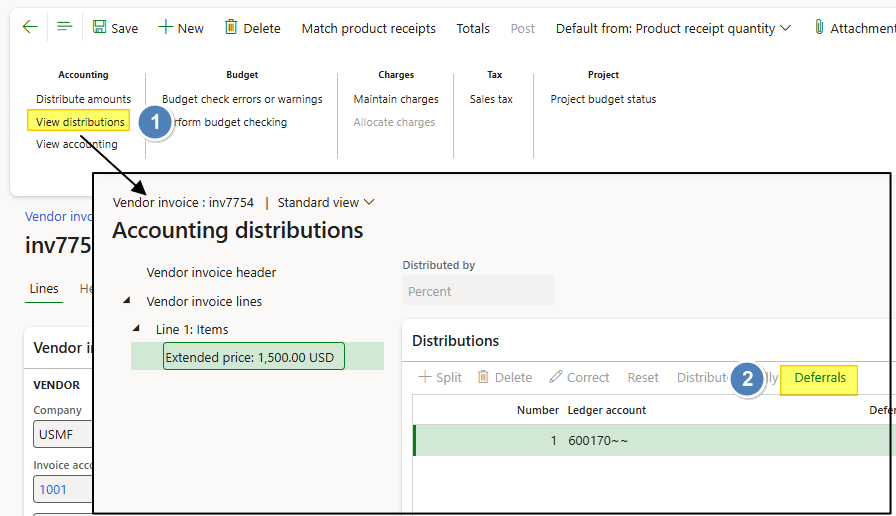
Path: Accounts payable> Invoices> Pending invoice.
Open the account distribution and press “Deferrals”:
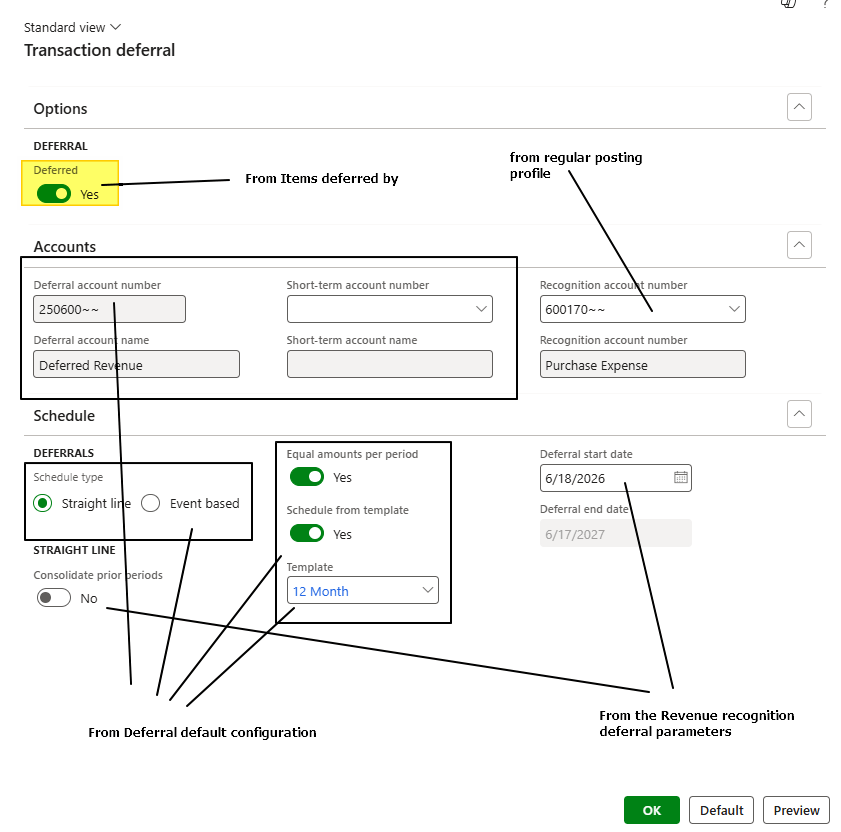
Here we insert the essential information about the calculation. Notice, that some components can be inherited from the configuration:
- Deferred: select the flag to apply the deferral
- Accounts:
- Deferral account number: clearing account to defer the revenue/cost;
- Short-term account number: clearing account for short-term deferal;
- Recognition account number: Recognition account from the regular posting profile (in this example from the items posting profile)
- Straight line: Choose to calculate based on straight method.
- Equal amounts per period: select whether the number of days in each period is considered or if all periods are considered to have the same number of day;
- Schedule from template: select to base the calculation from the template;
- Template: select the deferral template period;
- Deferral end date: Alternative to using the template;
- Event based: Choose to calculate based on events.
- Event-based deferral template: select the events template;
- Consolidate prior periods: Consolidate the previous periods (deferral start date before the transaction date);
- Deferral start date: Start date, based on deferral parameters;
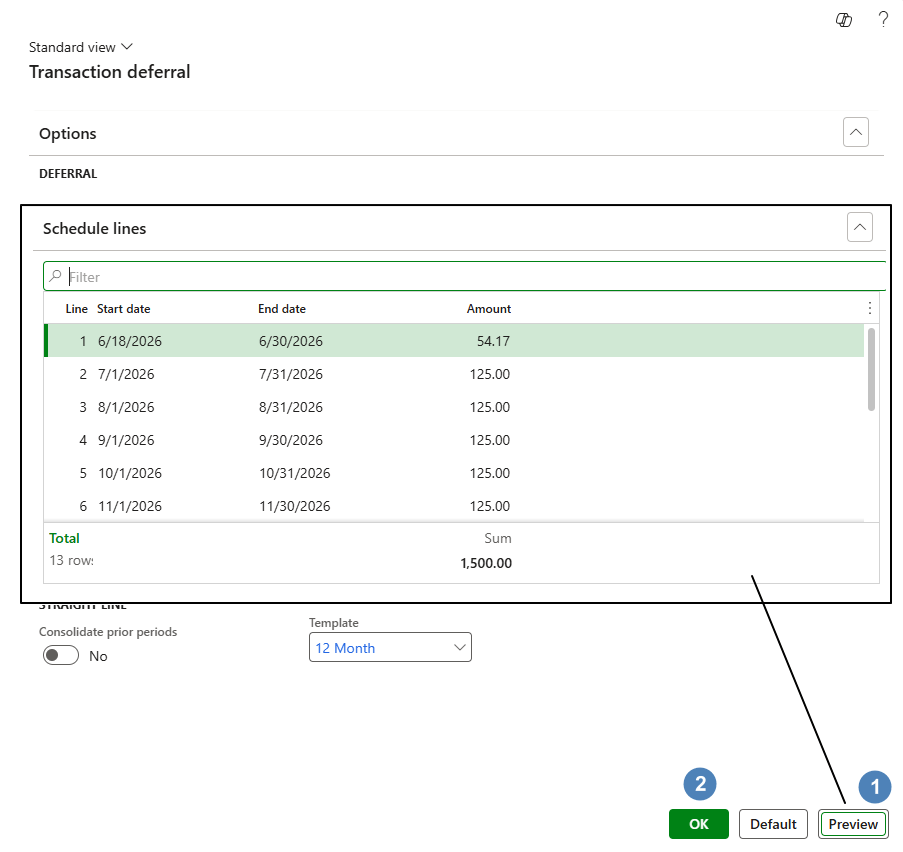
Click Preview to view the calculation, then click OK to validate.
Create deferral schedule
The deferral schedule is created when we post the document. Wen it’s finished we can see the schechule from: Subscription billing> Revenue and expense deferrals> Deferral schedules> All deferral schedules.
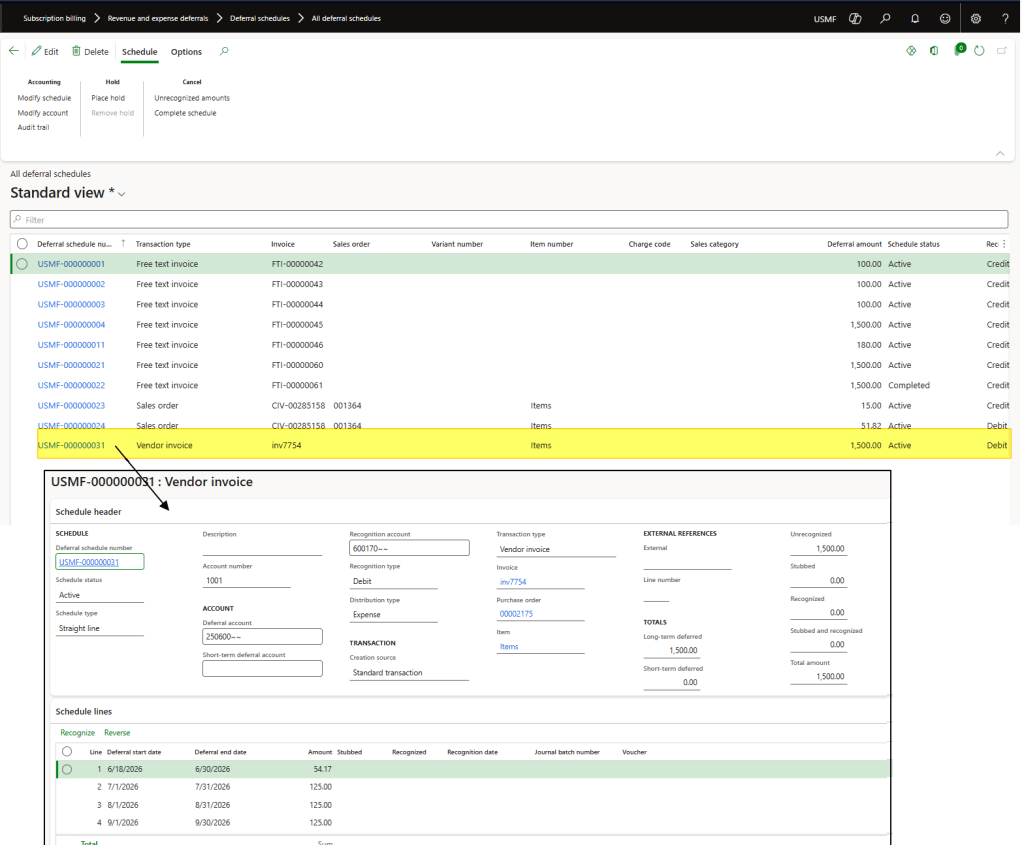
Here is an example of the entry did by D365FO when we post the invoice:
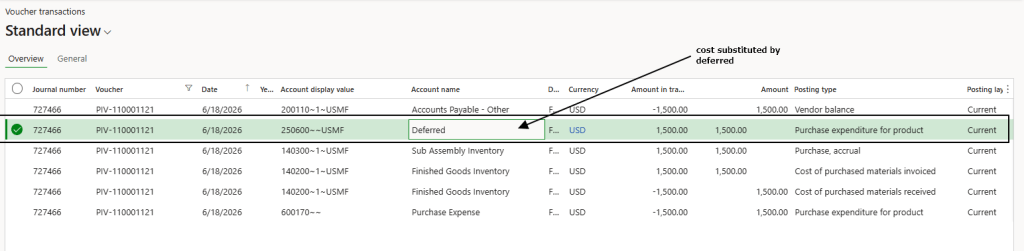
Record deferrals
Path: Subscription billing> Revenue and expense deferrals> Deferral schedules> All deferral schedules.
Straight line method
If we decide to use a deferral recognition based “Straight line”, juste select the period and click en recognize. The system will automatically create the journal and eventually post it based on the configured parameters.
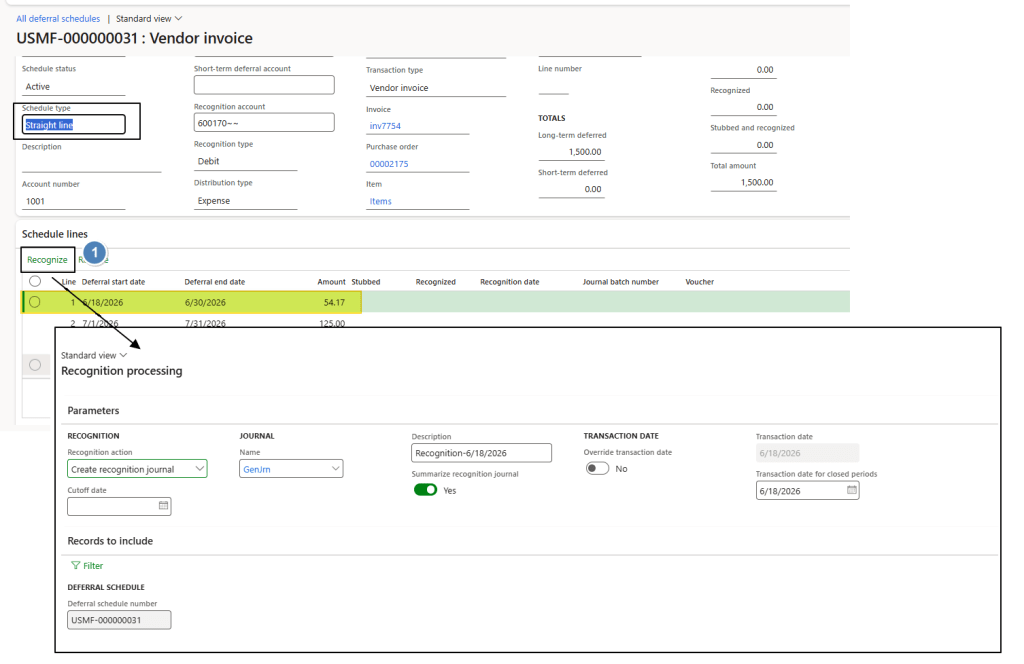
Straight line method
If we decide to use a deferral recognition based “Event based”, juste select the event and click en recognize. The system will automatically create the journal and eventually post it based on the configured parameters.
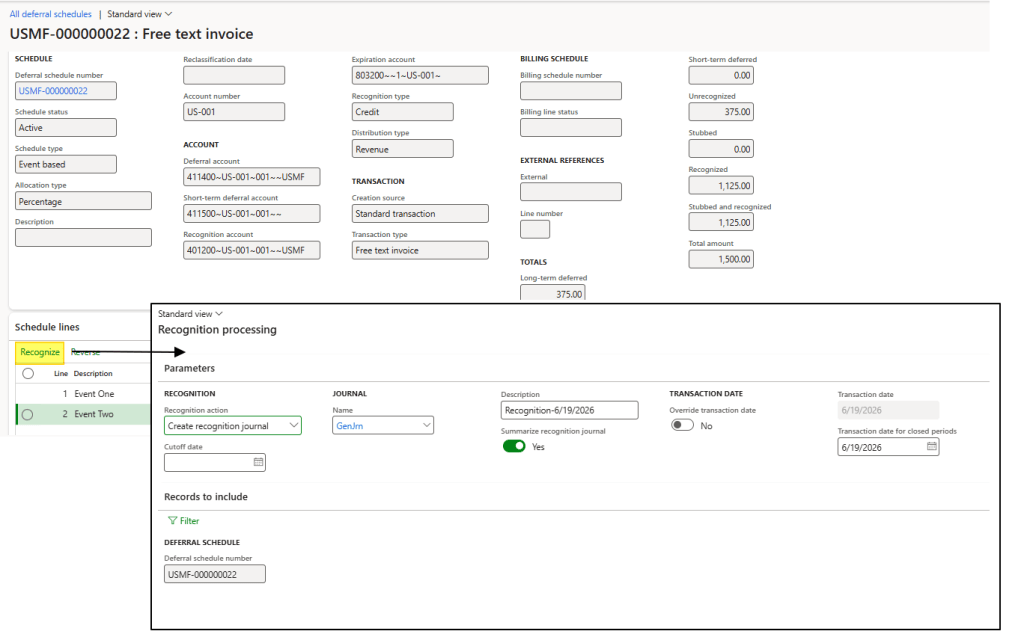
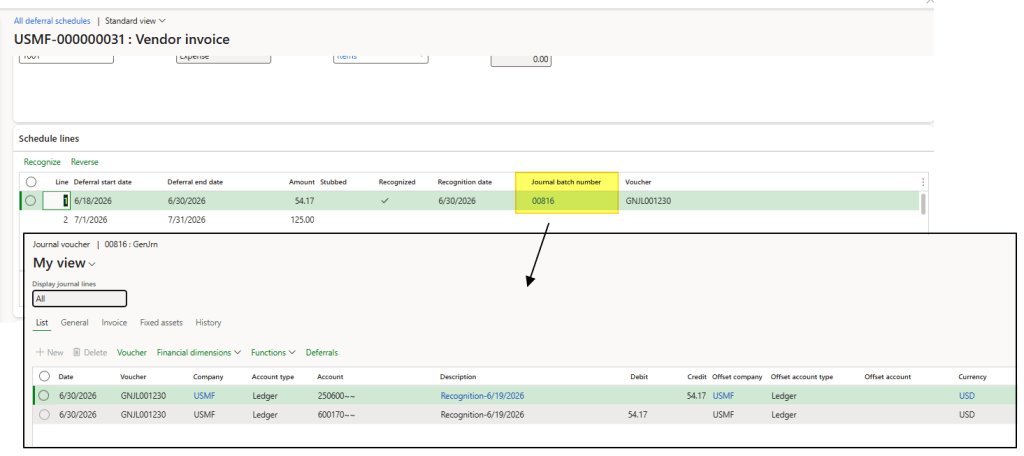
General ledger entry
The system will clear the clearing account configured as the “Deferral account” and post the related cost or revenue recognition.
Annex
The process is the same as for the original documents. In this annex, we will see where to find the button to manually trigger the deferral.
Account receivable
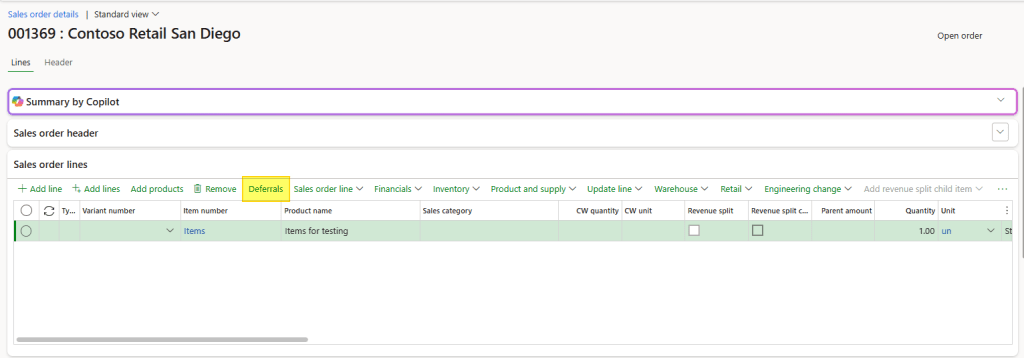
Sales order
The deferrals are present at the line level.
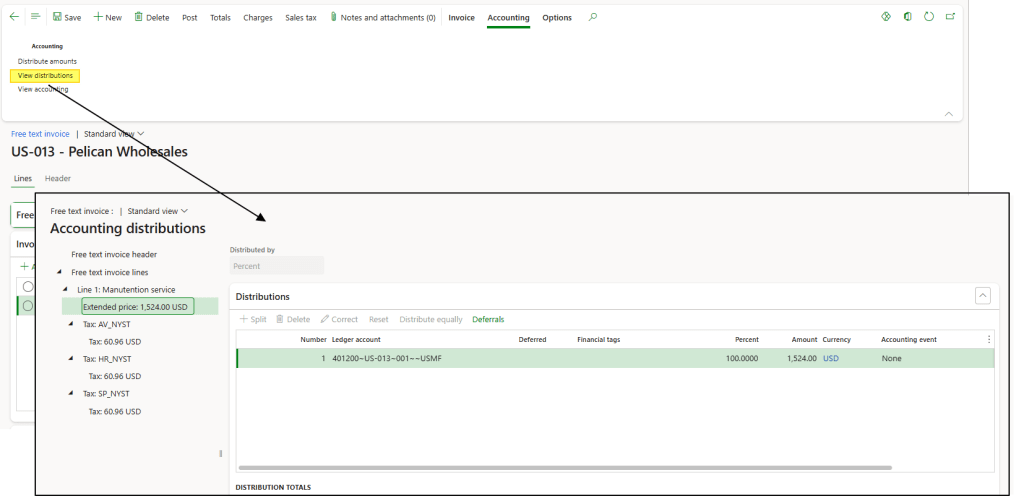
Free text invoice
The deferrals are present in the accounting distributions.
Account Payable
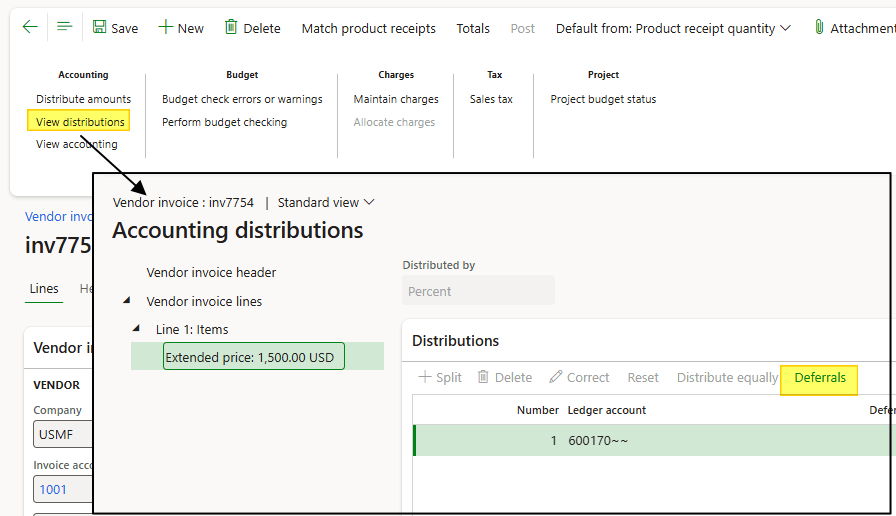
Pending invoice
Special mention: Thanks to Eugen Glasow, who highlighted that the pending vendor invoices used for deferrals can be linked (or not linked) to a purchase order, for example, service invoices.
The deferrals are present in the accounting distributions.
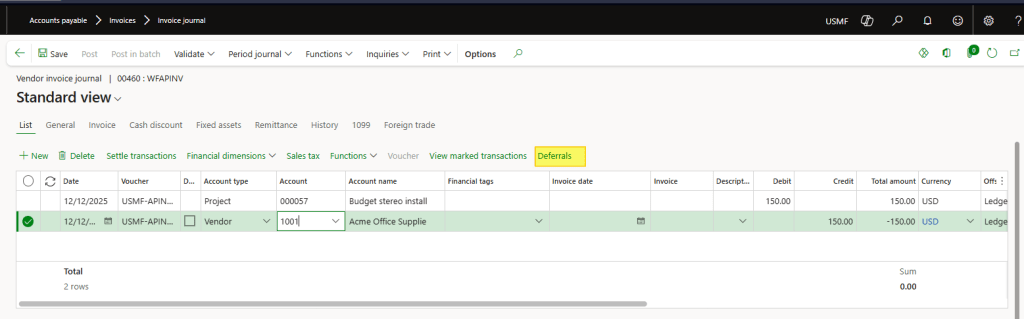
Vendor Invoice journal
The deferrals are present at the line level.
General Ledger
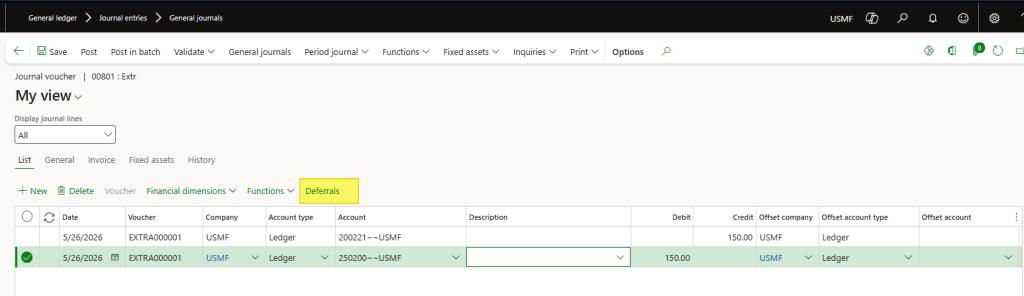
General ledger journal
The deferrals are present at the line level.
Project management and accounting
Project hour journal / Project expense journal / Project Fee journal
The deferrals are present at journal header level:

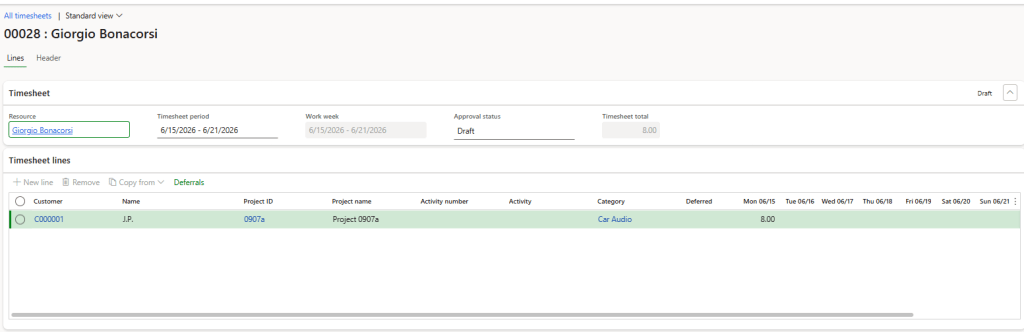
Project Timesheet
The deferrals are present at the line level.
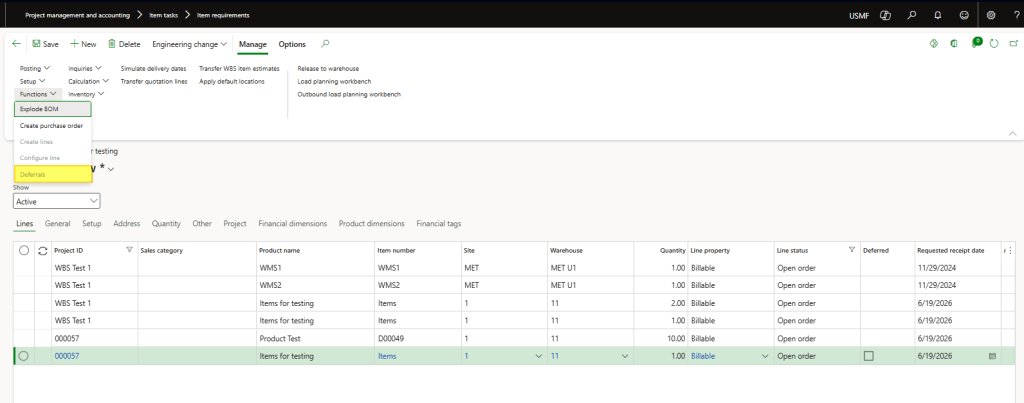
Project Items requirements
The deferrals are present in the bar tools.


Leave a Reply