
Introduction
This article summarizes the different ways to perform API requests through OData. We will present template to use, when we develop this kind of integration. It is the preferred approach for handling large volumes of records. In other words, it’s the perfect solution whether you need to create, update, retrieve, or delete data.
Technical specification
Key concepts
The request must be sent to a specific URL address.
Each request consists of two main header’s elements and a body:
Headers:
- Authorization: Bearer Token – used to authenticate the request. (See this article for setup details: https://dax365fo.org/2026/06/03/application-data-integration-token-authentification/)
- Query Parameters You can add the following OData query options to refine your request:
- cross-company
- $filter
- $count
- $orderby
- $skip
- $top
- $expand
- $select
Body:
- Data: JSON data (used when creating or updating a record).
Addressing
The address is structured basically in this way:
https://{environment url}/data/{resource}https://example.sandbox.operations.dynamics.com/data/CustomerGroups
List of all resources
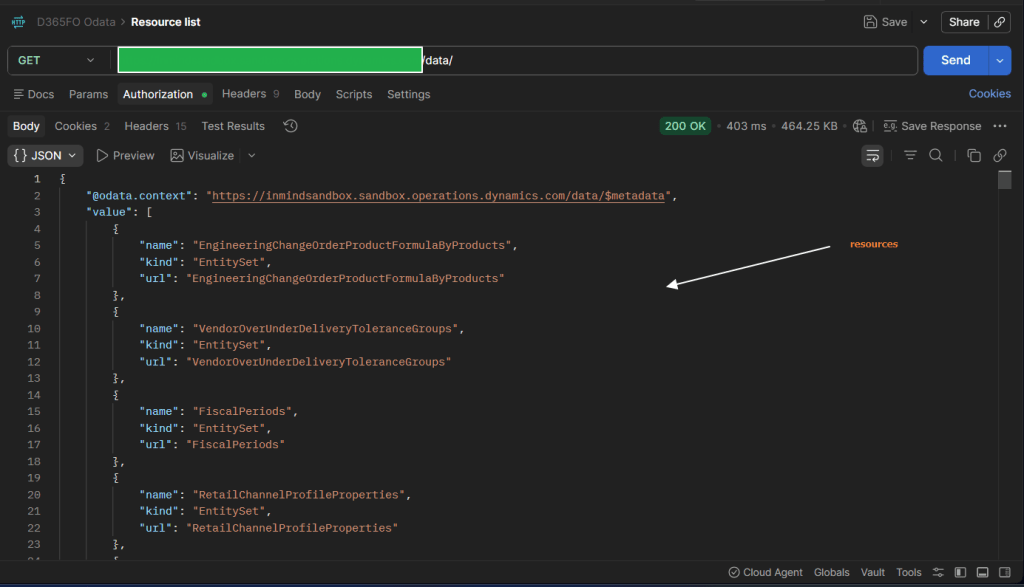
The resource represents the “data entity” in D365FO, and the name is usually the same. To retrieve the list of all available resources, you can query D365FO as follows. As response we will have the full list:
GET https://{environment url}/datahttps://example.sandbox.operations.dynamics.com/data
Filter specific record/field from keys
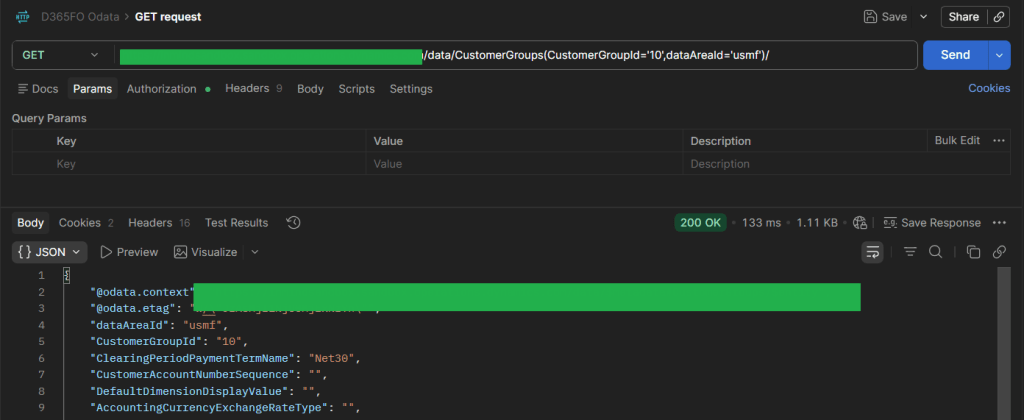
Sometimes we need to target a specific record (for example to update or delete it). In this case, we can add a filter directly in the URL to retrieve that record. We can filter for keys variables (separate them by a comma):
https://{environment url}/data/{resource(insert your keys filter)}https://example.sandbox.operations.dynamics.com/data/CustomerGroups(CustomerGroupId='10',dataAreaId='usmf')
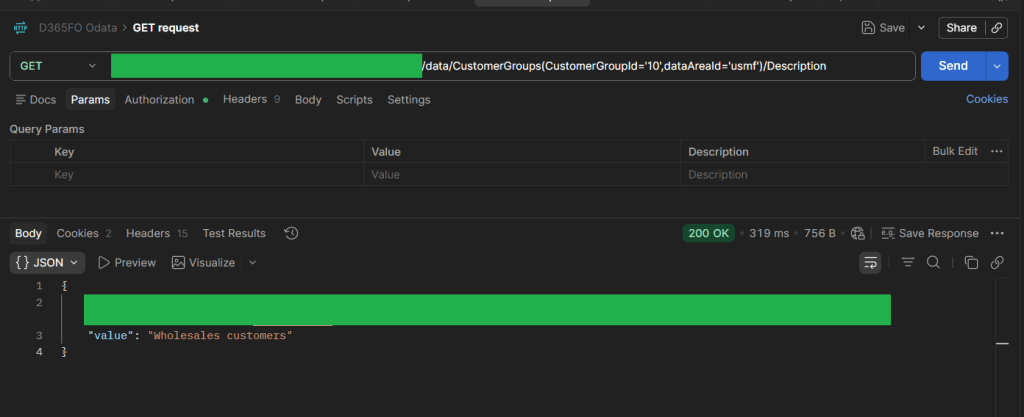
We can even decide to target a specific field:
https://{environment url}/data/{resource(insert your keys filter)}/Fieldhttps://example.sandbox.operations.dynamics.com/data/CustomerGroups(CustomerGroupId='10',dataAreaId='usmf')/Description
Query Parameters
Cross-company
D365FO return the data from the legal entity configurated on the user related to our application (see this article for setup details: https://dax365fo.org/2026/06/03/azure-application-registration/):
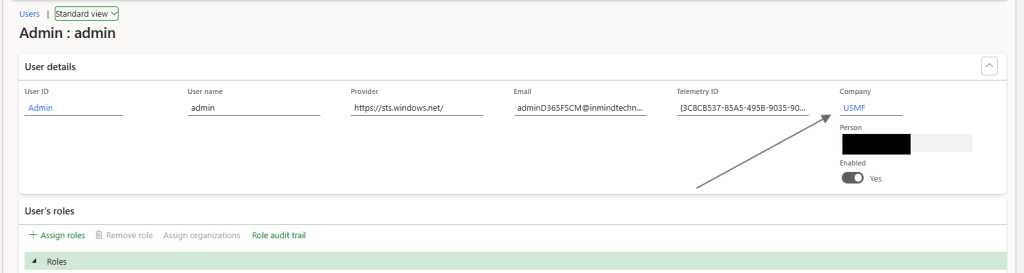
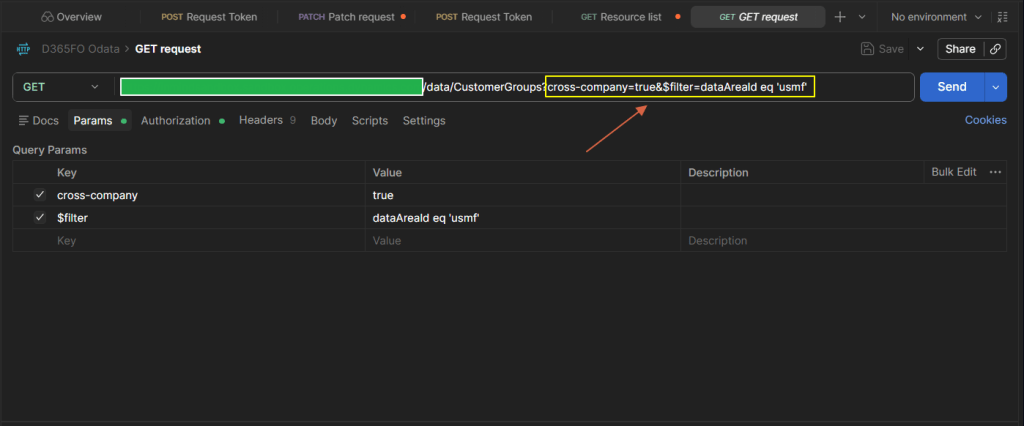
However, if you want to extract data from another legal entity, set the cross-company parameter as true. This returns data from all legal entities, so add an additional filter on dataAreaId to retrieve records for a specific legal entity.
https://{environment url}/data/{Resource}?cross-company=true&$filter=dataAreaId eq {legal entity}https://example.operations.dynamics.com/data/CustomerGroups?cross-company=true&$filter=dataAreaId eq 'usmf'
$filter
As mentioned by the name this query parameter filter the data. The operator available are:
- Equals (eq)
- Not equals (ne)
- Greater than (gt)
- Greater than or equal (ge)
- Less than (lt)
- Less than or equal (le)
- And
- Or
- Not
- Addition (add)
- Subtraction (sub)
- Multiplication (mul)
- Division (div)
- Decimal division (divby)
- Modulo (mod)
- Precedence grouping ({ })
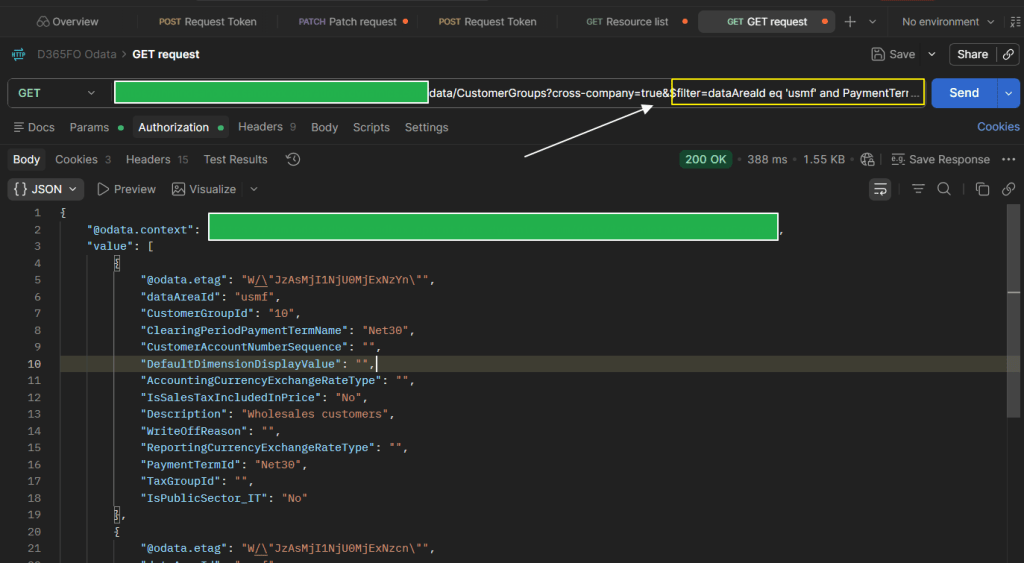
Notice, that we can filter by several criteria using and/or:
https://{environment url}/data/{resource}?filter={criteria}https://example.operations.dynamics.com/data/CustomerGroups?filter=dataAreaId eq 'usmf' and PaymentTermId eq 'Net30'
Other paramters
They are rarely used in practice. But for more details on how to use thm, see this article: https://www.linkedin.com/pulse/working-odata-protocol-dynamics-365-finance-operations-syed-amir-ali-8wbaf/
Request template
The information provided in the technical specification are sufficient to build the OData integration. However, here are examples of requests to perform CRUD operations. You can reuse them to build your own requests.
The resource uses for our template example is: CustomerGroups.
Create
Request to create data record in D365FO.
Method: POST
Address: {environment url}/data/{resource}
Header:
Parameters:
- Empty
Body:
- Insert the JSON of the data to create
Address example:
https://example.operations.dynamics.com/data/CustomerGroups
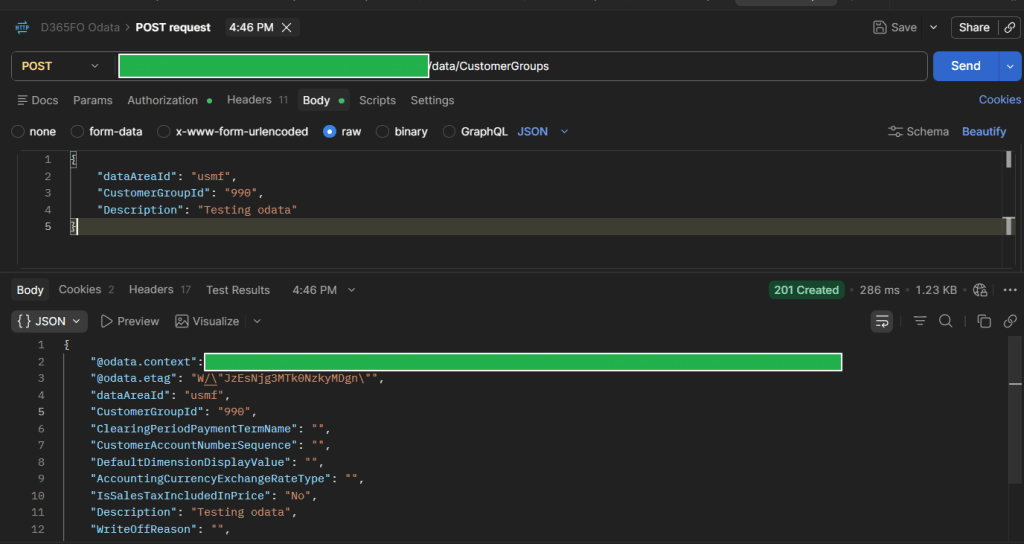
Body example:
{ "dataAreaId": "usmf", "CustomerGroupId": "980", "Description": "Testing odata"}
D365FO will return the data of the record just created:
Read
Request to read data from D365FO.
Method: GET
Address: {environment url}/data/{resource}
Header:
Parameters:
- cross-company=true
- &filter=dataAreaId eq ‘{insert the legal entity}’
Body:
- Empty
Address example:
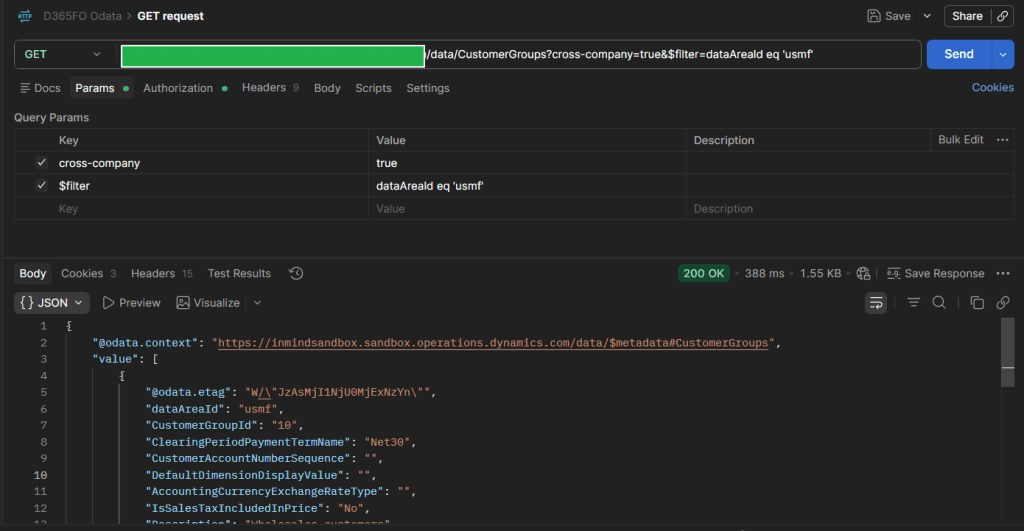
https://example.operations.dynamics.com/data/CustomerGroups?cross-company=true&$filter=dataAreaId eq 'usmf'
D365FO will return the data based on the query:
Update
Request to update a data in D365FO.
Method: PATCH
Address: {environment url}/data/{resource(insert your keys filter)}
Header:
Parameters:
- cross-company=true
Body:
- Insert the JSON of the data to update
Address example:
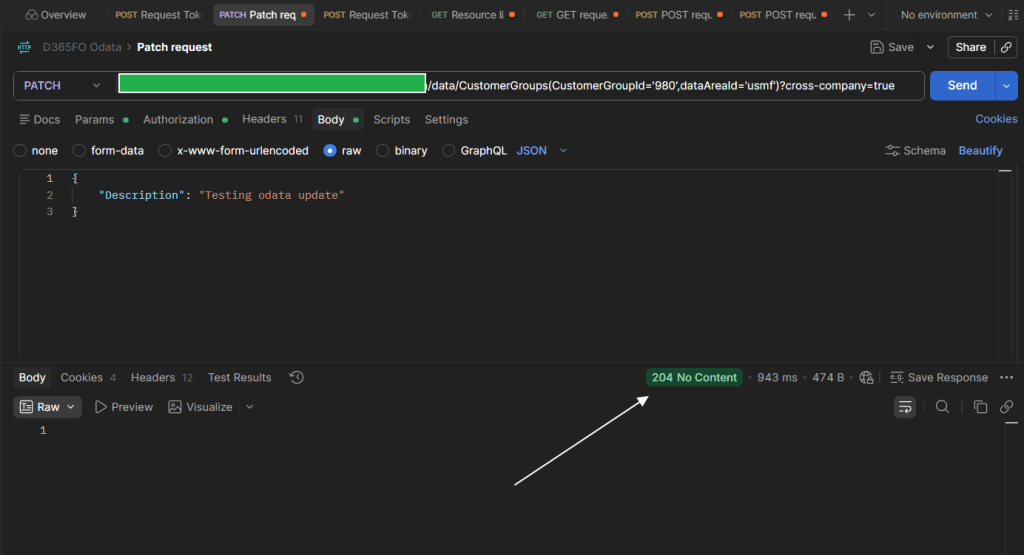
https://example.sandbox.operations.dynamics.com/data/CustomerGroups(CustomerGroupId='980',dataAreaId='usmf')?cross-company=true
Body example
{ "Description": "Testing odata update"}
D365FO will return the confirmation status 204:
Delete
Request to delete a data in D365FO.
Method: DELETE
Address: {environment url}/data/{resource(insert your keys filter)}
Header:
Parameters:
- cross-company=true
Body:
- Empty
Address example:
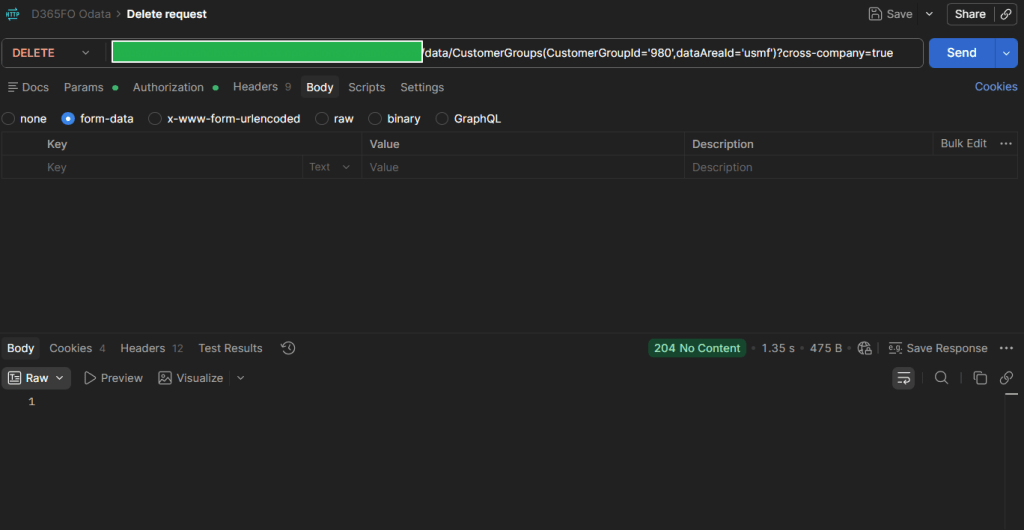
https://example.sandbox.operations.dynamics.com/data/CustomerGroups(CustomerGroupId='980',dataAreaId='usmf')?cross-company=true
D365FO will return the confirmation status 204:

 Dax365FO
Leave a comment